View lab query report
A lab query is a request for clarifying, fixing, or otherwise addressing discrepancies in the data collected from the lab. The lab queries are generated from the site normal range page.
A lab query can be resolved or answered by the personnel to whom the query has been assigned. The assigned personnel investigate the issue and inspect the concern in detail before answering the query. A resolved query is marked as closed.
In this section, you can view the details of all lab queries generated for different laboratory data. It helps you analyze different uncertainties and information requested by different users and relevant responses to those concerns.
Important
To view this report, based on your role, you must have the Lab Queries permission granted via the ADMIN application.
-
In the EDC application header, select the REPORTS tab.
-
On the page that opens, in the left pane, select the Query Report subtab to expand the list of available reports and select Lab Query Report.
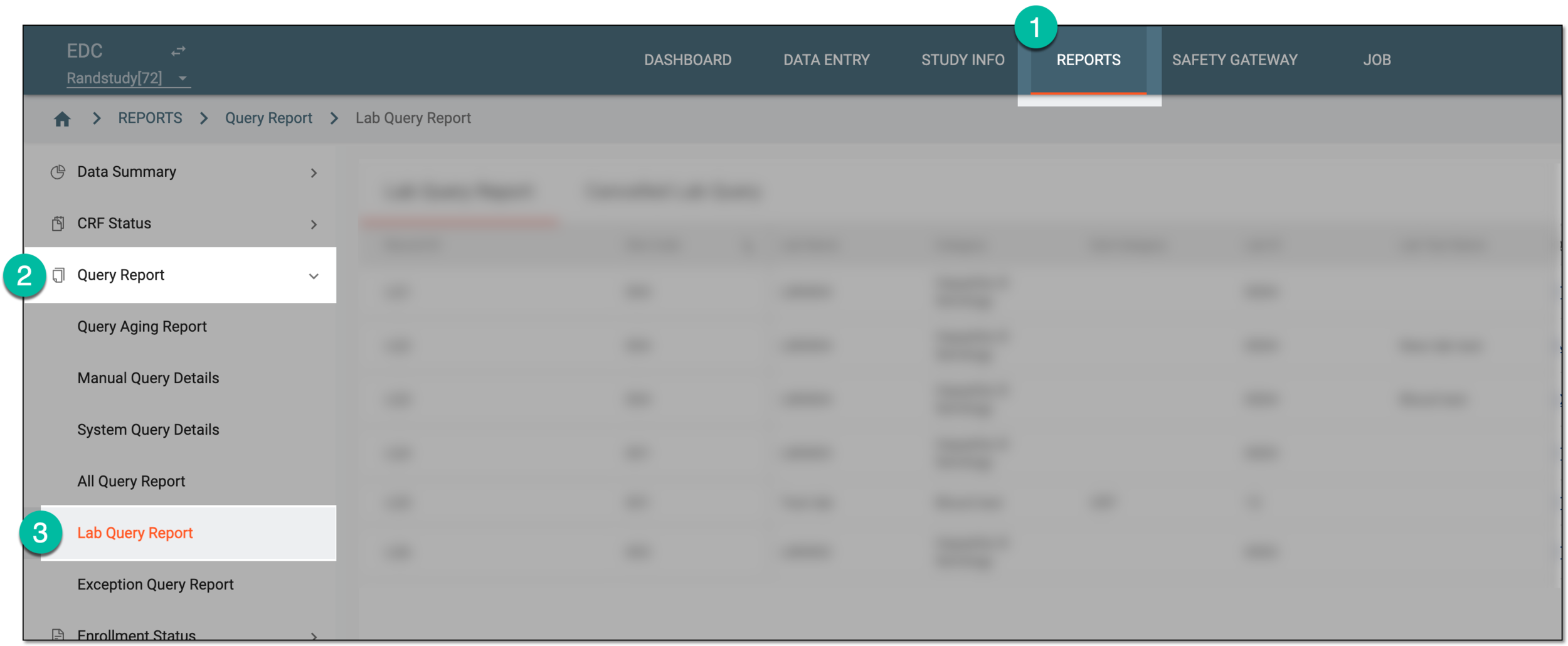 Figure 1. Accessing lab query report
-
In the Lab Queries table that appears, view the details of all the attributes as explained in the following table.
 Figure 2. Reviewing lab query report
Element
Details
Record ID
Represents the unique identifier assigned to the query that remains constant throughout the EDC application.
Site Code
Represents the code of the site to which the lab test category with the query is associated.
Lab Name
Represents the name of the lab in which the query resides.
Category
Represents the category of the lab test for which the query has been generated, for instance, Urinalysis.
Sub-Category
Represents the subcategory of the lab test data, for instance, the subcategory of LB is Hematology.
Currently, in the EDC application, the sub-category value is not used. This value is preset for studies that use the domain name (LB, DM, and so on) as a category, then the subcategory is Hematology, Urinalysis, and so on.Lab ID
Represents the unique ID of the lab in which the query resides.
Lab Test Name
Represents the name of the laboratory test for which the query is generated, such as Bilirubin, Glucose, and so on.
Query Topic
Represents the inquiry text of the query, depicting the reason for which the query is generated.
Queried By
Represents the name of the user who raised the query.
Owner Role
Represents the user role currently responsible for lab query handling in the EDC system.
This is needed in the case that during the study, the sponsor decides to change the role in charge of lab query handling in the system. Then, the Creation Role value remains as is, but the owner role reflects the new role assigned to query management.
For instance, the user role that has been responsible for opening queries in EDC is "DM_001." Then the sponsor decided, that the users of the role "DM_002" must be in charge of query creation. Now in the report, you can see that Creation Role is "DM_001," however, Owner Role is "DM_002."
Creation Role
Represents the role of the user who created the query.
Creation Date
Represents the date when the query is created.
Query Age (days)
Represents the number of days passed since the query has been generated.
Assigned To
Represents the user role who is responsible for the solution of the query.
Pending Action From
Represents the name of the user role who is responsible for the resolution of the query.
Status
Represents whether the lab query is open or paused.
Overdue
Represents whether the query has passed the expiration date or not.
Final Reply Text
Represents the last response to the query.
Final Reply Date
Represents the last date when the query has been replied.
Closed By
Represents the name of the user who closed the query.
Closed Date
Represents the date when the query has been closed.
Once the report details are studied, you can leave the page or perform other suggested manipulations.