Update DIA RM version for study (TMF base)
In eTMF, under the TMF tab, you can configure your study TMF base according to DIA RM. Following the DIA's reference model aids in the standardization of document creation, naming conventions, and formatting. Standardized practices ensure consistency across documents, making it easier for regulatory authorities and auditors to navigate and review the trial documentation.
When using DIA RM, you might need to maintain the versioning of your reference model to keep up with the latest guidelines and industry standards. In eTMF, you can update the TMF base DIA RM version to the needed one, meaning that you can either upgrade to the newer version or downgrade to one of the previous ones if required.
-
In the eTMF application header, select the TMF tab.
-
In the Study List table that appears, locate the study for which you need to update the DIA RM version. Then from the Actions column next to your study, select More
 > Update DIA RM Version
  .
.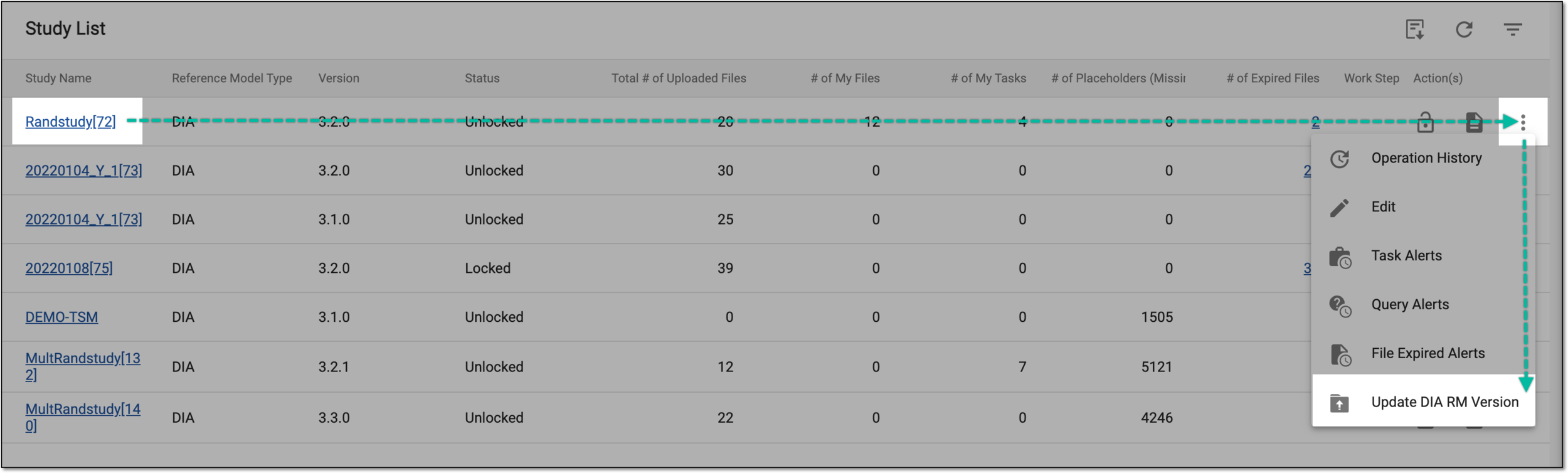 Figure 1. Selecting to update DIA RM version
-
In the Update Version form that opens, complete the elements as explained in the following table.
 Figure 2. Selecting version and simulating changes
Element
Details
Current Version
Represents the version of DIA RM in the read-only mode that is currently followed by the eTMF system to organize your TMF base.
Change to
From the dropdown menu, select the DIA RM version to which you want to update your TMF base.
SIMULATE AND FREEZE
Select
 to do the following:
-
Generate the list of potential changes to the milestones, artifacts, and placeholders of your study.
-
Freeze the study, meaning that it becomes temporarily unavailable for users to manage this study's directories and files.
This button is only activated when the target DIA RM version is selected.Tip
Once the study is frozen, the respective indicator appears next to its name in the Study List table.
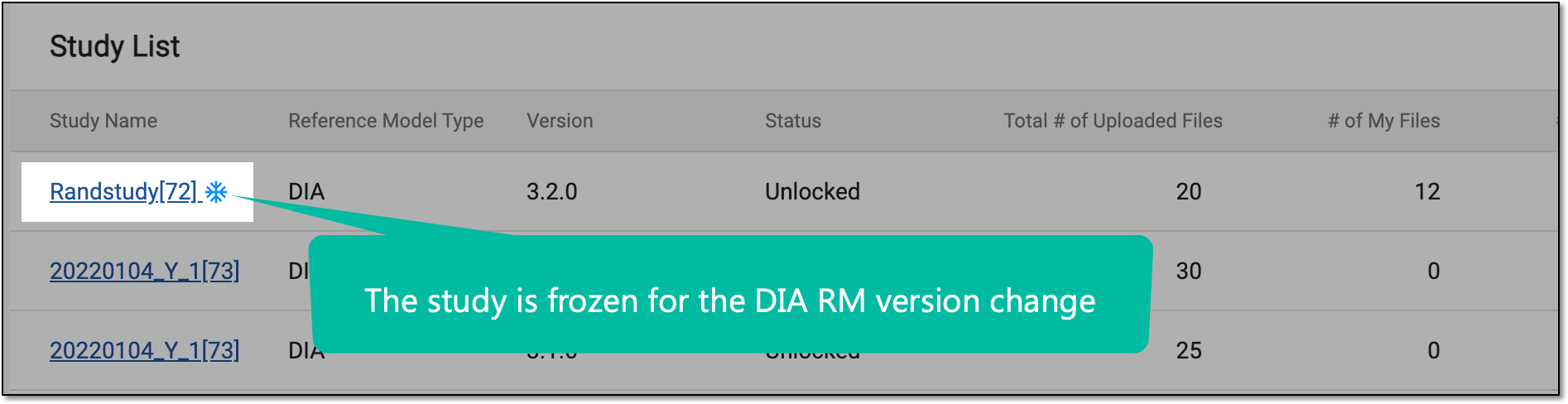 Figure 3. Example of frozen study indication
-
-
In the generated lists—Milestones, Artifacts, and Placeholders—review the simulated changes that are to take place if you update the DIA RM version to the selected one.
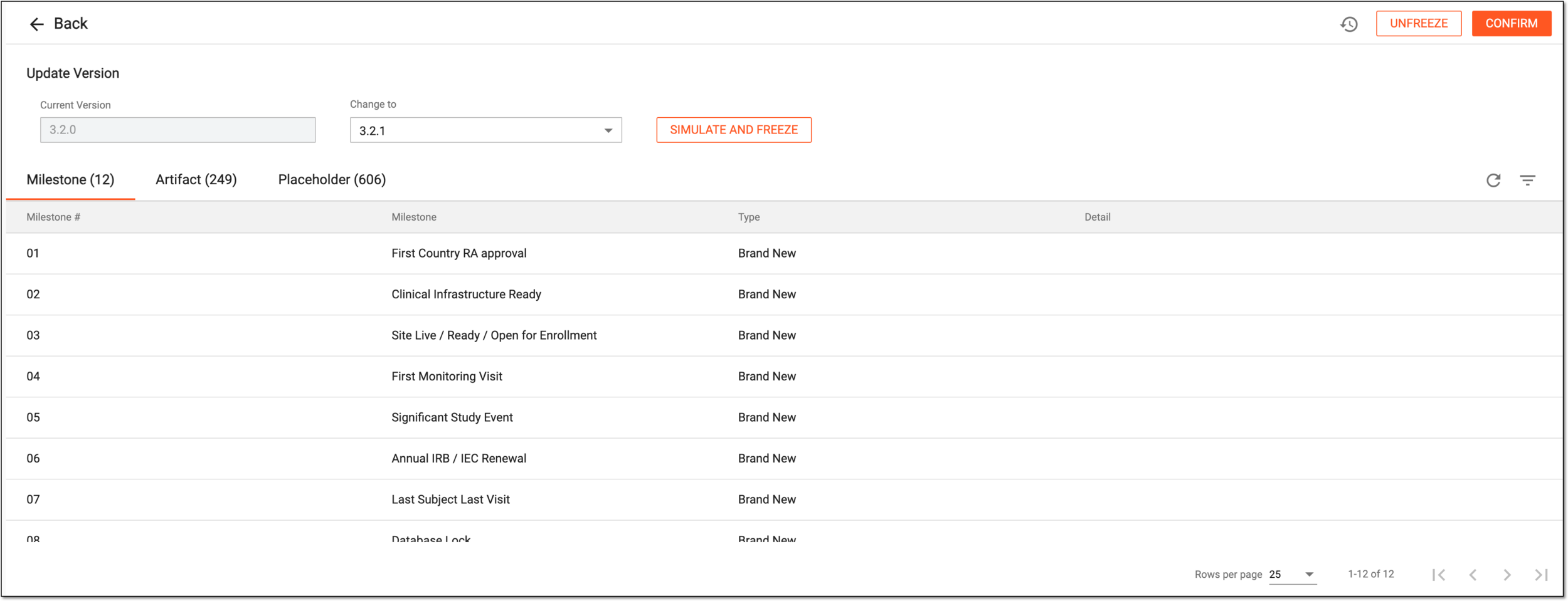 Figure 4. Reviewing simulated changes
Tip
You can find the type of change and the details in the respective columns. For instance, for the Rename operation type, the details show the previous and new names, and for Brand New, there are no details because this means that a new milestone, placeholder, or artifact is to be added to your TMF base.
-
Once all changes are reviewed, select one of the following options:
-
 : select to apply the changes and update your study to the selected DIA RM version.
 -
 : select to cancel the version update and unfreeze your study, meaning it becomes available again for eTMF users.
-
Upon confirmation, your study is updated to the selected version, and all the respective changes are applied to the TMF base.
View DIA RM version update history and download change report
For the studies whose TMF base is configured according to DIA RM, you can maintain the versioning of your reference model to keep up with the latest guidelines and industry standards.
For traceability and accountability, eTMF stores the history of all version updates and detailed reports on all changes pertinent to each update. The versioning history for each of your studies you can review online with the DIA RM Version Change History feature. Moreover, the report on the changes that have taken place upon a certain version update, you can download as an XLSX file and review in detail on your computer.
-
In the eTMF application header, select the TMF tab.
-
In the Study List table that appears, locate the study for which you want to view DIA RM version history. Then from the Actions column next to your study, select More
> Update DIA RM Version .Figure 1. Selecting to access DIA RM version updates
-
On the Update Version page that opens, from the workspace toolbar, select DIA RM Version Change History
 .
. Figure 2. Accessing option to view DIA RM version history
-
In the DIA RM Version Change History dialog that appears, view the complete history of all version updates.
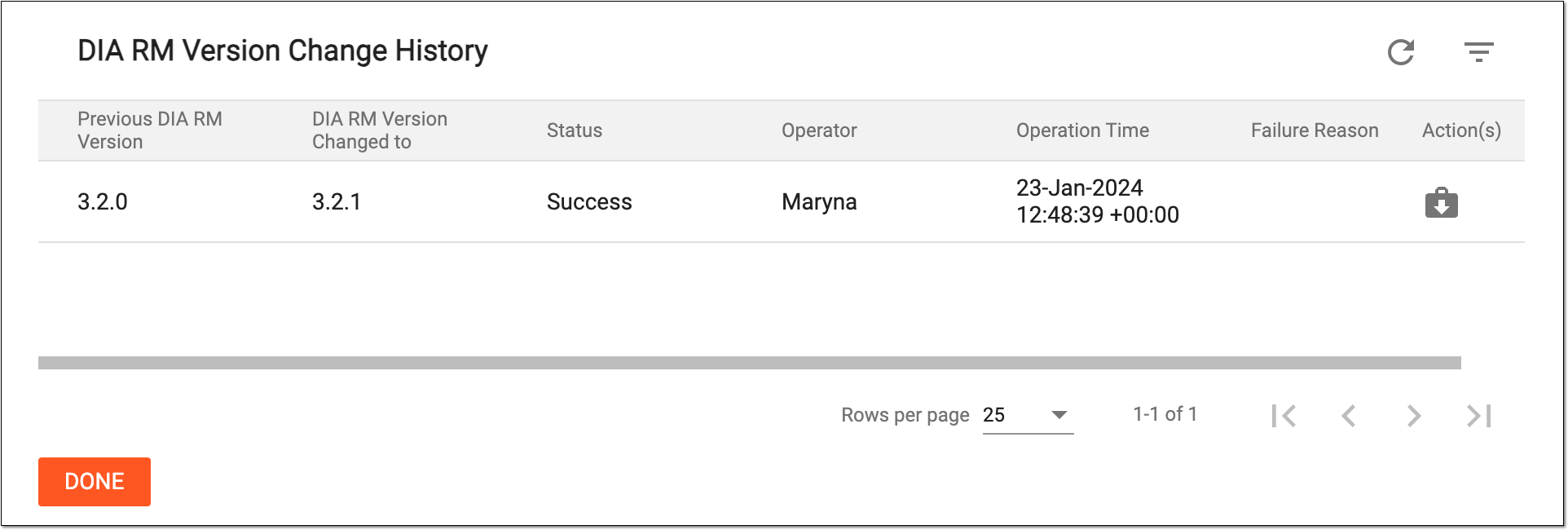 Figure 3. Reviewing version change history
-
To download the detailed change report for a particular version update, next to the needed record, select Download Report
 . The XLSX file is downloaded to your computer.
 -
Select
 to close the dialog.
You have viewed DIA RM version change history and downloaded the change report file.