Compare CRF versions
A CRF stands for case report form, a document used in clinical trials to collect and record study data. As the trial evolves, new insights or challenges may emerge, requiring changes to the CRF. These modifications, especially after data collection has commenced in the EDC system, lead to what is known as versioning. This process involves adapting the CRF to new protocol requirements or data collection processes during the clinical trial.
When maintaining CRF versions, you can compare them in order to identify and review the differences between various iterations. The comparison is essential for understanding how the CRF has evolved with time and ensuring that all modifications align with the changing needs of the study and regulatory requirements.
Important
Note that you can initiate the version comparison process only if the CRF version has been previously submitted. Moreover, a specific CRF version can be compared exclusively with its preceding versions, and not with any versions created subsequently.
-
In the Study Designer application header, select the VERSIONING tab.
 Figure 1. Accessing CRF versions
-
From the workspace toolbar of the Version Information table that appears, select the needed lifecycle and role.
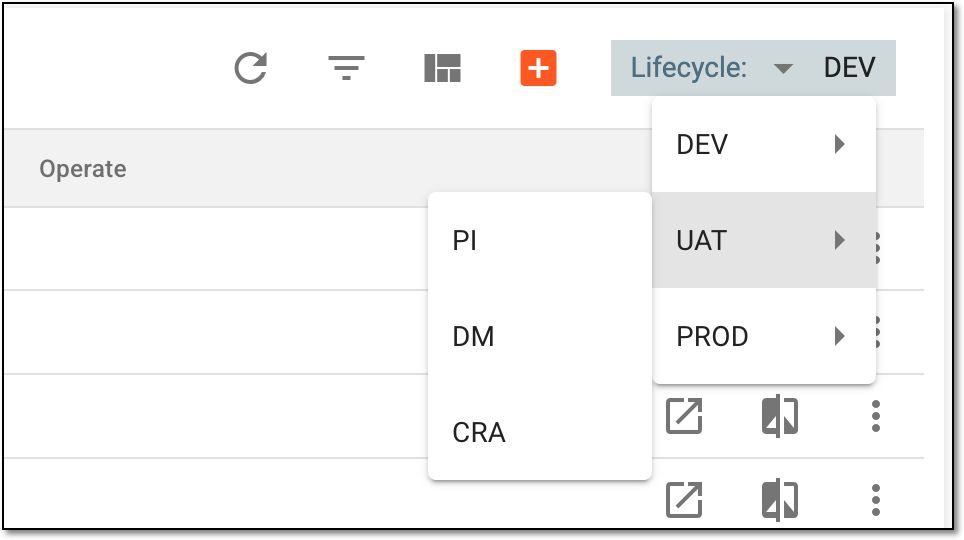 Figure 2. Selecting lifecycle and role
-
In the Version Information table, next to the needed CRF version, select Version Compare
 .
. Figure 3. Selecting to compare CRF versions
-
In the CRF Version Comparison dialog that appears, perform the following steps to generate and view the comparison report.
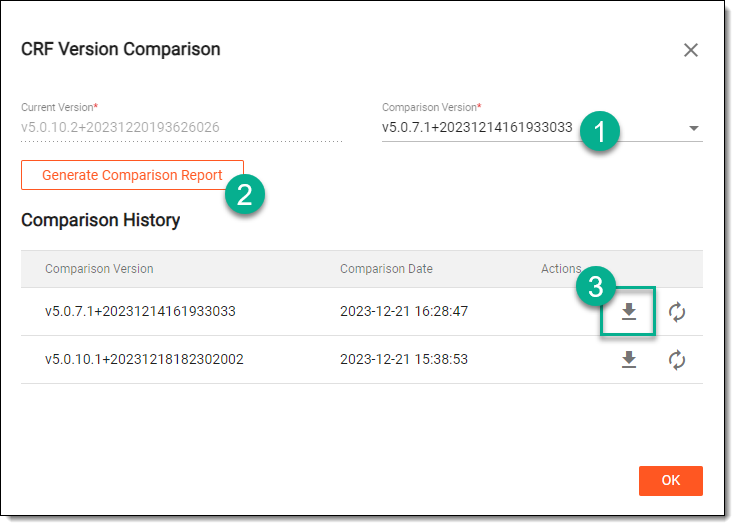 Figure 4. Comparing CRF versions
-
In the Comparison Version field, select the CRF version you want to be compared with the selected one.
Important
In the Comparison Version field, you can only select a CRF version against which the current one has not yet been compared. In the Comparison History grid, you can view the list of previously generated comparison reports.
-
Select
 to create a comparison report that is generated in the Comparison History grid.
 -
In the Comparison History grid, next to the generated report, select Download
 to export it to your computer.
Tip
If you have generated the comparison report for a specific CRF version earlier, you can select Re-generation
 next to this report to update the compared data.
-
-
Open the downloaded report on your computer to view the CRF version comparison data.
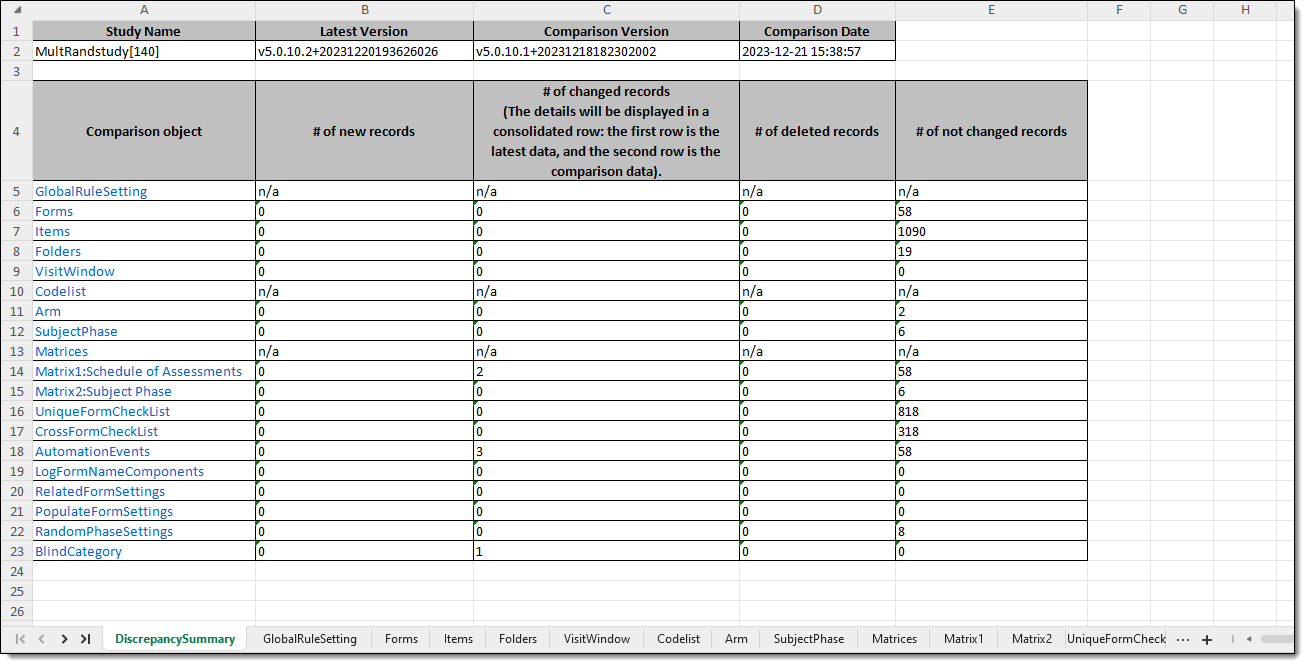 Figure 5. Comparing CRF versions
The CRF version comparison report is generated and viewed on your computer.