View external lab data details
In the EDC application, instead of entering subject lab results in respective lab test forms of the DATA ENTRY tab and then configuring labs, normal ranges, and other details manually in the system, you can import the lab data from an external file in the XLSX or CSV format.
Once the file is added and its values are mapped to respective forms and visits in the system, you can synchronize the configurations to the respective EDC form(s). Then you can view the data that is synced to the EDC forms collected in one comprehensive table.
-
In the EDC application header, select the STUDY INFO tab.
-
From the left pane, select Lab > External Lab Data.
-
On the page that opens, select the External Lab Data Details tab.
-
In the table that opens, view all the variables and data imported to the EDC forms from the external lab data file.
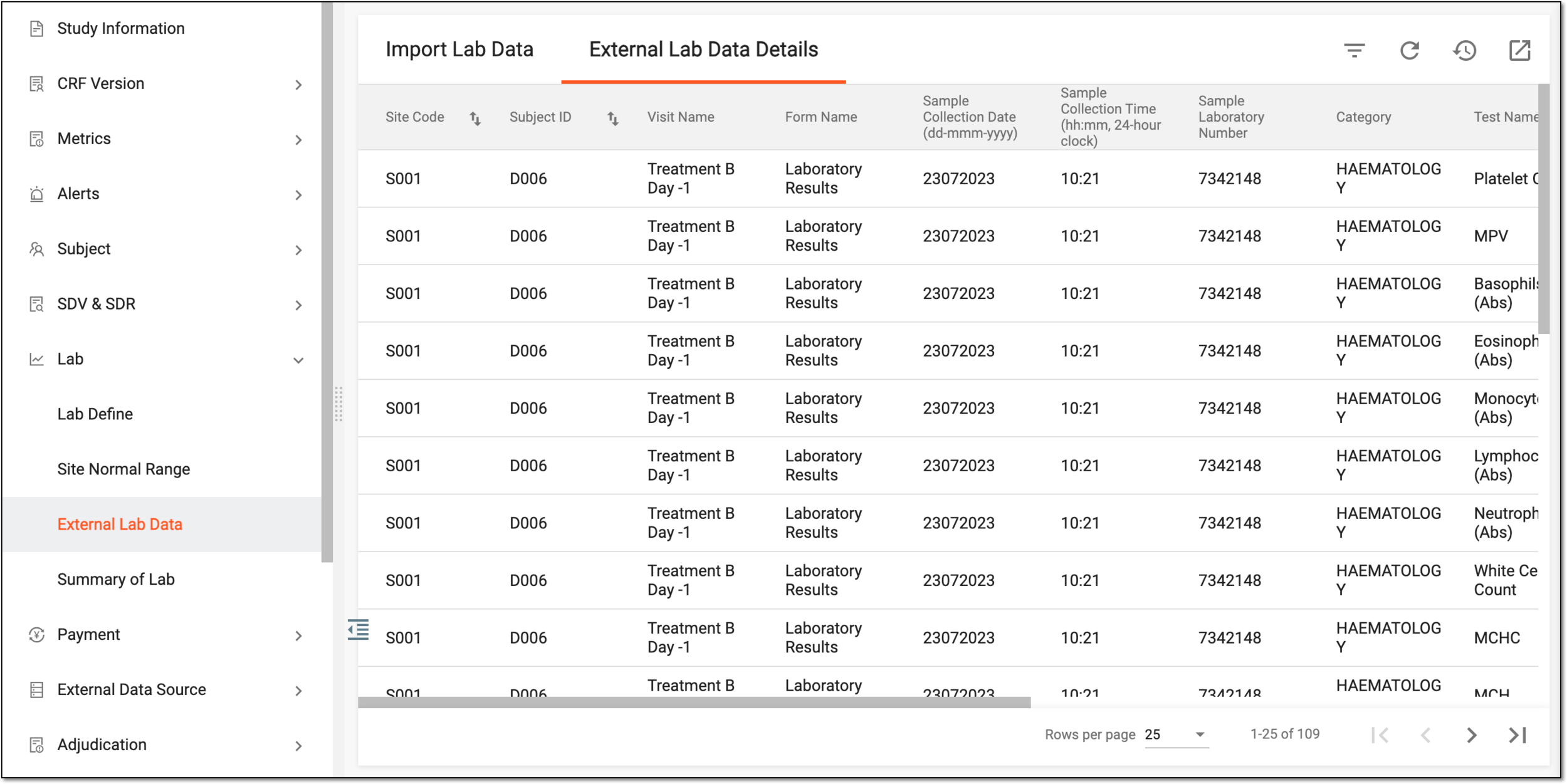 Figure 1. Viewing external lab data
You have viewed the external lab data imported to EDC forms. You can also export the details of this table to use the data offline.
Export external lab data details
In the EDC application, instead of entering subject lab results in respective lab test forms of the DATA ENTRY tab and then configuring labs, normal ranges, and other details manually in the system, you can import the lab data from an external file in the XLSX or CSV format.
Once the file is added and its values are mapped to respective forms and visits in the system and then synchronized to the respective EDC form(s), you can view the data that is synced to all the forms collected in one comprehensive table. You can also export this data as an XLSX file to work with it offline.
-
In the EDC application header, select the STUDY INFO tab.
-
From the left pane, select Lab > External Lab Data.
-
On the page that opens, select the External Lab Data Details tab.
-
From the workspace toolbar, select Export
 .
.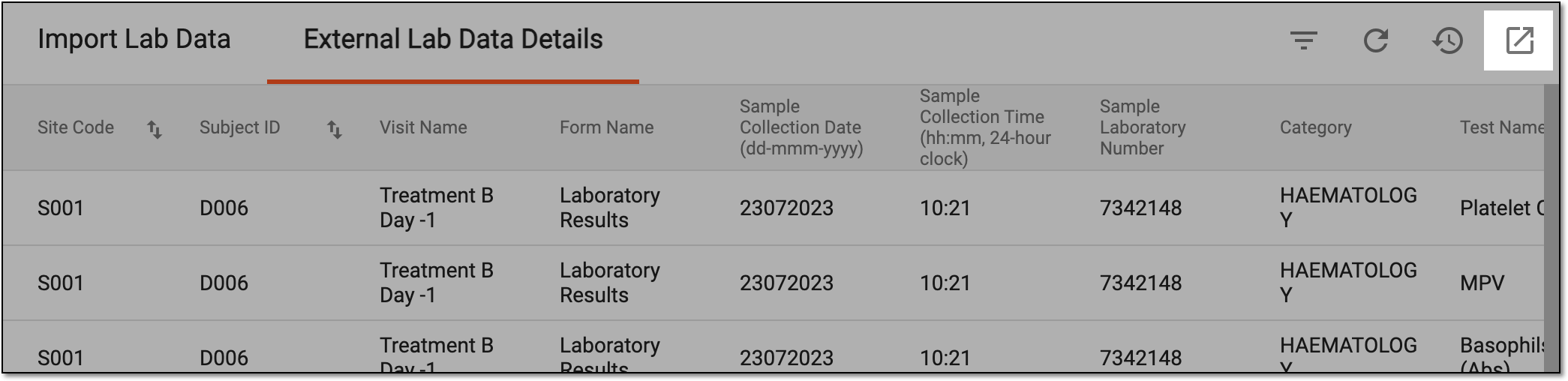 Figure 1. Exporting external lab data
-
The dialog appears notifying you that the process of export is in progress and once the file is ready, you can download it. Select
 to close the
dialog.
to close the
dialog.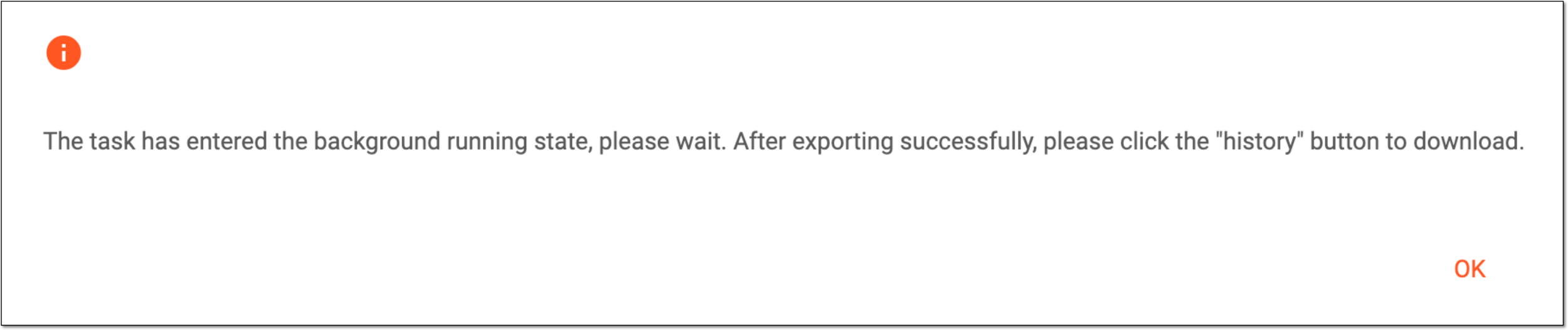 Figure 2. Receiving export confirmation notification
-
From the workspace toolbar, select History
 .
.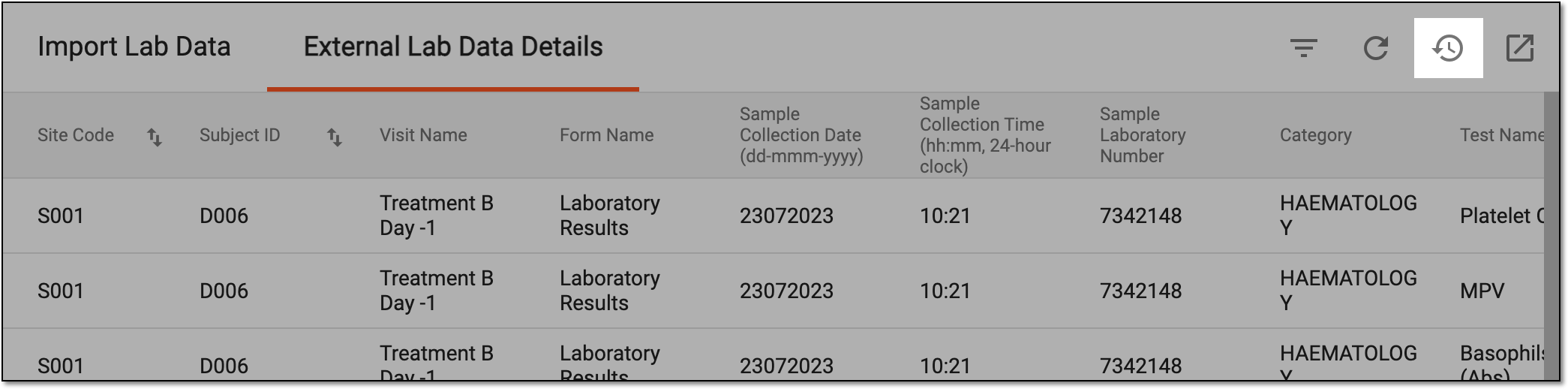 Figure 3. Accessing export history
-
In the Export History dialog that opens, next to the needed file, select Download
 .
.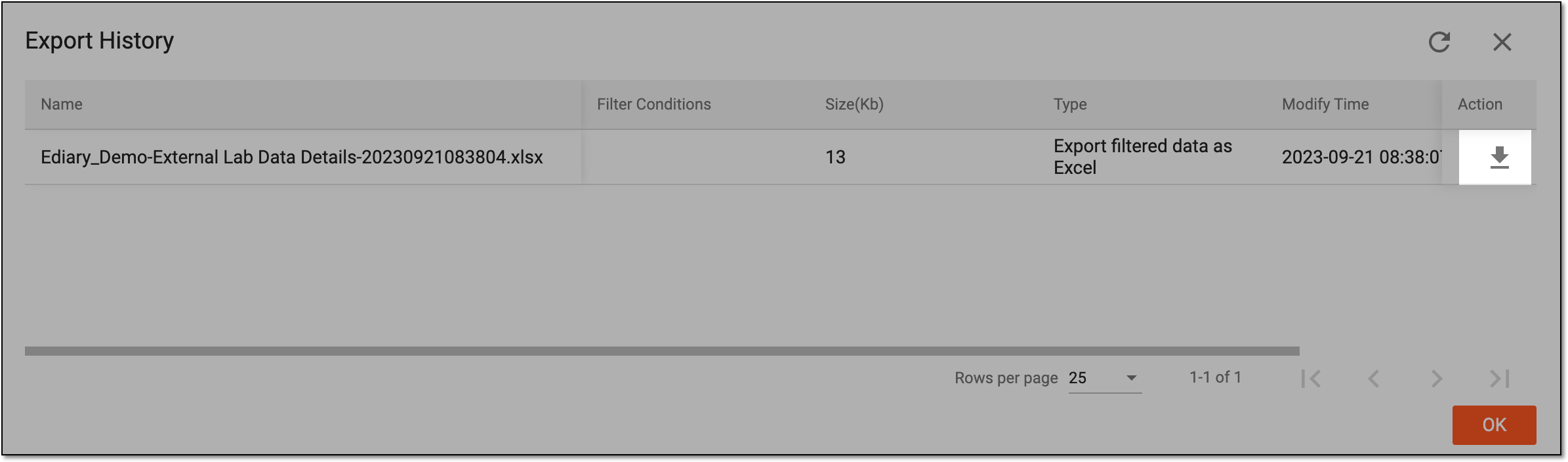 Figure 4. Downloading exported external lab data file
Once downloaded, the XLSX file becomes available on your computer.