Import and map external lab data file
In the EDC application, instead of entering subject lab results in respective lab test forms of the DATA ENTRY tab and then configuring labs, normal ranges, and other details manually in the system, you can import the lab data from an external file in the XLSX or CSV format.
Upon importing the file into the system, you select the visit(s), form(s), and fields to which its data pertain by mapping the needed values. Thus, you enable the system to enter and validate the laboratory results for the subjects of your study.
-
In the EDC application header, select the STUDY INFO tab.
-
From the left pane, select Lab > External Lab Data.
-
On the page that opens, from the workspace toolbar of the Import Lab Data tab, select Import
 .
.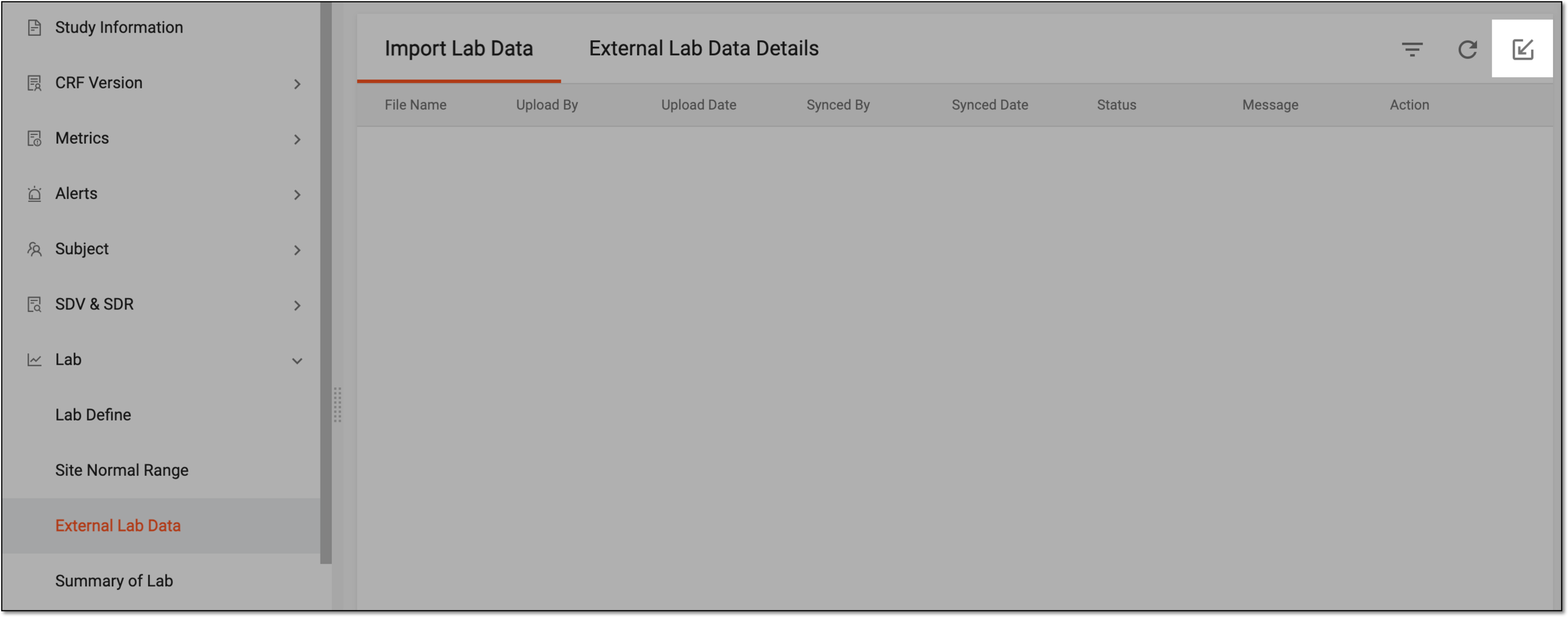 Figure 1. Importing external lab data
-
In the form that opens, upload the file and complete configurations of the Mapping Field step as explained in the following table.
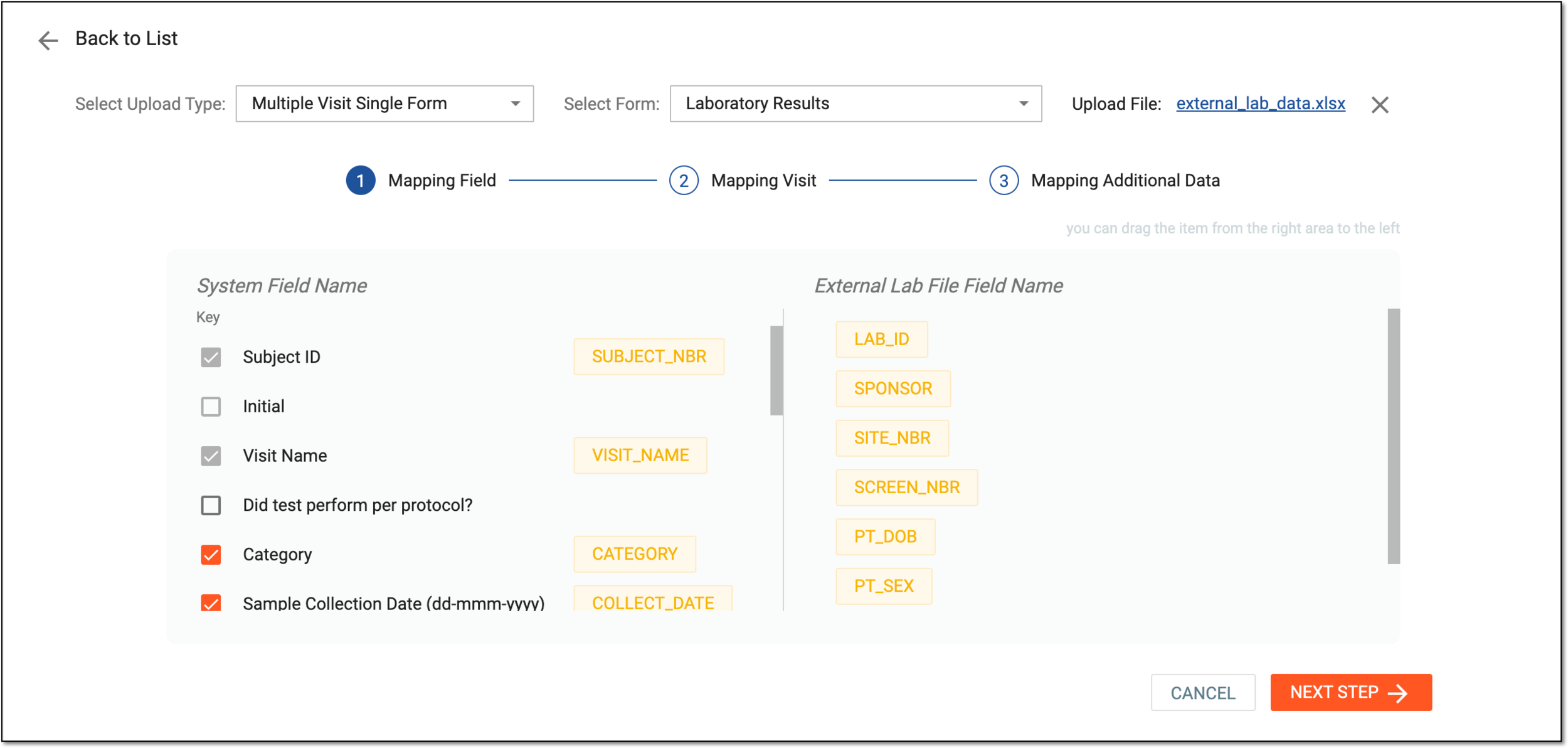 Figure 2. Uploading file and mapping fields
Tip
In the following table, mandatory elements are marked with an asterisk (*).
Element
Details
Select Upload Type
Select the type of the configurations that you are uploading.
For instance, select Multiple Visit Single Form if you have a single laboratory results form that you want to configure and which will be used for multiple visits to collect data.
Select Form
Select the form for which you want to configure lab data from an imported file.
Upload File
Select
 to upload the external lab data file in CSV or XLSX.
Mapping Field
System Field Name
In this block, select the checkboxes next to the fields of the form that you want to map with the respective values from the imported lab data file.
If the checkbox is cleared, the system cannot properly map the fields of your form, so ensure to select the checkboxes next to all the mapped fields.External Lab File Field Name
In this block, locate the variables you want to map to the form fields in the system, select and drag them to the System Field Name block to place each variable next to the respective field.
NEXT STEP
Select
 to proceed to the Mapping Visit step.
CANCEL
Select
 to cancel the configuration and return to the Import Lab Data tab.
 -
At the Mapping Visit step, map the visit(s) from the imported file to the one(s) existing in the EDC system by dragging the variables from the External Lab File Visit Name block to System Visit Name. Once done, select
.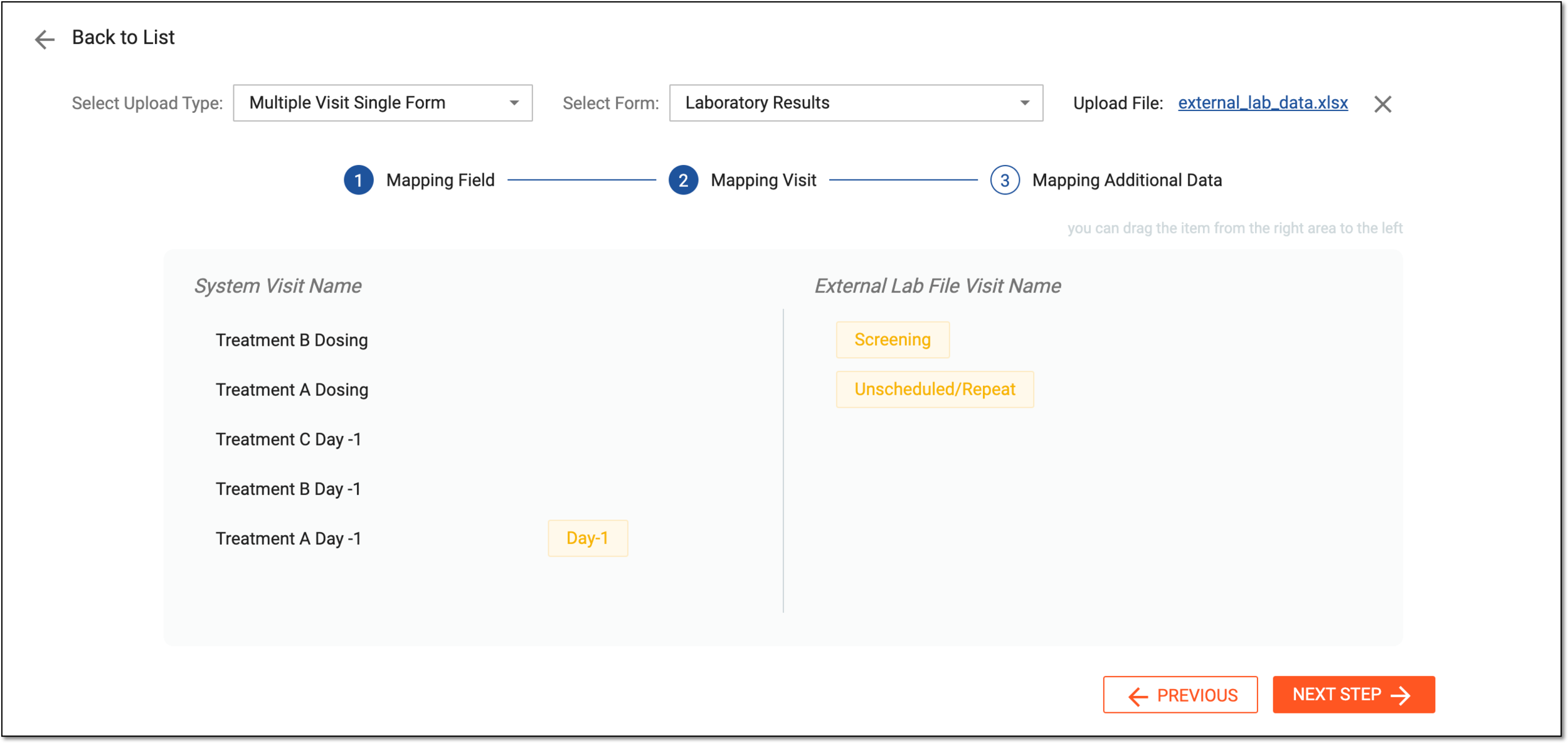 Figure 3. Mapping visits
Tip
If needed, select
 to return to the file upload and fields mapping step.
 -
At the Mapping Additional Data step, configure additional variables mapping as explained in the following table.
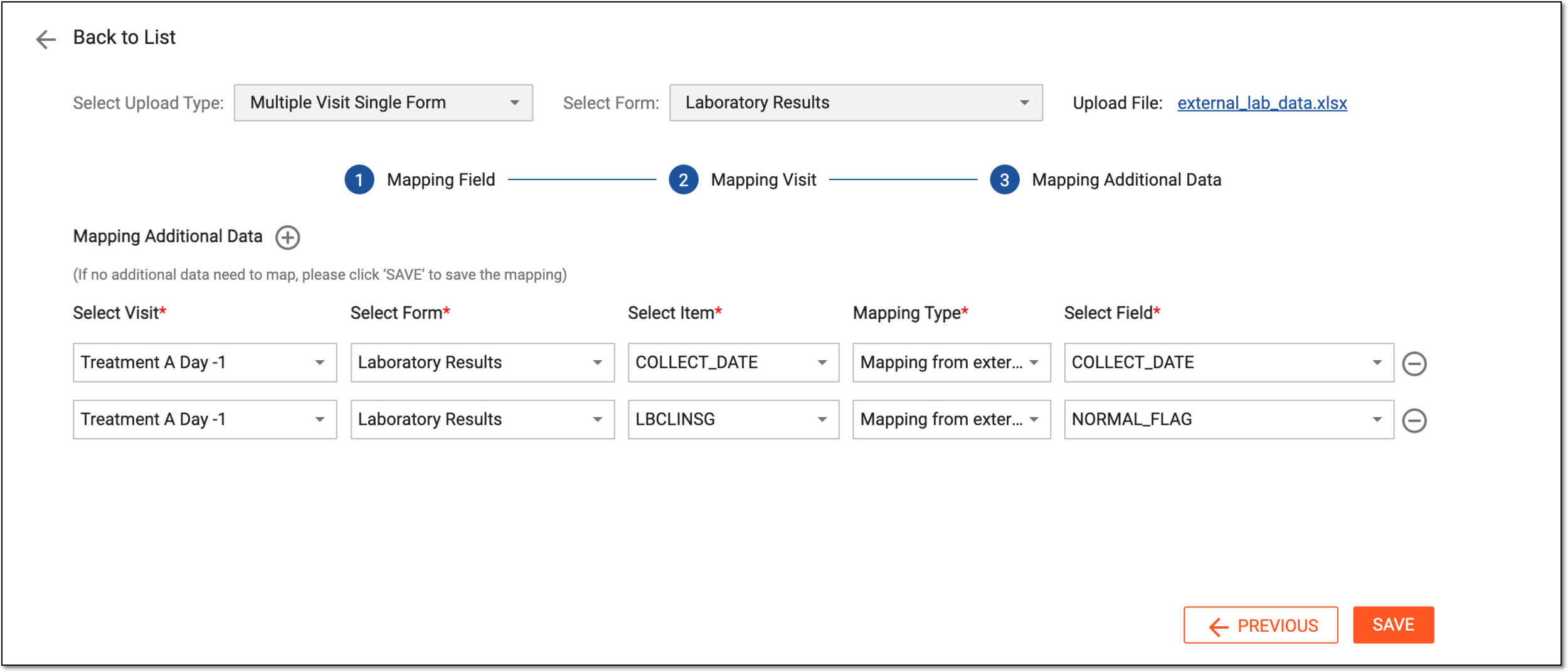 Figure 4. Mapping additional data
Important
In additional mapping, if there is an unscheduled visit of a certain date and the same date on the external lab data, the system uploads the data to the existing unscheduled visit. If the date differs in the external lab data, the system appends another unscheduled visit to the existing one.
Tip
In the following table, mandatory elements are marked with an asterisk (*).
Element
Details
Mapping Additional Data
Select New Item
 to add fields for additional variables mapping.
Select Visit*
Select the visit for whose form you want to map an additional data variable from the imported file.
Select Form*
Select the form for which you want to map an additional data variable from the imported file.
Select Item*
Select the item (field) of the form to which you want to map an additional data variable from the imported file.
Mapping Type*
Select the mapping type as follows:
-
Mapping from external data: select this type to specify the variable from the external file to map it to the selected item.
-
Manually enter value: select this type to enter the value for the item manually.
For instance, if the manual value type is selected for the COLLECT_DATE item, you can specify the custom date as the Select Field value.
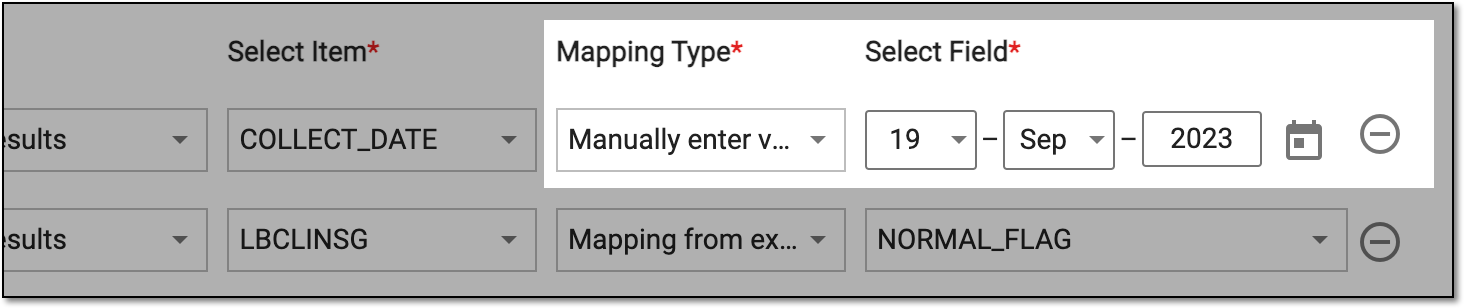 Figure 5. Manual value mapping type example
Select Field*
Select the value to map to the selected form item as follows:
-
For the Mapping from external data type, select the variable from the imported lab data file.
-
For the Manually enter value type, enter the needed value for the form item manually.
SAVE
Select
 to apply the implemented changes.
PREVIOUS
Select
to return to the Mapping Visit step.Important
If no additional data requires mapping, do not add any fields at the Mapping Additional Data step, skip the configurations, and select
. -
Once saved, the external lab configurations file is uploaded to the system and you can now synchronize the data to the form.