Edit imported lab data configurations
In the EDC application, instead of entering subject lab results in respective lab test forms of the DATA ENTRY tab and then configuring labs, normal ranges, and other details manually in the system, you can import the lab data from an external file in the XLSX or CSV format.
Once the file is added and its values are mapped to respective forms and visits in the system, you can update the configurations to fix any occurring issues or adjust the configurations to your changing requirements.
-
In the EDC application header, select the STUDY INFO tab.
-
From the left pane, select Lab > External Lab Data.
-
In the Import Lab Data table that opens, locate the imported file whose configurations you want to modify and next to it, from the Action column, select Edit
 .
. Figure 1. Selecting to edit imported lab data file
-
In the form that opens, update the configurations as explained in the importing and mapping file procedure.
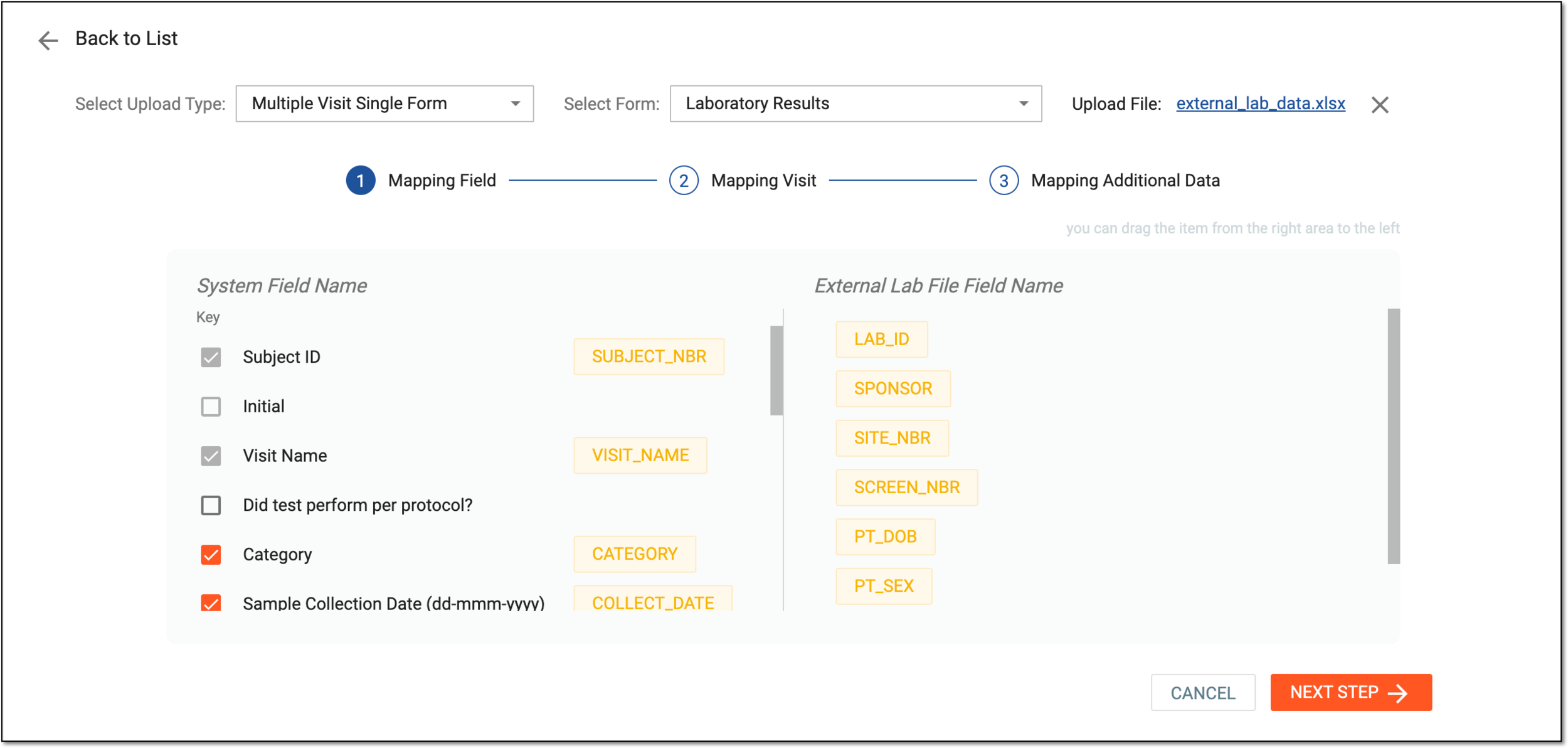 Figure 2. Editing lab data configurations
-
Once the needed details are updated, at the Mapping Additional Data step, select
 .
.
Upon saving, the imported lab data configurations are updated and you can now synchronize changes to the form.