Delete lab data file
In the EDC application, instead of entering subject lab results in respective lab test forms of the DATA ENTRY tab and then configuring labs, normal ranges, and other details manually in the system, you can import the lab data from an external file in the XLSX or CSV format.
Sometimes you might need to delete the previously imported lab data file, for instance, if you find that its data is invalid.
-
In the EDC application header, select the STUDY INFO tab.
-
From the left pane, select Lab > External Lab Data.
-
In the Import Lab Data table that opens, locate the imported file that you want to delete. Then next to it, from the Action column, select More
 > Delete
  .
. Figure 1. Exporting lab data file
-
In the confirmation dialog that appears, select
 to proceed with the file deletion.
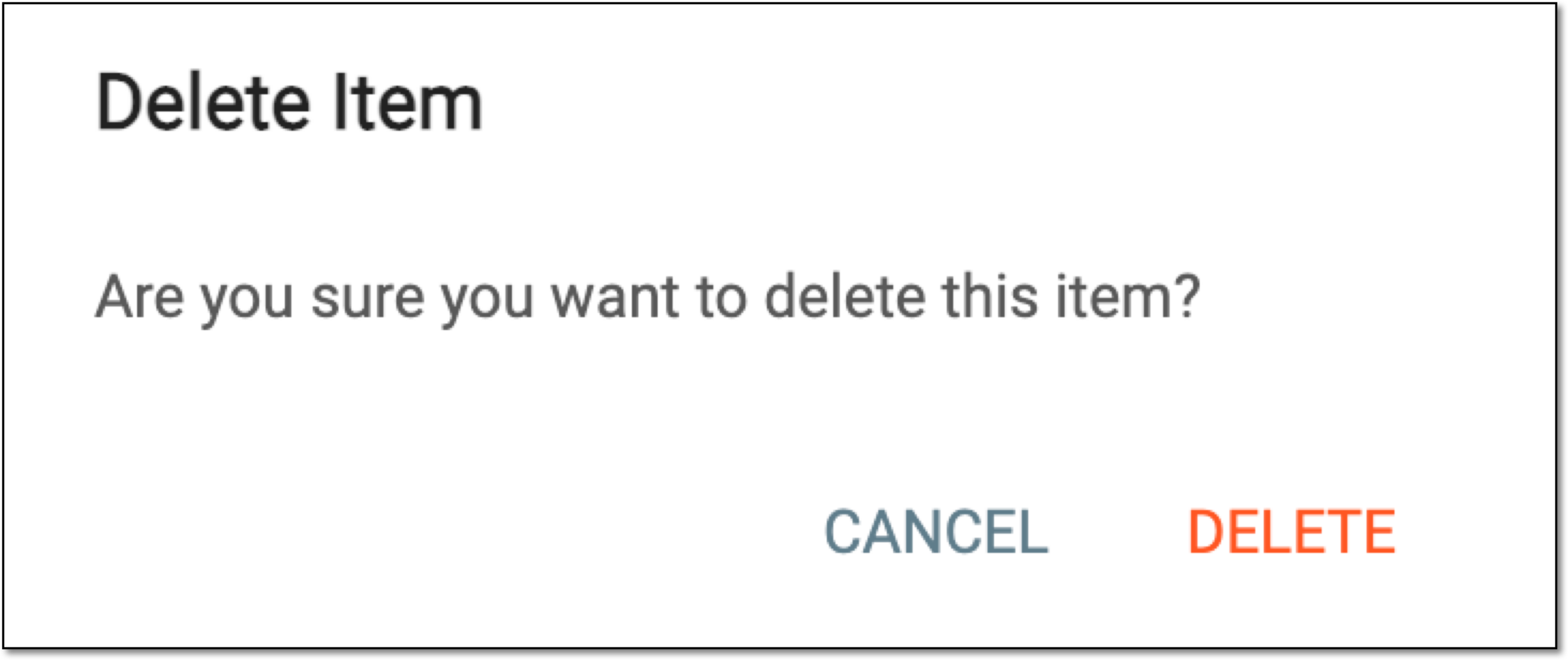 Figure 2. Confirming lab data file deletion
Once confirmed, the lab data file is deleted from the system.