Export lab data file
In the EDC application, instead of entering subject lab results in respective lab test forms of the DATA ENTRY tab and then configuring labs, normal ranges, and other details manually in the system, you can import the lab data from an external file in the XLSX or CSV format.
Sometimes you might need to export the previously imported lab data file, for instance, if you need to modify the file data or share the file with a party that has no access to the EDC system.
-
In the EDC application header, select the STUDY INFO tab.
-
From the left pane, select Lab > External Lab Data.
-
In the Import Lab Data table that opens, locate the imported file that you want to export. Then next to it, from the Action column, select More
 > Export
  .
.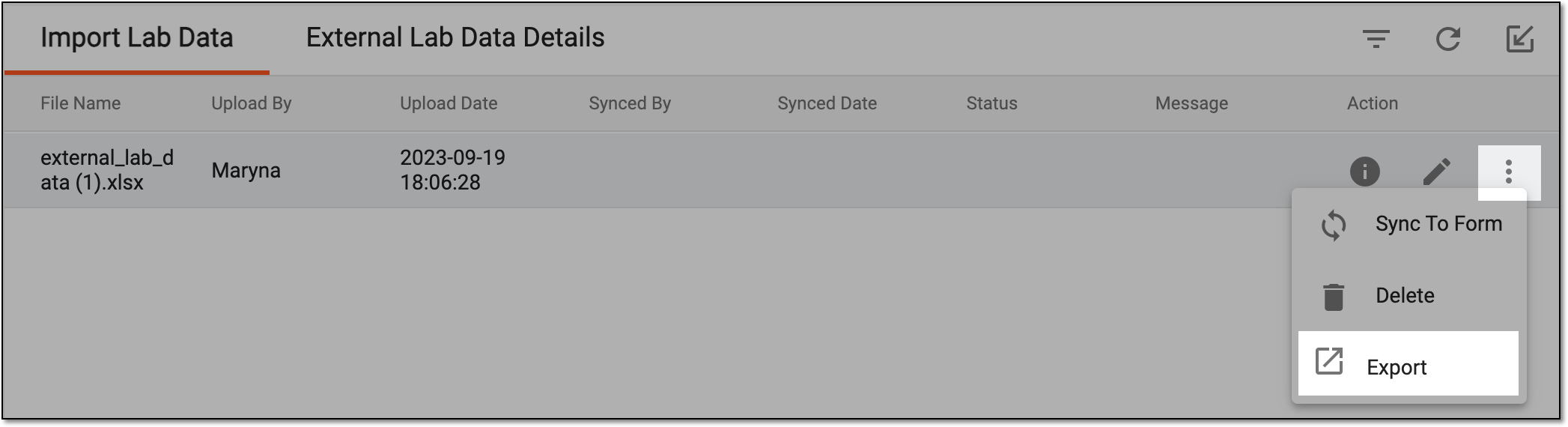 Figure 1. Exporting lab data file
Once exported and saved, you can work with the lab data offline as per your needs.