View imported lab data file details
In the EDC application, instead of entering subject lab results in respective lab test forms of the DATA ENTRY tab and then configuring labs, normal ranges, and other details manually in the system, you can import the lab data from an external file in the XLSX or CSV format.
Upon importing the file into the system, you map its values to the visit(s), form(s), and fields to which its data pertain and then sync the configurations to the respective form(s).
Sometimes, there might be a need to review the source data of the imported file. In EDC, this can be conveniently done with the preview feature, so you do not need to download the file.
-
In the EDC application header, select the STUDY INFO tab.
-
From the left pane, select Lab > External Lab Data.
-
In the Import Lab Data table that opens, locate the imported file that you want to view. Then next to it, from the Action column, select Info
 .
. Figure 1. Selecting to view imported lab data file
-
On the page that opens, view the data of the imported file.
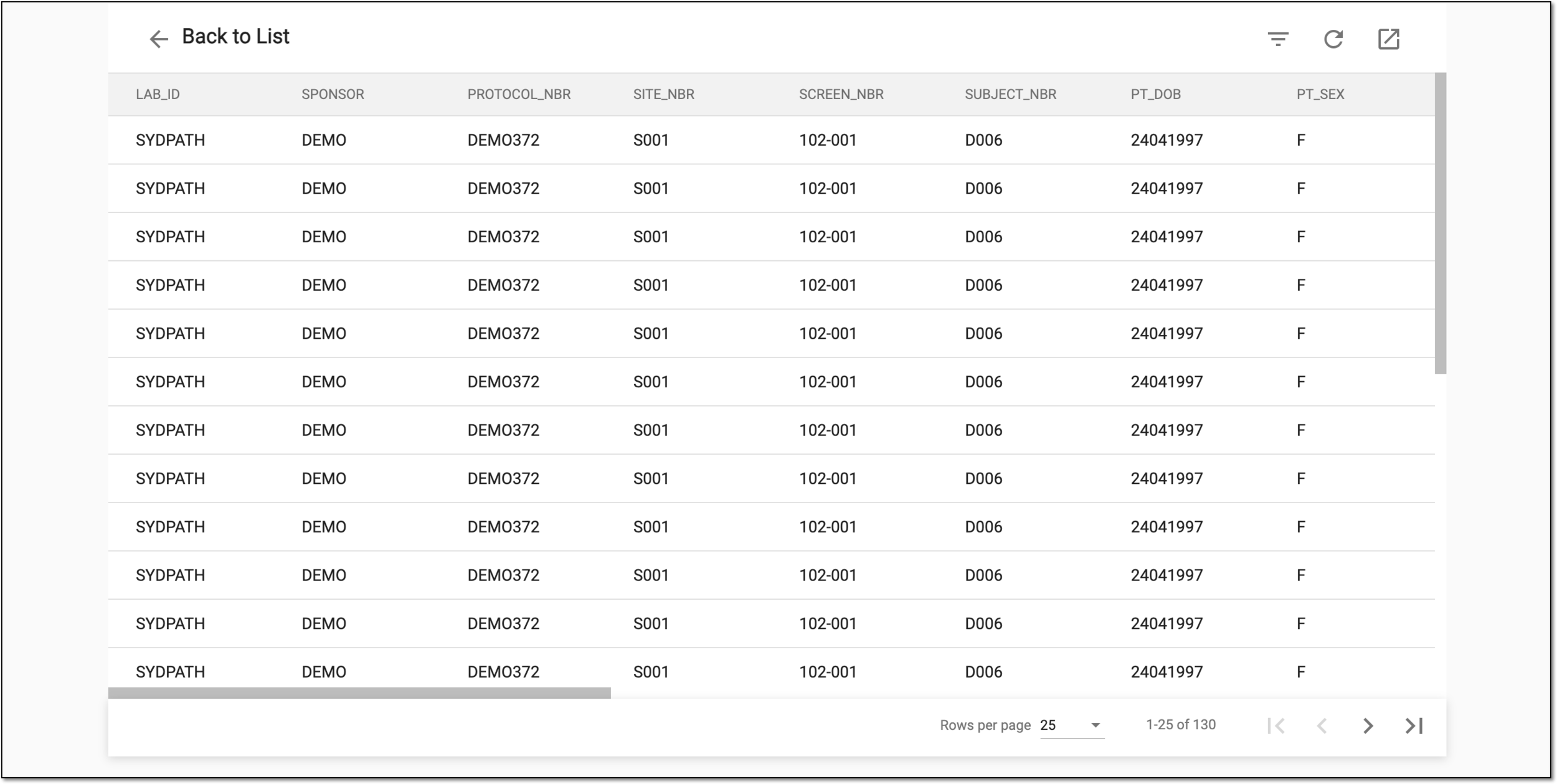 Figure 2. Viewing imported lab data file details
-
Select Back to List
 to return to the Import Lab Data table.
You have viewed the imported external lab data file details.