Merge dataset domains
A dataset is a visual representation of columns and rows in CDASH domains based on the configuration of forms. Each column in the dataset represents a CDASH variable that captures data in corresponding rows as per record ID settings. In Study Designer, a dataset is not the actual data storage as it serves solely to show how data is structured when entered in forms of the EDC system.
The CDASH domains that are available in the dataset can be merged with each other when, for example, all variables of some custom domain need to be transferred to a specific CDASH domain to make the data analysis and presentation more comprehensive after it is entered in the EDC system.
-
In the Study Designer application header, select the CRF DESIGN tab.
-
In the toolbar, select the latest draft CRF version marked with the respective unlock symbol
 , otherwise, you cannot perform any actions.
 Figure 1. Selecting latest draft CRF version
-
From the workspace toolbar of the hierarchy tree, select Dataset
 .
.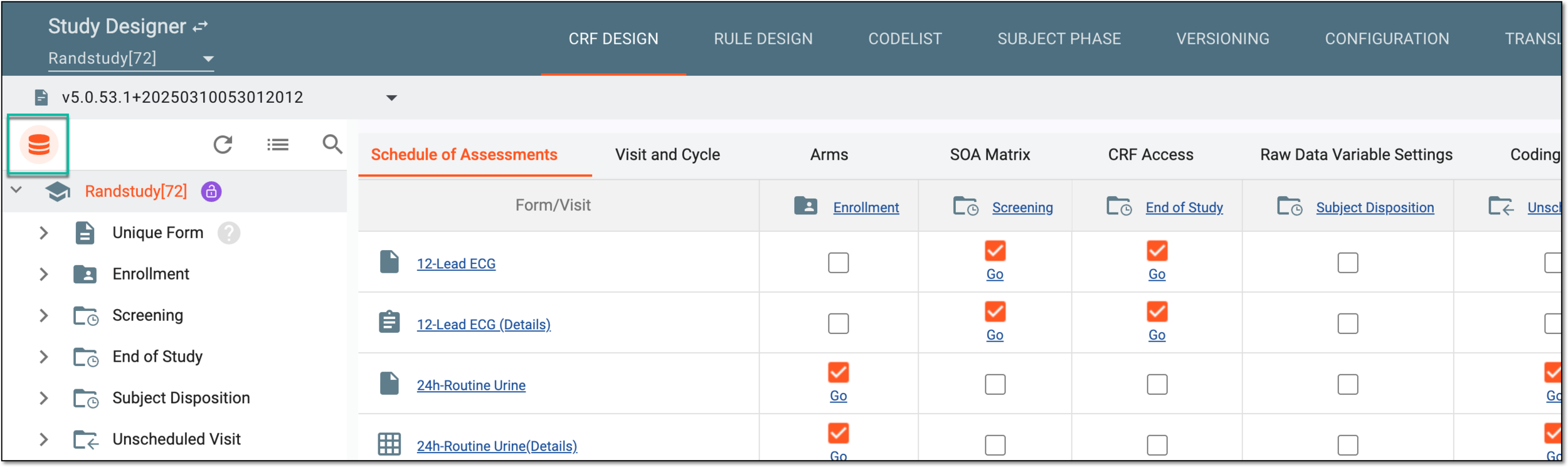 Figure 2. Accessing dataset page
-
In the left pane of the page that opens, select the domain you want to merge, thus consuming variables of another domain.
-
Next to the domain, select More
 > Merge
  .
.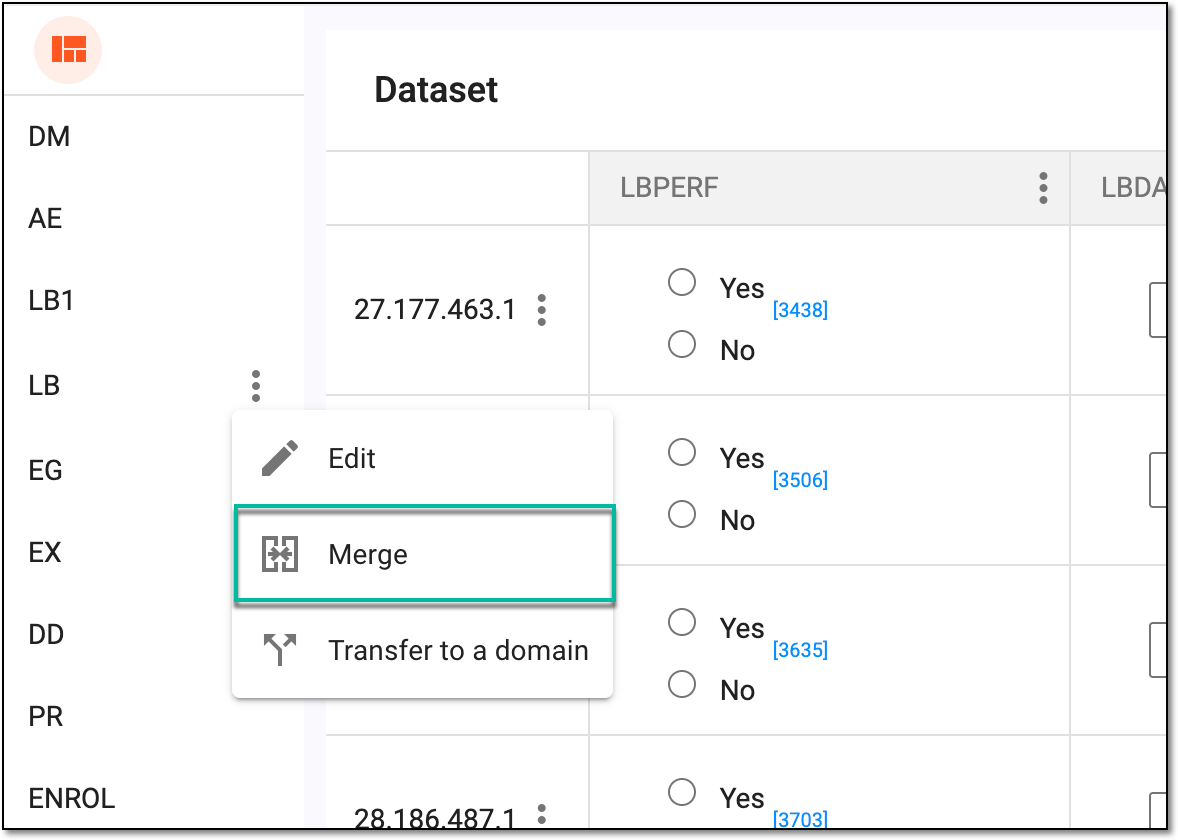 Figure 3. Selecting option to merge domains
-
In the Merge dialog that appears, select the CDASH domain whose variables you want to merge, and then select
 .
.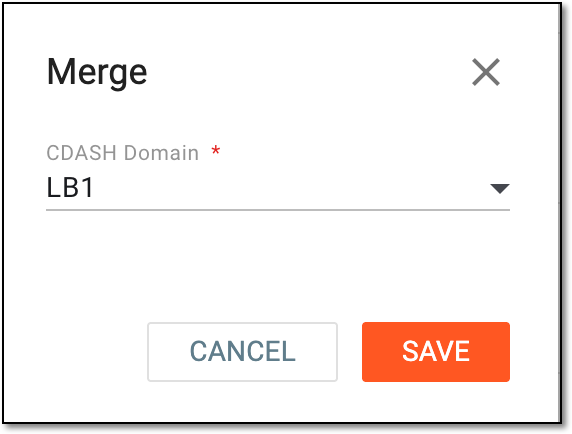 Figure 4. Merging dataset domains
Once saved, all variables of the selected domain are merged into a single domain. The domain without variables ceases to exist in the dataset.