Edit dataset domain
A dataset is a visual representation of columns and rows in CDASH domains based on the configuration of forms. Each column in the dataset represents a CDASH variable that captures data in corresponding rows as per record ID settings. In Study Designer, a dataset is not the actual data storage as it serves solely to show how data is structured when entered in forms of the EDC system.
Each of the CDASH domains available in the dataset can be updated when a domain name or label needs to align with the latest industry or regulatory standards or for data harmonization purposes, especially in multistudy scenarios to facilitate cross-study comparisons and data pooling.
-
In the Study Designer application header, select the CRF DESIGN tab.
-
In the toolbar, select the latest draft CRF version marked with the respective unlock symbol
 , otherwise, you cannot perform any actions.
 Figure 1. Selecting latest draft CRF version
-
From the workspace toolbar of the hierarchy tree, select Dataset
 .
.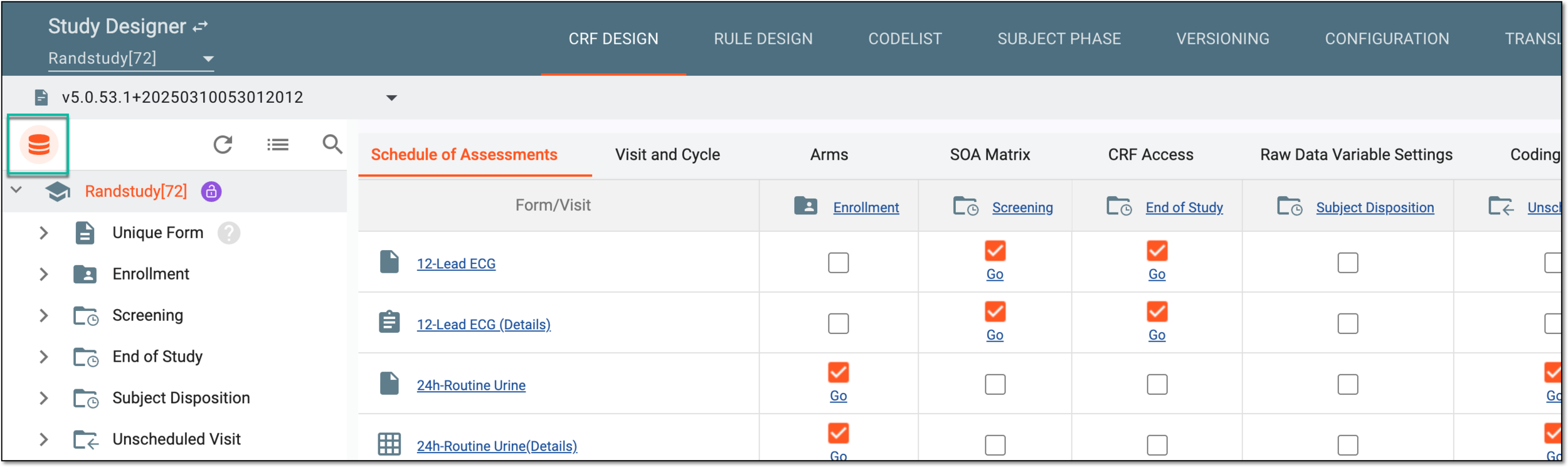 Figure 2. Accessing dataset page
-
In the left pane of the page that opens, select the domain you want to edit. Then next to the domain, select More
 > Edit
  .
.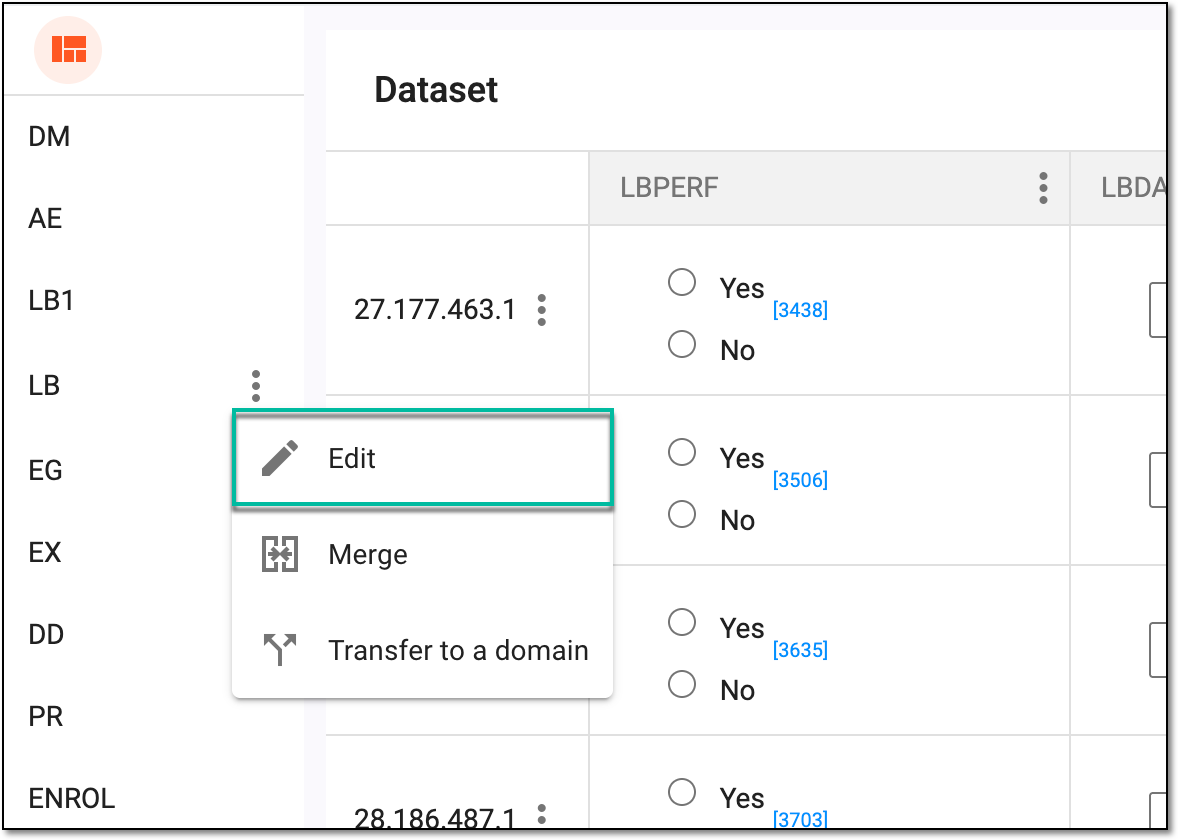 Figure 3. Selecting option to edit domain
-
In the Edit dialog that appears, update the domain as explained in the following table.
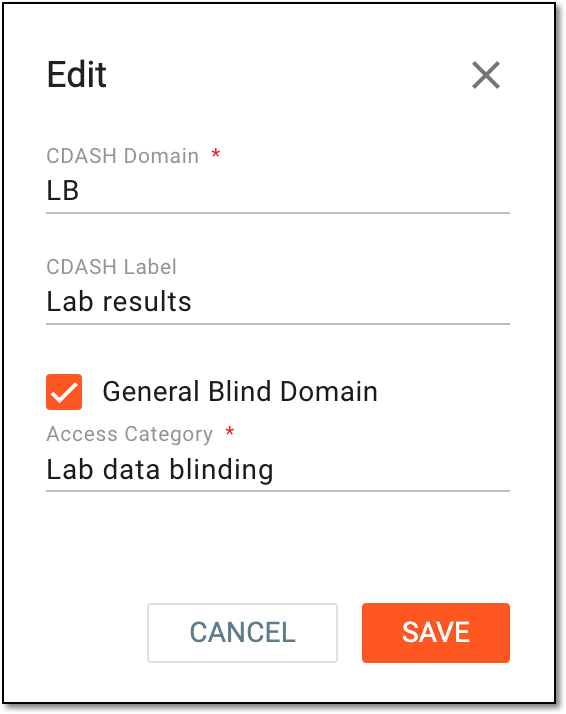 Figure 4. Editing dataset domain
Tip
In the following table, mandatory elements are marked with an asterisk (*).
Element
Details
CDASH Domain*
Enter an acronym for your domain.
CDASH Label
Enter the descriptive name for your domain.
General Blind Domain
Select this checkbox to blind all data elements associated with this domain. If cleared, the data is not blinded.
Access Category*
Select an existing access category or enter the name to create a new one for this domain data. Creating a custom category helps you effectively manage data blinding and granting access to specific users.
SAVE
Select
 to implement the changes.
CANCEL
Select
 to discard the changes.
Once saved, the dataset domain details are updated.