Create CRF version integration
The created system integration has successfully established a connection between eClinical EDC and RAVE EDC, streamlining the flow of subject data from eCOA or eDiary mobile applications. Building upon this foundation, the next crucial step is to implement CRF version integration. By connecting CRF versions from both EDC systems, a study team can harness the power of streamlined data collection.
With the CRF version integration, you can specify the mapping between CRF versions in eClinical EDC and RAVE EDC, providing flexibility for each system to be linked with the desired corresponding version in the other system. The CRF version mapping ensures that data recorded in eClinical EDC from either eCOA or eDiary mobile application remains accurately represented in RAVE EDC.
-
In the EDC application header, select the STUDY INFO tab.
-
In the left pane of the page that opens, select the System Integration subtab.
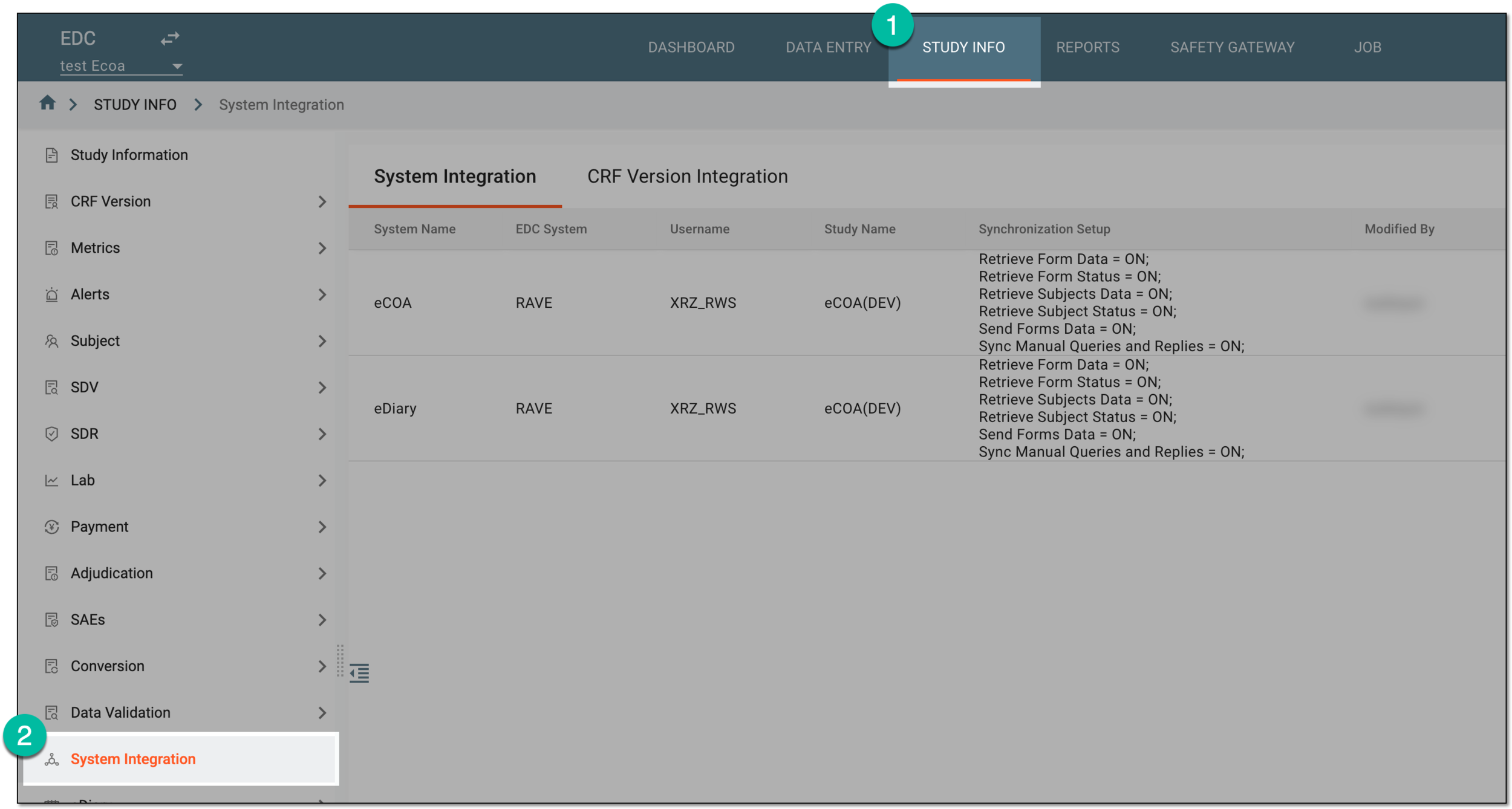 Figure 1. Accessing system integration
-
In the contents panel that appears, select the CRF Version Integration tab.
-
From the workspace toolbar of the CRF Version Integration table that appears, select New Item
 .
. Figure 2. Selecting to create CRF version integration
-
In the dialog that appears, provide the CRF version integration details as explained in the following table.
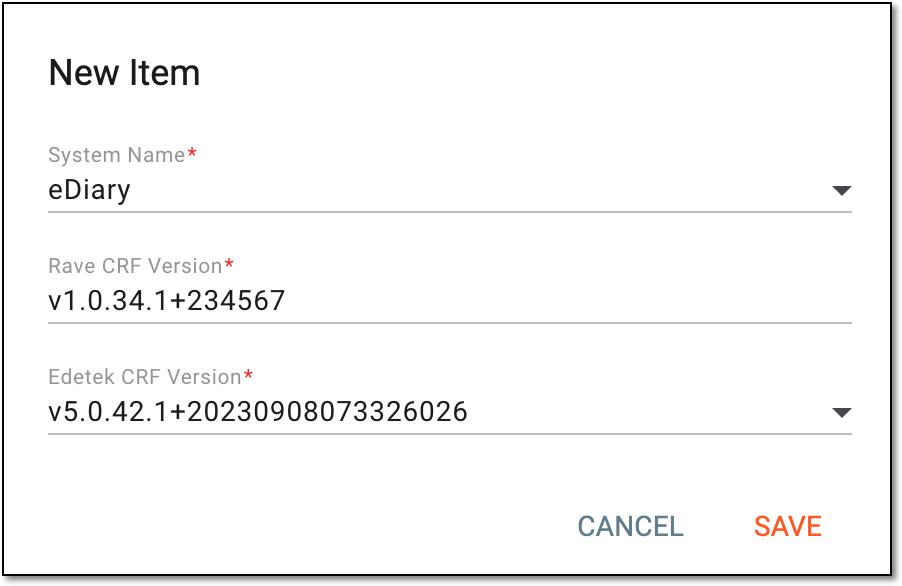 Figure 3. Creating CRF version integration
Tip
In the following table, mandatory elements are marked with an asterisk (*).
Element
Details
System Name*
Select either the eCOA or eDiary option depending on what mobile application is to be used for data recording.
Rave CRF Version*
Enter the version of the CRF in RAVE EDC that is to be used for capturing data transferred from eClinical EDC.
Edetek CRF Version*
Select the version of the CRF in eClinical EDC that is used for recording data collected in the eCOA or eDiary mobile application indicated in the System Name field.
The specific eClinical CRF version can be used only once for the configuration of CRF version integrations.SAVE
Select
 to create CRF version integration.
CANCEL
Select
 to cancel the creation of CRF version integration.
Once saved, the CRF version integration is created. You now need to map the visits, forms, and items between the CRF versions indicated in the configured CRF version integration.