Establish CRF versions mapping
With the CRF version integration, you can specify the mapping between CRF versions in eClinical EDC and RAVE EDC, providing flexibility for each system to be linked with the desired corresponding version in the other system. The CRF version mapping ensures that data recorded in eClinical EDC from either eCOA or eDiary mobile application remains accurately represented in RAVE EDC.
After the CRF version integration has been created, you need to create a mapping between visits, forms, and items associated with CRF versions in eClinical EDC and RAVE EDC to indicate how the data collected in eCOA or eDiary mobile application has to be transmitted to RAVE EDC.
Important
Before establishing the mapping, make sure that the visits and forms have been previously configured in the Study Designer application for a corresponding CRF version to support the same visit and form structure of the counterpart CRF version in RAVE EDC.
-
In the EDC application header, select the STUDY INFO tab.
-
In the left pane of the page that opens, select the System Integration subtab.
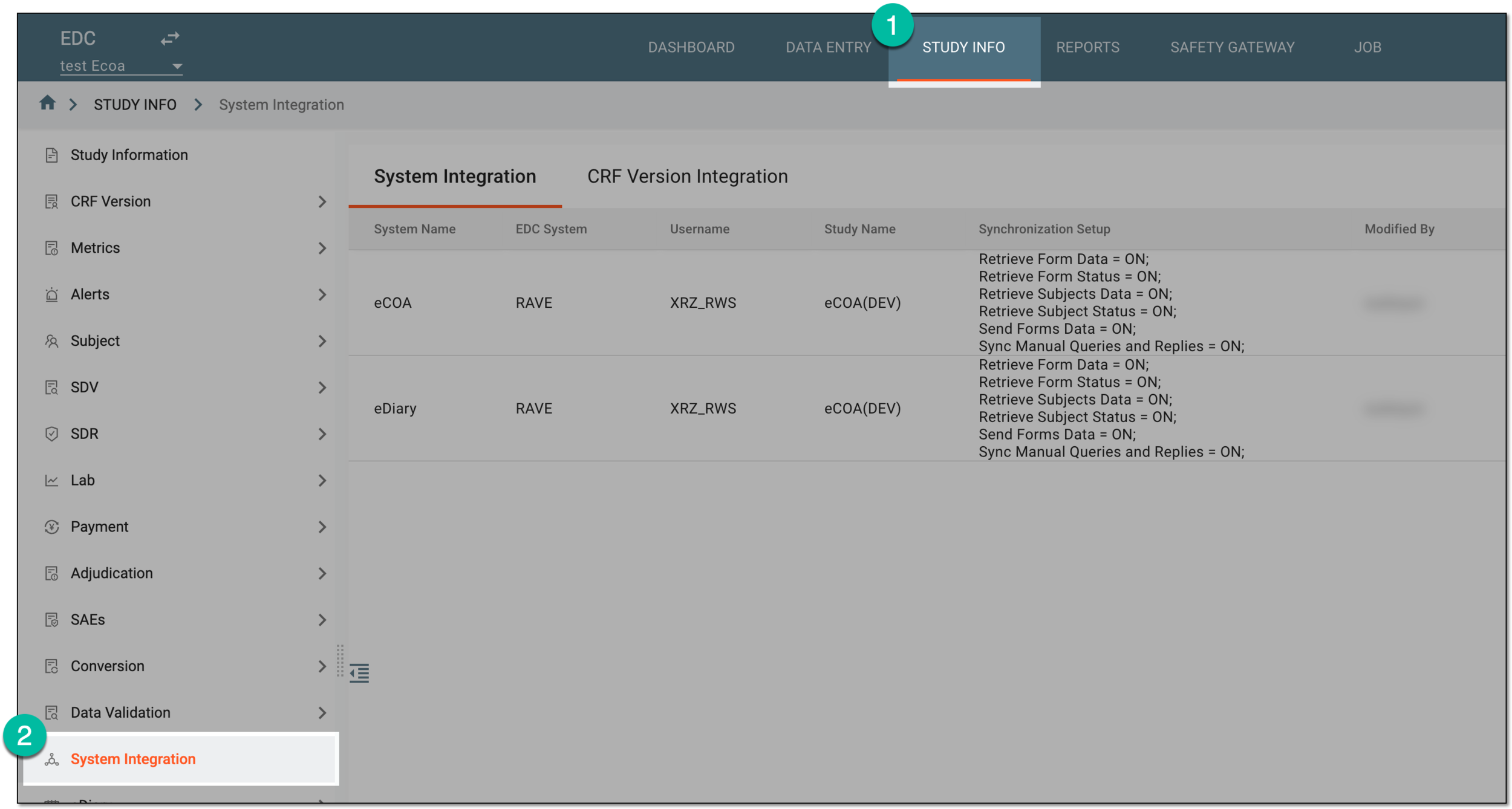 Figure 1. Accessing system integration
-
In the contents panel that appears, select the CRF Version Integration tab.
-
In the CRF Version Integration table that appears, next to the needed CRF version integration, select Match CRF
 .
. Figure 2. Selecting to establish mapping between CRF versions
-
On the page that opens, under the CRF Visits tab, select and drag visits associated with the CRF version in RAVE EDC to visits associated with the CRF version in eClinical EDC. From the workspace toolbar, select
 to apply the mapping between visits, and then confirm your action in the dialog that appears.
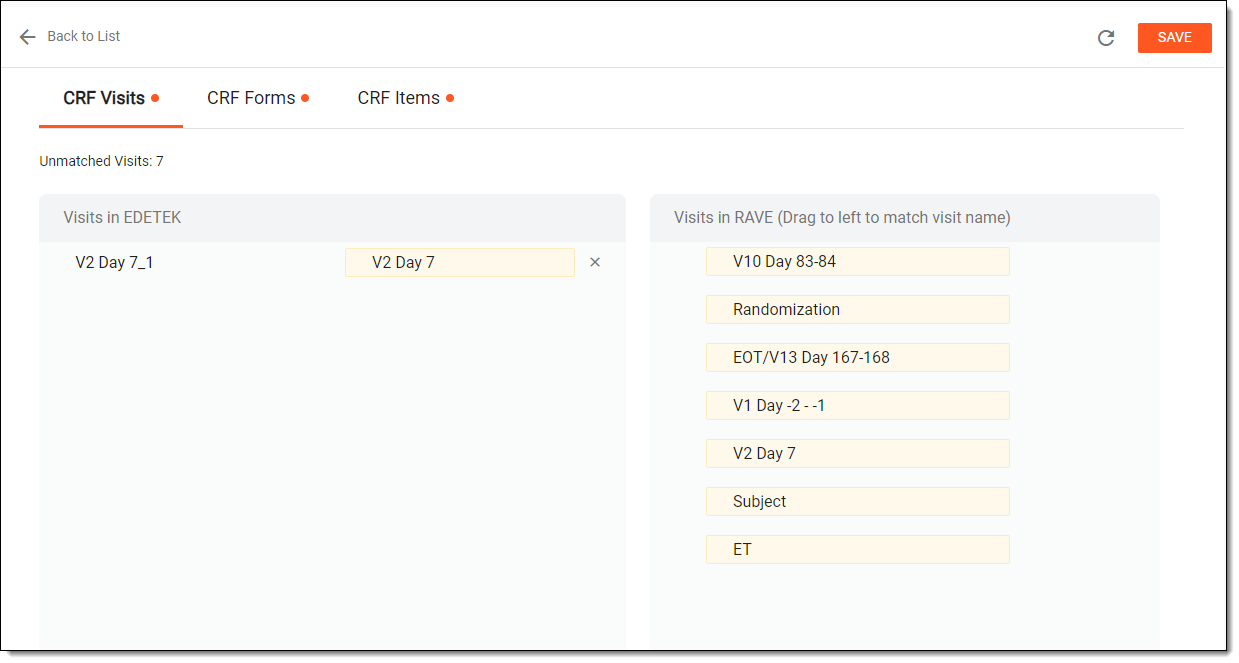 Figure 3. Mapping CRF visits
Tip
Select
 next to any established visit mapping to cancel it. From the workspace toolbar, select Refresh
  to cancel all previously established visit mappings.
 -
On the same page, select the CRF Forms tab. Then select and drag forms associated with the CRF version in RAVE EDC to forms associated with the CRF version in eClinical EDC. From the workspace toolbar, select
to apply the mapping between forms, and then confirm your action in the dialog that appears.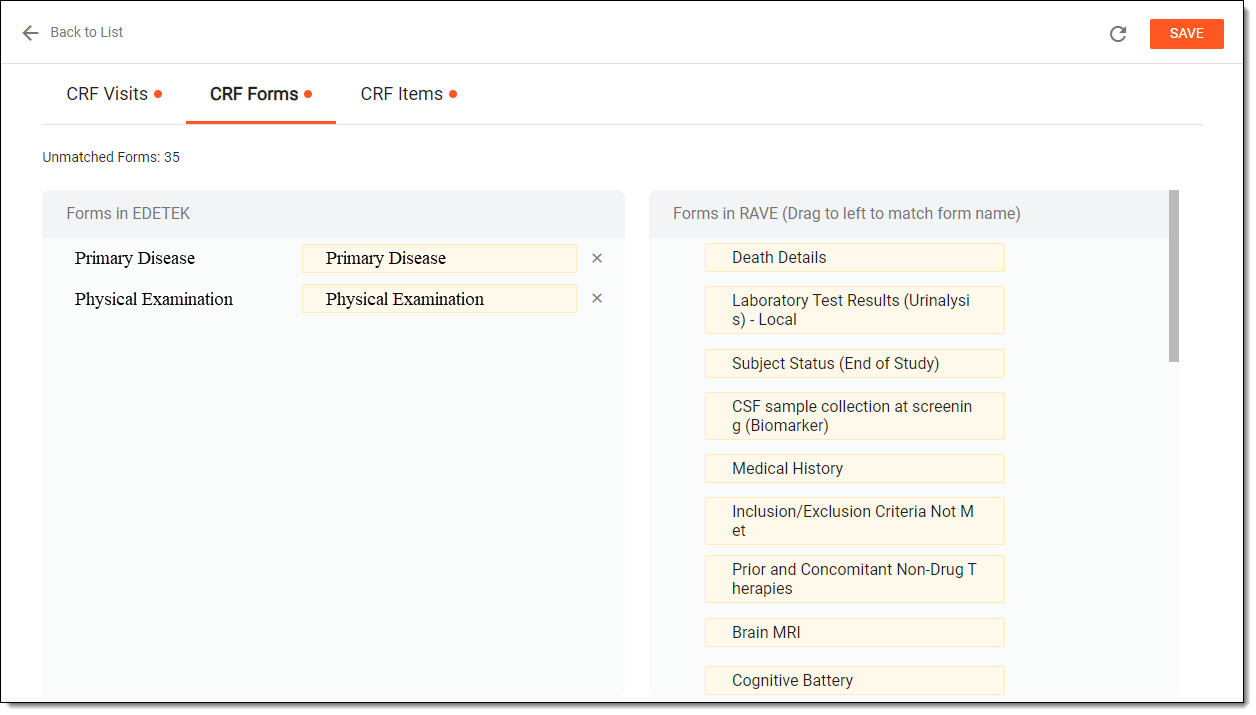 Figure 4. Mapping forms
Tip
Select
next to any established form mapping to cancel it. From the workspace toolbar, select Refresh to cancel all previously established form mappings. -
On the same page, select the CRF Items tab and expand the needed form. Then select and drag form items associated with the CRF version in RAVE EDC to form items associated with the CRF version in eClinical EDC. From the workspace toolbar, select
to apply the mapping between form items, and then confirm your action in the dialog that appears.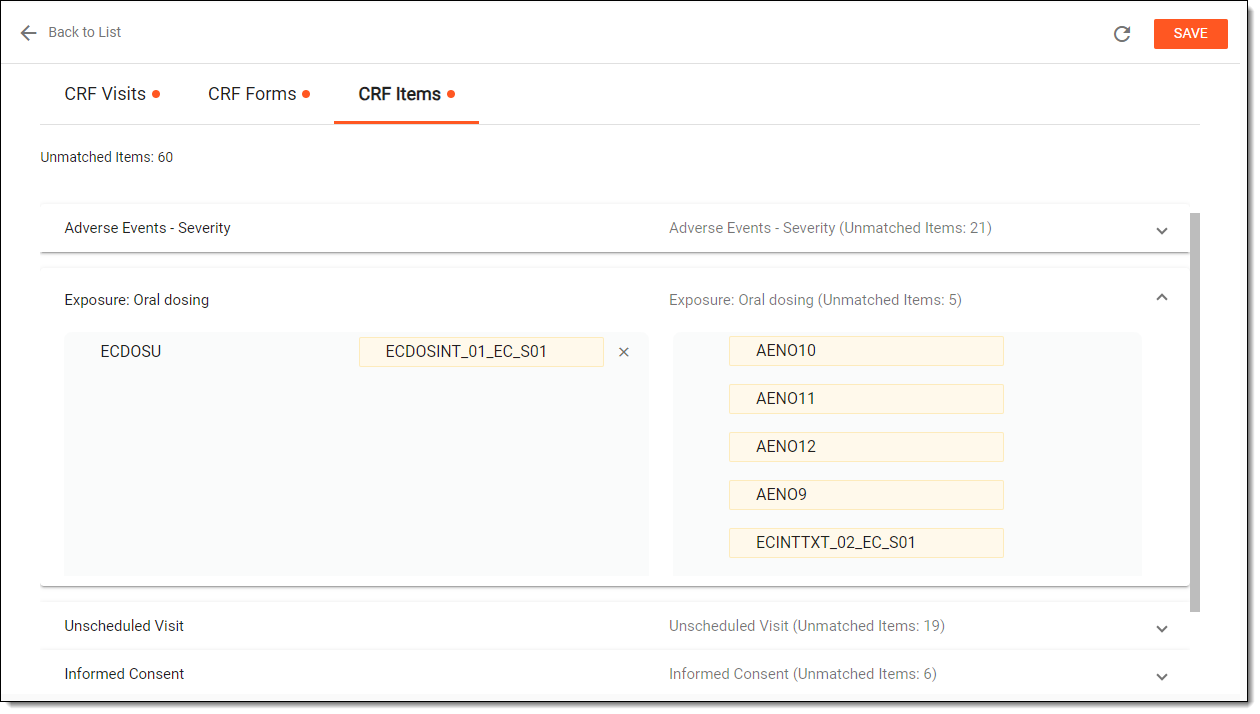 Figure 5. Mapping form items
Tip
Select
next to any established form mapping to cancel it. From the workspace toolbar, select Refresh to cancel all previously established form mappings. -
Select
 to return to the list of CRF version integrations or continue to configure visit, form, or item mappings under corresponding tabs.
Once saved, the mapping between CRF versions of eClinical EDC and RAVE EDC is established. Now, when the data is recorded in the eCOA or eDiary mobile application, it will be transmitted accurately to RAVE EDC through the eClinical EDC system.