Create system integration
All system integrations configured in eClinical EDC establish synchronization with other external EDC platforms to allow for data exchange between them. Currently, only integration with the RAVE EDC system is supported. This means that the data recorded in either eCOA or eDiary mobile applications can be instantly shared with RAVE EDC, using the eClinical EDC system as a configurational mediator.
By creating integration, you establish the connection between eClinical EDC and RAVE EDC. This integration ensures that all subject data, such as symptoms, treatment adherence, quality of life, or other critical outcomes, is captured in the eCOA or eDiary mobile application and recorded accurately in eClinical EDC.
Important
The data cannot be immediately transferred to RAVE EDC until the CRF version integration is created and mapping between visits, forms, and items of eClinical EDC and RAVE EDC CRF versions is established.
-
In the EDC application header, select the STUDY INFO tab.
-
In the left pane of the page that opens, select the System Integration subtab.
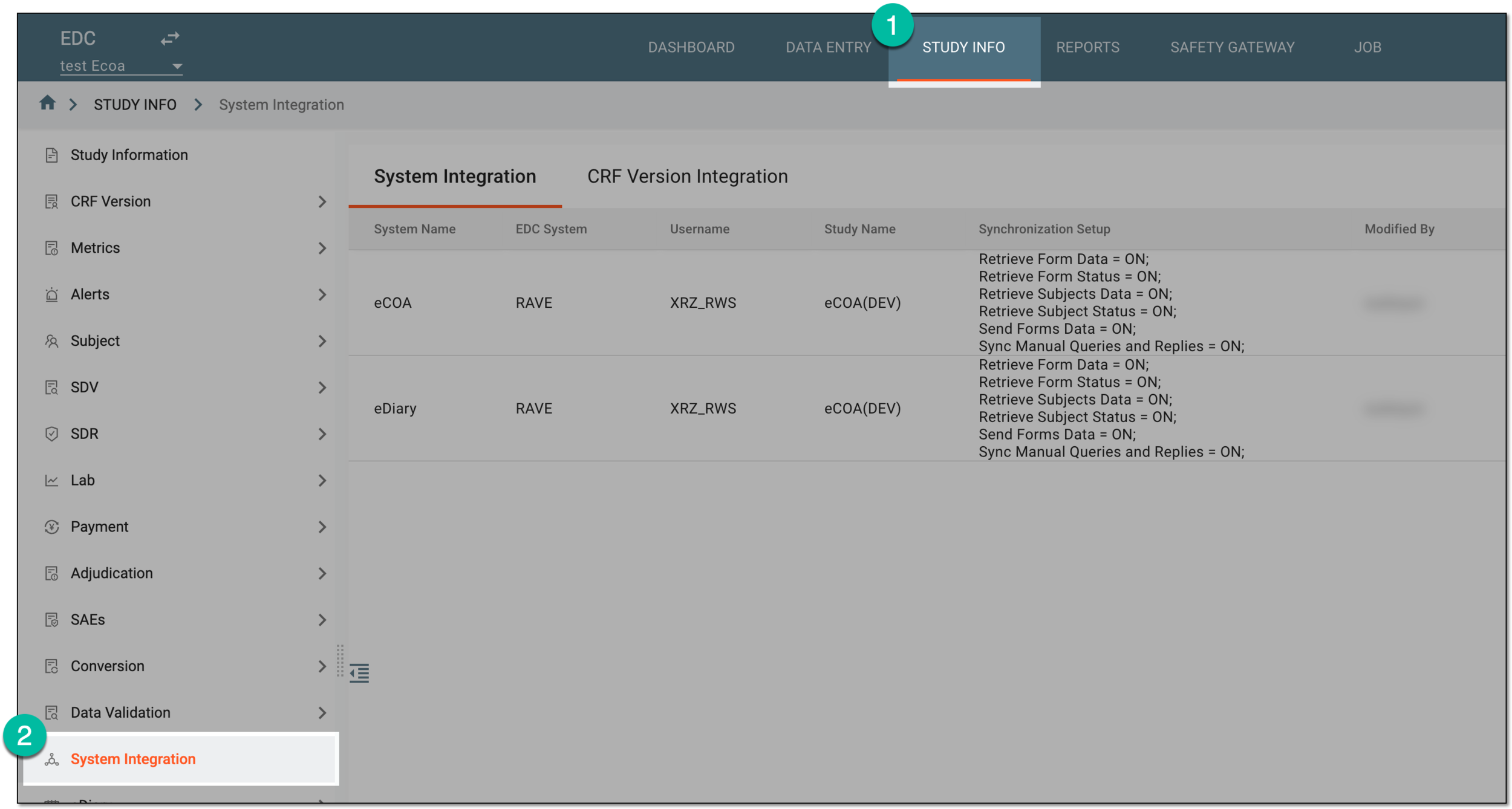 Figure 1. Accessing system integration
-
From the workspace toolbar of the System Integration table that appears, select New Item
 .
. Figure 2. Selecting to create system integration
-
In the New Item dialog that appears, provide the system integration details as explained in the following table.
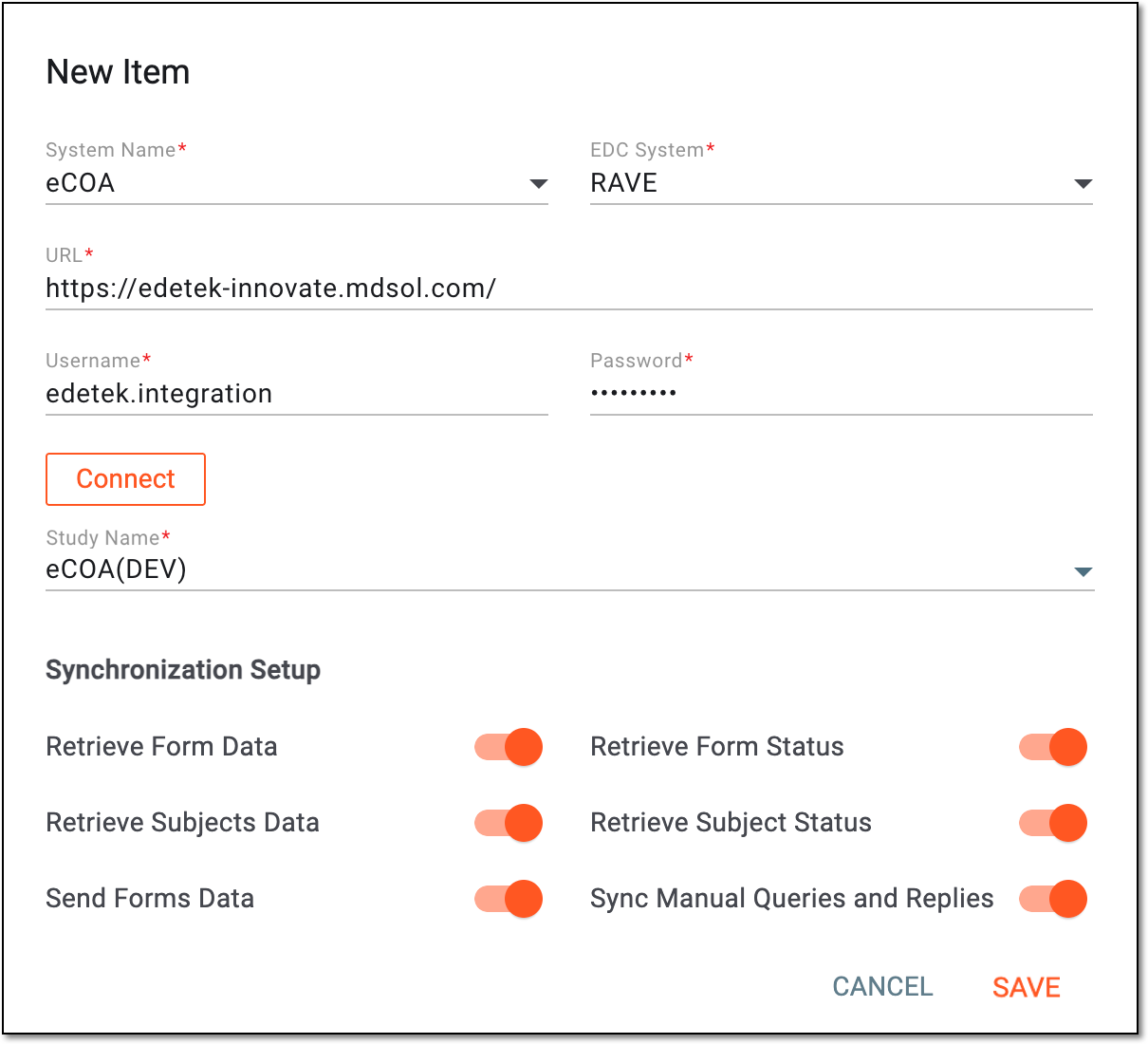 Figure 3. Configuring system integration
Tip
In the following table, mandatory elements are marked with an asterisk (*).
Element
Details
System Name*
Select either the eCOA or eDiary option depending on what mobile application is to be used for data recording.
EDC System*
Select the EDC system that is to be integrated with eClinical EDC for data exchange purposes. Currently, only the RAVE option is available.
URL*
Provide a link to the EDC platform that is to be integrated with eClinical EDC. For integration with the RAVE EDC system, copy and enter the following link:
https://edetek-innovate.mdsol.com/
Username*
Enter the username that is used to log in to the EDC platform indicated in the URL field. The company account is usually utilized for login purposes to ensure that it has access to the platform.
Password*
Enter the password that is used to log in to the EDC platform indicated in the URL field.
Connect
Select
 to verify the entered username and password credentials and use them to log in to
the EDC platform indicated in the URL field.
to verify the entered username and password credentials and use them to log in to
the EDC platform indicated in the URL field.Study Name*
After successfully establishing a connection with the EDC platform specified in the URL field, a list of studies on that platform is available for selection. The displayed list includes only those studies to which the user indicated in the Username field has access.
Retrieve Form Data
Set as follows:
-
Turn on the toggle to automatically pull the CRF data from the external EDC system. This is helpful to fill the eCOA or eDiary forms with data collected via the external EDC tool, as well as sync all the updated forms.
-
Turn off the toggle to disable the CRF data pull from the external EDC system. This might be helpful when there is no data collection in the external EDC tool and all data is entered via eCOA or eDiary apps, thus, no data pull is needed.
Retrieve Subjects Data
Set as follows:
-
Turn on the toggle to automatically pull the subject list and all the pertinent subject details from the external EDC system. This is helpful if subject registration and management occur in the external system and you want your eCOA or eDiary subject lists to sync with the EDC system.
-
Turn off the toggle to disable the subject data pull if it is not required for your study setup. This might be useful if there are specific scenarios for data exchange that can be disrupted by automation.
Send Forms Data
Set as follows:
-
Turn on the toggle to automatically push the CRF data from the eCOA or eDiary app to the external EDC system. This is helpful to fill the EDC forms with data collected via the mobile applications, as well as sync all the updated forms.
-
Turn off the toggle to disable the automated CRF data push from the eCOA or eDiary app to the external EDC system. This might be useful if there are specific scenarios for data exchange that can be disrupted by automation.
Retrieve Form Status
Set as follows:
-
Turn on the toggle to automatically pull the CRF status data from the external EDC system. This helps maintain the synchronization between the systems and avoid discrepancies in data collection progress tracking.
-
Turn off the toggle to disable the CRF status data pull if it is not required for your study setup. This might be useful if there are specific scenarios for data exchange that can be disrupted by automation.
Retrieve Subject Status
Set as follows:
-
Turn on the toggle to automatically pull the subject status data from the external EDC system. This helps maintain the synchronization between the systems and avoid discrepancies in subject management.
-
Turn off the toggle to disable the CRF status data pull if it is not required for your study setup. This might be useful if there are specific scenarios for data exchange that can be disrupted by automation.
Sync Manual Queries and Replies
Set as follows:
-
Turn on the toggle to sync all the queries and their replies between the eCOA or eDiary app and the external EDC system. This gives an opportunity, for instance, for the site staff to reply to queries created via the external EDC system directly from eCOA or eDiary app.
-
Turn off the toggle to disable the automated sync of queries and their replies between the eCOA or eDiary app and the external EDC system. This might be useful if there are specific scenarios for data exchange that can be disrupted by automation.
SAVE
Select
 to create system integration.
CANCEL
Select
 to cancel the creation of system integration.
 -
Once saved, the system integration is added. You now need to create the CRF version integration to determine what CRF version in eClinical EDC needs to be mapped with what CRF version in RAVE EDC.