Confirm site return shipment
A site is the location where the subject treatment and item dispensation occurs. In the course of a clinical trial, the need may arise to return dispensing items from a study site to the depot. In IWRS, you can return any available items to the respective depot so they can be reused elsewhere, or you can return items for destruction if they have been, for example, damaged or else.
Once the return request with either available items or items for destruction has been initiated, a shipment is automatically generated by the system. You then need to confirm this return shipment in order to indicate that the items have been sent back to the depot.
-
In the IWRS application header, select the SITE tab.
-
In the Site List table that opens, select the needed site.
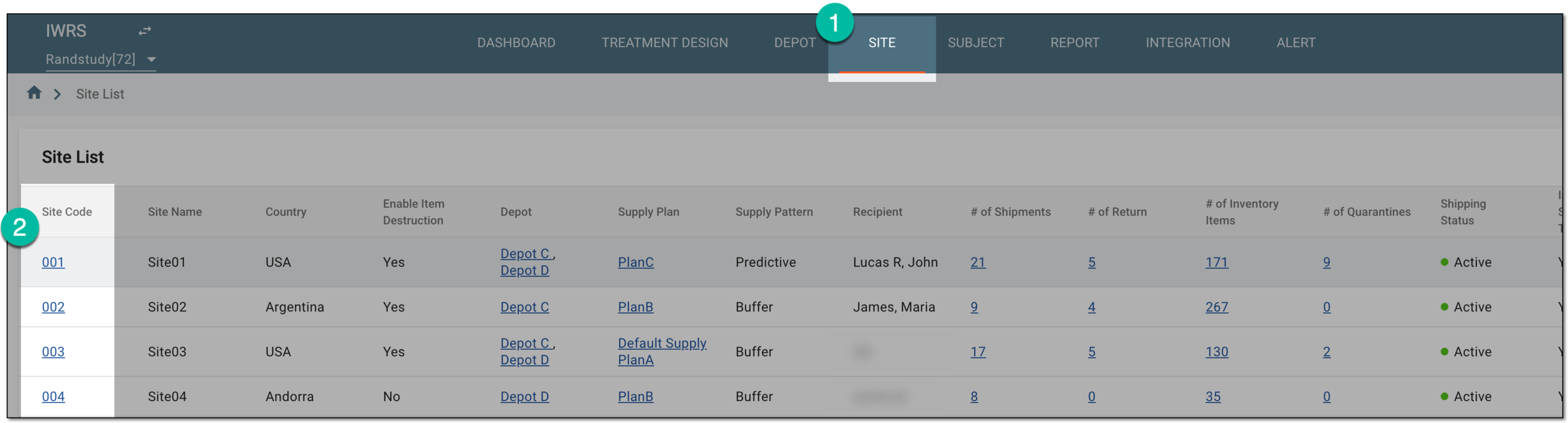 Figure 1. Selecting site to view details
-
In the left pane of the page that opens, select Return.
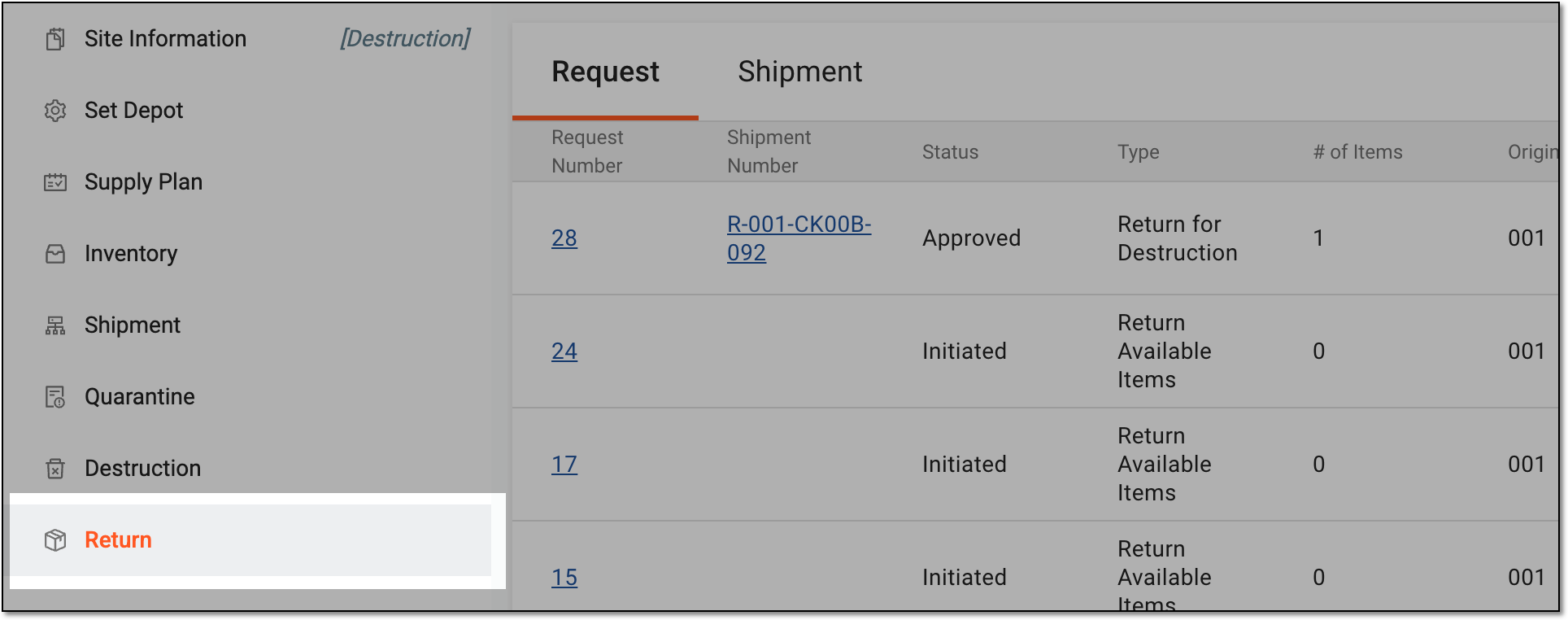 Figure 2. Accessing site item return
-
In the contents panel that appears, select the Shipment tab to open the list of all return shipments.
-
In the Shipment table, select the needed shipment with the Requested status.
 Figure 3. Selecting shipment
-
On the page that opens, view the details of the requested shipment. If the shipment information is correct, select
 .
.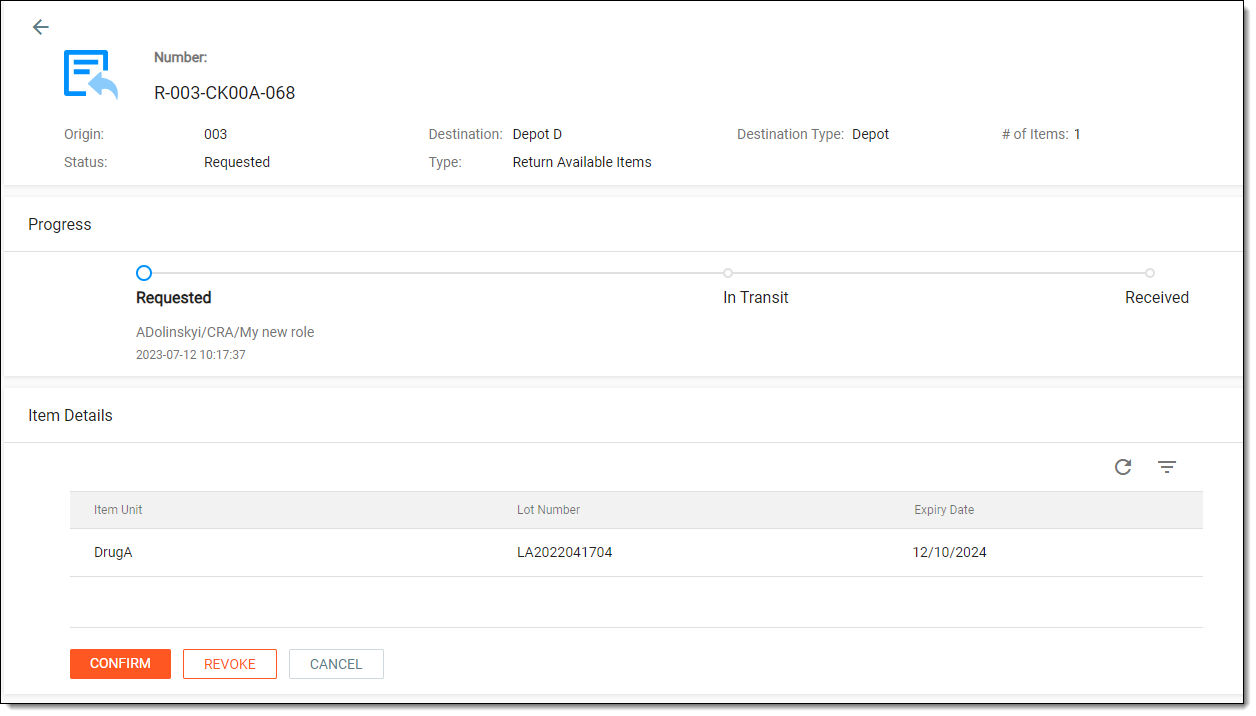 Figure 4. Viewing shipment details
-
In the Confirm dialog that appears, provide the details as explained in the following table.
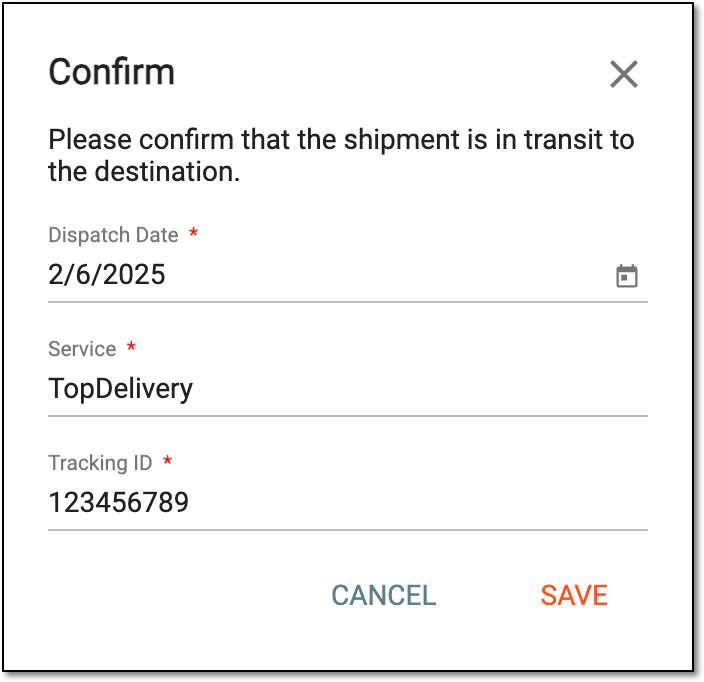 Figure 5. Confirming return shipment
Tip
In the following table, mandatory elements are marked with an asterisk (*).
Element
Details
Dispatch Date*
Provide the date on which the return shipment has been sent to the depot. By default, the current date and time are displayed but you can still change it if needed.
Service
Enter the name of the shipping carrier that is used for the delivery of items.
Tracking ID
Enter the tracking ID provided by the shipping carrier to trace the delivery.
SAVE
Select
 to confirm the return shipment.
CANCEL
Select
 to cancel the return shipment confirmation.
Once saved, the site return shipment is confirmed. The depot personnel now receives the email about the shipment and they need to mark the shipment as received. You can also revoke the shipment or modify its details if there has been some mistake.