Revoke site return shipment
A site is the location where the subject treatment and item dispensation occurs. In the course of a clinical trial, the need may arise to return dispensing items from a study site to the depot. In IWRS, you can return any available items to the respective depot so they can be reused elsewhere, or you can return items for destruction if they have been, for example, damaged or else.
After the return request has been created or the return shipment has been confirmed, indicating that the items have been sent back to the depot, it may occur that some shipments need to be revoked. This can happen due to different reasons, for example, the available items are again required for dispensing to some subjects.
-
In the IWRS application header, select the SITE tab.
-
In the Site List table that opens, select the needed site.
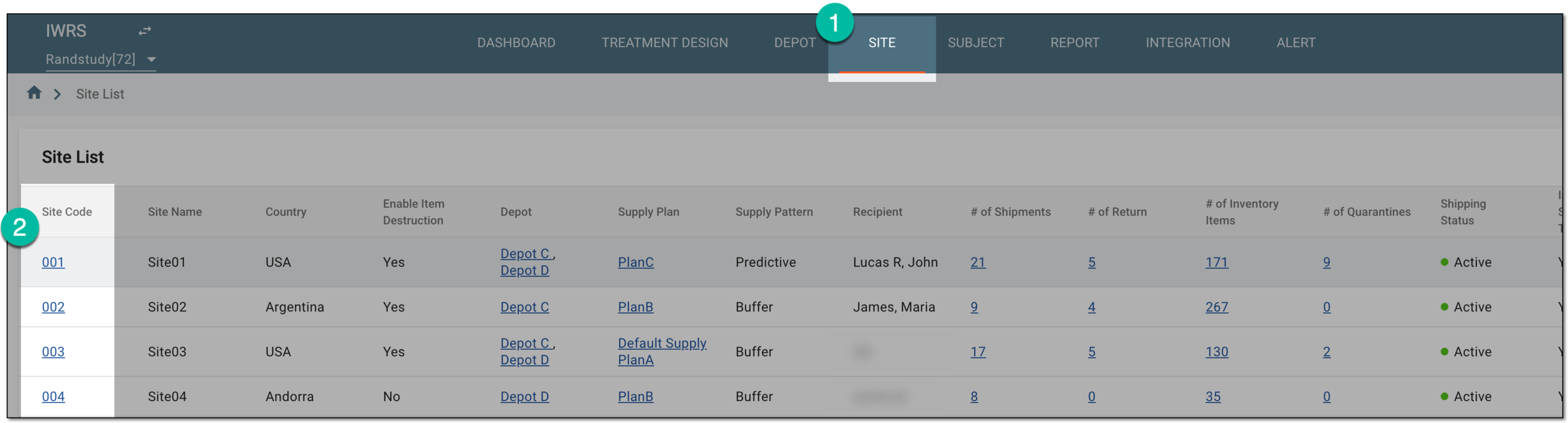 Figure 1. Selecting site to view details
-
In the left pane of the page that opens, select Return.
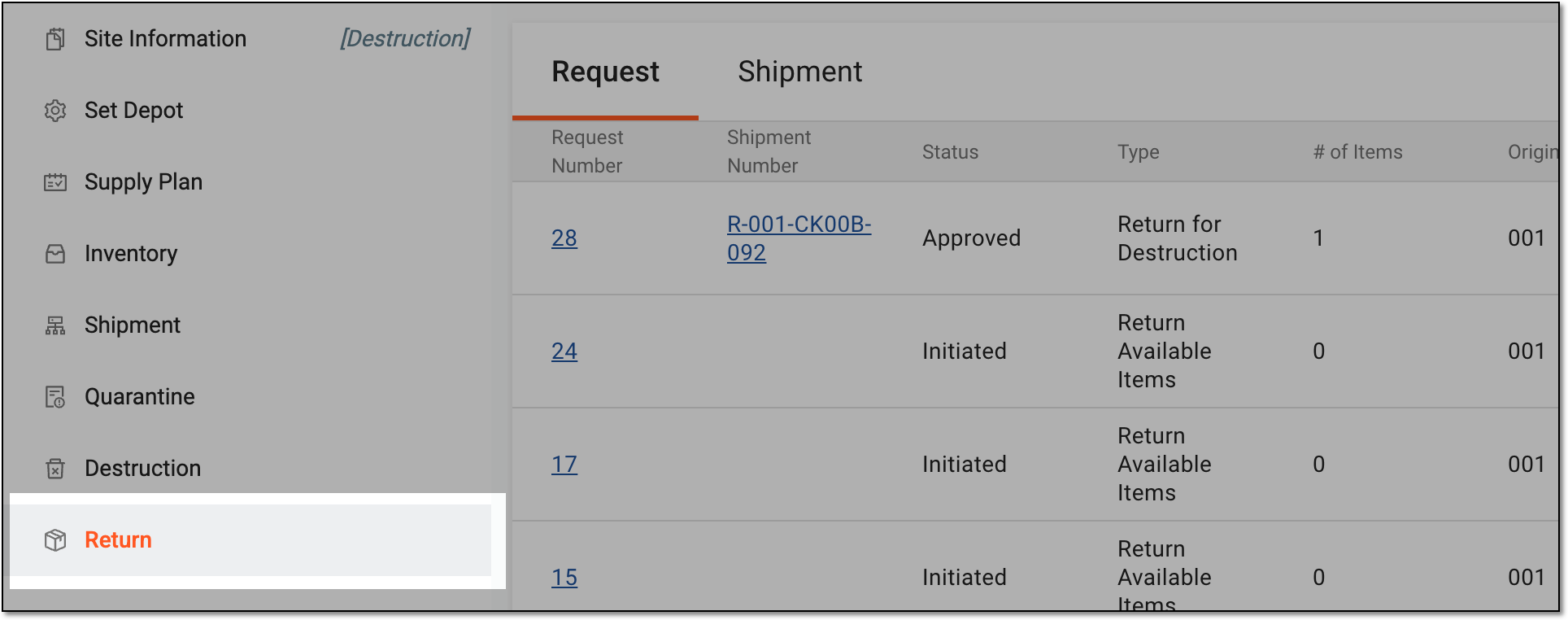 Figure 2. Accessing site item return
-
In the contents panel that appears, select the Shipment tab to open the list of all return shipments.
-
In the Shipment table, select the needed shipment with the Requested or In Transit status.
 Figure 3. Selecting shipment
-
On the shipment details page that opens, select
 .
.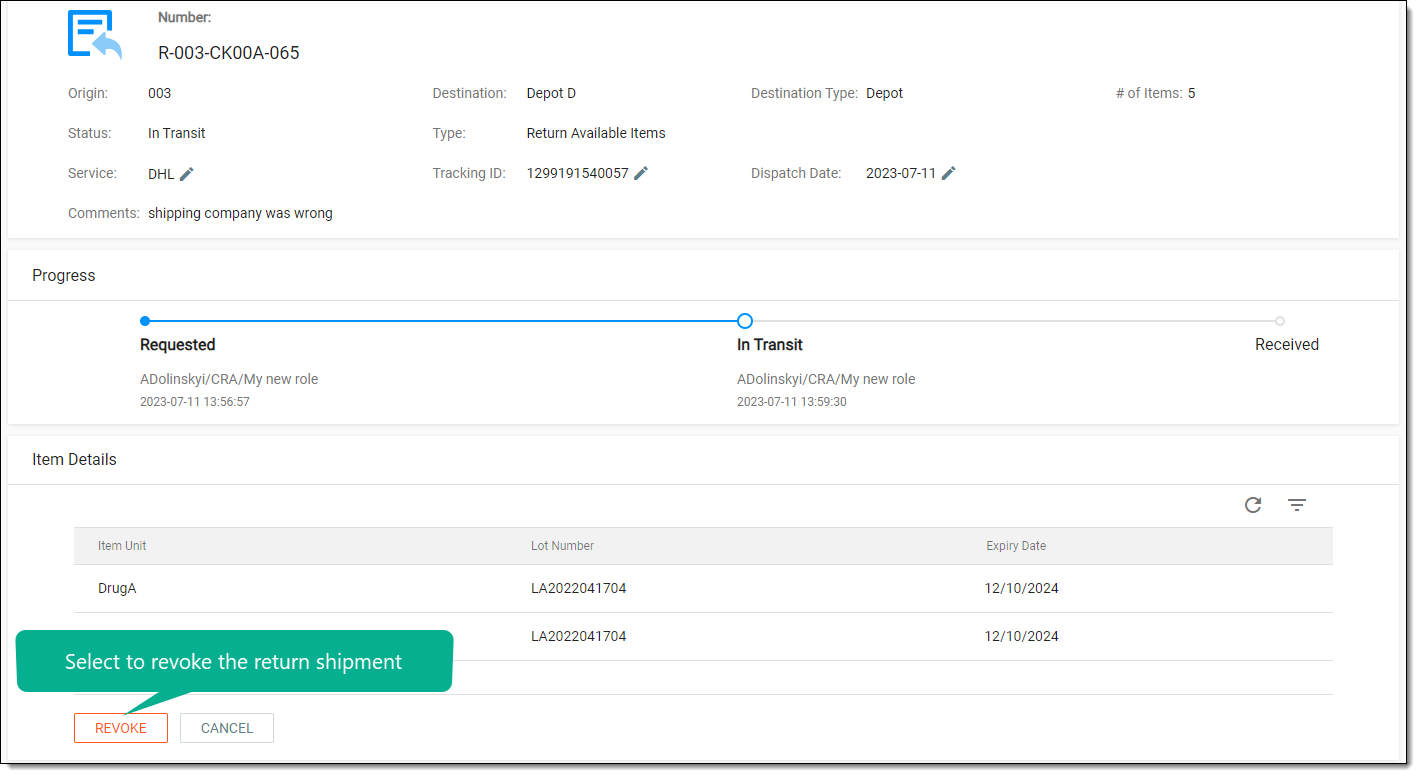 Figure 4. Revoking return shipment
-
In the Revoke Reason dialog that appears, enter a reason for revoking the return shipment and select
 .
.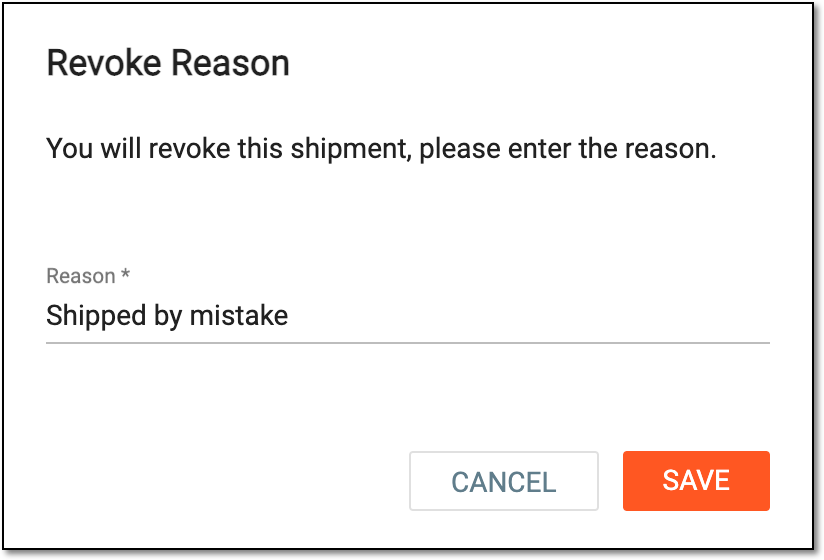 Figure 5. Providing reason for revoking shipment
Once saved, the return shipment is revoked. The items that are supposed to be shipped return to the site inventory.