View ICSR submissions
This PV functionality focuses on the expedited submission of ICSRs to the authorities, affiliates, partners, investigators, or ethics committees. The form of submission acceptable to each authority or partner is different.
For example, a sponsor of the clinical trial for the Investigational New Drug (IND) must submit Serious and Unexpected Suspected Adverse Reactions (SUSAR) to FDA in the IND safety report within 7 or 15 days depending on the seriousness criteria.
Under the SUBMISSION tab, you can track the status of the ICSR submissions based on the study access permissions granted to you via ADMIN. Meaning that you can only see the cases that belong to the studies to which you have access.
The submission list is organized by creation time, so the latest generated submissions are at the top. Here, you can monitor the progress of submission processes, transmit them simultaneously in bulk, or update their ACK message in bulk.
When working with multiple submission records generated via the E2B Gateway approach, you can track them by the following indicator statuses:
-
EDI In: this indicator turns green when the submitted XML message has been successfully sent out to EDETEK’s EDI service. This indicator can have the Pending, Success, or Failed status.
-
EDI Out: this indicator turns green when the submitted XML message has been sent out from EDETEK’s EDI service and it is on the way to the receiving destination via the Internet. This indicator can have the Pending, Success, or Failed status.
-
MDN Received: this indicator turns green when the submitted XML message has reached the receiver but has not yet been loaded into the receiver’s local safety system. This indicator can have the Pending or Success status.
-
ACK Received: this indicator denotes the status of the acknowledgment (ACK) message after the receiver gets the submitted XML file. This indicator can have the Pending, Warning, Success, or Failed status.
-
In the PV application header, select the SUBMISSION tab.
-
On the Submission List page that opens, view the list of all submission records for any ICSR case under the two tabs: E2B Gateway (submission records that are sent out with the E2B Gateway approach) and Other (submission records that need to be sent out manually).
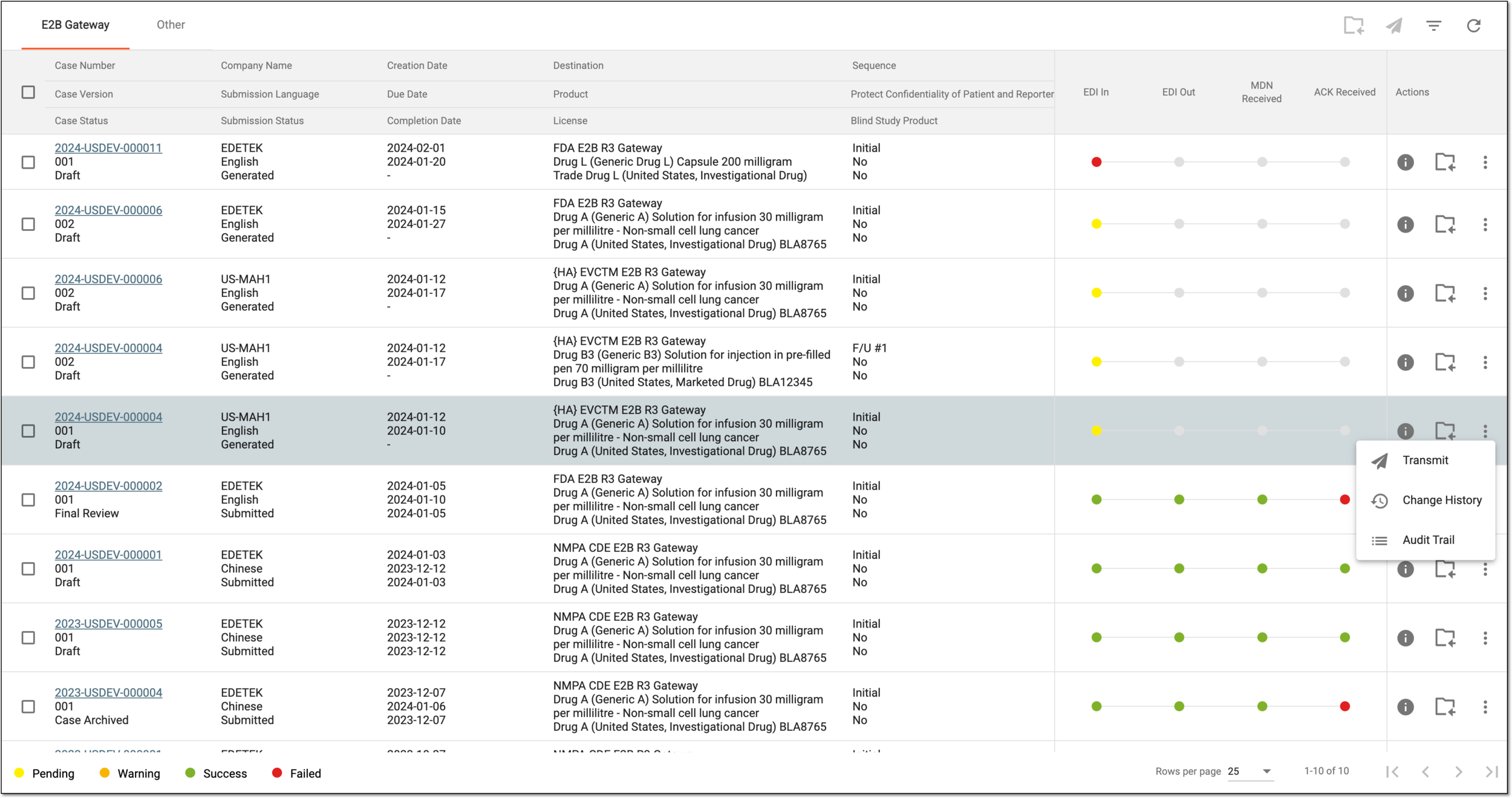 Figure 1. Viewing submission records in bulk
Tip
Selecting the case number link opens the ICSR details page in the new browser tab.
-
On the same page, you can perform the following actions with one or many submission records: transmit, update the ACK message, view the change history, and view the audit trail. Just select the checkboxes next to the needed submission records beforehand and then perform the relevant action.
Once viewed, you can proceed to generate a new submission record if needed.