Update acknowledgment message
This PV functionality focuses on the expedited submission of ICSRs to the authorities, affiliates, partners, investigators, or ethics committees. For example, a sponsor of the clinical trial for the Investigational New Drug (IND) must submit Serious and Unexpected Suspected Adverse Reactions (SUSAR) to FDA in the IND safety report within 7 or 15 days depending on the seriousness criteria. The form of submission acceptable to each authority or partner is different.
The Message Disposition Notification (MDN) is the message that is automatically sent out by the receiving gateway confirming the date and time of the E2B file receipt. When the E2B gateway approach is used to send the submission record in the XML file, the MDN is posted automatically in about one minute after the transmission operation.
In pharmacovigilance, an official communication method for sponsors, regulatory authorities, and stakeholders to exchange information on the successful receipt or failure of the ICSR or other safety data and regulatory submission.
-
In 0-30 minutes: the PV application tries to update the ACK message every 5 minutes.
-
In 30-60 minutes: the PV application tries to update the ACK message every 10 minutes.
-
From 60 minutes to 24 hours: the PV application tries to update the ACK message every 30 minutes.
-
After 24 hours: you need to update the ACK message manually.
-
In the PV application header, select the ICSR tab.
-
On the ICSR List page that opens, in the table, locate the ICSR record for which the submission record is already generated. Then select its case number to open the details page in the new browser tab.
Alternatively, from the Actions column next to your ICSR, select Edit
 to open the
ICSR details in the same browser tab.
to open the
ICSR details in the same browser tab. Figure 1. Selecting to edit ICSR
-
On the page that opens, in the left pane, select Submission.
-
Then select the submission record whose ACK message you want to update.
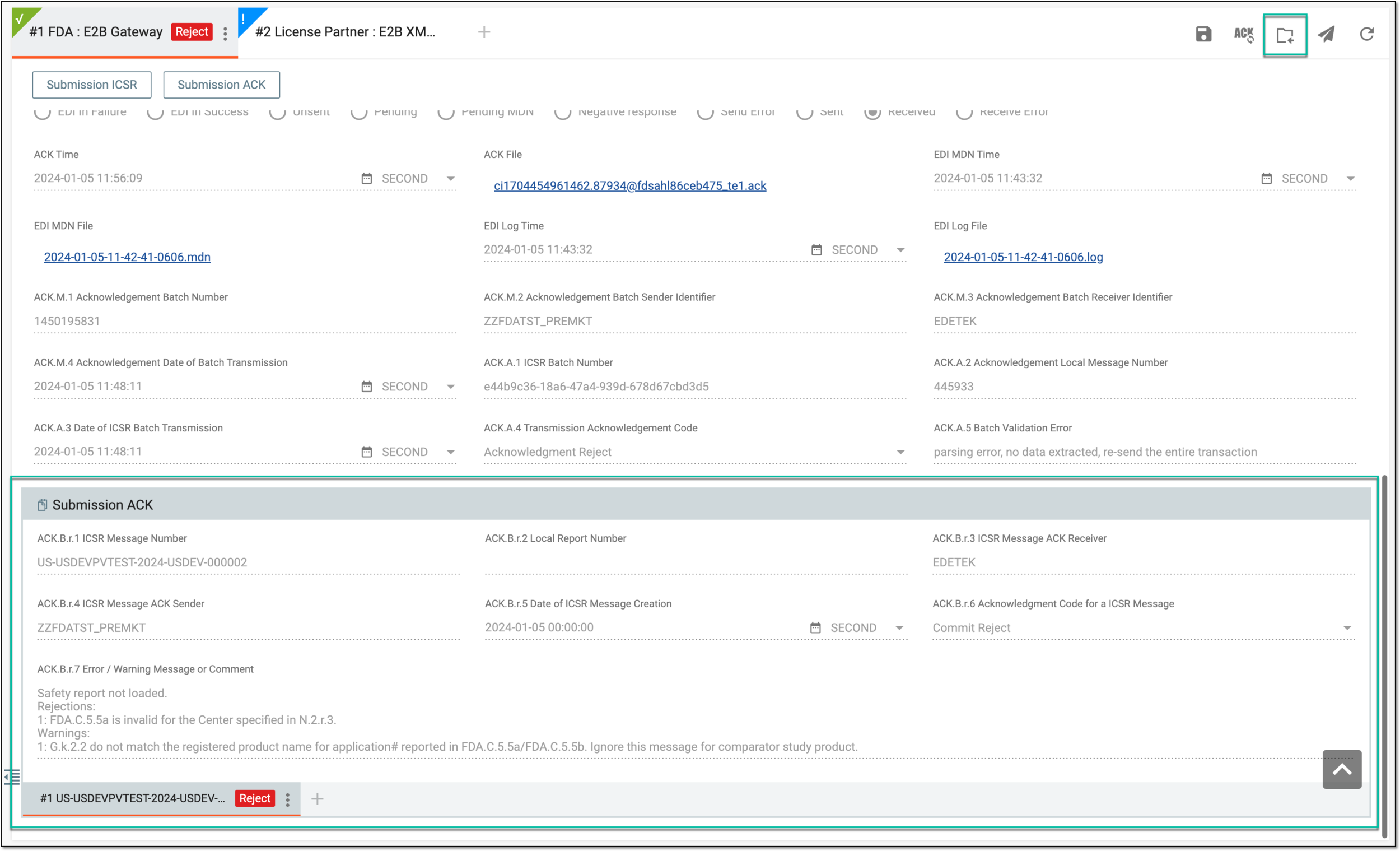 Figure 2. Viewing ACK message
-
From the workspace toolbar, select ACK Update
 .
.
Once selected, the ACK message becomes updated. You can now transmit other submission records.