View query alert email history
Queries are created to report any discrepancies, inconsistencies, or missing data found in study files. In eTMF, you can manually create query alerts for users responsible for addressing and fixing such issues.
In eTMF, you can view the history of the alert emails and open them to view their contents.
-
In the eTMF application header, select the TMF tab.
-
On the Study List table that appears, locate the study for which you need to view email history. Then in the Action(s) column next to it, select More
 > Query Alerts
  .
. -
On the Query Alerts page that opens, on the workspace toolbar, select Email History
 .
.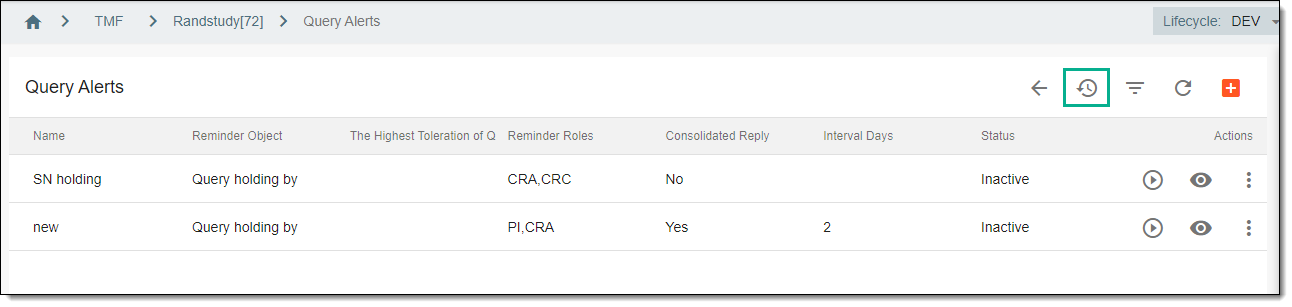 Figure 1. Email history option
-
On the Email History page that opens, you can view the complete history of query alert emails. To view an email, in the Action(s) column next to the correspondence of your interest, select View Email
 .
.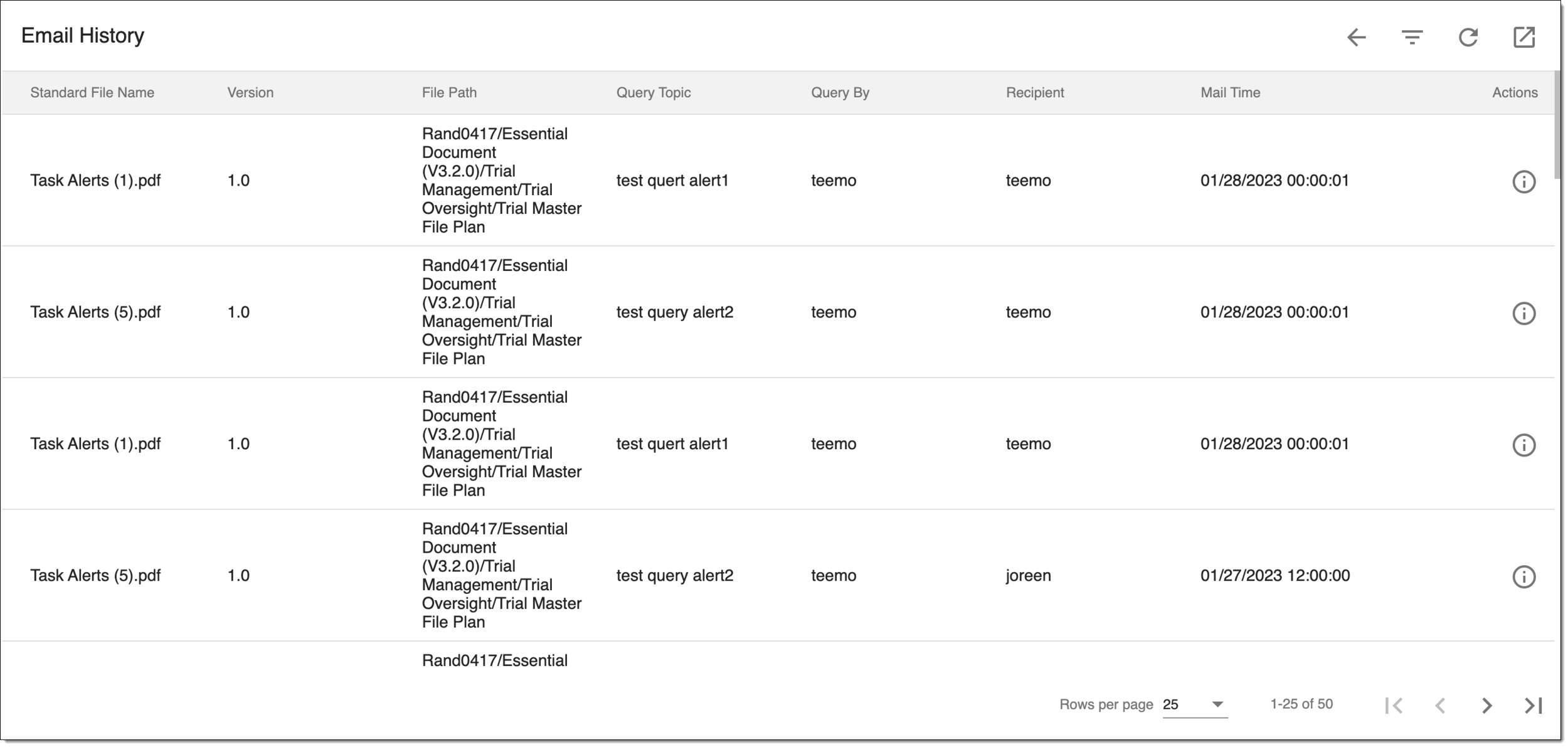 Figure 2. Query email history
-
In the Mail dialog that opens, you can see the email contents, including the details, such as the query topic, assignee, and creator.
-
Select
 or
or  to close the
dialog.
to close the
dialog.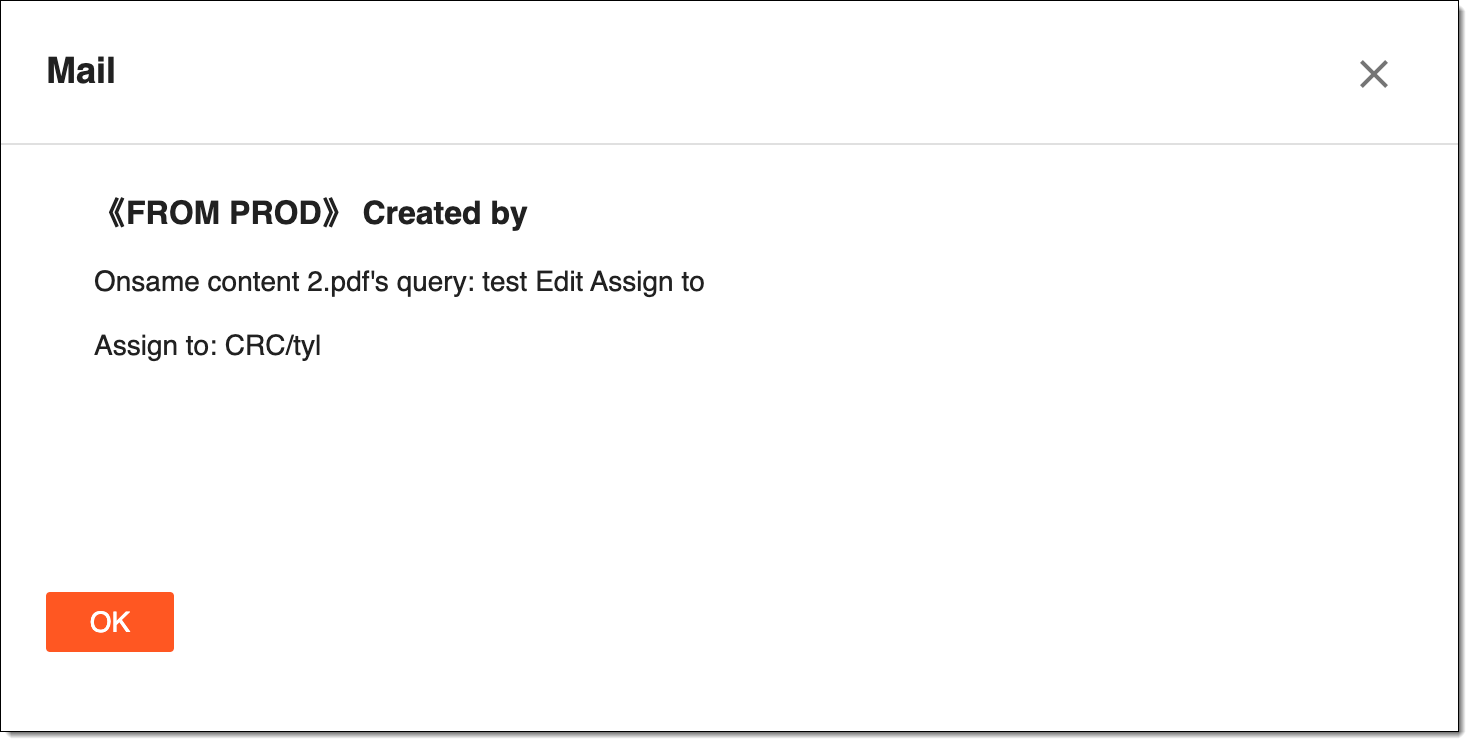 Figure 3. Viewing query email contents
Once closed, you return to the Email history page. If you have spotted any issues with the email content, you can update it by editing the query alert.