Compare follow-up task data to previous version
PV uses the data of a specific subject collected and captured in CRFs via EDC. For PV to get the data extracted from EDC, the principal investigator (PI) of a site or a designee has to create a task via the EDC > Safety Gateway functionality.
After creating and sending the initial task to PV, if you have new data related to the previously sent information in EDC, you can create a follow-up task for data extraction.
In EDC, you can compare the data selected for extraction in the follow-up task to those selected in the previous task version.
-
In the EDC application header, select the SAFETY GATEWAY tab.
-
On the page that opens, in the left pane, select the Task Management subtab.
-
In the Task List table that appears, go to the follow-up task for which you want to compare the data, and in the Actions column next to it, select Review
 .
. Figure 1. Selecting follow-up task to review and compare
-
On the page that opens, in the left pane, review the data under all the subtabs as explained in the following table.
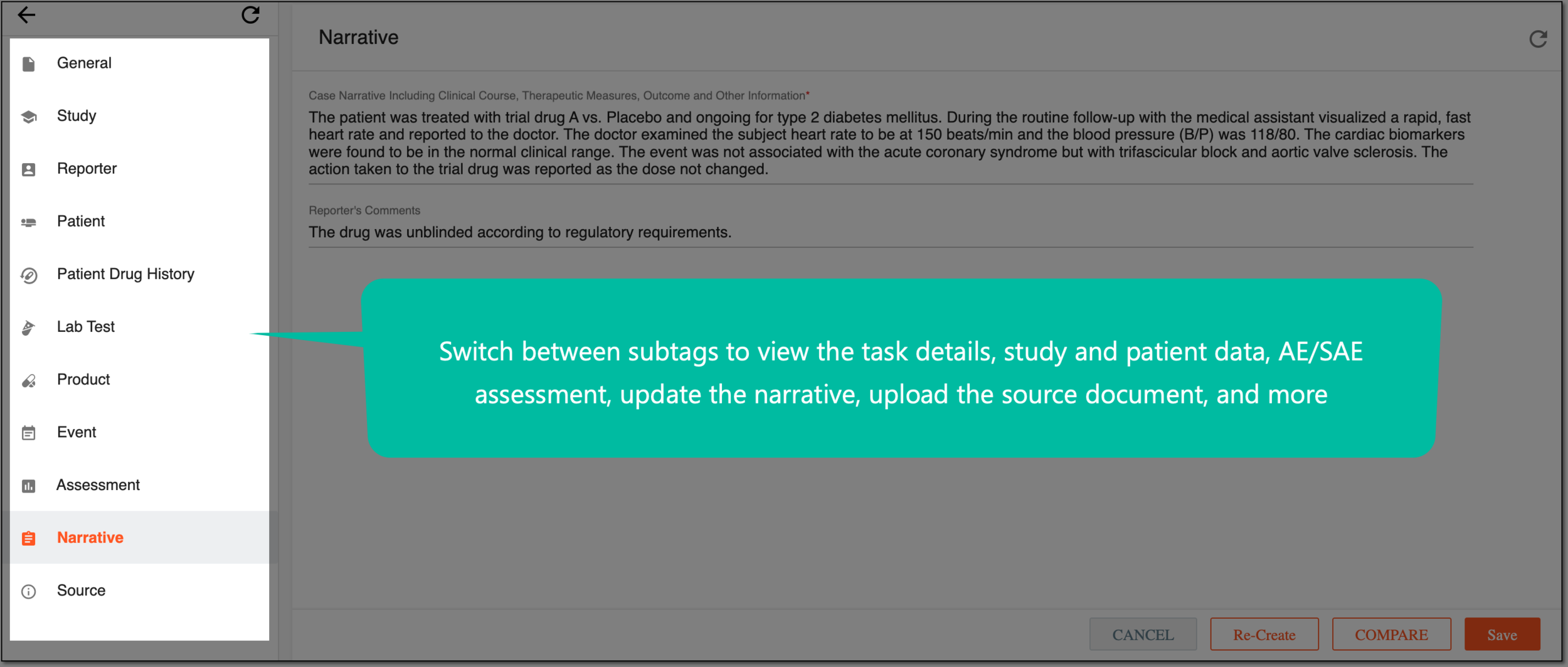 Figure 2. Selecting subtabs to review and manage extraction task details and data
Element
Details
General
Represents general information about the extracted data within the task, such as case country and language, AE category, report type, and more.
Study
Represents general study data, such as registration number and country.
Reporter
Represents information about the user who has created the task, such as user name, organization, and other contact information.
Patient
Represents the patient's demographic data, medical history, and death (if it occurred).
Patient Drug History
Represents information on all the drugs provided to the patient during the clinical trial, such as the drug name, timeframes of its consumption, and so on.
Lab Test
Represents the details of all the laboratory tests taken for the subject during the clinical trial.
Product
Represents the investigational products and concomitant medications taken/used by the subject during the clinical trial, their dosage, substance, and indication.
Event
Represents all the events (AE/SAE) that occurred with the subject during the clinical trial and their details.
Assessment
Represents the subject's AE/SAE causality assessments.
Narrative
Represents the narrative added to the previous task version that provides a concise summary of identified/specific AEs occurring with a patient to conclude a causal relationship between drugs and events. You can update the narrative for your follow-up if needed.
Source
Represents the source document uploaded to follow the AE/SAE data in the previous task version. You can upload the new source document for your follow-up if needed.
Save
Select
 to save the implemented changes at any of the subtabs.
Re-Create
Select
 to create the task over if the current version is not satisfactory for some reason.
COMPARE
Select
 to compare the data of your follow-up and the previous task. In the Confirm dialog that opens, confirm
that the selected/added data is final, and you do not need to make any updates and can move forward to the comparison page.
to compare the data of your follow-up and the previous task. In the Confirm dialog that opens, confirm
that the selected/added data is final, and you do not need to make any updates and can move forward to the comparison page.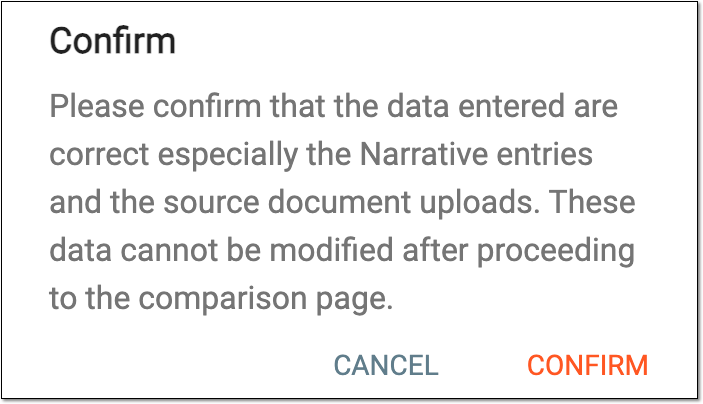 Figure 3. Confirming to compare follow-up task data
CANCEL
Select
 to discard the implemented changes at any of the subtabs.
 -
On the page that opens, you can find the same subtabs with data as explained in the previous step but with the differences highlighted—edits, new additions, or deletions. Review the available differences as explained in the following table.
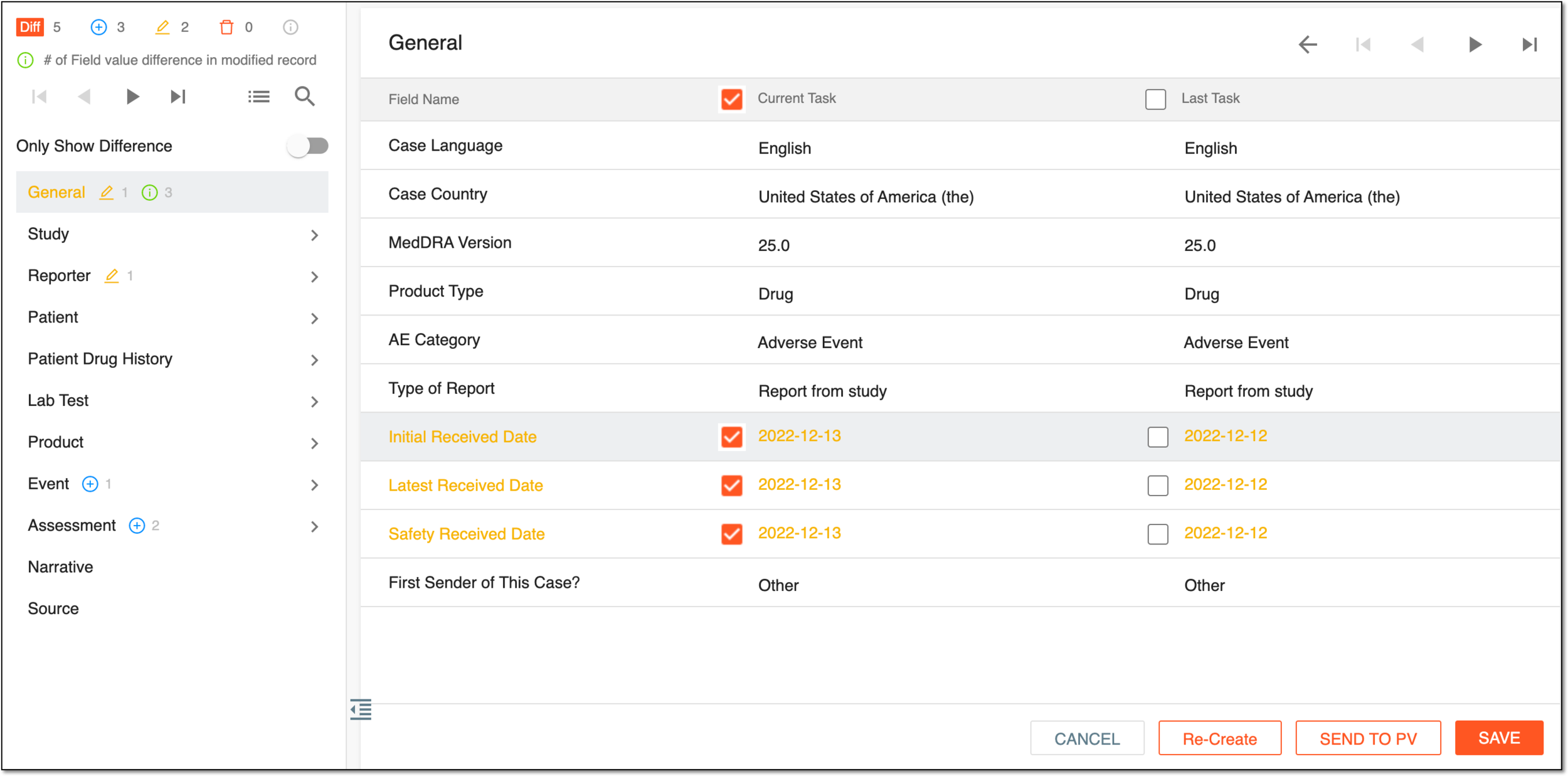 Figure 4. Comparing differences in follow-up and original forms
Element
Details

At the top of the left pane, represents the total number of differences discovered by the system between the follow-up and the previous task.

-
At the top of the left pane, represents the total number of new additions discovered by the system in the follow-up task compared to the previous one.
-
Next to the subtab name, represents the number of new additions in that precise tab discovered by the system in the follow-up task compared to the previous one.

-
At the top of the left pane, represents the total number of edits discovered by the system in the follow-up task compared to the previous one.
-
Next to the subtab name, represents the number of edits in that precise tab discovered by the system in the follow-up task compared to the previous one.

-
At the top of the left pane, represents the total number of deletions discovered by the system in the follow-up task compared to the previous one.
-
Next to the subtab name, represents the number of deletions in that precise tab discovered by the system in the follow-up task compared to the previous one.
Select these control icons to conveniently switch between differences discovered by the system—go to the first, next consequent, previous, or last one.
Only Show Differences
Turn this toggle on/off to hide/display the subtabs under which the system has not discovered any differences between the follow-up and the previous task.
-
-
Upon comparison of the discovered differences, depending on the data sufficiency, you can now perform one of the actions as explained in the following table.
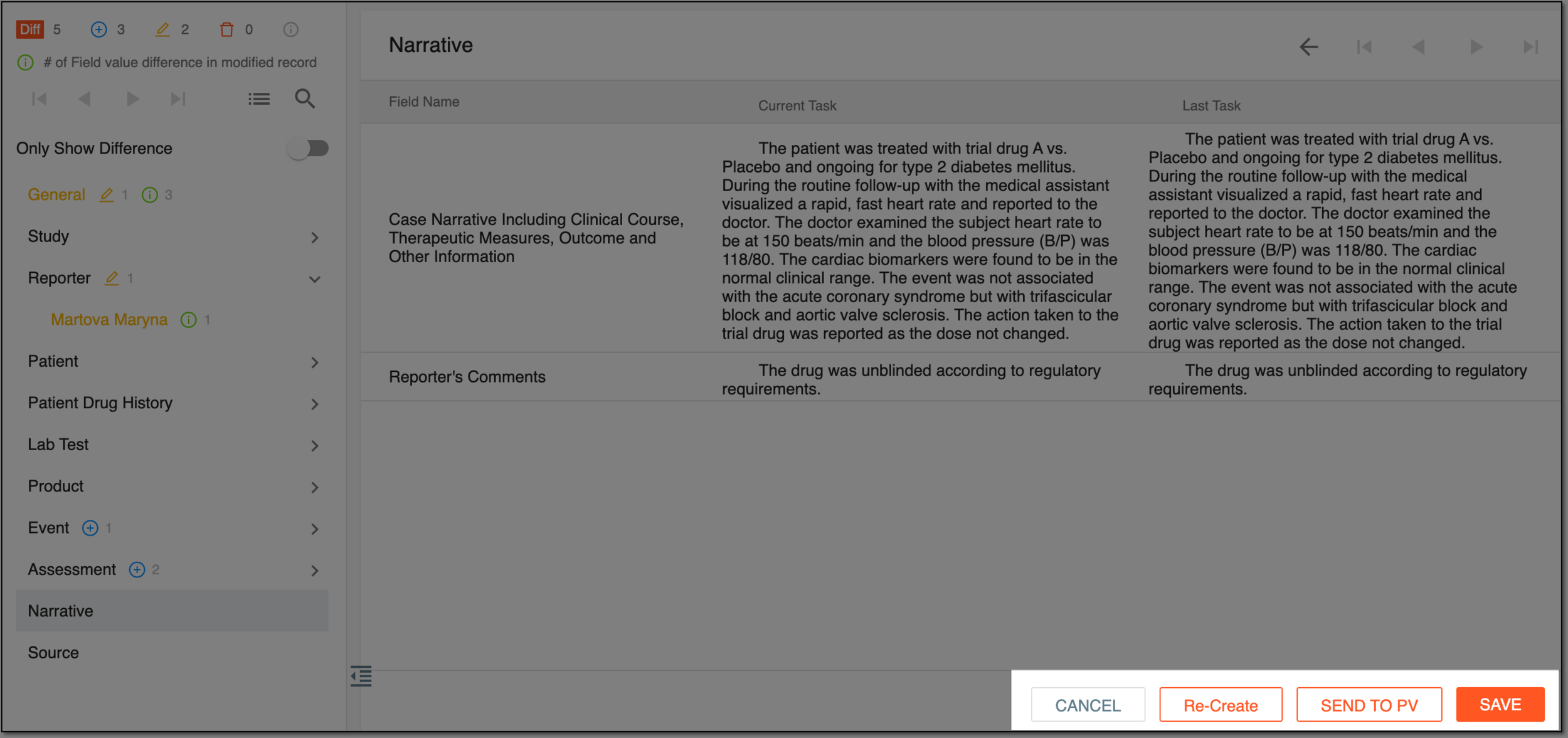 Figure 5. Selecting available actions upon follow-up comparison
Element
Details
Re-Create
Select
to create the task over if the current version is not satisfactory for some reason.When deciding to create the follow-up task over, the system takes you to the follow-up task creation page, and not the initial one.
Save
Select
to save the implemented changes at any of the subtabs.SEND TO PV
Select
 to send the data to the PV application.
Once selected, in the Confirm dialog that opens, enter your credentials and select the PV user to handle the data on the PV side, then select
 .
.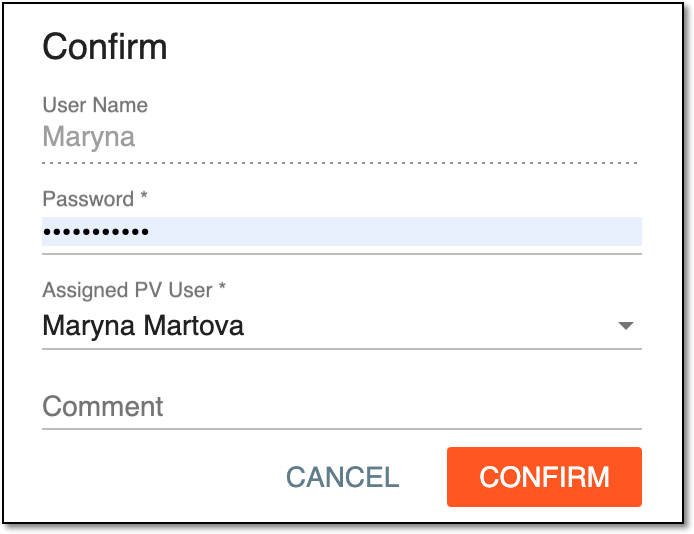 Figure 6. Confirming sending data to PV
CANCEL
Select
to discard the implemented changes at any of the subtabs.
You have compared the follow-up task to its previous version and—based on the selected option—either decided to start over, saved the implemented changes, or sent the data to PV. You can always go back to the previously saved task and send the data to PV.
Important
Upon sending the follow-up task data to PV, you can still view the data comparison by selecting View Differences  next to your task in the Task List table.
