Send data to PV
PV uses the data of a specific subject collected and captured in CRFs via EDC. For PV to get the data extracted from EDC, the principal investigator (PI) of a site or a designee has to create a task via the EDC > Safety Gateway functionality.
Important
To access the Safety Gateway functionality in EDC, make sure you have all the required permissions granted via the ADMIN application. For more details, contact the EDETEK administrator.
Once the task has been created, you can review all the data records extracted within the task and send them to the PV application.
-
In the EDC application header, select the SAFETY GATEWAY tab.
-
On the page that opens, in the left pane, select the Task Management subtab.
-
In the Task List table that appears, go to the task the records of which you want to send to PV. In the Actions column next to the task, select Review
 .
. Figure 1. Selecting to review task
-
On the page that opens, in the left pane, review the data under all the subtabs as explained in the following table.
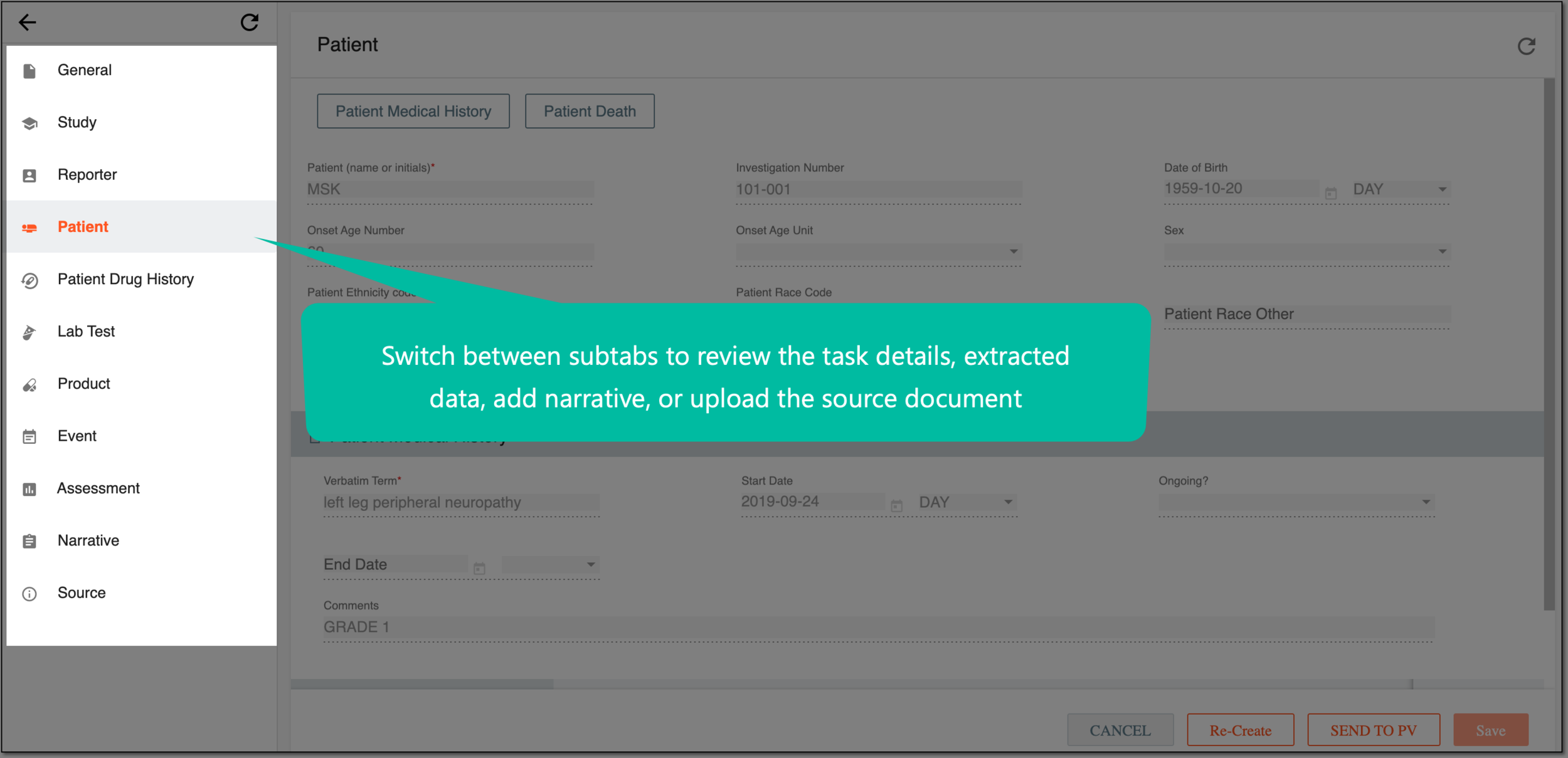 Figure 2. Selecting subtabs to review and manage extraction task details and data
Element
Details
General
Represents general information about the extracted data within the task, such as case country and language, adverse event (AE) category, report type, and more.
Study
Represents general study data, such as registration number and country.
Reporter
Represents information about the user who has created the task, such as user name, organization, and other contact information.
Patient
Represents the patient's demographic data, medical history, and death (if it occurred).
Patient Drug History
Represents information on relevant drugs previously administered to the patient and that has been stopped before the AE onset.
Lab Test
Represents the details of all the laboratory tests taken for the subject during the clinical trial.
Product
Represents the investigational products and the concomitant medication taken/used by the subject during the clinical trial, their dosage, substance, and indication.
Event
Represents all the events (AE/SAE) that occurred with the subject during the clinical trial and their details.
Assessment
Represents the subject's AE/SAE causality assessments.
Narrative
Represents a focused, factual, and clear description of the case, including the words or short phrases used by the reporter.
Source
Represents an option to upload the source document to follow the AE/SAE data.
Re-Create
Select
 to create the task over if the current version is not satisfactory for some reason.
When deciding to recreate the initial task, the system takes you to the page for creating the initial task, rather than the follow-up task page.
When deciding to recreate the follow-up task, the system takes you to the page for creating the follow-up task, rather than the initial page.
Save
Select
 to save the implemented changes at any of the subtabs.
SEND TO PV
Select
 to send the data to the PV application.
Once selected, in the Confirm dialog that opens, enter your credentials and select the PV user to handle the data on the PV side, then select
 .
.The list of assignees is based on their study access permission granted via ADMIN.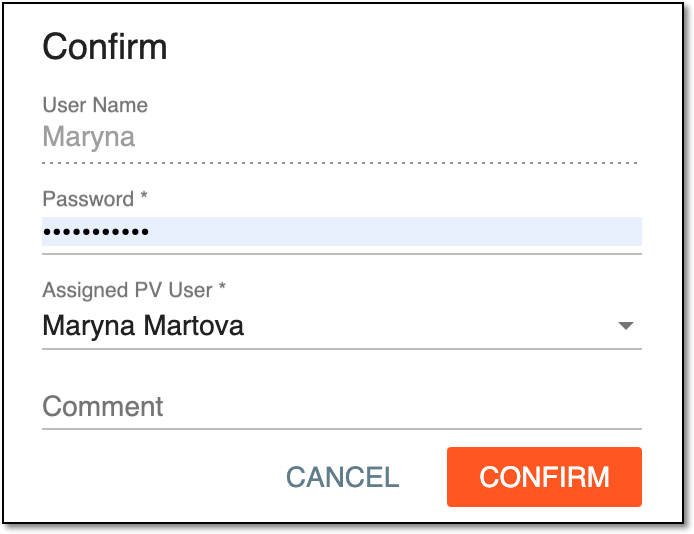 Figure 3. Confirming sending data to PV
CANCEL
Select
 to discard the implemented changes at any of the subtabs.
Upon confirmation, the data is sent to the PV application. The assigned PV user receives an email notification including the link to easily access the system and the specific page that requires attention. To open the needed page, the user must log in to the system upon clicking the link.