View sent task data
PV uses the data of a specific subject collected and captured in CRFs via EDC. For PV to get the data extracted from EDC, the principal investigator (PI) of a site or a designee has to create a task via the EDC > Safety Gateway functionality.
Once the data is sent to PV, you can view the task data and details in EDC via the Safety Gateway functionality.
-
In the EDC application header, select the SAFETY GATEWAY tab.
-
On the page that opens, in the left pane, select the Task Management subtab.
-
In the Task List table that appears, go to the sent task data you want to view, and in the Actions column next to it, select View
 .
. -
On the page that opens, in the left pane, select the subtabs to view the data as explained in the respective table of the Send data to PV section.
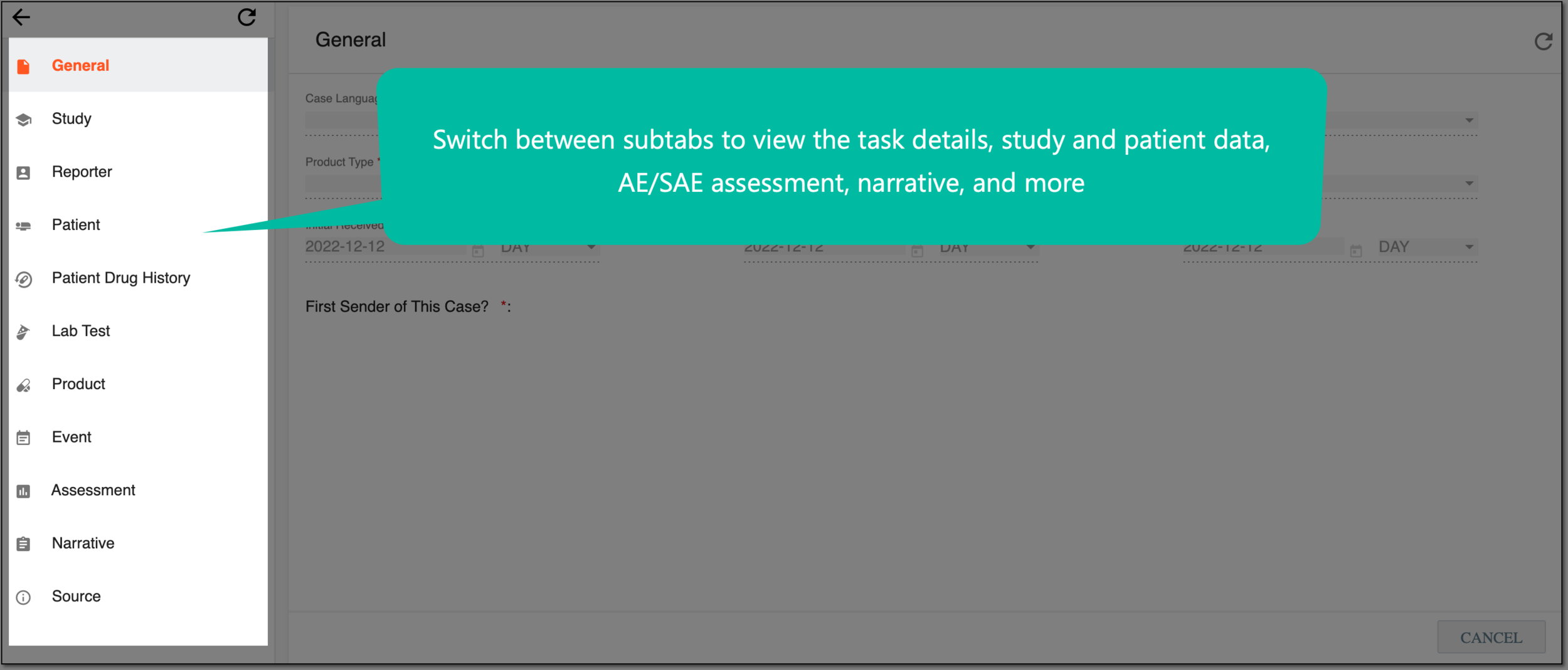 Figure 1. Viewing sent task data
-
Select
 to return to the Task List table.
Upon closing the page, you have viewed the sent task data. You can also create a follow-up task for data extraction.