Create initial data extraction task
PV uses the data of a specific subject collected and captured in CRFs via EDC. For PV to get the data extracted from EDC, the principal investigator (PI) of a site or a designee has to create a task via the EDC > Safety Gateway functionality.
Important
To access the Safety Gateway functionality in EDC, make sure you have all the required permissions granted via the ADMIN application. For more details, contact the EDETEK administrator.
-
In the EDC application header, select the SAFETY GATEWAY tab.
-
On the page that opens, in the left pane, select the Task Management subtab.
-
On the Task Management page that opens, from the workspace toolbar, select New Initial Report
 .
. -
On the page that opens, complete the task setup process as follows:
-
At the Select Site and Subject and your qualification step, select the respective values as explained in the following table.
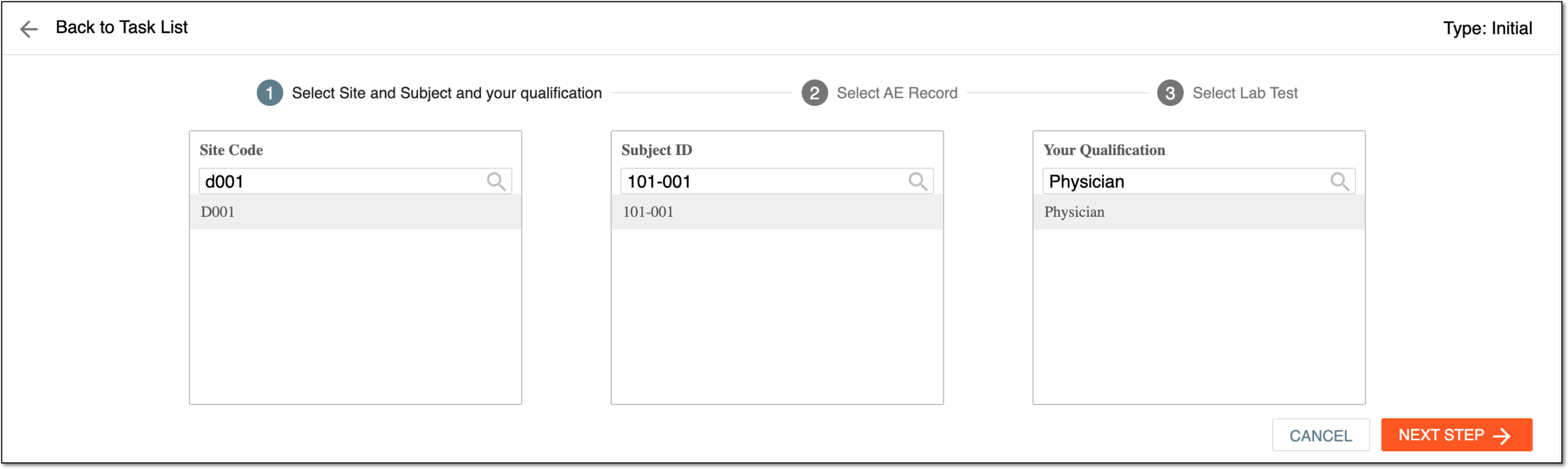 Figure 1. Selecting site, subject, and qualification
Tip
Use search to locate the needed values faster.
Element
Details
Site Code
Select the site code at which the subject for whom you want to extract the data is registered.
Subject ID
Select the ID of the subject for whom you want to extract the data.
Your Qualification
Select your qualification, such as Physician, Pharmacist, or else. This data is required by the ICSR according to the ICH E2B (R3) standard.
NEXT STEP
Select
 to proceed to the Select AE Record step.
CANCEL
Select
 to discard changes and return to the Task List table.
 -
At the Select AE Record step, in the AE List table, select the adverse event(s) recorded for the previously selected subject the data for which you want to extract to PV, and select
to proceed to the Select Lab Test step.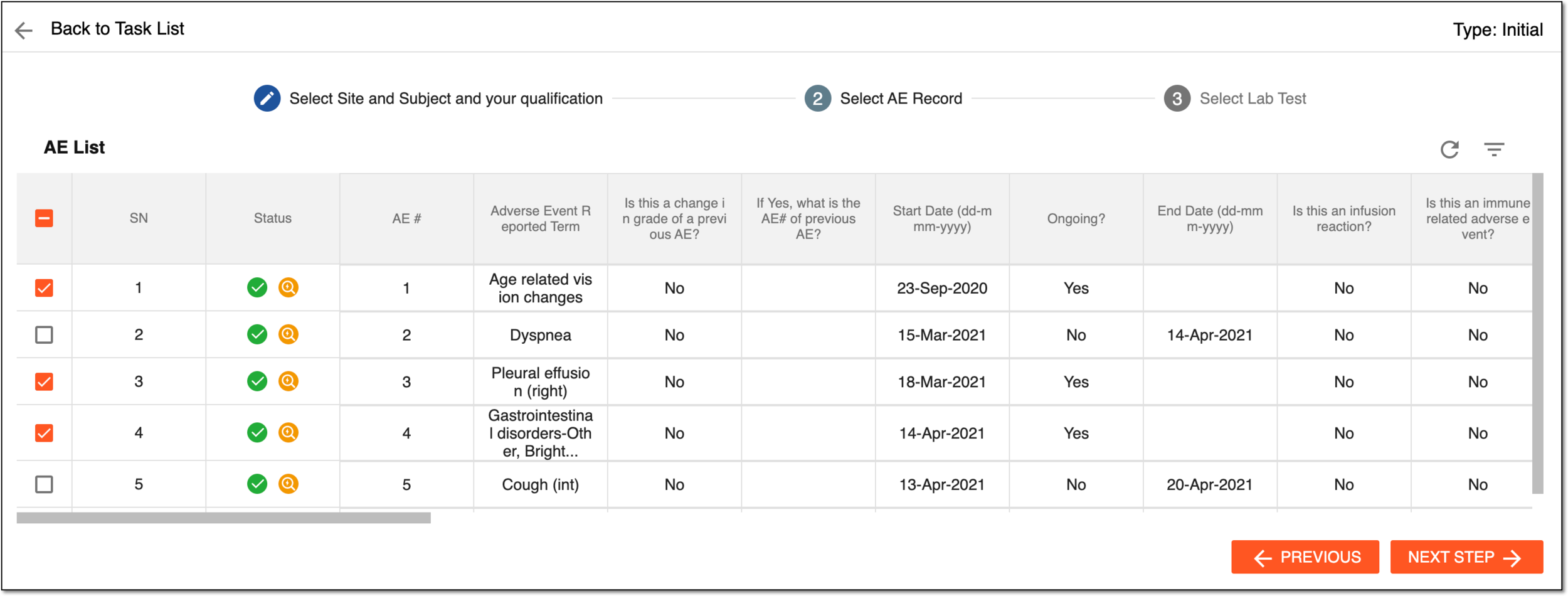 Figure 2. Selecting AE(s) to extract data
You can also select
 to return to the Select Site and Subject and your qualification step and change the selection if needed.
 -
At the Select Lab Test step, perform one of the following:
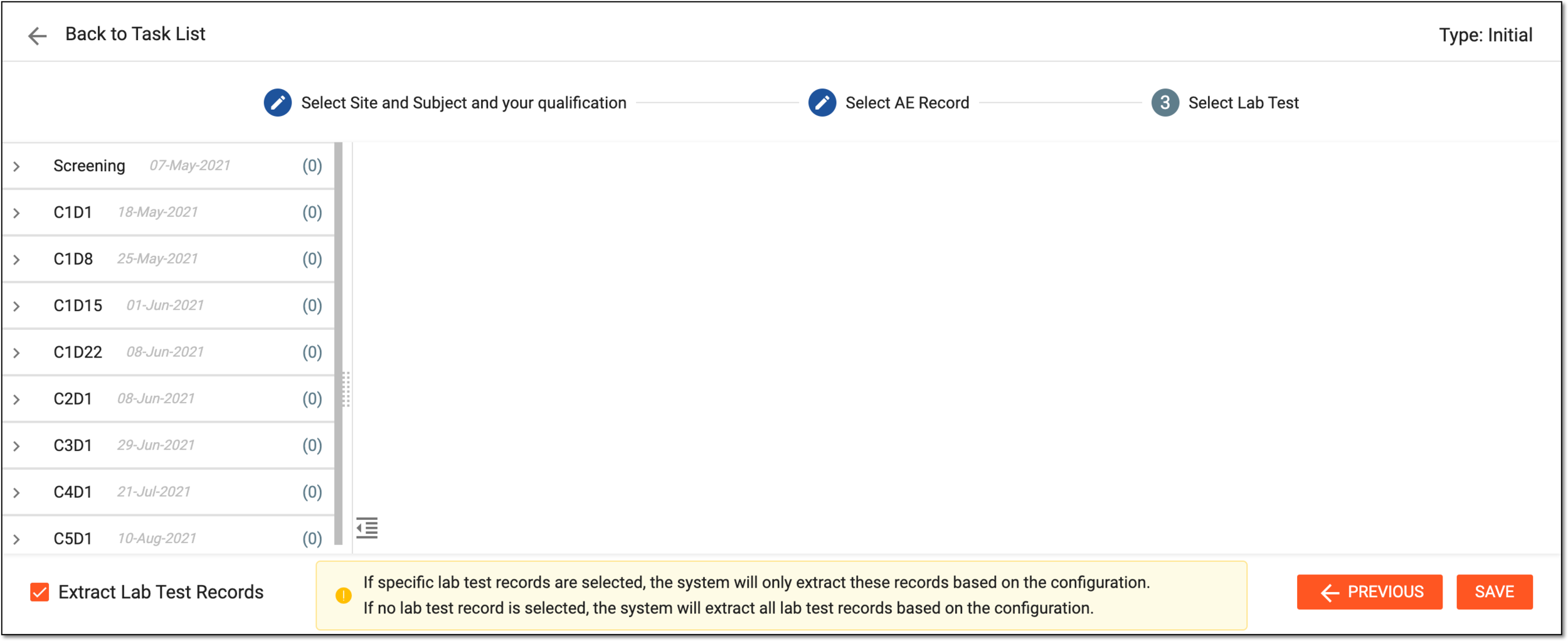 Figure 3. Selecting lab tests to extract data
Important
To be able to extract the selected lab data records, make sure that the Extract Lab Test Records checkbox is selected. If this checkbox is cleared, the system does not extract any lab records.
-
To choose the specific data records for extraction, in the left pane, select the visit and laboratory test, and from the contents panel that appears, select the data records of your interest. Then select
 to create the initial task for the selected data extraction in the EDC system.
 -
To extract all the data for the selected AE(s), ensure the Extract Lab Test Records checkbox is selected and from the content panel, no specific lab test record is selected. Then select
to create the initial task for extraction to the PV system. -
To return to the Select AE Record step and adjust the selection of AE(s), if needed, select
.
-
-
Upon saving, the initial task for the extraction of the selected data records is added to Task List. You can now send the extracted data to PV.