Nullify data extraction task
PV uses the data of a specific subject collected and captured in CRFs via EDC. For PV to get the data extracted from EDC, the principal investigator (PI) of a site or a designee has to create a task via the EDC > Safety Gateway functionality.
When the initial task has been created and sent to PV, and in EDC, you have some new data to follow the sent one, you can add a follow-up task for the previous data. However, if the task has been erroneously added to EDC, you can nullify it if needed.
-
In the EDC application header, select the SAFETY GATEWAY tab.
-
On the page that opens, in the left pane, select the Task Management subtab.
-
On the Task Management page that opens, select Follow-up
 next to the task that
needs to be nullified.
next to the task that
needs to be nullified.Important
The Follow-up option is available only if the transmission status of the task is Successful.
-
In the Create Follow-up Task dialog that appears, select the Nullification task type and enter the reason for nullifying a task.
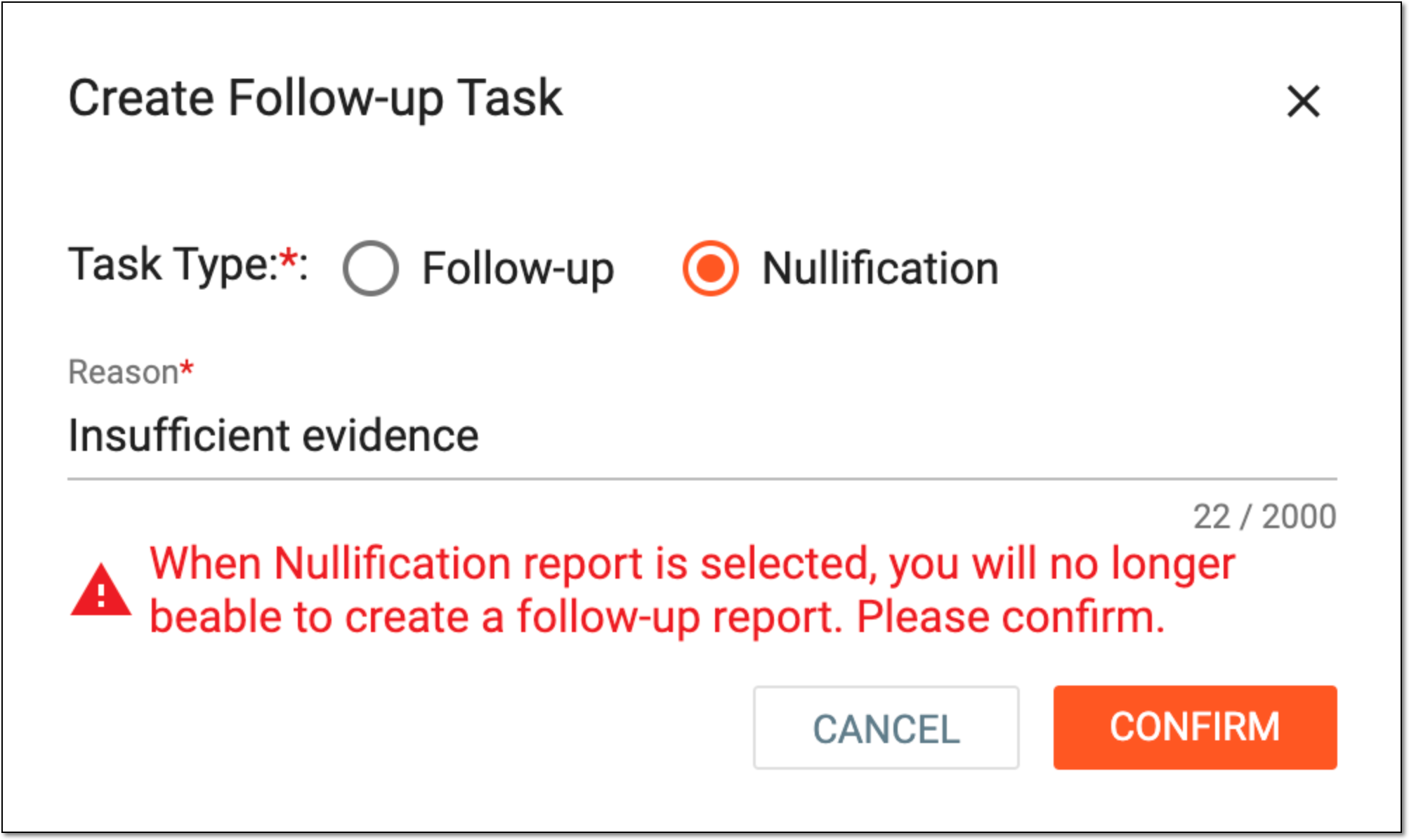 Figure 1. Creating follow-up task
Important
Bear in mind, that after nullifying a follow-up task, you can no longer create other follow-ups for this task afterward.
-
Select
 .
.
Once confirmed, the task is nullified and a corresponding record is added to the Task Management grid.