Create new label package
In the IWRS system, you can prepare label packages for your product units and container units to mark them for shipping, inventory, and other purposes.
In IWRS, there are several ways to create a new label package—from scratch in the system or by uploading the XLSX file with preset data—as explained in the following sections.
In the IWRS system, you can prepare label packages for your product units and then use these labels for product traceability in shipping, inventory, and other operations.
You can create a new label package from scratch by configuring all the details directly in the IWRS system.
-
In the IWRS application header, select the TREATMENT DESIGN tab.
-
In the left pane, select the Label subtab.
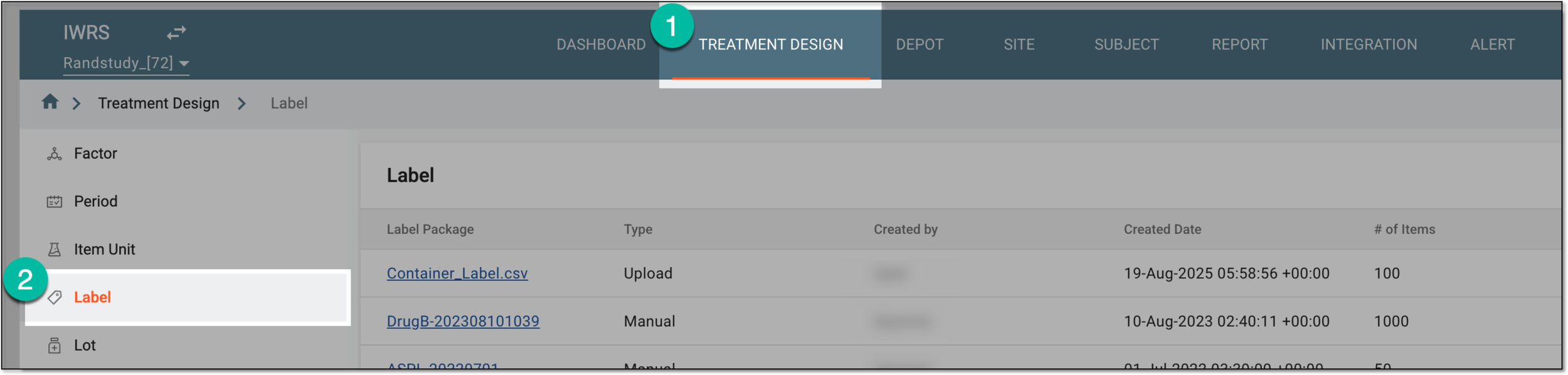 Figure 1. Accessing label list
-
From the workspace toolbar of the page that appears, select Add
 > New
Label.
> New
Label. Figure 2. Selecting to create label package
-
In the New Label dialog that appears, start creating your labels by setting the preferences as described in the following table.
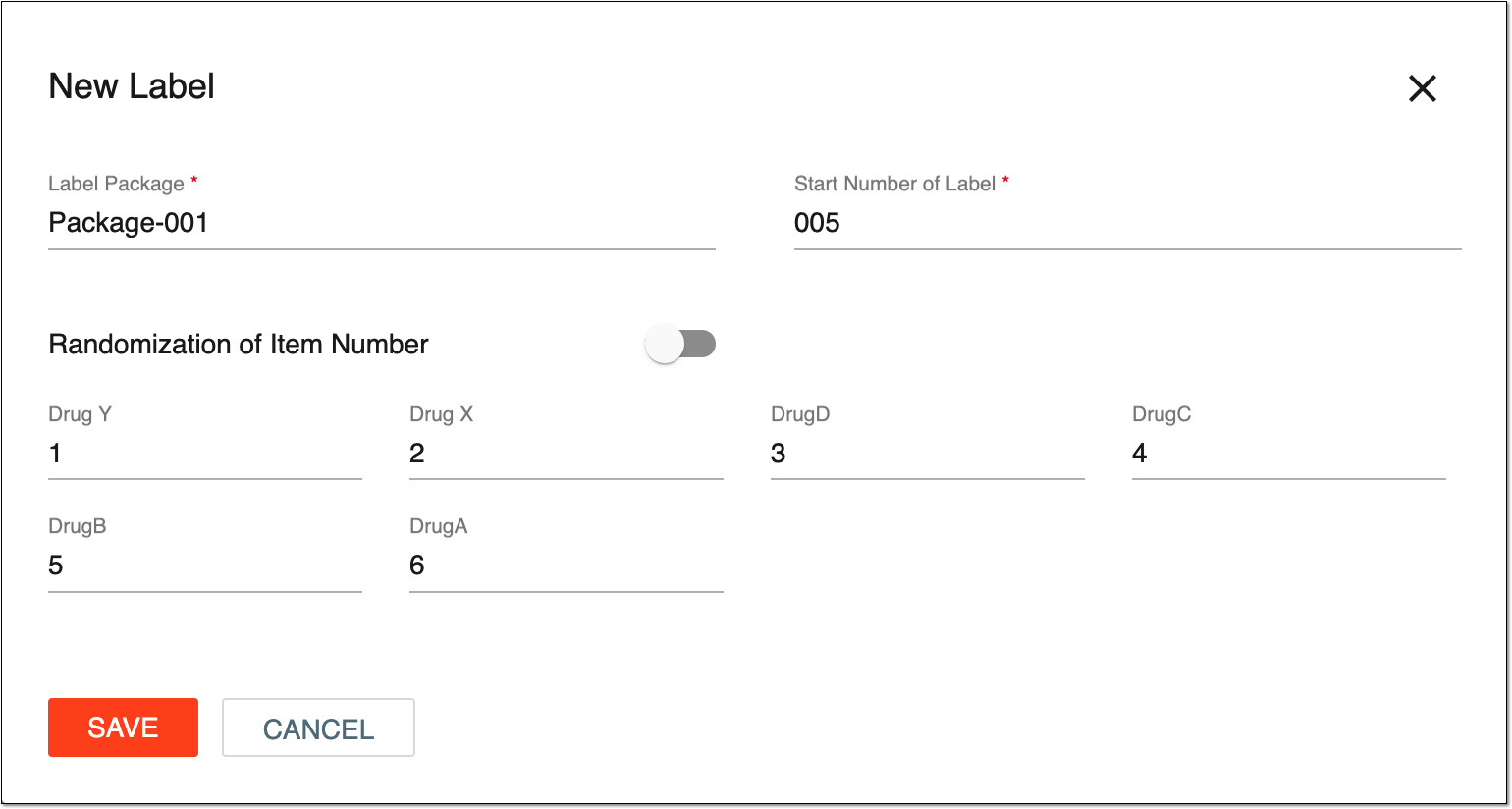 Figure 3. Creating new label
Tip
In the following table, mandatory elements are marked with an asterisk (*).
Element
Details
Label Package*
Enter a unique name of the label package you create.
Start Number of Label*
Enter a starting number of the label. The format must meet the expected number of items. If the starting number is 001, labels can be generated for up to 999 items.
Randomization of Item Number
Turn the toggle on or off to determine whether the generated labels are randomized or not. If the toggle is on, the items’ sequence numbers will be randomized. Otherwise, the sequence numbers are assigned in the order of the item number.
In the dialog, basically, this toggle does nothing. However, this toggle controls the backend processing of the item number generation.
Input boxes with item units
Represents the input boxes with the item units that you have defined under the Item Unit subtab previously. Here you enter digits for the needed item unit, and then select Save to create labels for the corresponding item units.
SAVE
Select
 to generate your label package.
CANCEL
Select
 to stop creating a new label package, close the dialog, and return to the factor list under the TREATMENT DESIGN tab > Label subtab. In such a case, no changes are saved.
Once saved, the new label package is created in the system.
In the IWRS system, you can prepare label packages for your product units and then use these labels for product traceability in shipping, inventory, and other operations.
You can create a new package by uploading labels in batch from a predefined XLSX file.
Important
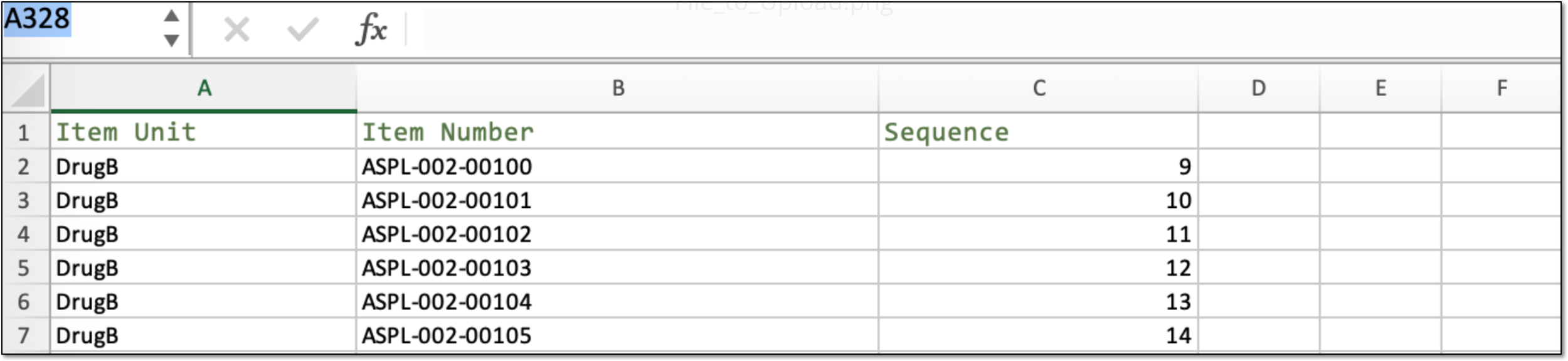
Ensure the file you upload contains the item name, item number, and sequence number per row. Otherwise, the system will give you an error upon trying to upload a file with a different structure and contents.
-
In the IWRS application header, select the TREATMENT DESIGN tab.
-
In the left pane, select the Label subtab.
Figure 2. Accessing label list
-
From the workspace toolbar of the page that appears, select Add
> Upload
File. Figure 3. Selecting to upload label package file
-
Follow the prompts of your OS to finish uploading the file you need.
Once the procedure is completed, a new label package appears in the table. You can start using it to add item numbers within a package to a lot.
In the IWRS system, you can prepare label packages for your container units and then use these labels for product traceability in shipping, inventory, and other operations.
You can create a new package by uploading labels in batch from a predefined XLSX file.
Important
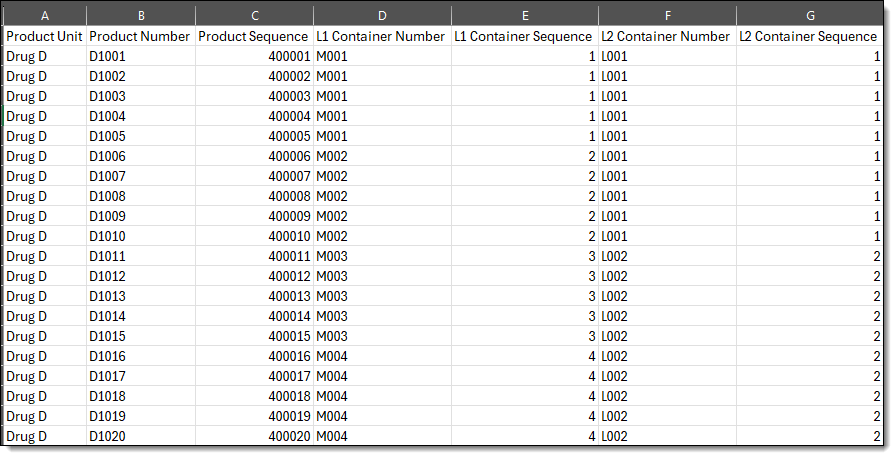
Before uploading the XLSX file, ensure the file contains the product unit, product number, product sequence, L1 container number, L1 container sequence, L2 container number, and L2 container sequence per row. Otherwise, the system will give you an error upon saving the field mapping with a different structure and contents.
-
In the IWRS application header, select the TREATMENT DESIGN tab.
-
In the left pane, select the Label subtab.
Figure 2. Accessing label list
-
On the page that opens, from the workspace toolbar, select Add
. In the dropdown menu that opens, click Upload Label.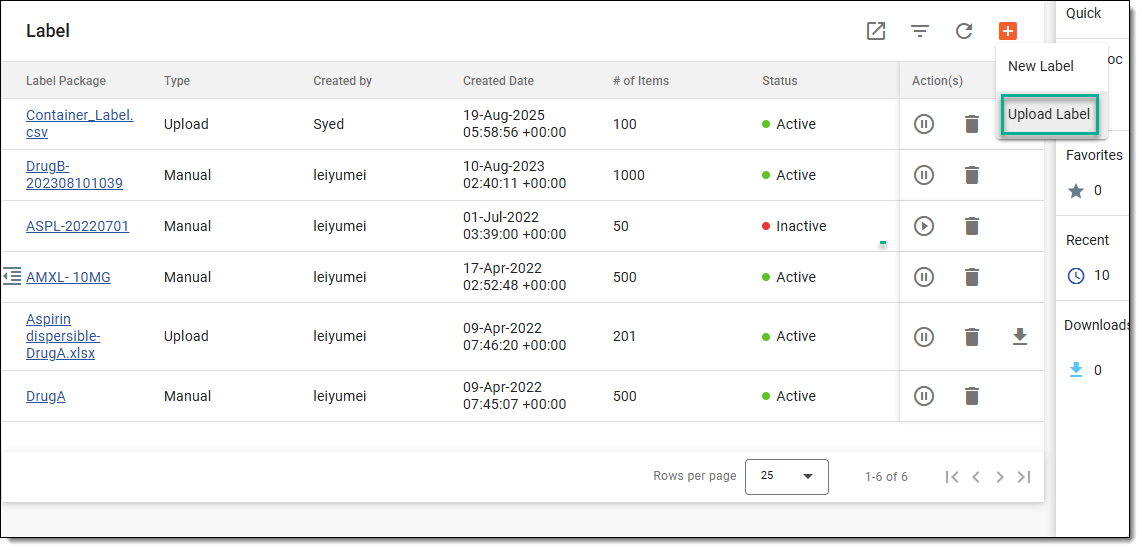 Figure 3. Selecting to upload label package file
-
Follow the prompts of your computer and select the file that you want to upload.
-
On the page that opens, map the field name of the label with the header fields of the uploaded file by dragging the placeholders from the right panel to the left panel. Select NEXT to proceed.
Important
Before mapping the fields, keep in mind the following:
-
The fields must be correctly mapped to the header fields of the uploaded file. Otherwise, an error is returned.
-
The number of components and product unit set in the XLSX file must match the ones specified when creating the level 1 and level 2 container units process. If the component quantity or product unit does not match, the following error is displayed.
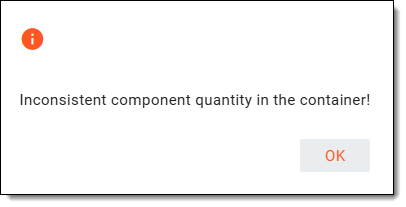 Figure 4. Error message example
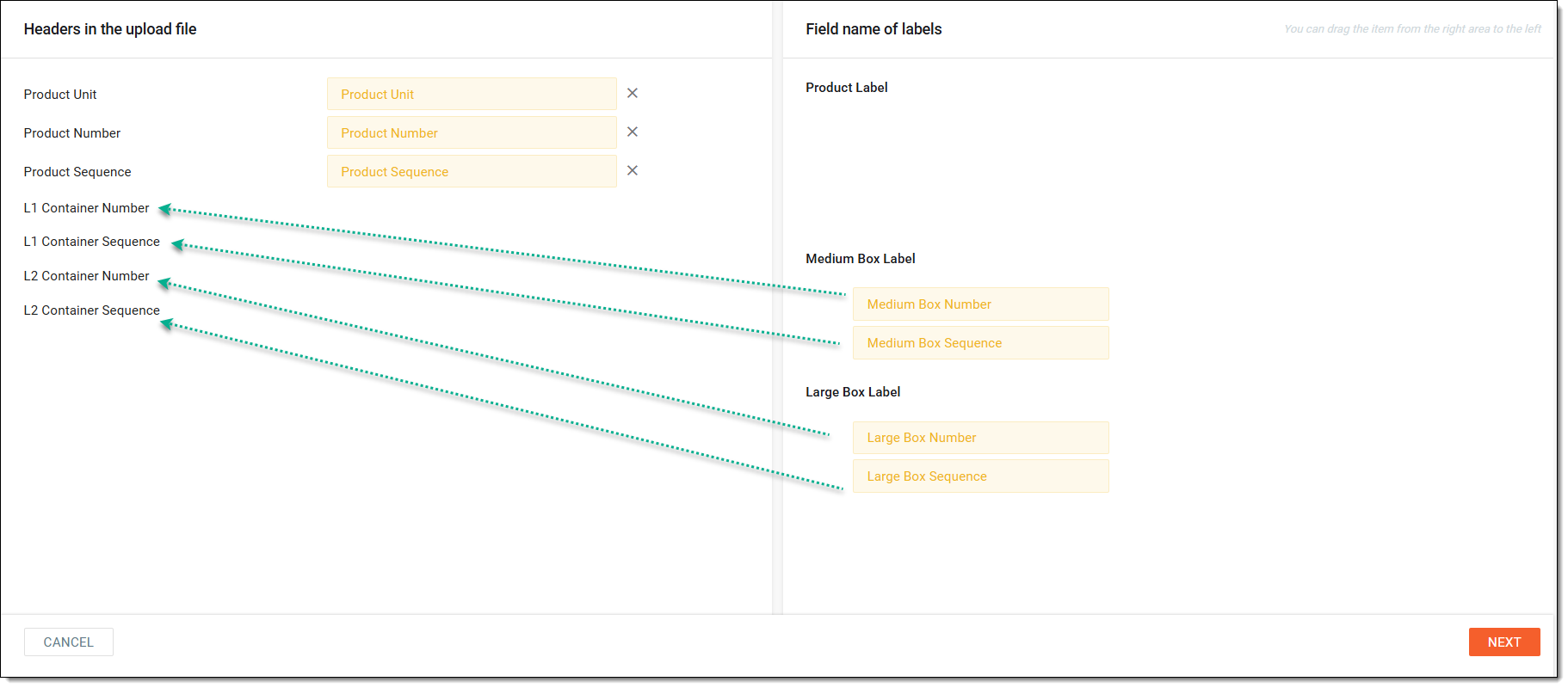 Figure 5. Mapping label fields to file headers
-
-
Upon successful field mapping, the system displays the mapped label file for the container units and saves it in the Label list.
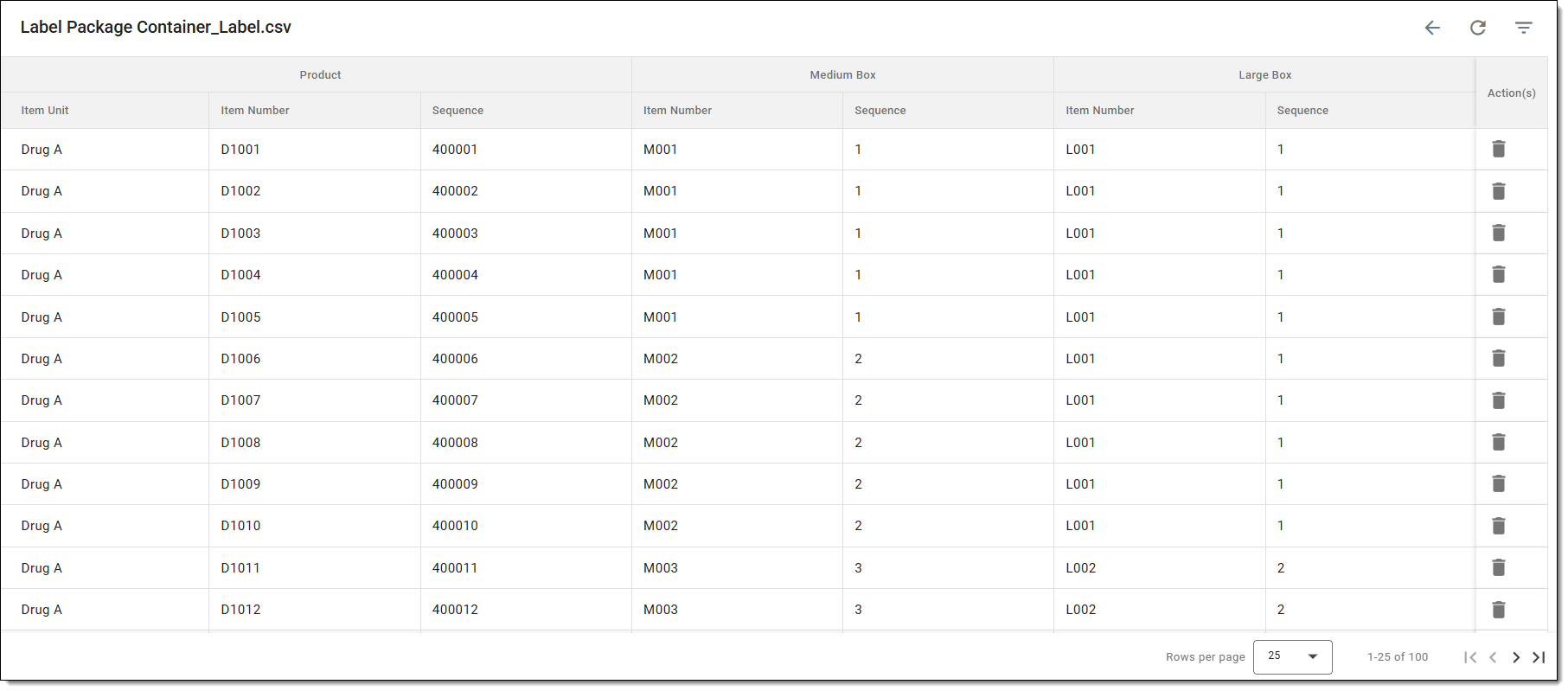 Figure 6. Mapped field label example
After analyzing the mapped label file, select Back  to return to the Label
list. You can now activate the label and create a new
packaging lot for the container unit.
to return to the Label
list. You can now activate the label and create a new
packaging lot for the container unit.