Activate/Inactivate label package
When you create a label package, make sure it is in the Active state to be further used in the IWRS system (for instance, to add labels to a lot). In case the created label package is inactive, you cannot use its data anywhere across IWRS, as this data is visible only within TREATMENT DESIGN > Label.
You can activate or inactivate the existing label package at any time during the subject randomization configuration.
-
In the IWRS application header, select the TREATMENT DESIGN tab.
-
In the left pane, select the Label subtab.
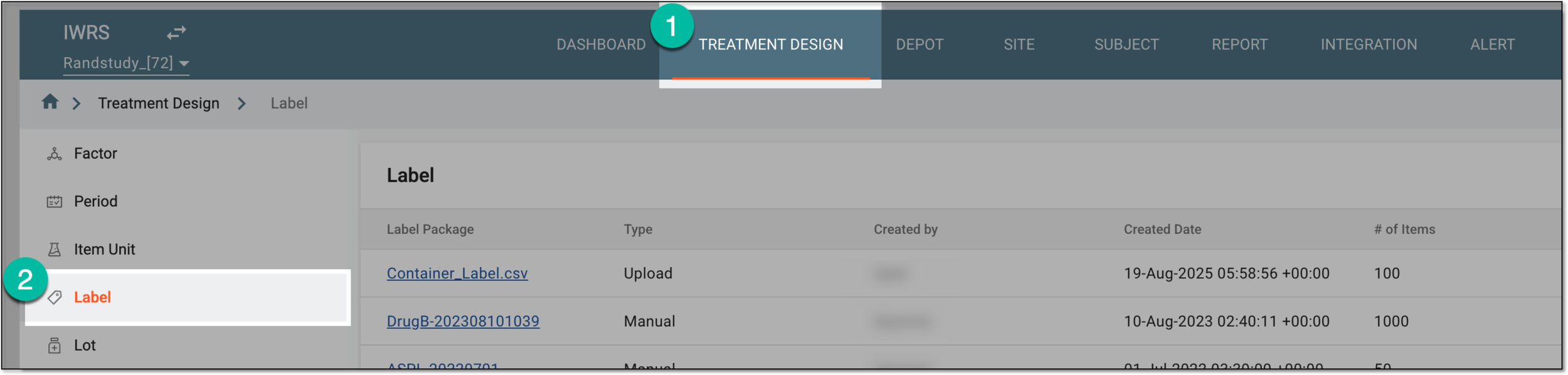 Figure 1. Accessing label list
-
In the Label table that appears, locate the label package you need.
-
In the Actions block, next to the needed label package, select Activate
 or
Inactivate
or
Inactivate  .
.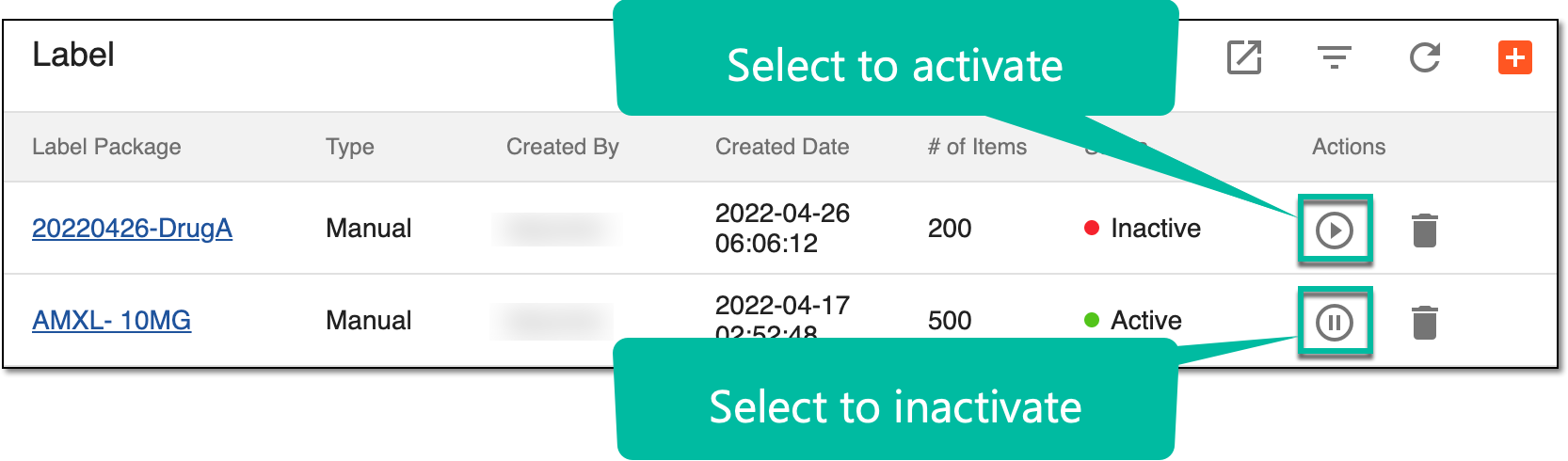 Figure 2. Activating/Inactivating label package
Important
You cannot inactivate a label package if the item numbers within that package have already been added to a lot. In such a case, an error message is displayed upon inactivation attempt.
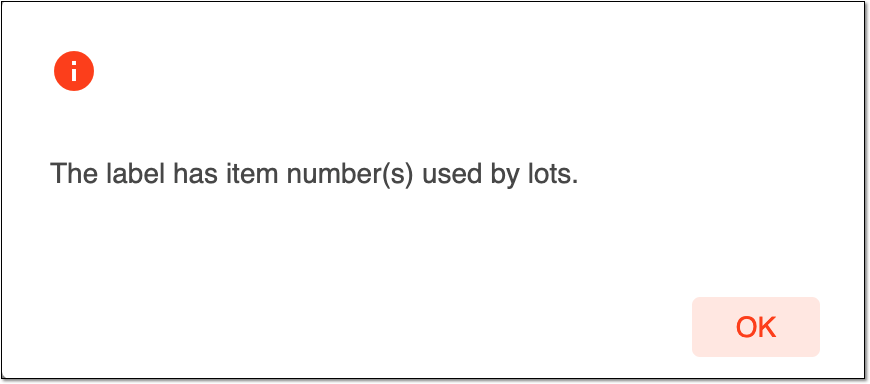 Figure 3. Label package inactivation error
Once selected, the label package is activated/inactivated depending on the performed action. You can also delete a label package.