Placeholders process tracking
Placeholders represent expected documents for the study even before these documents are prepared. Placeholders serve as digital reminders for the organization, ensuring that all necessary documents will be added throughout the study development lifecycle.
A study can have several placeholders, and each placeholder can contain one or more files related to the study. When a file is uploaded for an artifact from the Essential Documents page, you can select which placeholder the file will be placed in. The uploaded file is associated with an artifact at the study, country, or site level defined at the time of creation.
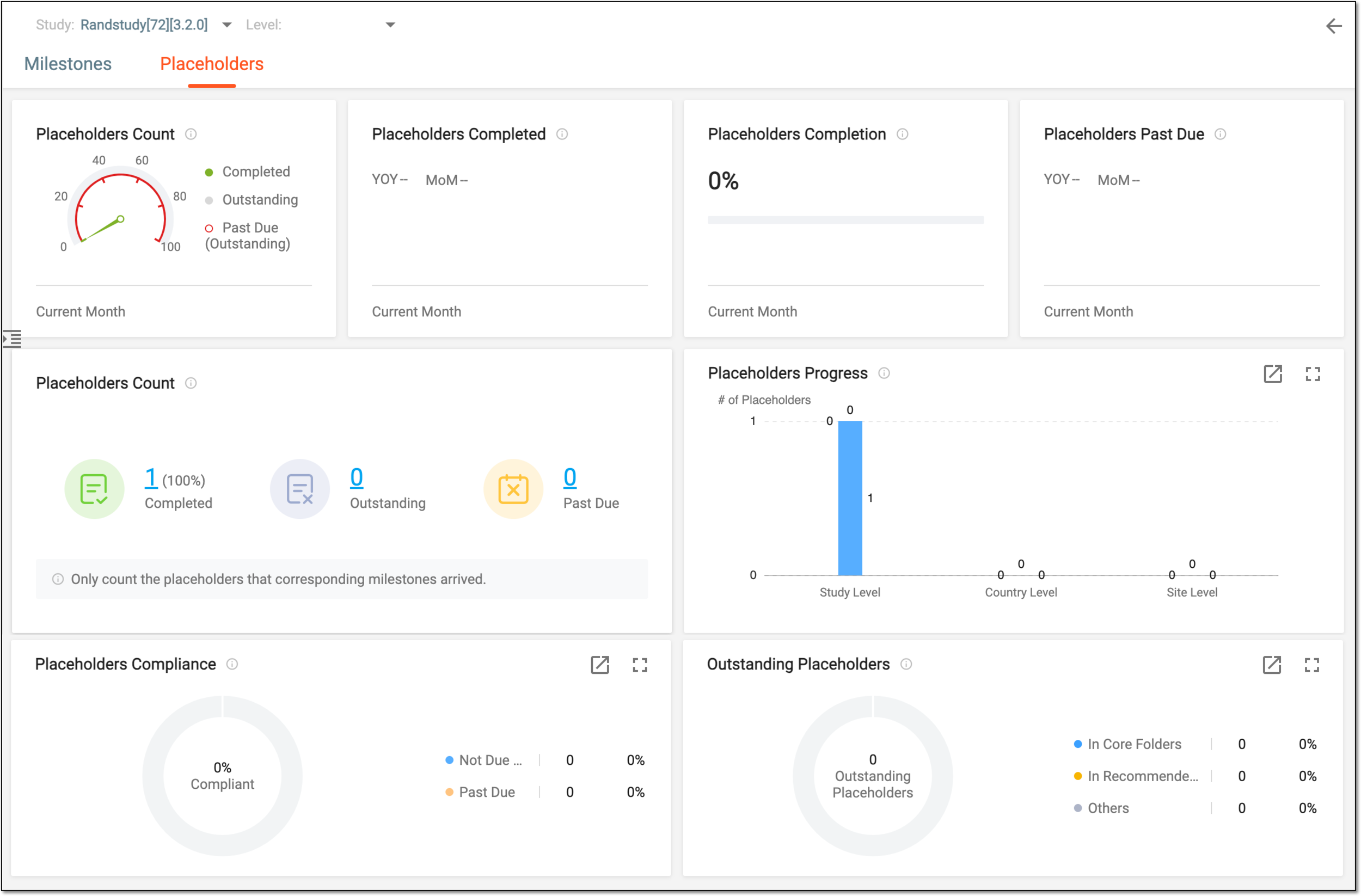
The Placeholders tab of the Process Tracking dashboard helps eTMF users to track and manage placeholder progress within a specific study.
The statistics in the form of color-coded bars and pie charts give you a visually appealing representation of the complex study data.
Tip
You can sort out the Placeholders statistics by file levels: Study, Country, or Site. At the top of the page, you can find dropdown menus to select the study and the file level and display the dashboard data according to your preferences.
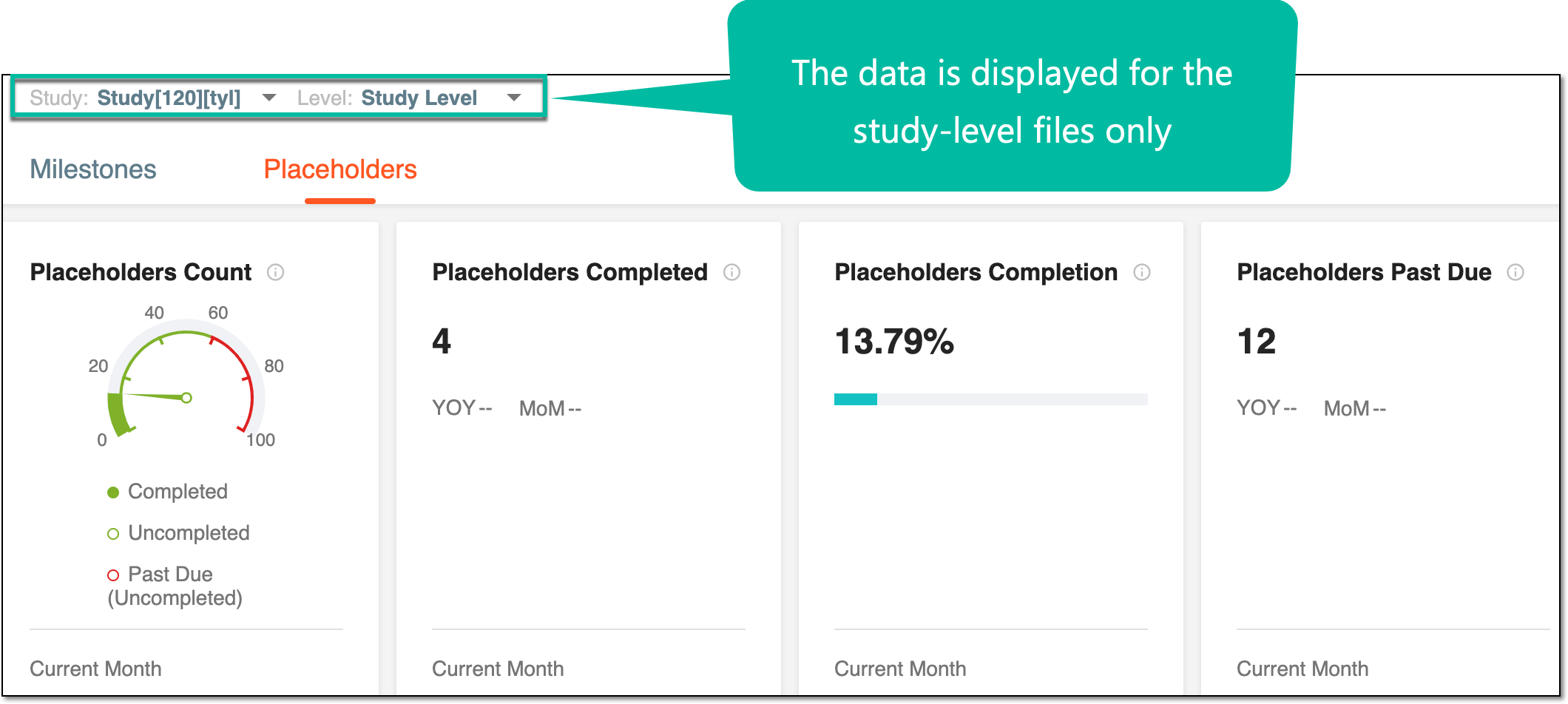
The Placeholders dashboard consists of multiple blocks as explained in the following table.
|
Block |
Details |
|---|---|
|
Placeholders Count (chart) |
Displays the percentage of the placeholders' completion for the current month in the form of a color-coded speedometer pie chart:
The percentage of the current month's placeholders' completion is counted according to the formula below: Current month's placeholders' completion = Current month's completed placeholders / Current month's total placeholders. |
|
Placeholders Completed |
Displays the number of completed placeholders for the current month and statistical comparison to the same value on a monthly (MoM) and yearly (YOY) basis. |
|
Placeholders Completion |
Displays the placeholders' completion percentage for the current month in the form of a progress bar. The percentage of the current month's placeholders' completion is counted according to the formula above. |
|
Placeholders Past Due |
Displays the count of overdue placeholders for the current month and statistical comparison to the same value on a monthly (MoM) and yearly (YOY) basis. |
|
Placeholders Count (numbers) |
Displays the percentage and count of placeholders by three categories (completed, uncompleted, and past due). Here, the system only counts placeholders for the associated milestones that have arrived. The arrived milestone means its planned start day has come or passed. To view details of the count select the count which redirects to the Placeholder List (Completed) page. 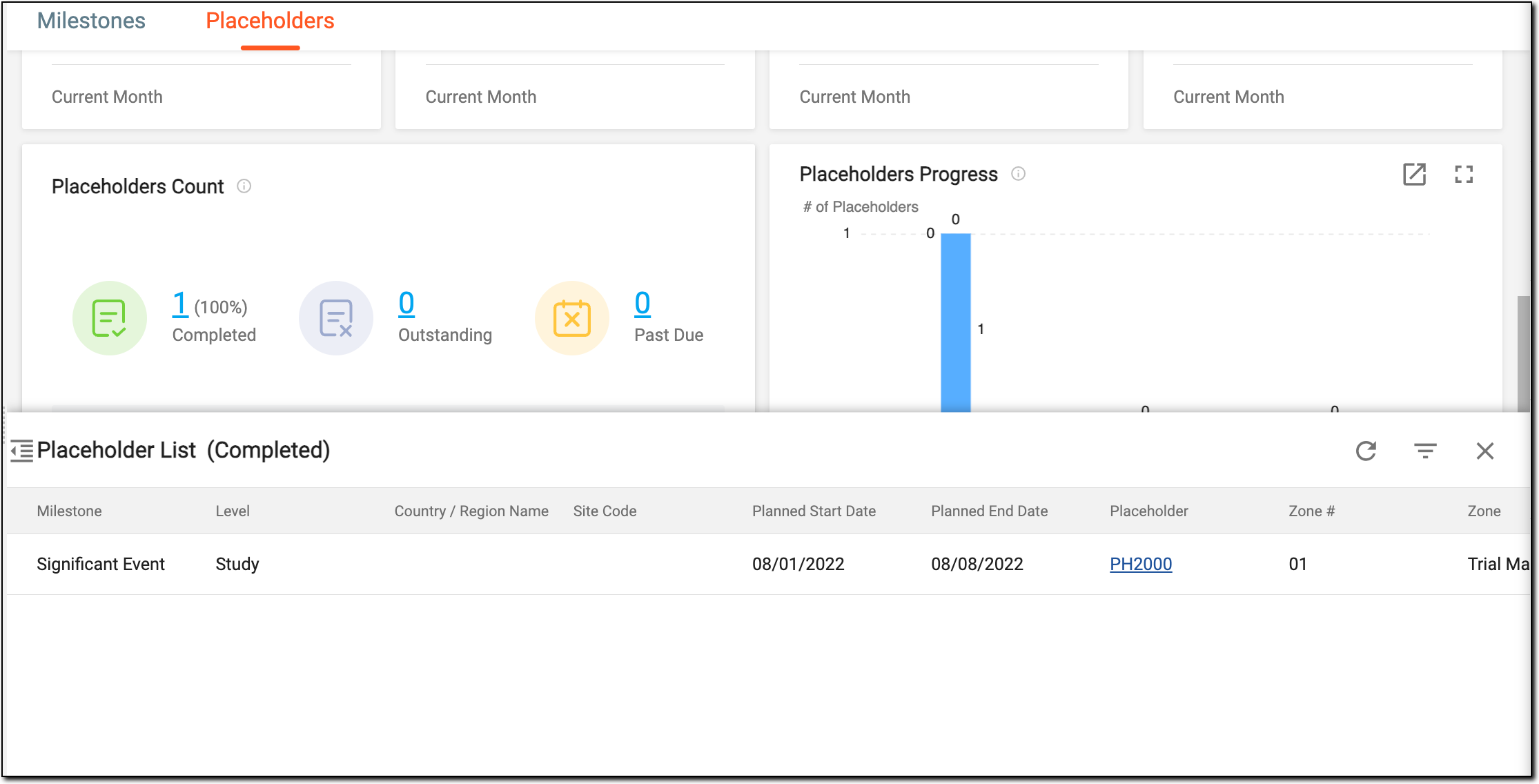
Figure 3. Viewing details of Placeholder List (Completed)
|
|
Placeholders Progress |
Displays the correlation of empty and filled placeholders in the form of a bar chart. Select any bar to view the detailed count of the total, filled, and empty placeholders. 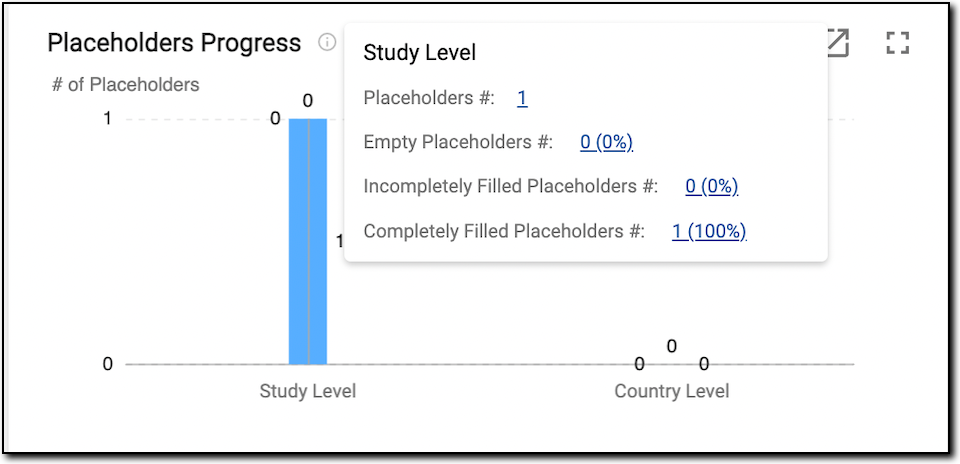
Figure 4. Viewing details of placeholder progress
If you are viewing the statistics for the study, the chart is displayed by file levels (study, country, and site). If you select the statistics for specific file levels, the data will be organized by different parameters (for instance, by approval status, country, site, or else). |
|
Placeholders Compliance |
Displays the placeholder compliance rate to the milestone that has arrived but is not yet completed. Select the placeholder number in each category to expand the Placeholder List panel. In the table that appears, you can select the placeholder name link to navigate to the Essential Documents page and perform needed actions with that placeholder. For instance, upload the file for an empty placeholder. 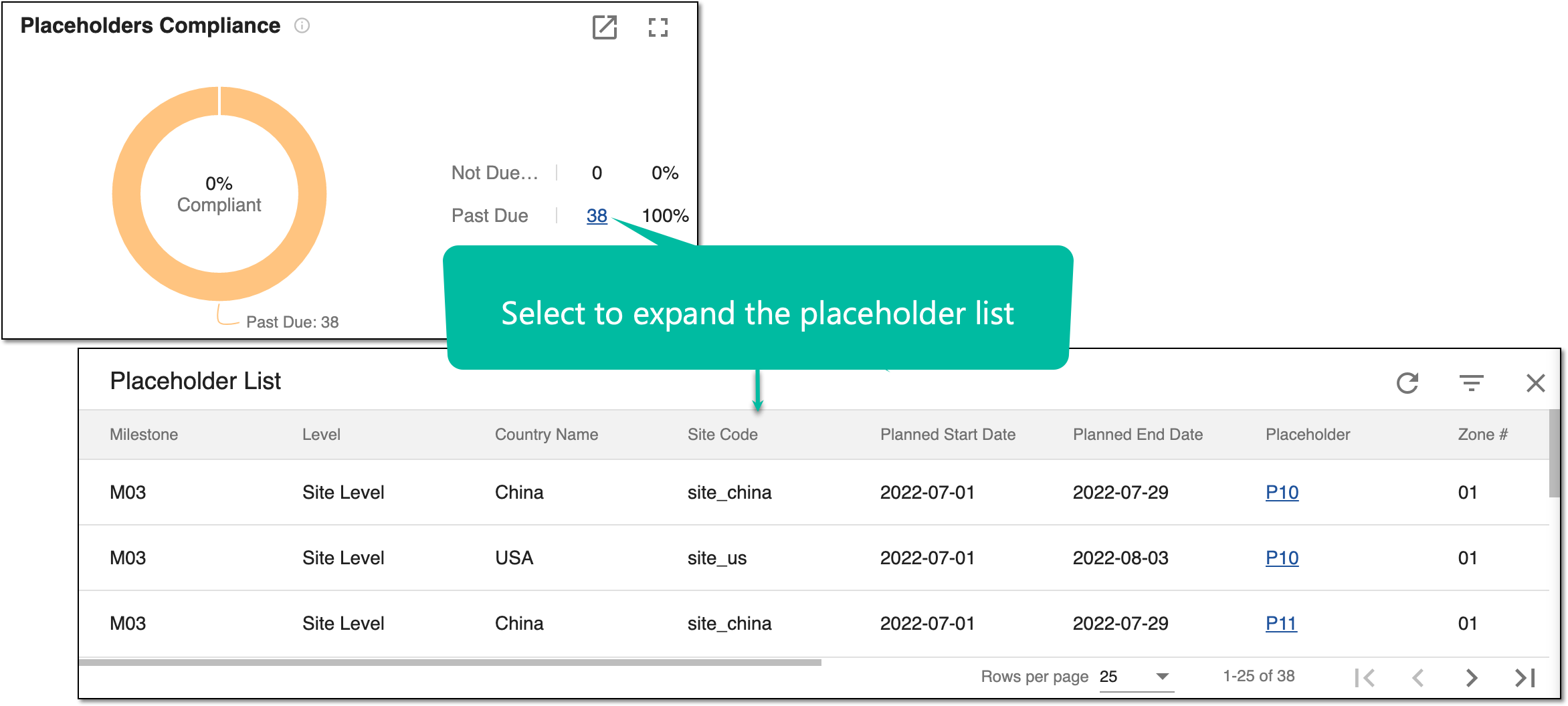
Figure 5. Expanding placeholder list
|
|
Outstanding Placeholders |
Displays the count of empty and incompletely filled placeholders in different folder types according to DIA RM: In Core Folders, In Recommended Folders, or Others.
Select the placeholder number in each folder to expand the Placeholder List panel. In the table that appears, you can select the placeholder name link to navigate to the Essential Documents page and upload the file for this placeholder or perform other actions. |