Milestones process tracking
In eTMF, milestones help you keep track of the trial master files archiving progress. The milestones are created manually or imported from the TMF Hierarchy Template or built-in DIA RM.
The Milestone tab of the Process Tracking dashboard displays the statistics on completion, upcoming due, arrival, and other aspects of the study milestones in the form of color-coded charts to give you a visual easy-on-the-eye representation of the complex data.
Tip
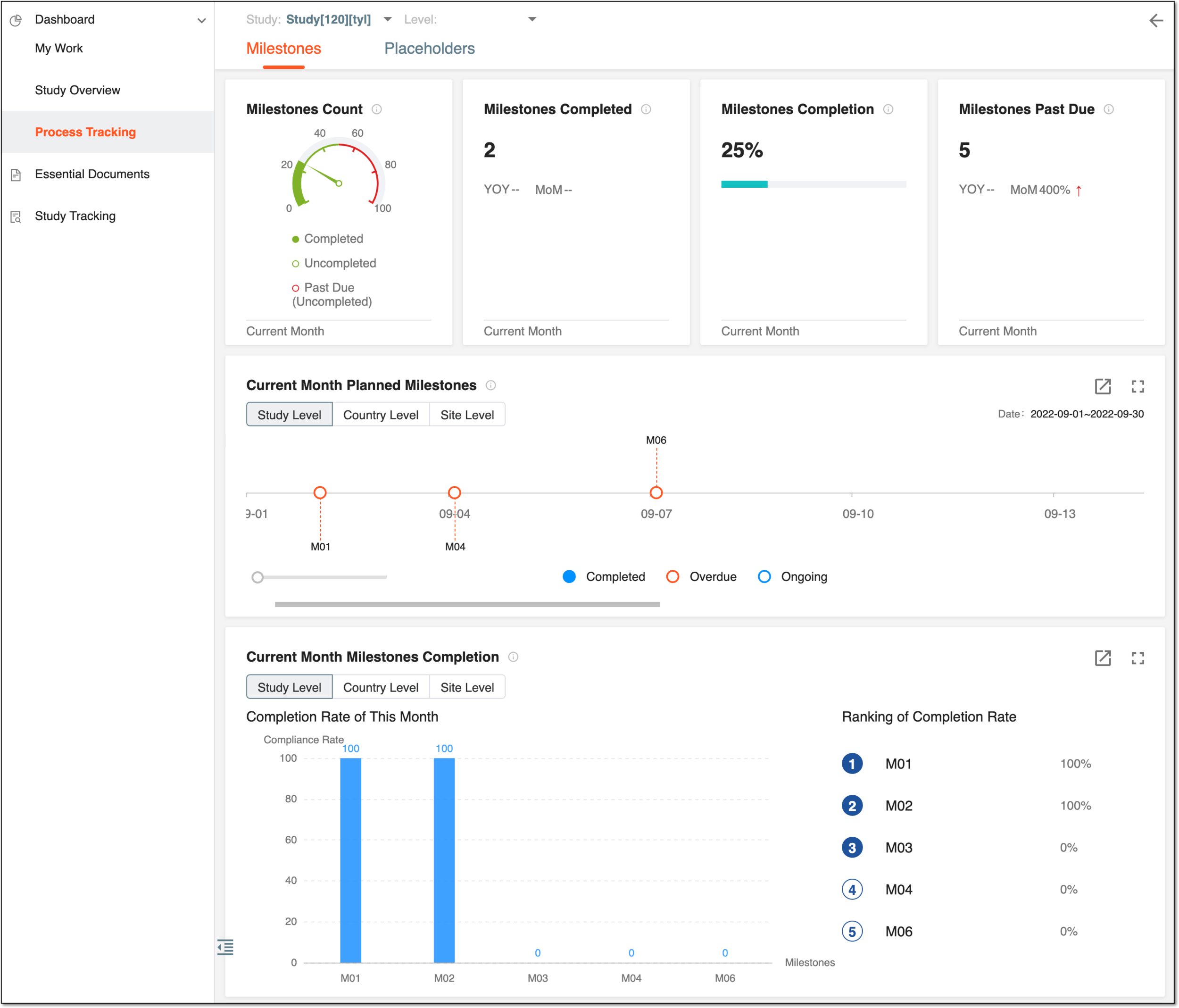
You can sort out the Milestones statistics by file levels: Study, Country, or Site. At the top of the page, you can find dropdown menus to select the study and the file level and display the dashboard data according to your preferences.
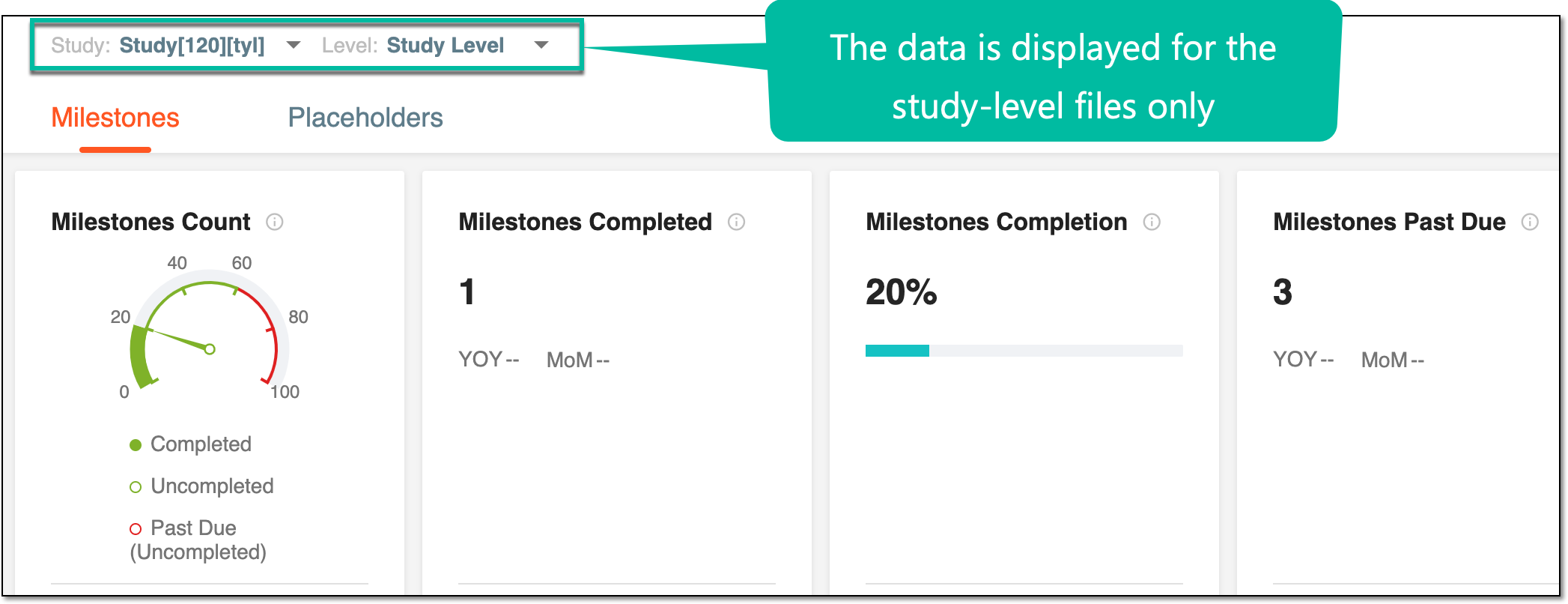
The Milestones dashboard consists of multiple blocks as explained in the following table.
|
Block |
Details |
|---|---|
|
Milestones Count (chart) |
Displays the percentage of the milestones' completion for the current month in the form of a color-coded speedometer pie chart:
|
|
Milestones Completed |
Displays the number of milestones with status Completed and Actual End Date parameter within current month. Here, you can also see the statistical comparison of the value on a monthly (MoM) and yearly (YOY) basis. |
|
Milestones Completion |
Displays the milestones' completion percentage for the current month in a form of a progress bar. The percentage of the current month's milestones' completion is counted according to the formula below: Current month's milestones' completion = Current month's completed milestones / Current month's total milestones. |
|
Milestones Past Due |
Displays the count of overdue milestones for the current month and statistical comparison to the same value on a monthly (MoM) and yearly (YOY) basis. |
|
Current Month Planned Milestones |
Displays the timeline chart of the planned milestones for the current month. It only includes milestones with the end date falling per current month. The view can be switched to study, country, or site file-level statistics by selecting the respective button above the chart. 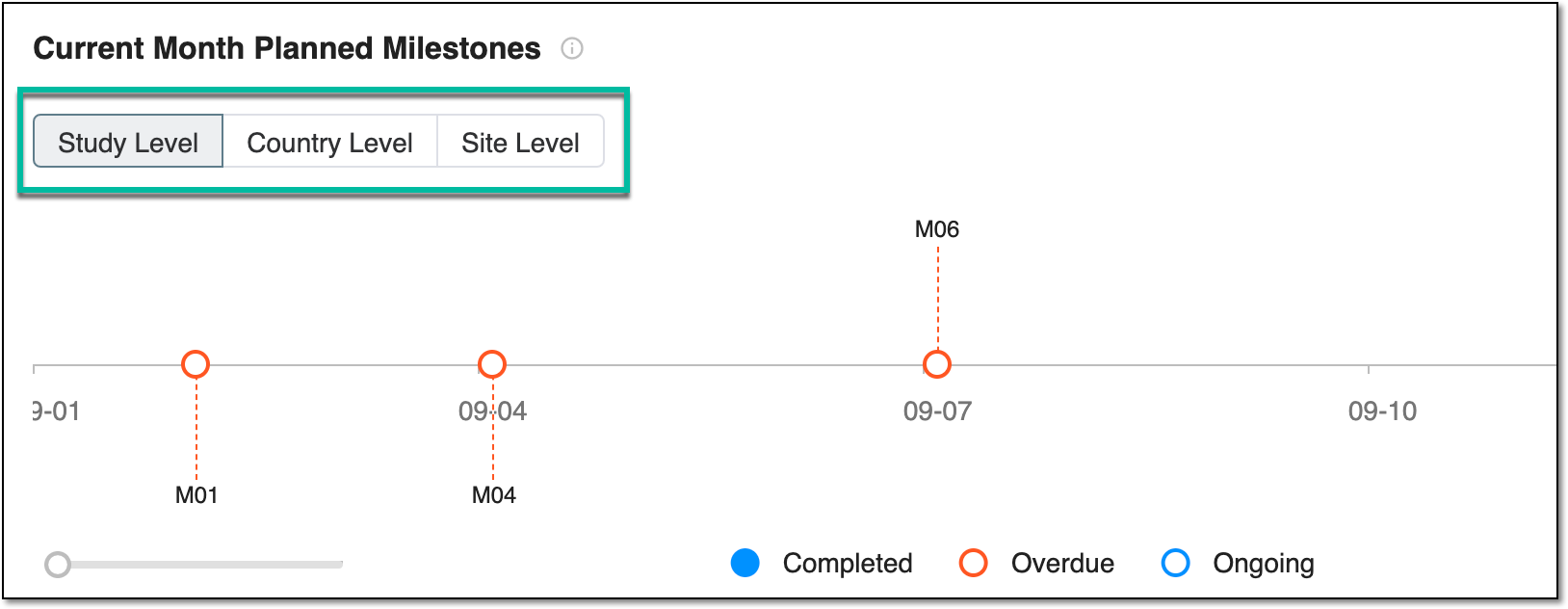
Figure 3. Switching to different file-level statistics
|
|
Current Month Milestones Completion |
Displays the completion rate for the current month's milestones in a form of the bar chart (on the left) and the ranking list (on the right). It includes only the milestones with the end date falling per current month. The completion rate of the milestone is calculated based on the completion of the artifact(s) within. For instance, if there are two artifacts within a milestone and only one of the artifacts is completed, the milestone completion rate is 50%. The view can be switched to study, country, or site file-level statistics by selecting the respective button above the chart. |
|
Milestones Count (numbers) |
Displays the count of arrived milestones, the planned start date for which has come or passed. The data is presented by three categories:
|
|
Total Milestones |
Displays the pie chart with count and percentage of arrived and upcoming milestones. Selecting the number navigates you to the Milestone page sorted out by start date: either showing the arrived or upcoming milestone list. |
|
Arrived Milestones |
Displays the pie chart with count and percentage of arrived milestones by statuses: Completed, Not Started, and Processing. Selecting the number of milestones in each status navigates you to the Milestone page sorted out by the respective status. |
|
Uncompleted Milestones Compliant |
Displays the pie chart with the count and percentage of milestones by the due date: Not Due Yet (the planned end date has not arrived yet) and Past Due (the planned end date has passed). |
|
Milestones Risk |
Displays the pie chart representing the count of milestones by their risk to remain uncompleted and past due. 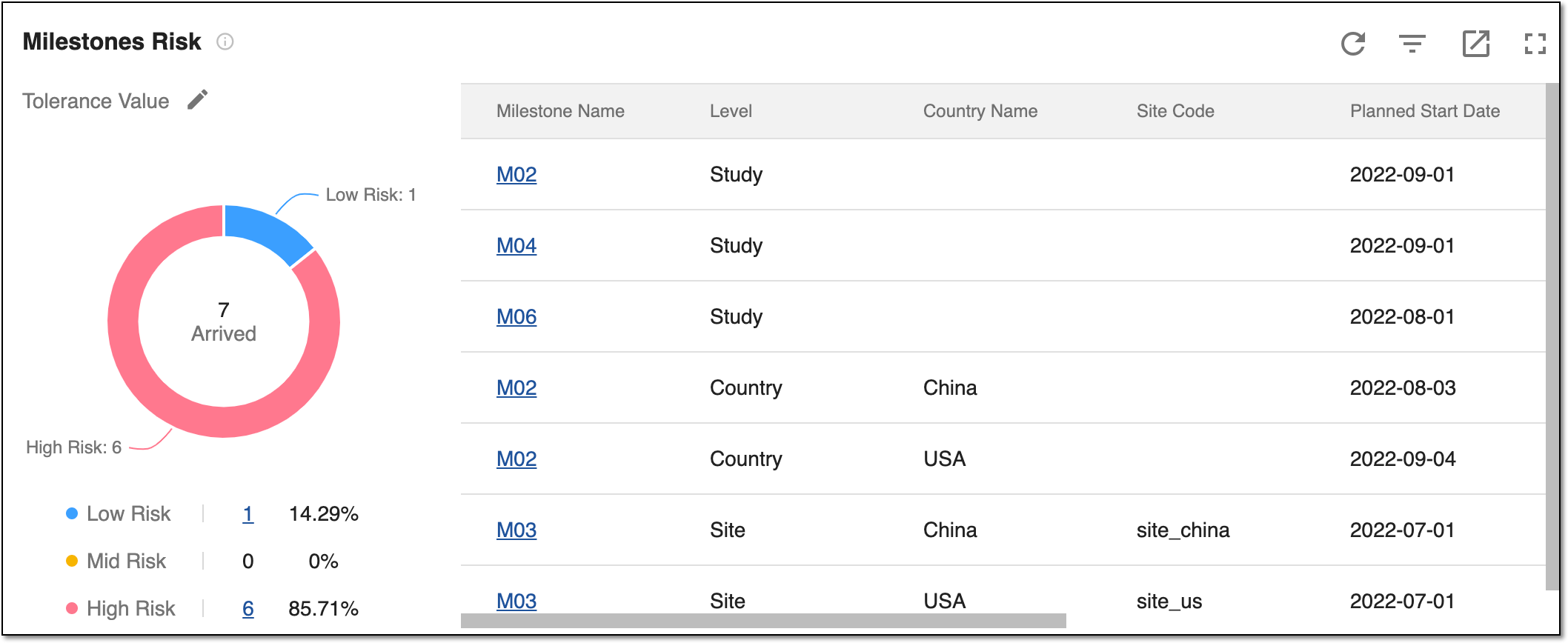
Figure 4. Milestones Risk block
Above the chart, you can set up the tolerance values according to which the risks are calculated by the system. To do that, select Edit next to Tolerance Values, and in the dialog that opens, set up the tolerable ratio of high and low risks. 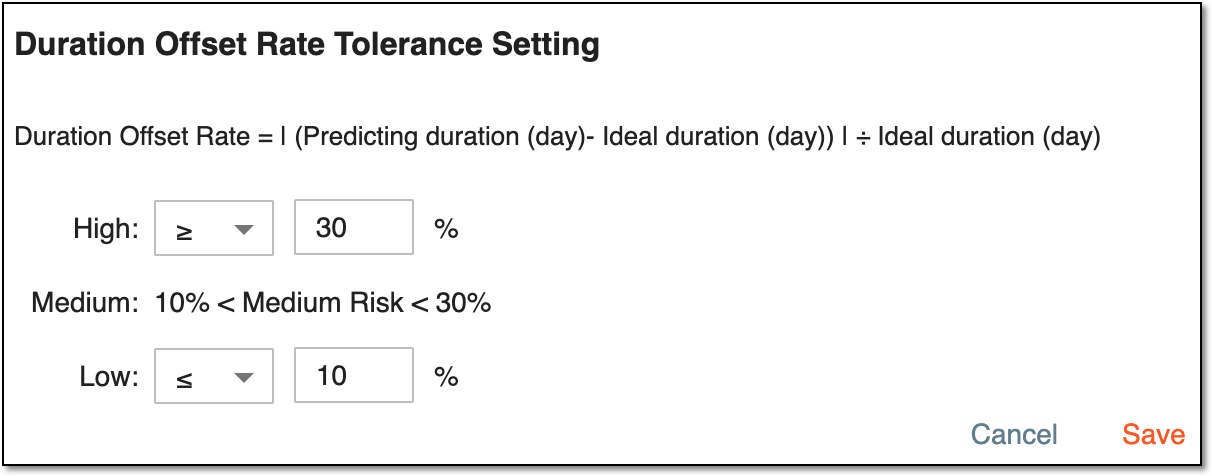
Figure 5. Setting up tolerance values
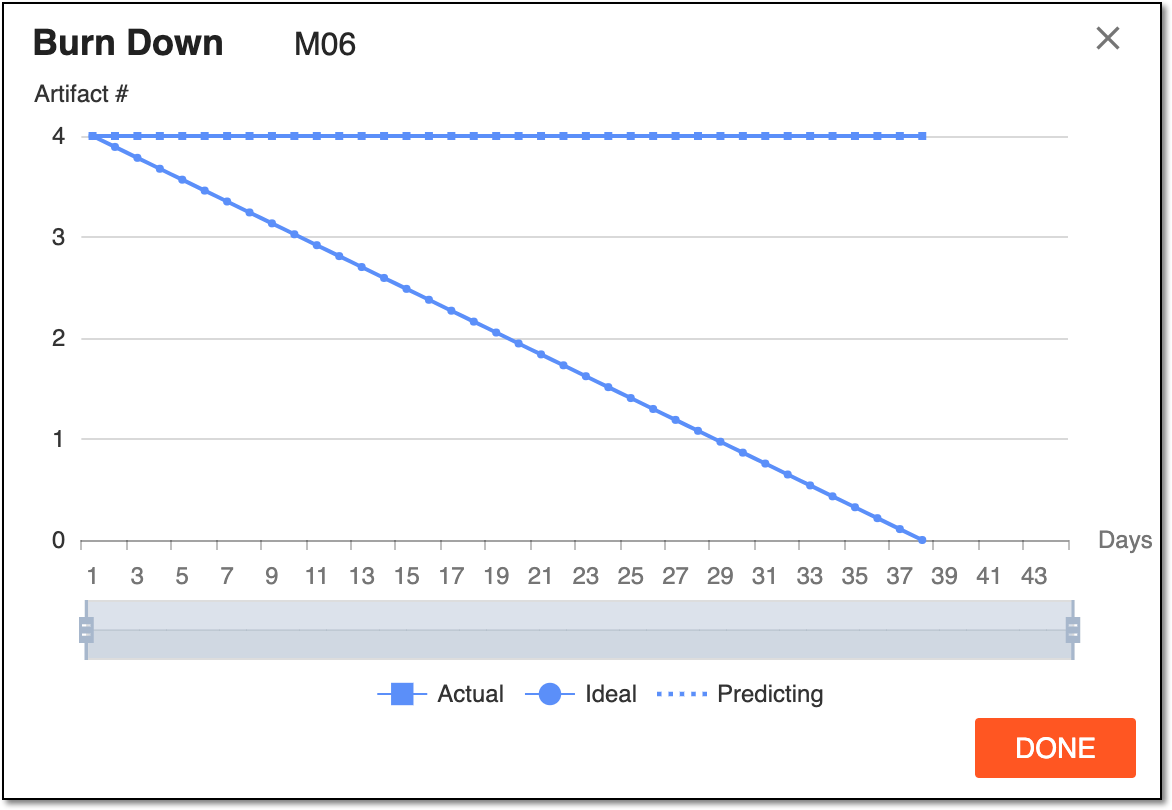
In the table next to the chart, you can review the details of all milestones. To sort out the milestones list by low, medium, or high-risk entities, select the respective milestone number below the pie chart. Selecting each milestone name in the table opens the Burn Down rate dialog, where you can view the Ideal versus the Actual artifact completion chart:
|
|
Milestones Arrived and Completed |
Displays the diagram of milestone completion within the selected period of time. Select the ESPD button to rearrange the chart starting with Earliest Start Planned Date. Alternatively, select the time frames within which you want to view the milestone statistics. 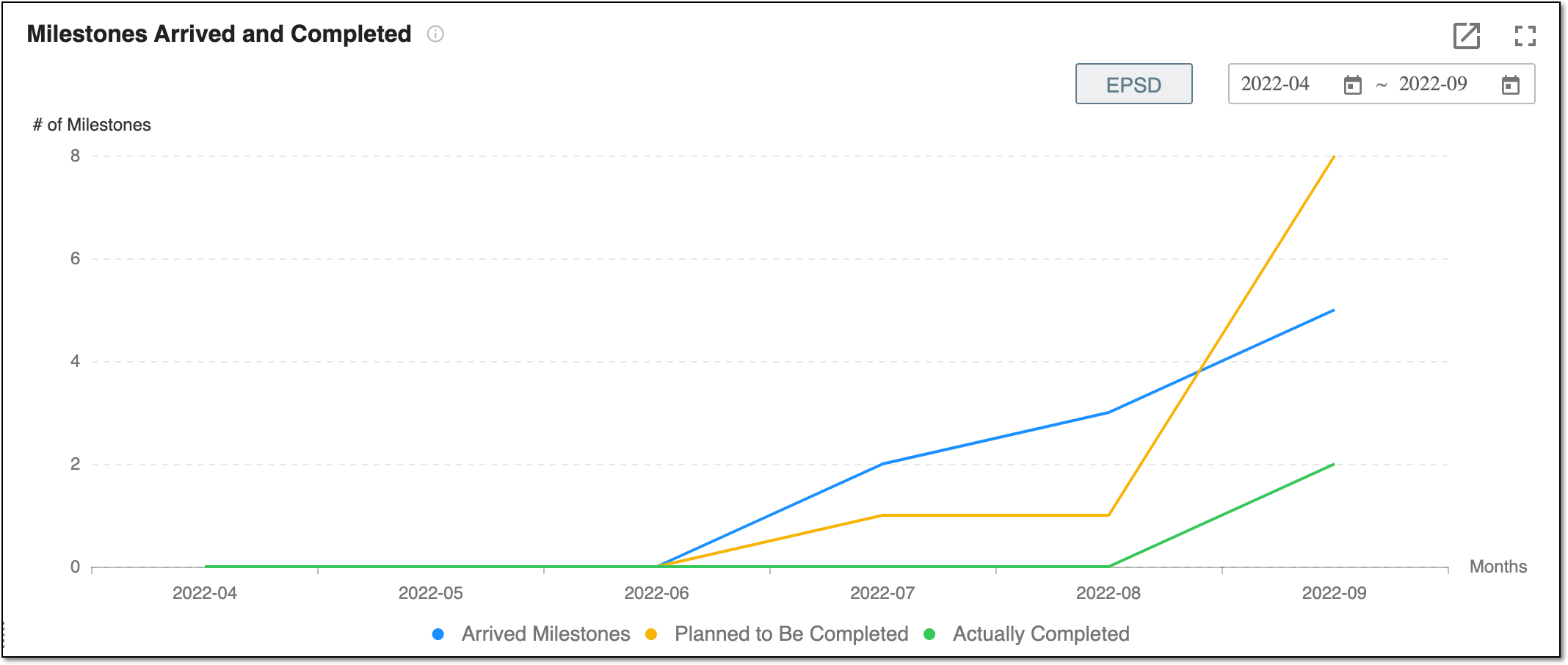
Figure 7. Milestones Arrived and Completed block
|