Set up data extraction job
In CTMS, all the available reports can be extracted from the system to the preset external server using scheduled jobs. Jobs are automated processes that can be set up in CTMS to schedule the execution of various activities, such as data extraction to external servers. Scheduling jobs saves time for manual export and enables regular and timely execution, minimizing risks of human error.
Important
To configure the job—upon adding or editing—you must have the Write permission for the respective job category granted to your user role via ADMIN.
-
In the CTMS application header, select the REPORT tab.
-
On the page that opens, in the left pane, select Job > Data Extraction.
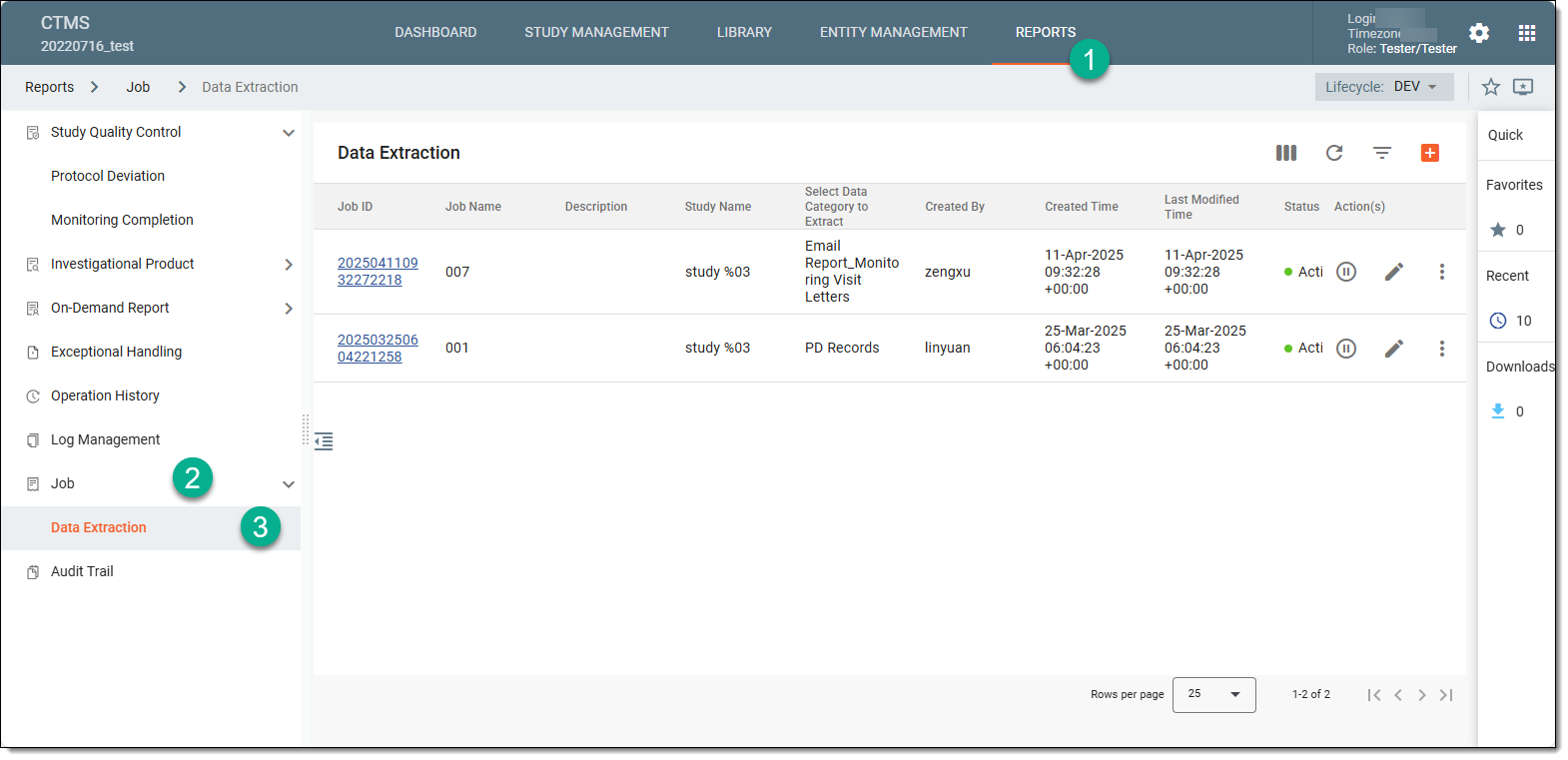 Figure 1. Accessing data extraction job configuration
-
On the Data Extraction page that opens, from the workspace toolbar, select New Item
 .
.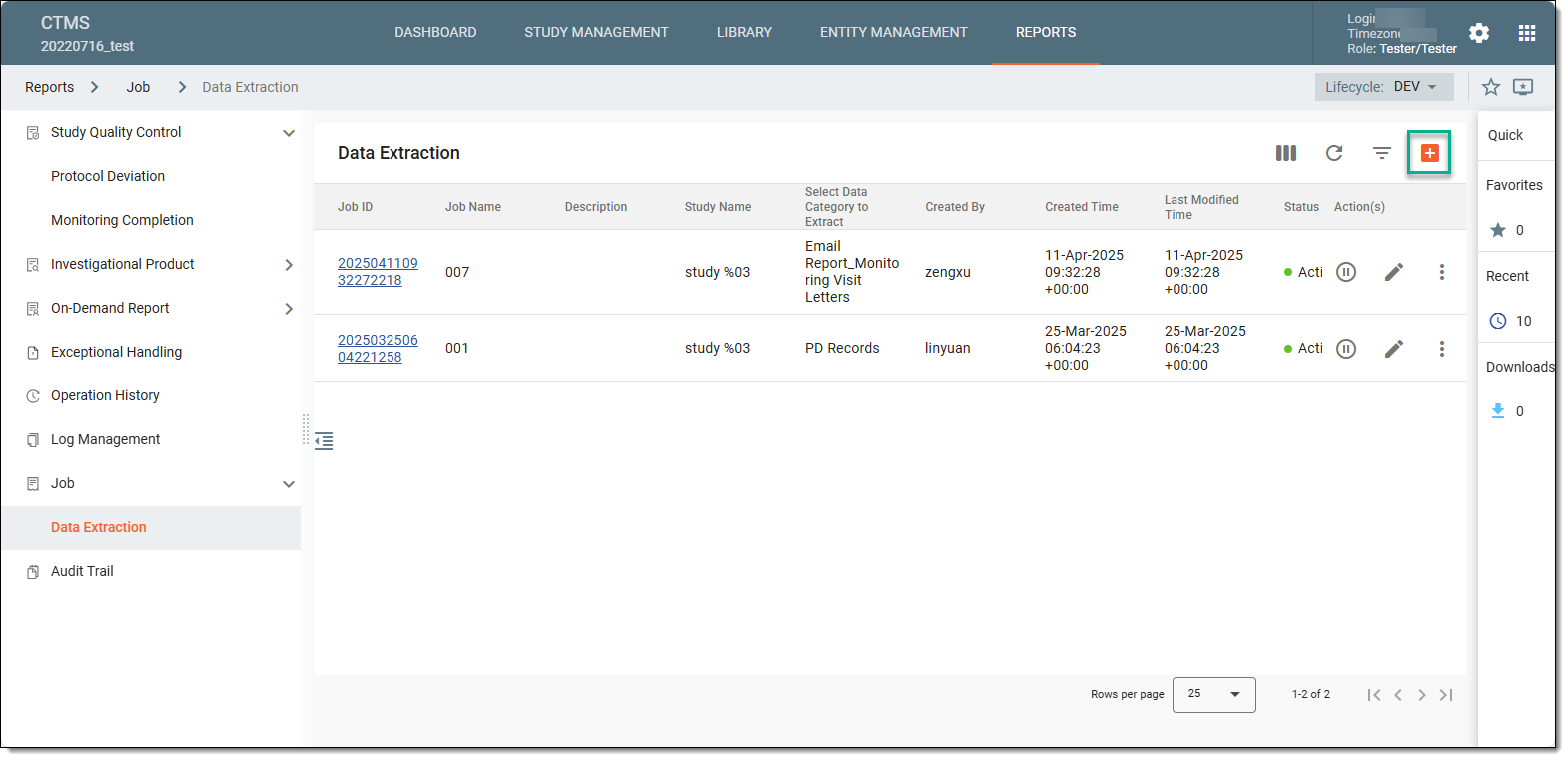 Figure 2. Selecting option to add new job
-
In the New dialog that opens, complete the form as explained in the following table.
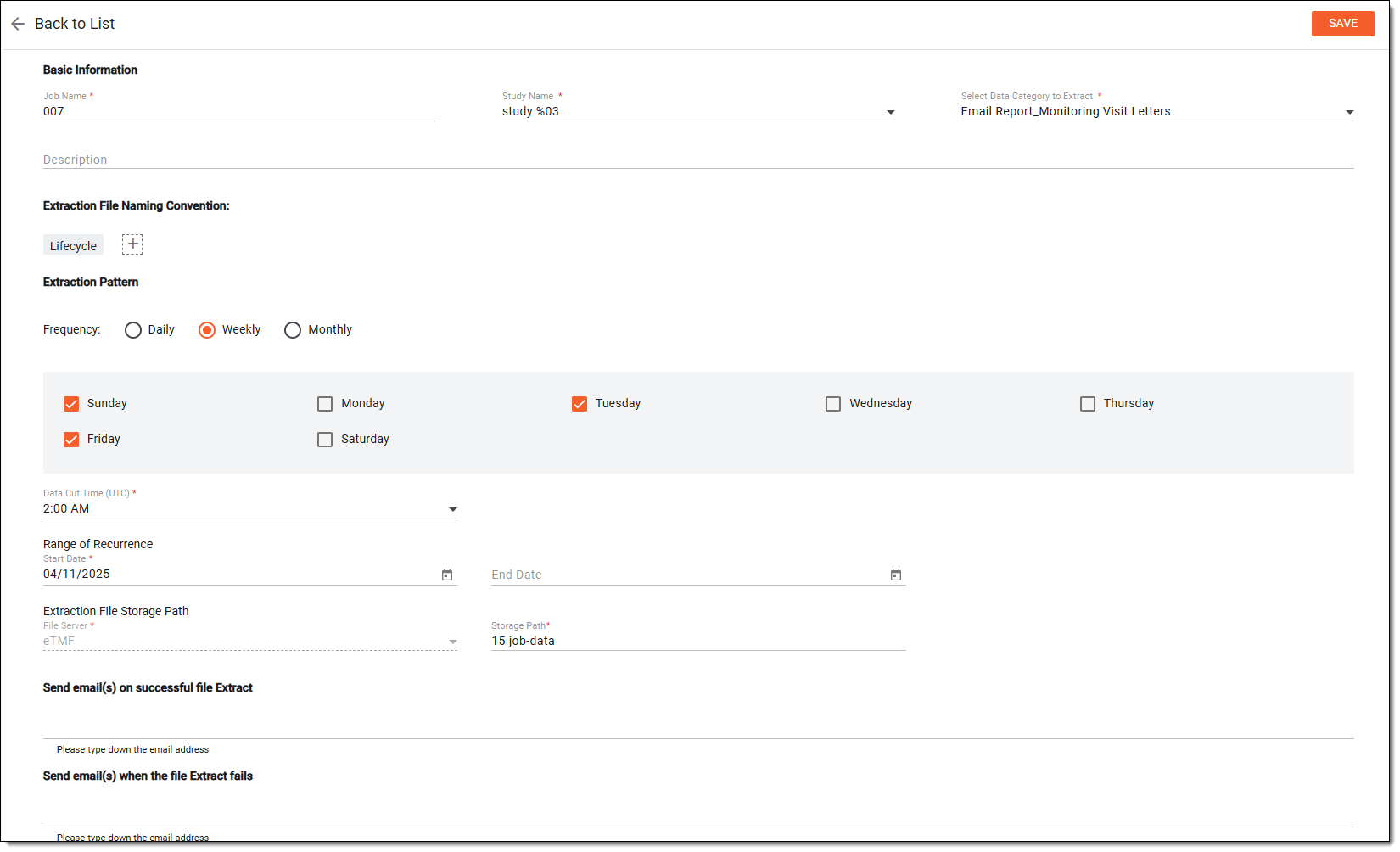 Figure 3. Setting up data extraction job
Tip
In the following table, mandatory elements are marked with an asterisk (*).
Element
Details
Job Name*
Enter a unique name for the data extraction job you are creating.
Study Name*
Select the study from the list for which you want to create the data extraction job.
Select Data Category to Extract*
Select one of the data categories for which you want to create the data extraction job.
Multiple selected categories are separated by comma.Description
Enter any important details or auxiliary information about the data extraction job you are creating.
Extraction File Naming Convention
Select
 and choose a placeholder to define a naming convention for the file report that is to be generated upon data extraction. You can use
placeholders, such as Lifecycle, Sponsor Name, Study Name, Separator, and Label.
and choose a placeholder to define a naming convention for the file report that is to be generated upon data extraction. You can use
placeholders, such as Lifecycle, Sponsor Name, Study Name, Separator, and Label.Extraction Pattern
Daily
Select this option to extract the data to the server daily. Select Everyday if you want the data to be extracted every day of the week or select Every Weekday to extract data only on weekdays.
Weekly
Select this option to extract the data to the server once every week. Then select the day on which you want the data to be extracted.
Monthly
Select this option to extract the data to the server monthly. Then customize the schedule by selecting to extract data on a specific day of the month (for instance, every second day of the month) or a particular weekday (for instance, every first Monday).
Standard Timezone Name*
Select the time zone according to which the data is extracted to the server based on the selected pattern.
Data Cut Time (UTC)*
Select the time for the system to extract the data to the server based on the selected pattern, time zone, and DST, if any.
For instance, if you select for the data to be extracted monthly every second day of the month, and set the Data Cut Time value to 12:00 AM, the data is extracted each second day of the month at midnight according to the Central European Time.
Range of Recurrence
Start Date
Set the date when you want the system to start running the data extraction job according to the defined pattern.
End Date
Set the date when you want the system to stop running the data extraction job according to the defined pattern.
Extraction File Storage Path (File Server)*
Represents the file storage path after the successful execution of the job.
This field is read-only.Storage Path
Select the field to choose the storage path for your file to be saved after successful execution of the job.
Send email(s) on successful file Extract
Enter a valid email address to receive a notification upon successful extraction of the file.
Send email(s) when the file Extract fails
Enter a valid email address to receive a notification when the file extraction fails.
SAVE
Select
 to create the data extraction job.
Back to List
Select
 to discard the changes and return to the Data Extraction page.
Once saved, the data extraction job is created in the Active status.