Execute data extraction job manually
In CTMS, all the available reports can be extracted from the system to the preset external server using scheduled jobs. Jobs are automated processes that can be set up in CTMS to schedule the execution of various activities, such as data extraction to external servers.
Executing the data extraction job manually ensures you have access to up-to-date data without waiting for the next scheduled run of the extraction job. It also gives you flexibility in handling data, allowing you to directly extract the files without pushing the data to external servers.
Important
To run the job manually, you must have the Write permission for the respective job category granted to your user role via ADMIN.
-
In the CTMS application header, select the REPORT tab.
-
On the page that opens, in the left pane, select Job > Data Extraction.
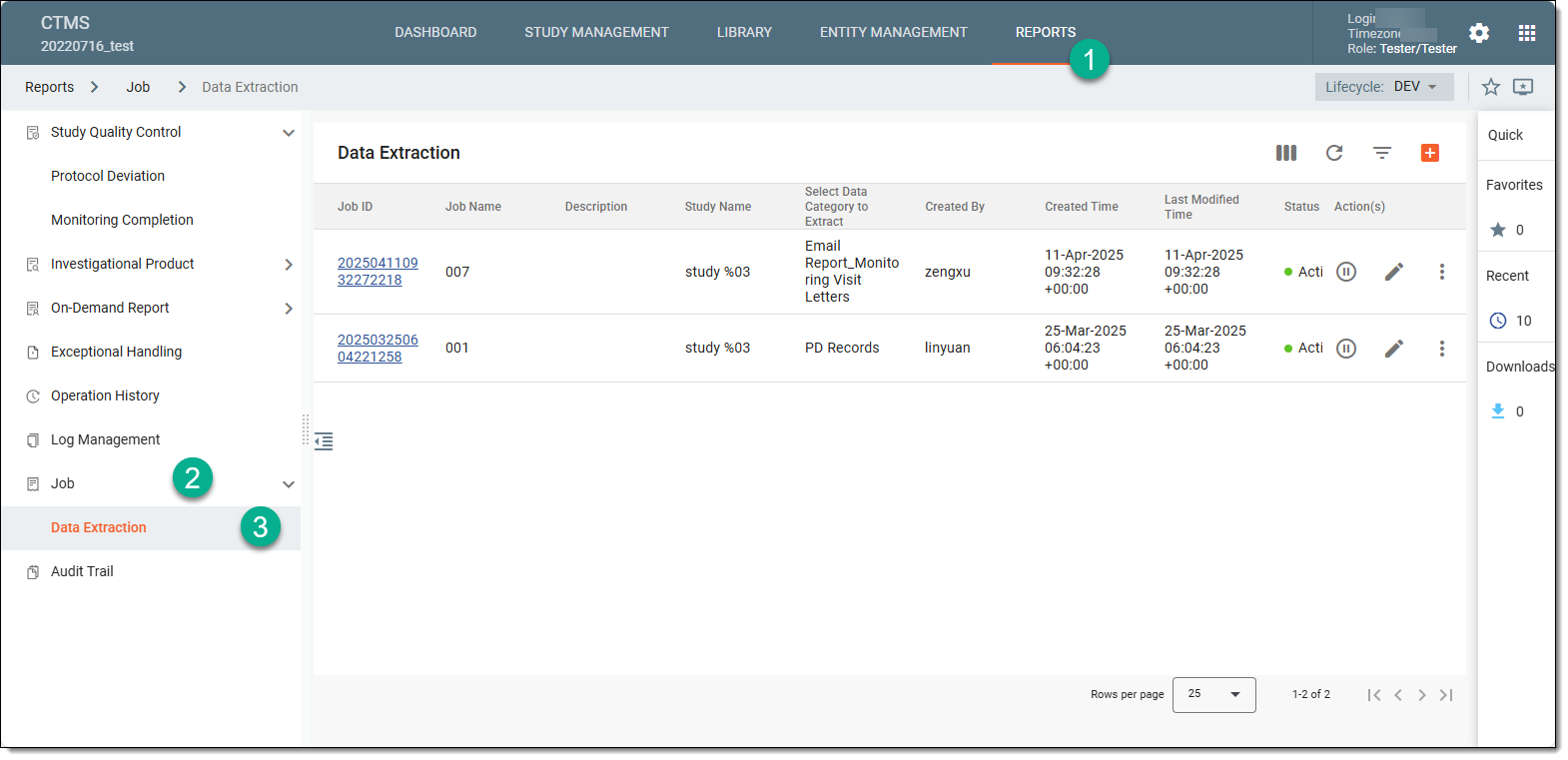 Figure 1. Accessing data extraction job configuration
-
On the Data Extraction page that opens, next to the job that you want to run manually, select More
 > Manually Execute
  .
.Tip
This option is only available for active data extraction jobs.
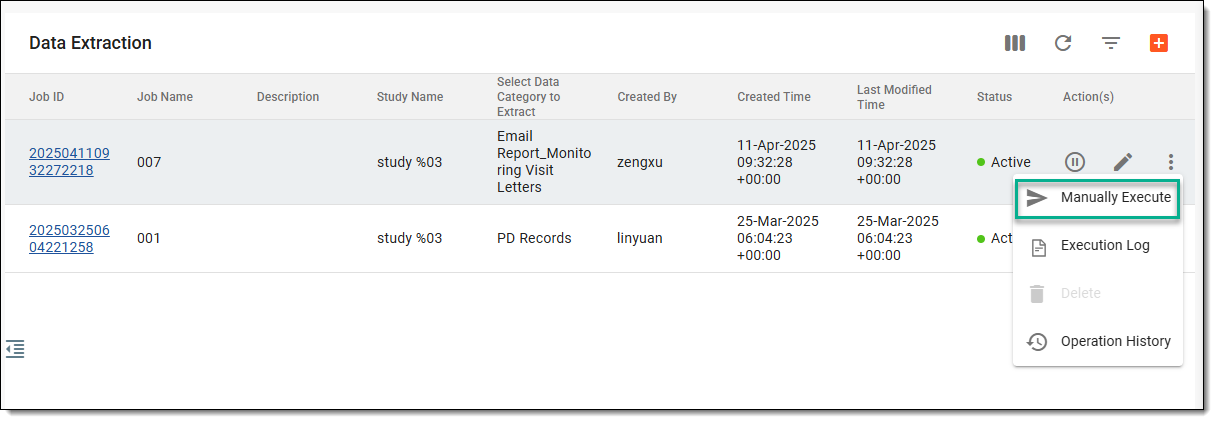 Figure 2. Executing data extraction job manually
Tip
If the job is already running for the study, wait for the active job run to end and then initiate your manual execution.
Once executed, the data is extracted, and the resulting file becomes available and can be downloaded from the Execution Log screen.