Activate/Inactivate data extraction job
Jobs are automated processes that can be set up in CTMS to schedule the execution of various activities, such as data extraction to external servers. Scheduling jobs saves time for manual export and enables regular and timely execution, minimizing risks of human error.
In CTMS, after setting up a new data extraction job, it is activated by default for automated retrieval of data files for reporting, analysis, or integration with other systems. Deactivating it halts this process to prevent unnecessary data pulls, reduce system load, or avoid extracting outdated or incorrect data when it is not required.
-
In the CTMS application header, select the REPORT tab.
-
On the page that opens, in the left pane, select Job > Data Extraction.
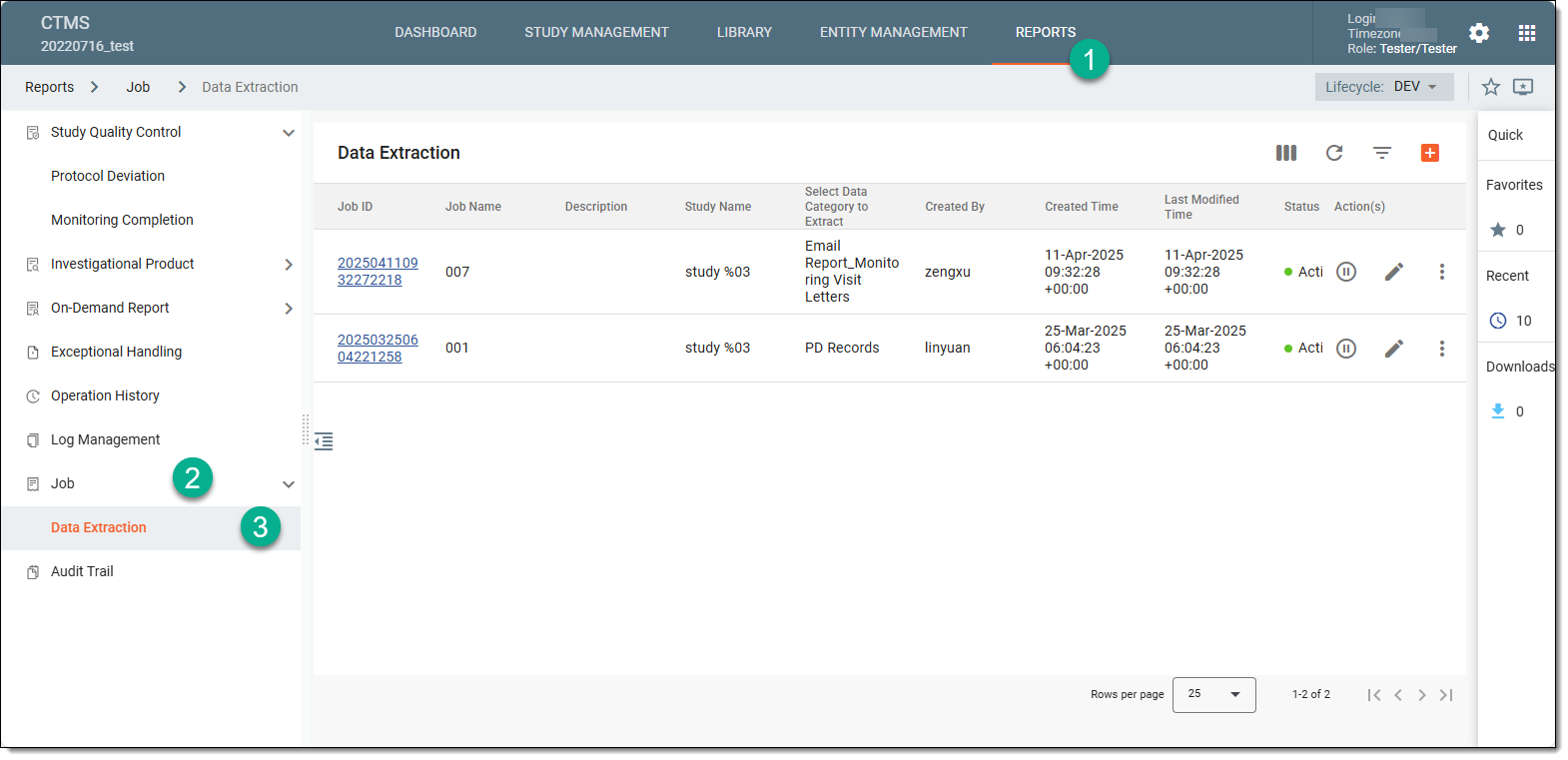 Figure 1. Accessing data extraction job configuration
-
On the Data Extraction page that opens, next to the job that you want to activate or inactivate, proceed as follows:
-
Activate
 : select it to activate the data extraction job. In this case, the data extraction starts running to retrieve
the data files if scheduled automatically or executed manually.
: select it to activate the data extraction job. In this case, the data extraction starts running to retrieve
the data files if scheduled automatically or executed manually. -
Inactivate
 : select it to deactivate the data extraction job. In this case, the data extraction job stops running,
becomes idle, and no longer retrieve the data files.
: select it to deactivate the data extraction job. In this case, the data extraction job stops running,
becomes idle, and no longer retrieve the data files.
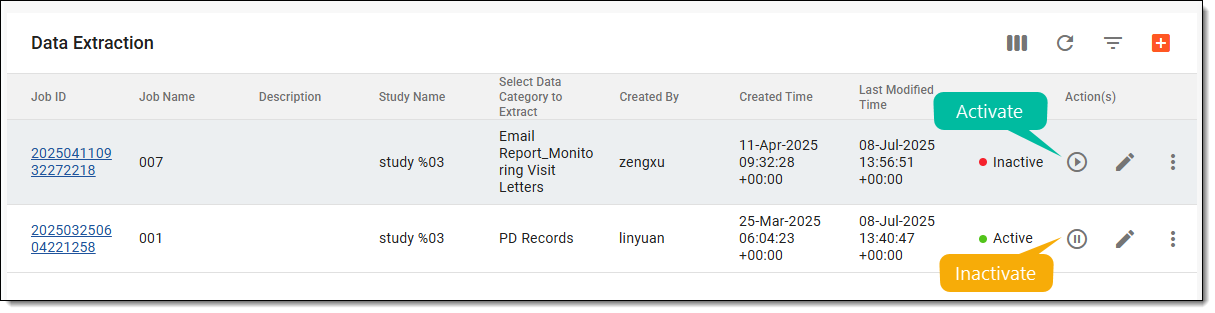 Figure 2. Activating or inactivating data extraction job
-
-
In the Reason dialog that opens, enter the reason for job activation or deactivation and select
 .
.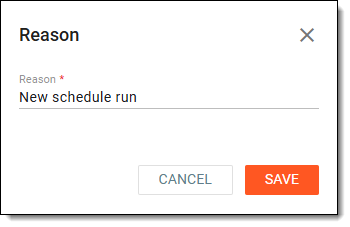 Figure 3. Providing reason for job activation or inactivation
Once saved, the data extraction job is activated or deactivated.