Download extracted file from execution log
Jobs are automated processes that can be set up in CTMS to schedule the execution of various activities, such as data extraction to external servers. Scheduling jobs saves time for manual export and enables regular and timely execution, minimizing risks of human error.
After the scheduled or manual data extraction, you can view the execution log and download the extracted files. This process ensures you can view and work on the extracted data whenever you want.
-
In the CTMS application header, select the REPORT tab.
-
On the page that opens, in the left pane, select Job > Data Extraction.
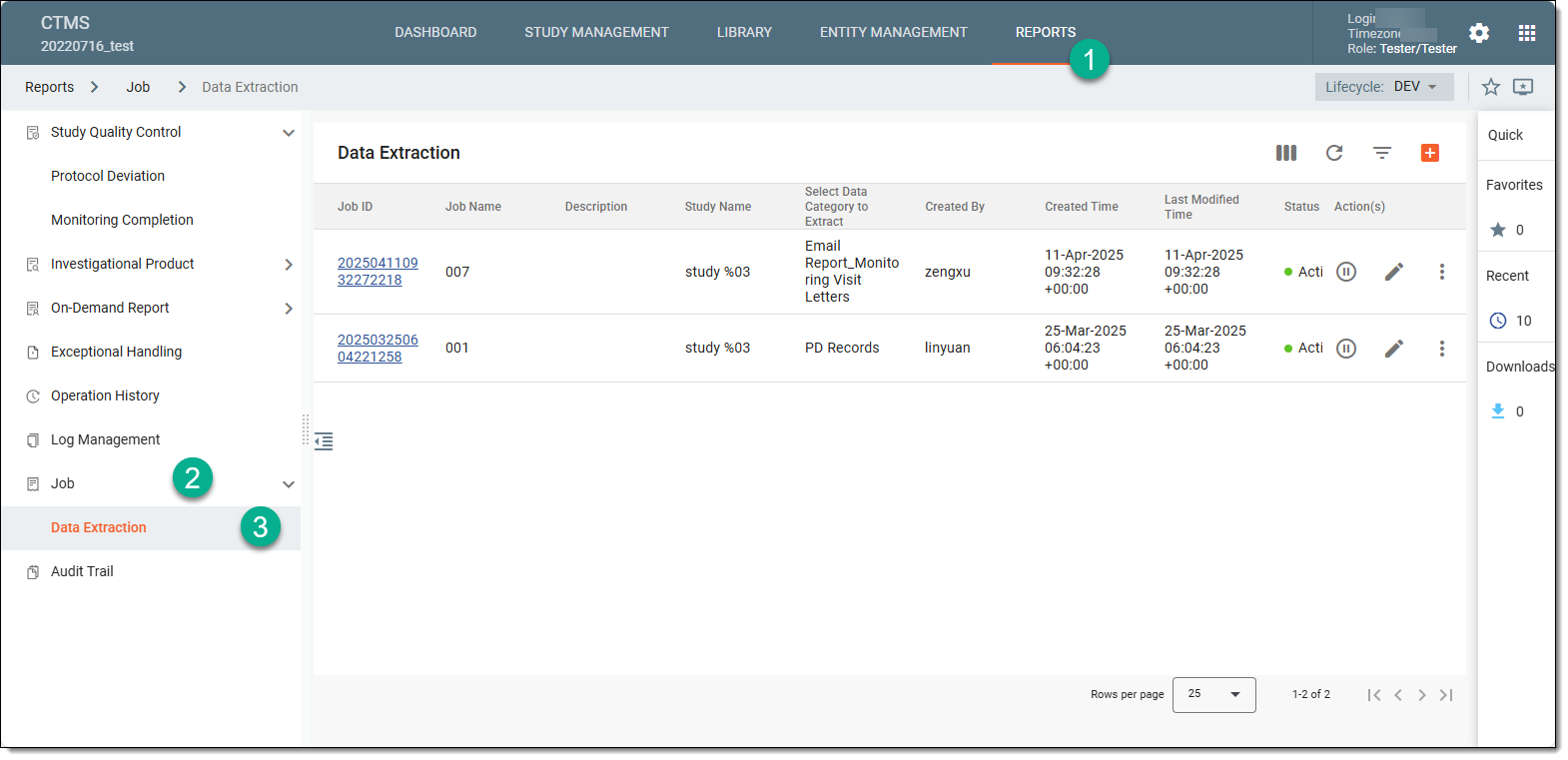 Figure 1. Accessing data extraction job configuration
-
On the Data Extraction page that opens, next to the job from which you want to download the files, select More
 > Execution Log
  .
.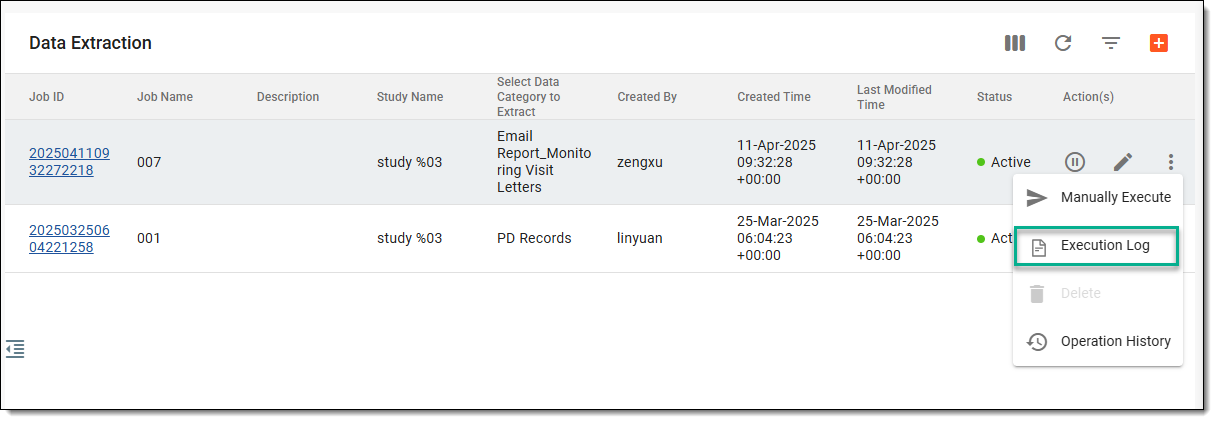 Figure 2. Opening execution log
-
In the Execution Log dialog that opens, next to the required executed job run, in the Action(s) column, select Download
 .
.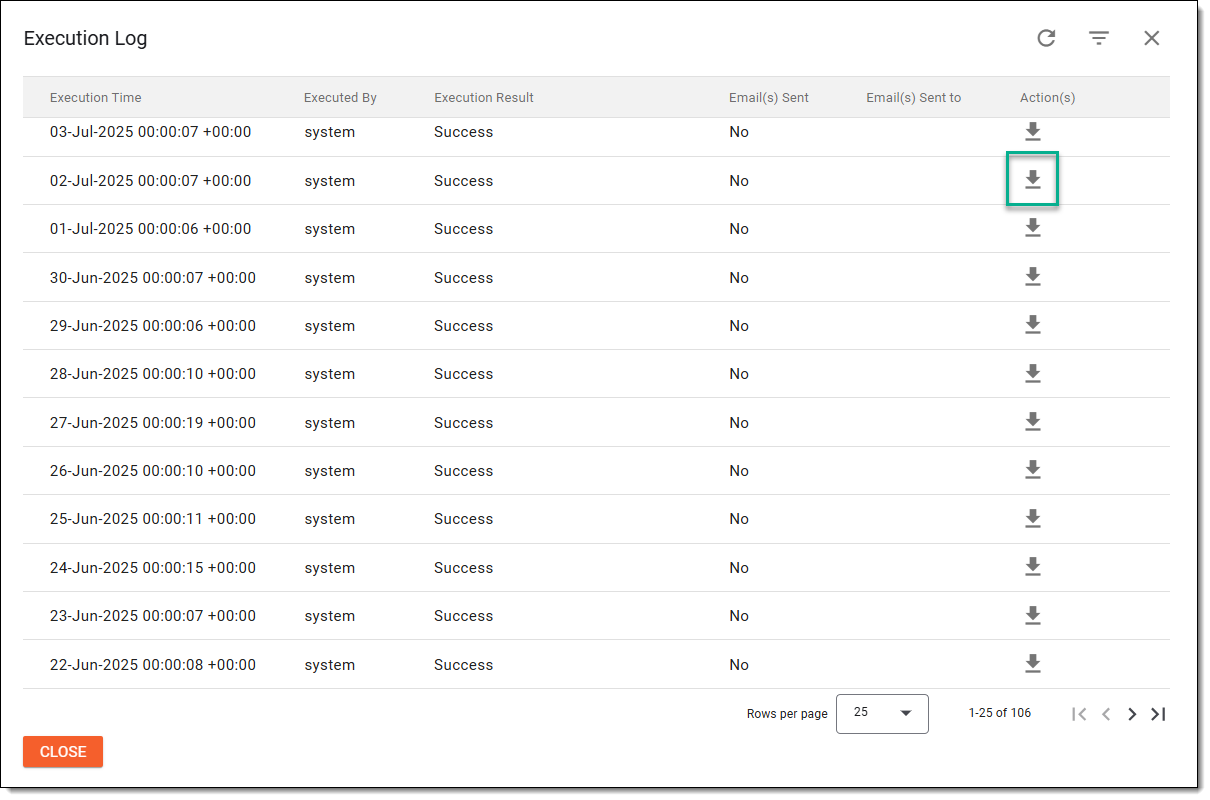 Figure 3. Downloading extracted file
Once selected, the file is available on your computer as a ZIP folder. Select  to go back to the Data Extraction page.