Create training document entry
In CTMS, study-related training documents can be tracked to confirm that team members are trained on key topics such as protocol presentations, safety guidelines, and system instructions. To begin, a training document entry must be created in the system, after which you can monitor which roles (such as CRA, PI, and others) have completed the training and which ones have not.
Important
Note that creating a training document entry refers to logging its details in CTMS; the actual content—such as documents or presentations—is shared with personnel through channels outside CTMS.
-
Access the study management page in one of the following ways:
-
In the CTMS application header, select the DASHBOARD tab and then select the study dashboard of your interest.
 Figure 1. Accessing study management from dashboard
-
In the CTMS application header, select the STUDY MANAGEMENT tab. Then from the Study Data List table, select the study name of your interest.
 Figure 2. Accessing study management from study data list
-
-
From the left pane, select Training > Training Matrix.
-
On the page that opens, select the Training Documents tab.
-
From the workspace toolbar, select New
 .
.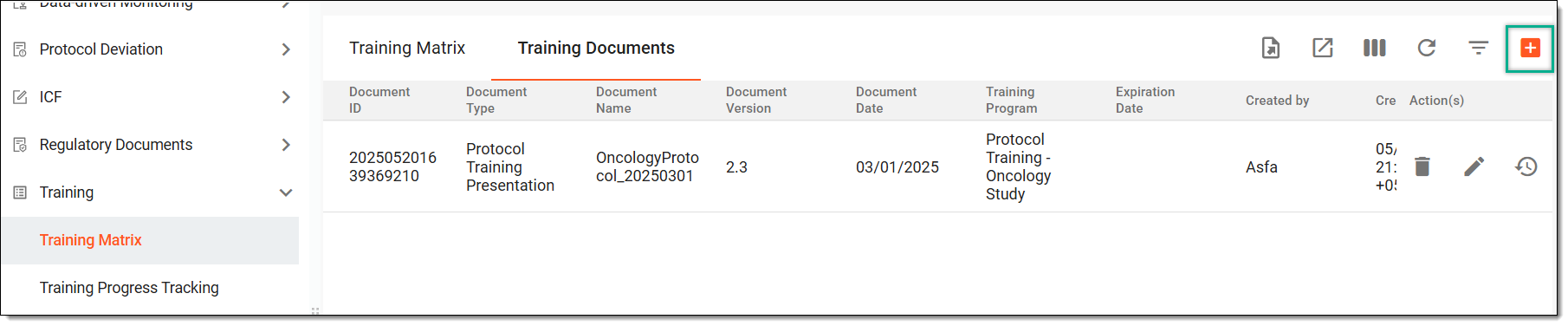 Figure 3. Selecting to create training document
-
In the dialog that opens, enter the document entry details as explained in the following table.
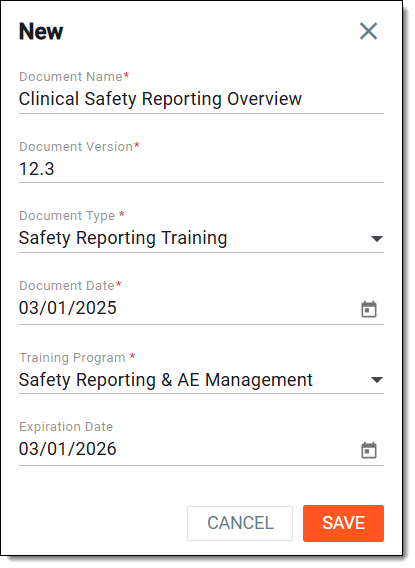 Figure 4. Creating training document entry
Tip
In the following table, mandatory elements are marked with an asterisk (*).
Element
Details
Document Name*
Enter a unique name for the document entry.
Document Version*
Enter the version of the document to help track updates.
Document Type*
Select the category of training inherited from predefined types in LIBRARY > Reference data > Training Type.
Document Date*
Select the date when the training document was created or issued.
Training Program*
Select one or more options that link the document to a broader training program for contextual grouping and tracking category. These values are predefined in LIBRARY > Reference data > Training Program.
Expiration Date
Select the date when the document is no longer valid or requires renewal.
SAVE
Select
 to create the document entry.
CANCEL
Select
 to dismiss the process without saving.
Once saved, the document entry is created. You can now proceed to track the personnel who have completed the training.