Edit training document entry
After adding a training document entry, you may want to update its details to keep the training records accurate and up to date throughout the study.
-
Access the study management page in one of the following ways:
-
In the CTMS application header, select the DASHBOARD tab and then select the study dashboard of your interest.
 Figure 1. Accessing study management from dashboard
-
In the CTMS application header, select the STUDY MANAGEMENT tab. Then from the Study Data List table, select the study name of your interest.
 Figure 2. Accessing study management from study data list
-
-
From the left pane, select Training > Training Matrix.
-
On the page that opens, select the Training Documents tab.
-
Locate the training document entry you want to update, and next to it, from the Action(s) column, select Edit
 .
. Figure 3. Selecting to edit training document
-
In the dialog that opens, update the document entry details as explained in the table of the Create training document entry section. Then select SAVE.
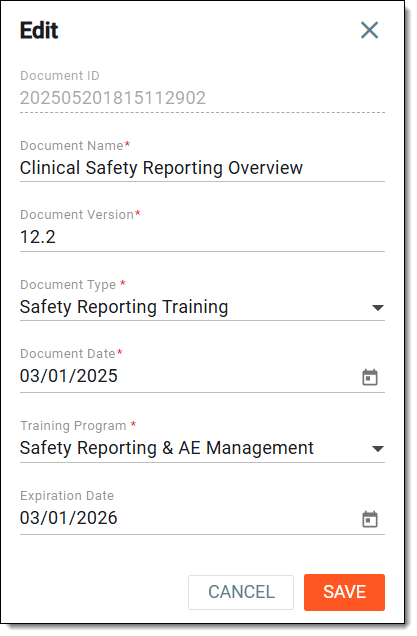 Figure 4. Editing training document entry
-
In the confirmation dialog that appears, read the warning and select CONFIRM to implement your changes.
 Figure 5. Confirming to update document entry
Once the action is confirmed, your changes are saved and the document entry is updated.