Track and update training progress
After you have created the training document entry, you can now start tracking the roles (such as CRC, CRA, PI, and others) that have completed the training and update their progress if needed. This ensures that all team members receive consistent guidance on study protocols, safety procedures, and system use—critical for maintaining data integrity, protecting participant safety, and meeting regulatory expectations in clinical trials.
-
Access the study management page in one of the following ways:
-
In the CTMS application header, select the DASHBOARD tab and then select the study dashboard of your interest.
 Figure 1. Accessing study management from dashboard
-
In the CTMS application header, select the STUDY MANAGEMENT tab. Then from the Study Data List table, select the study name of your interest.
 Figure 2. Accessing study management from study data list
-
-
From the left pane, select Training > Training Matrix.
-
On the page that opens, you can view the existing training document entries and the roles that have completed the training.
To update the progress, locate the needed document entry, and next to it, select the checkbox for the specific role that has completed the training.
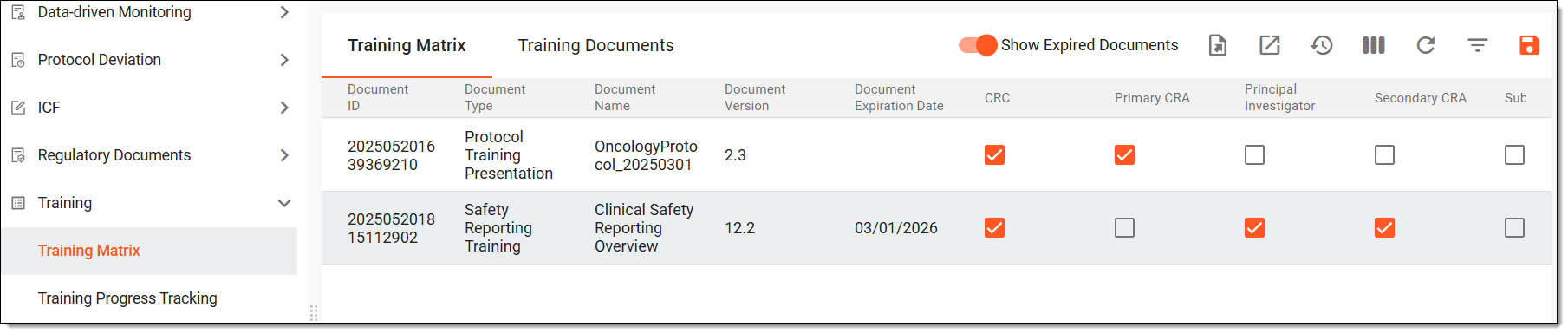 Figure 3. Updating training progress
Tip
If you cannot find the needed document entry, from the workspace toolbar, turn the Show Expired Documents toggle on to display the document entries that have passed the expiration date.
-
From the workspace toolbar, select Save
 to implement your changes.
Once saved, the roles progress on a specific training document is updated in the system.