Delete training document entry
In CTMS, you can permanently remove a training document entry from the system when it is no longer needed or was added by mistake. Deleting helps keep training records relevant, organized, and free of outdated or duplicate entries.
-
Access the study management page in one of the following ways:
-
In the CTMS application header, select the DASHBOARD tab and then select the study dashboard of your interest.
 Figure 1. Accessing study management from dashboard
-
In the CTMS application header, select the STUDY MANAGEMENT tab. Then from the Study Data List table, select the study name of your interest.
 Figure 2. Accessing study management from study data list
-
-
From the left pane, select Training > Training Matrix.
-
On the page that opens, select the Training Documents tab.
-
Locate the training document entry you want to update, and next to it, from the Action(s) column, select Delete
 .
. Figure 3. Deleting training document entry
-
In the Reason dialog that opens, provide the reason for deletion and to confirm your action, select
 .
.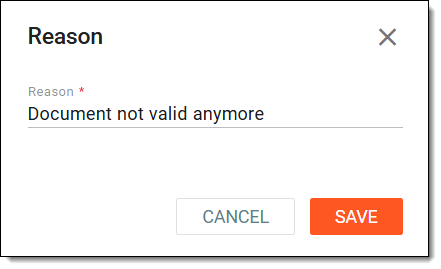 Figure 4. Providing reason for deletion
Once saved, the training document entry is permanently removed from the system.