Add new email intake configuration
In PV, you can set up the system to automatically retrieve files—SAE forms—from emails sent to a specific mailbox. When retrieved, these files land in the PDF Import module where the data is processed and imported as new or follow-up ICSR. The email intake functionality helps you minimize manual file upload operations, fast-forward the data retrieval process, and eliminate potential human error.
For the system to start retrieving the files from emails, you need to have all the preconfigurations in place—the dedicated mailbox set up, the needed PDF and email templates ready, and so on.
Important
Contact the EDETEK administrator for assistance in email intake technical parameters preconfiguration.
Once the preparations are ready, you can add the respective email intake configuration in PV.
-
In the PV application header, select the CONFIGURATION tab.
-
On the page that opens, from the left pane, select Email Intake.
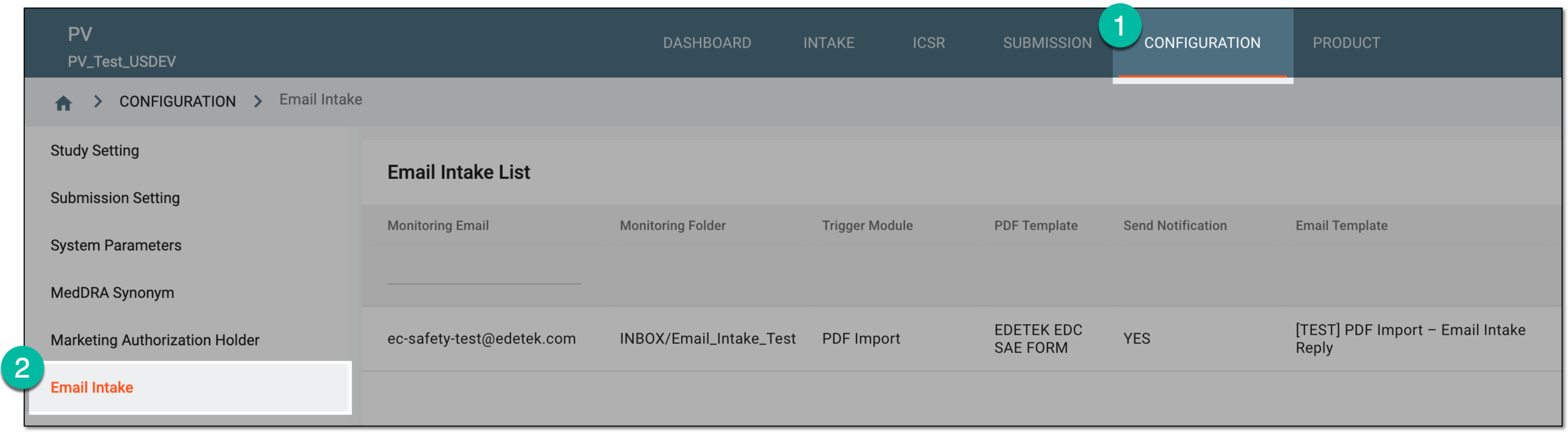 Figure 1. Accessing email intake configuration
-
On the Email Intake List page that opens, from the workspace toolbar, select New
 .
. Figure 2. Selecting option to add new email intake configuration
-
In the Add dialog that appears, complete the settings as explained in the following table.
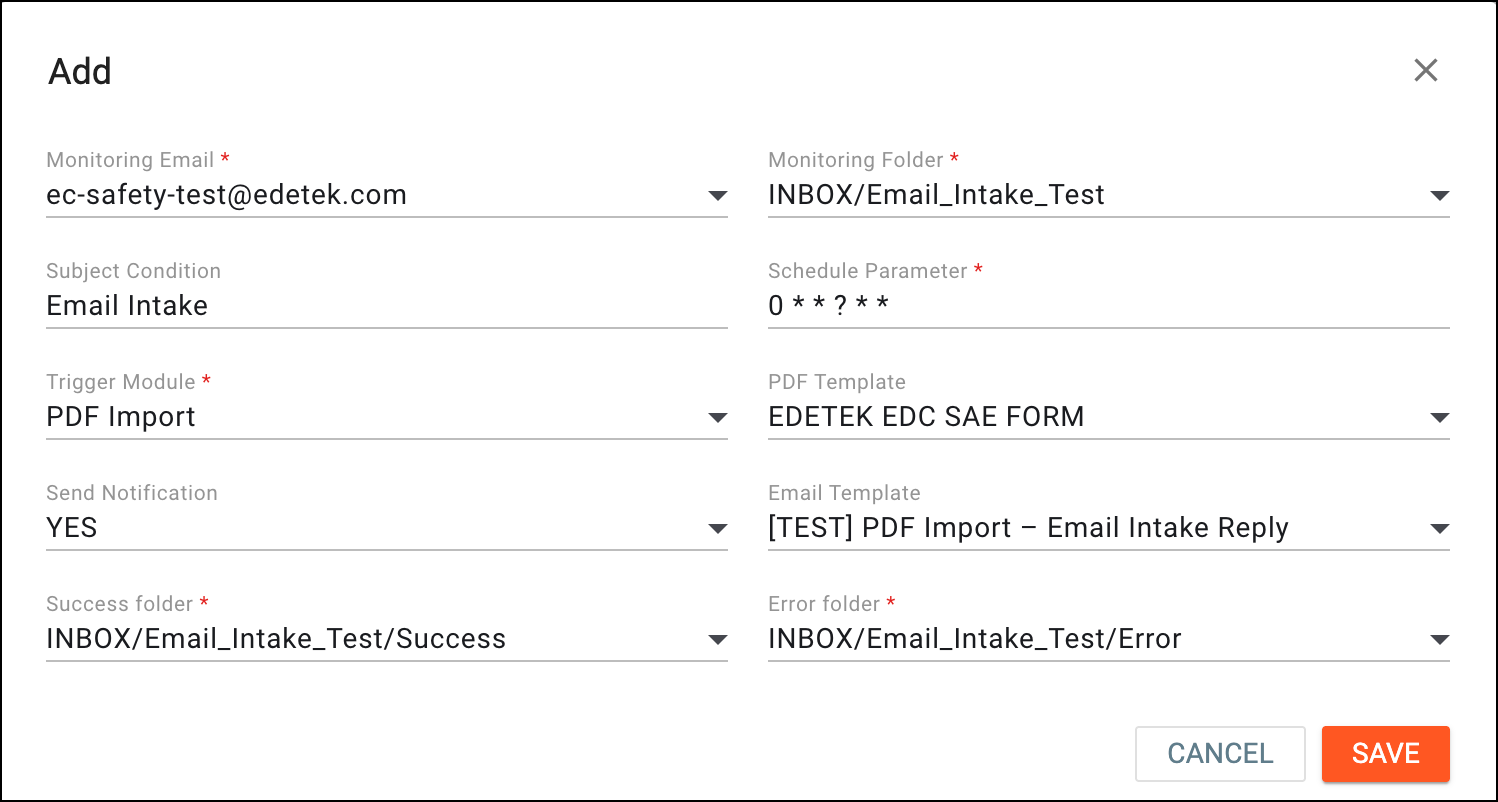 Figure 3. Adding new email intake configuration
Tip
In the following table, mandatory elements are marked with an asterisk (*).
Element
Details
Monitoring Email*
Select the email address to which the files are sent to be retrieved by the PV system.
Monitoring Folder*
Select the folder under the preconfigured mailbox to be checked for any incoming emails with files for retrieval.
Subject Condition
Enter the text that must be contained in the email subject for the system to recognize the email for file retrieval.
Schedule Parameter*
Enter the Cron expression for scheduling the frequency of checking the mailbox for new emails for file retrieval.
Use the FreeFormatter website for Cron expression reference.Trigger Module*
Select the PV module—PDF Import—to host the files retrieved from emails for further processing and data import to the system.
PDF Template*
Select the name of the PDF template preconfigured for you in PV by the EDETEK administrator according to which the system will recognize your similar PDF files and properly interpret their contents.
Send Notification
Select one of the following:
-
Yes: to send the automated email notification when the data from the email intake file is successfully imported to PV.
-
No: not to send the email notification when the data from the email intake file is successfully imported to PV.
Email Template
Select the email notification template to be automatically sent when the data from the email intake file is successfully imported to PV.
This template is preconfigured for you by the EDETEK administratorSuccess Folder*
Select the name of the subfolder in the monitoring folder that will host the emails whose retrieved files are successfully processed in PV and the ICSR is created or updated with extracted data. The emails are moved to this folder from the monitoring folder upon the successful data import to PV.
Error Folder*
Select the name of the subfolder in the monitoring folder that will host the emails whose retrieved files failed processing in PV due to technical errors. The emails are moved to this folder from the monitoring folder upon the failed data processing attempt.
SAVE
Select
 to implement the changes.
CANCEL
Select
 to discard the changes without saving.
 -
Once saved, the email intake configuration is added. Ensure to enable your configuration to start retrieving files from emails.