Enable/Disable email intake configuration
In PV, you can set up the system to automatically retrieve files—SAE forms—from emails sent to a specific mailbox by adding the email intake configurations. Once the configuration is added, you need to enable it to start running the file retrieval process on a scheduled basis and check for any new intake.
Since the system checks for new files constantly—based on your settings, it can be every minute—there is no need to overload the system with this task when it is unnecessary. Enabling or disabling the email intake configuration helps you control the resources of the system by only running the checkup for new emails with files when needed and ceasing this operation when redundant.
For instance, you can prepare the email intake configuration in advance and only enable it when the actual sharing of SAE forms via email starts and the file retrieval is required.
Important
You can only enable the active email intake configuration.
-
In the PV application header, select the CONFIGURATION tab.
-
On the page that opens, from the left pane, select Email Intake.
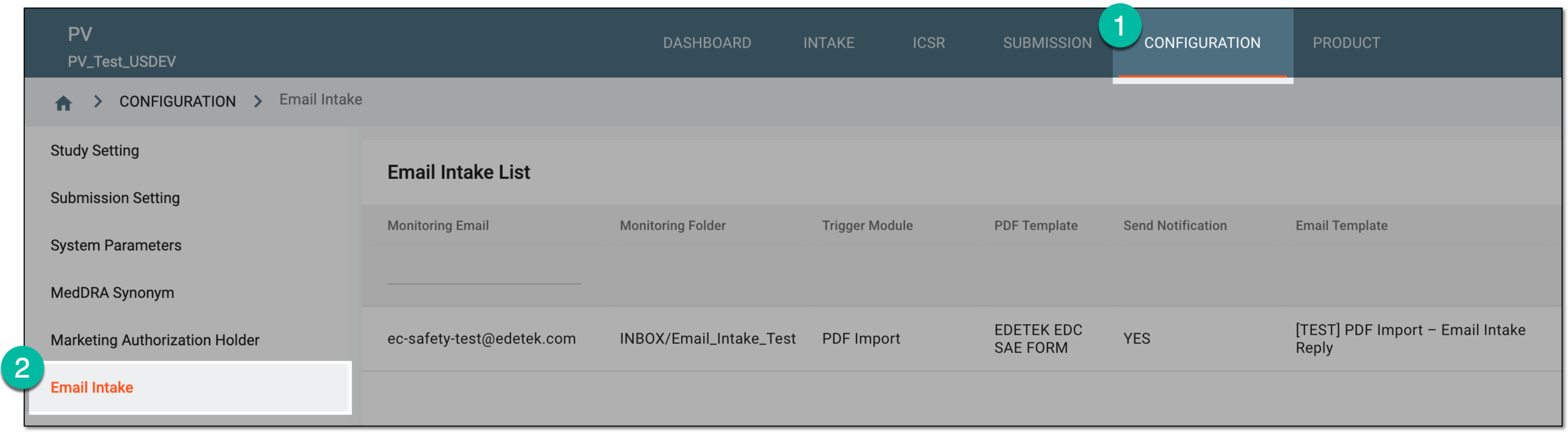 Figure 1. Accessing email intake configuration
-
In the Email Intake List table that appears, locate the configuration that you need to enable or disable. Then in the Scheduled Task column, do one of the following:
-
Turn on the toggle to initiate the system to run the uninterrupted checkup of the preconfigured mailbox for new emails with files to retrieve. The checkups occur on the schedule established in the email intake configuration.
-
Turn off the toggle to stop the system from running the checkup of the mailbox for new emails with files to retrieve.
 Figure 2. Enabling email intake configuration
-
Once the toggle is in the needed position, you have successfully enabled or disabled the email intake configuration.