Add visit folder
In Study Designer, you can add visit folders—dedicated directories to store related visits, for instance, unscheduled visits that need to be repeated according to the study protocol.
As an example, a study can contain the Tumor Response Assessment folder where you can add many tumor response assessment visits. Such visits may include the radiology report, target or non-target lesion assessment, and new lesion assessment forms. The purpose of these visits could be to assess the response of the brain tumor to the investigated drug. Only a healthcare professional performing the assessment can enter data into the indicated forms in EDC.
Important
For master study and its substudies, you need to create the visit folders individually, they are not inherited from the master study to its substudies.
-
In the Study Designer application header, select the CRF DESIGN tab.
-
In the toolbar, select the latest draft CRF version marked with the respective unlock symbol
 , otherwise, you cannot perform any actions.
 Figure 1. Selecting latest draft CRF version
-
In the left pane that appears, right-click the study name.
-
In the context menu that opens, select New Folder
 .
.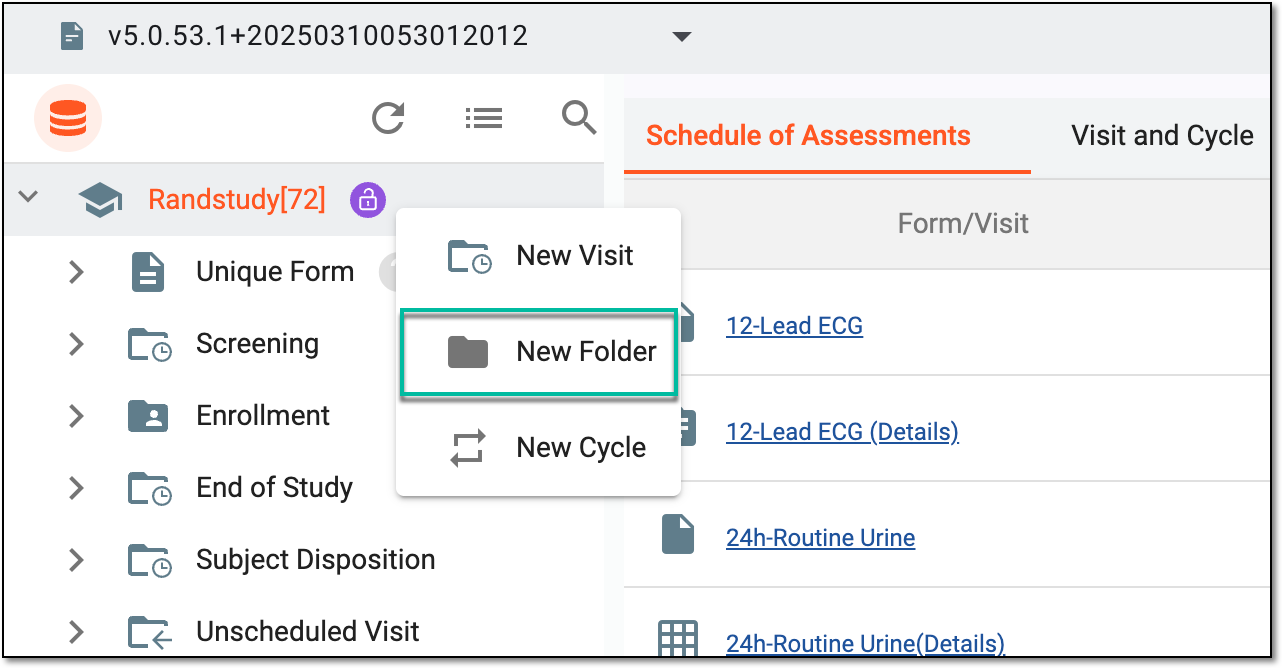 Figure 2. Selecting to add new folder
-
In the Add dialog that appears, enter a unique name for the folder you create.
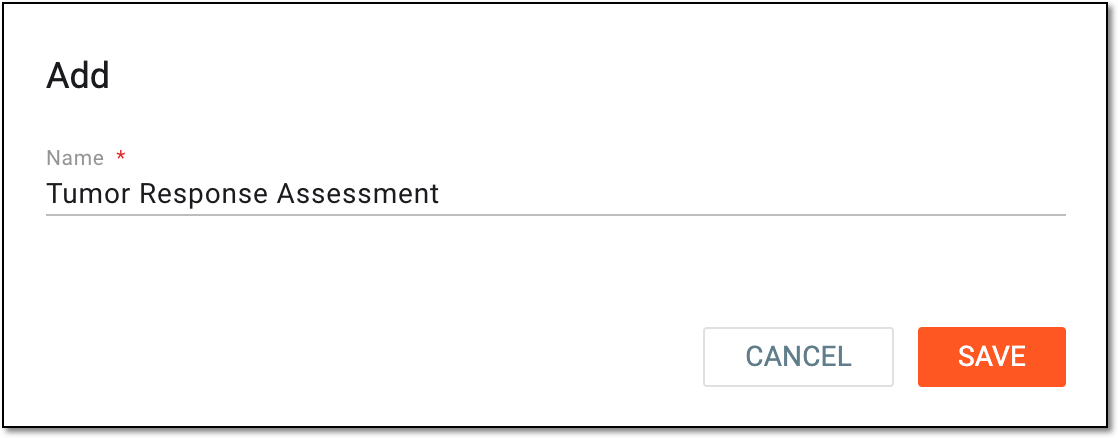 Figure 3. Adding folder to study
-
Select
 to add a new folder to your study.
Once saved, the folder is added to the study. You can now add visits to this folder.