Edit significant changes record in CRF version history
In SD, under the Version History subtab, you can manually add records of significant changes made to each CRF version. This comprehensive log helps with traceability and enhances control over the CRF design changes. Whenever needed, you can update the significant changes record to reflect the most exact details.
-
In the Study Designer application header, select the CONFIGURATION tab.
-
From the left pane, select the Version History subtab.
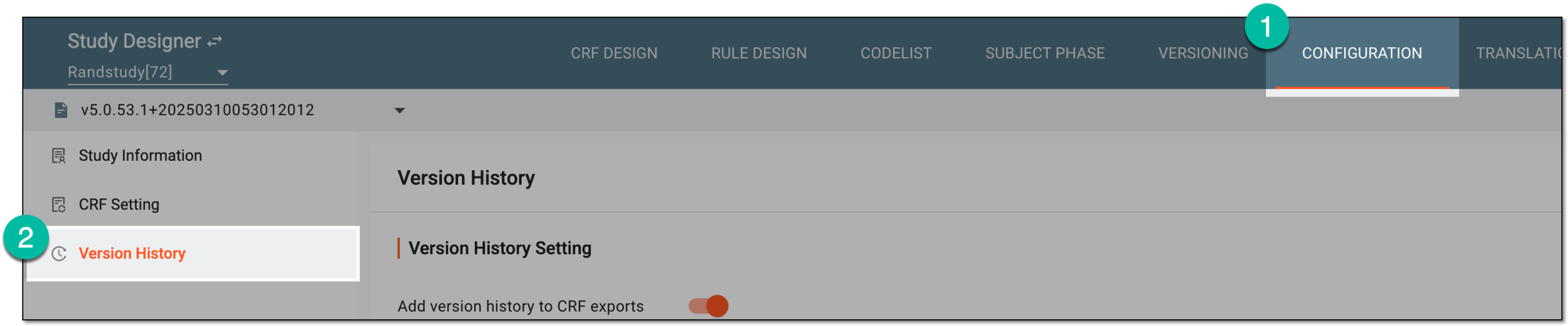 Figure 1. Accessing CRF version history
-
On the Version History page, in the Version History Details table, locate the record you want to update. Then next to the record, from the Action(s) column, select Edit
 .
.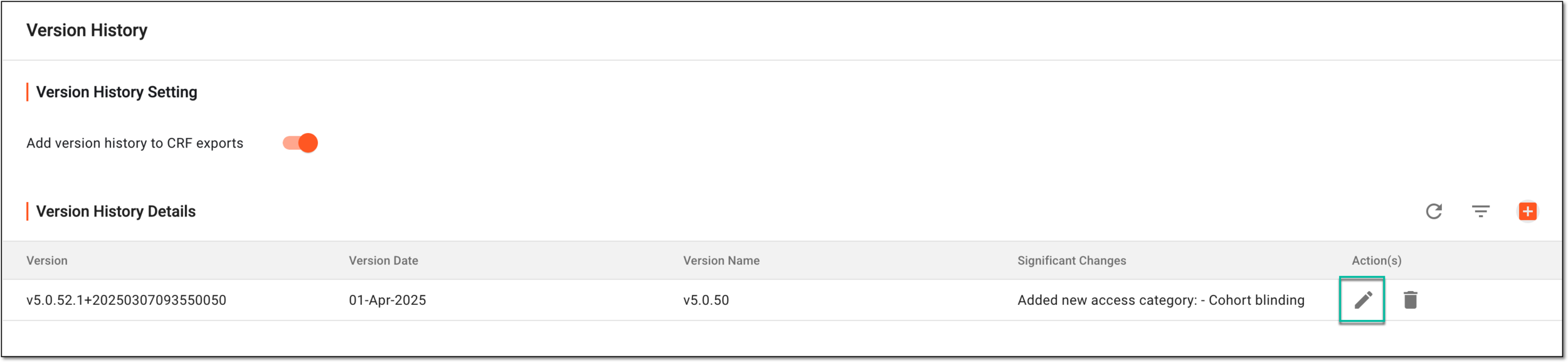 Figure 2. Selecting to edit version history record
-
In the Edit Version History panel that appears on the right, update the details as explained in the following table.
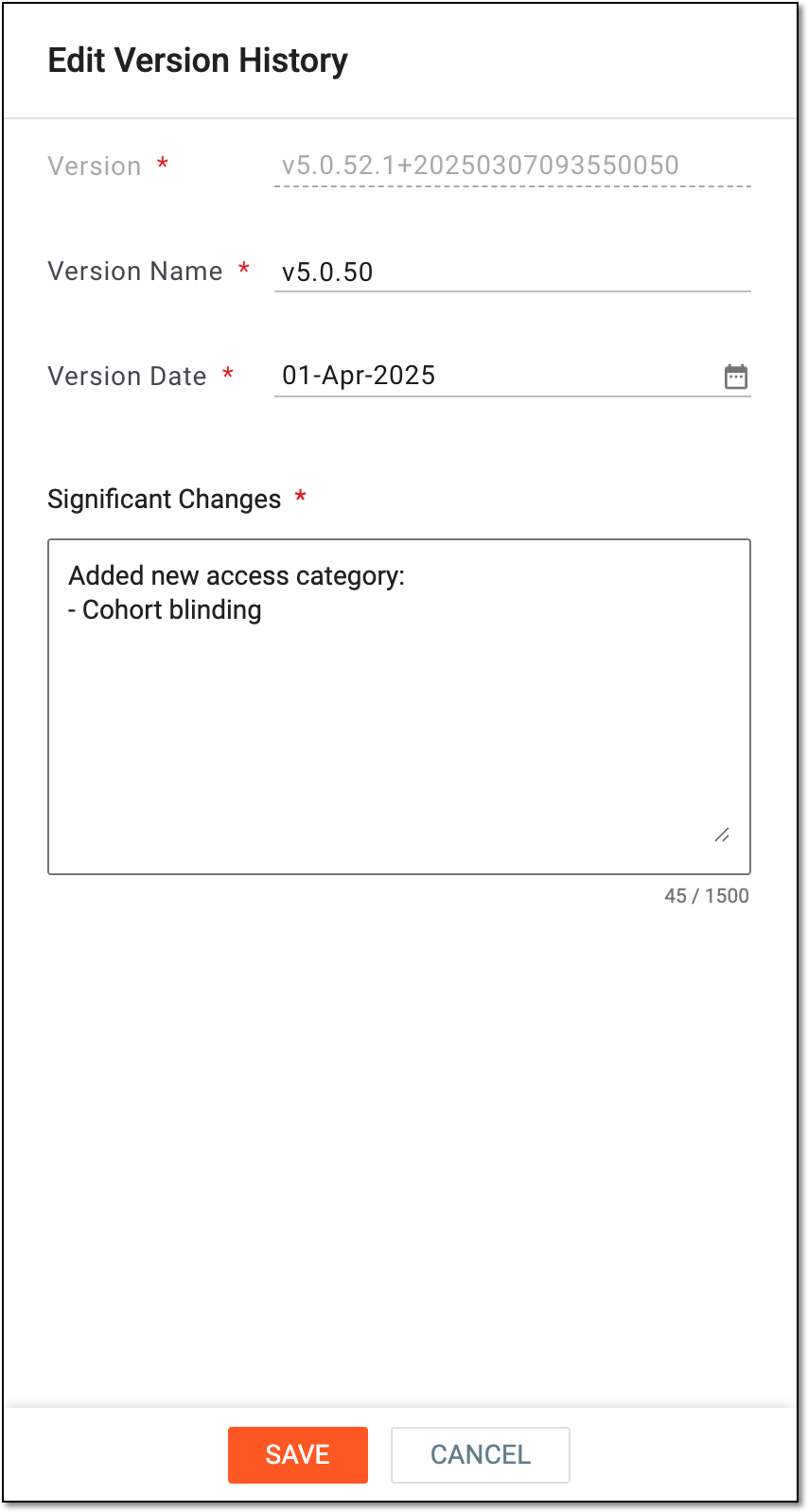 Figure 3. Editing version history record
Tip
In the following table, mandatory elements are marked with an asterisk (*).
Element
Details
Version*
Represents the unique identifier of the CRF version in the eClinical system for which you are editing the record of significant changes.
Only one record can exist for every CRF version.Version Name*
Enter the custom name of the CRF version.
This name has no system logic and only exists in the Version History Details table for user convenience in distinguishing between versions.Version Date*
Enter the custom date to outline when the significant changes were introduced to the CRF version.
This date has no system logic and only exists in the Version History Details table for user convenience in distinguishing between
                                  versions.
Significant Changes*
Enter the summary of significant changes made to the CRF design that initiated the creation of the new version.
SAVE
Select
 to implement the changes.
CANCEL
Select
 to discard the changes, close the dialog, and return to the Version History page.
Once saved, the significant changes record is updated.