View history of subject dictionary delta change reports
The History feature for the subject dictionary delta change report provides a structured overview of all previously generated subject dictionary delta change reports. This functionality helps you efficiently track, access, and manage past reports, ensuring you can review coding variations over time without needing to regenerate them.
Using the History option, you can:
-
Locate previously generated reports: view a chronological list where the most recent reports appear at the top.
-
Track key details: check report metadata such as the creation date, selected dictionary type, subject information, and batches used for comparison.
-
Download reports: retrieve XLSX files of past reports directly from the history table for re-analysis or sharing.
-
In the Medical Coding application header, select the REPORTS tab.
 Figure 1. Accessing reporting functionality
-
On the page that opens, in the left pane, select Subject Dictionary Delta Change.
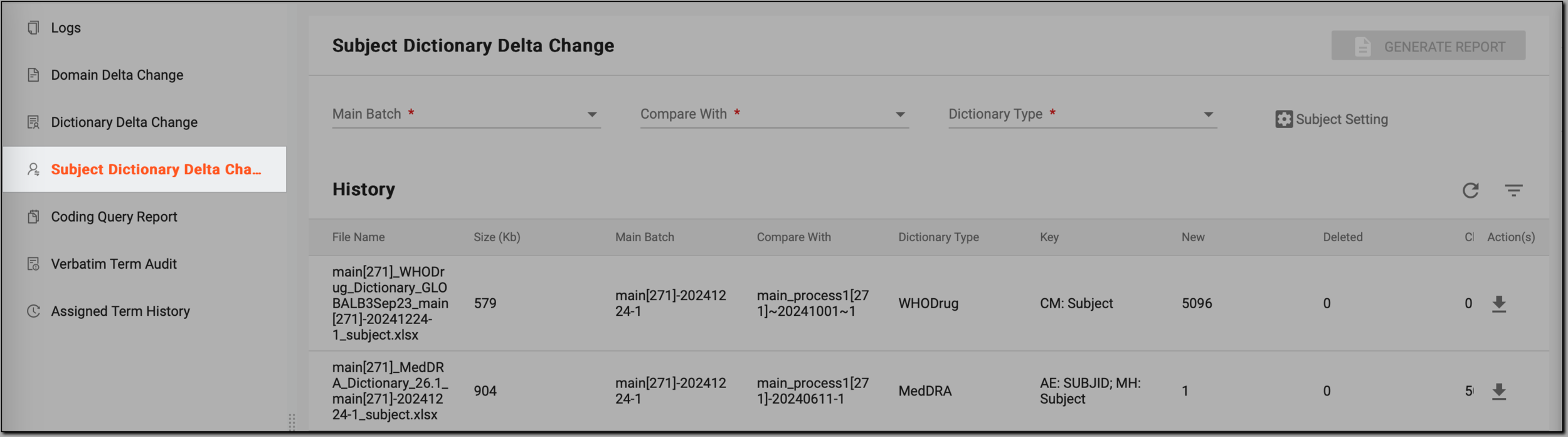 Figure 2. Accessing subject dictionary delta change reporting functionality
-
On the Subject Dictionary Delta Change page, in the History table, review the log of all subject dictionary delta change reports as explained in the following table.
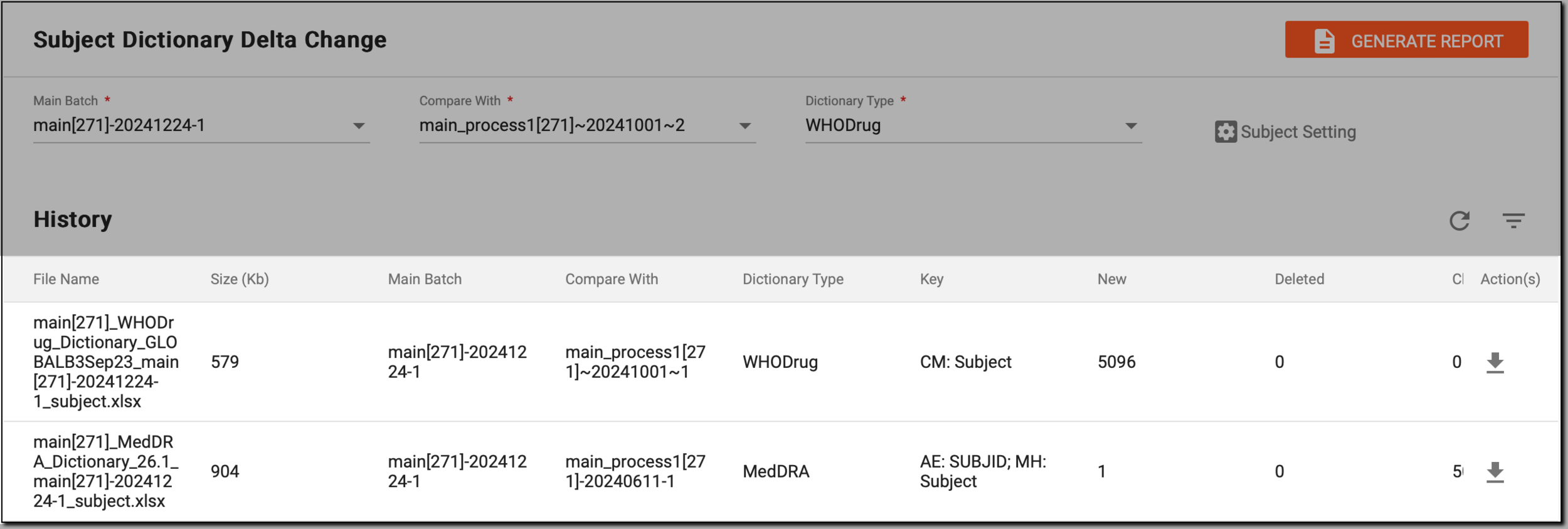 Figure 3. Reviewing history of subject dictionary delta change reports
Column
Details
File Name
Displays the name of the report file, typically including the dictionary or batch details for easy identification.
Size (Kb)
Shows the size of the report file in kilobytes, giving you an idea of the data volume contained within.
Main Batch
Displays the name of the primary batch used for comparison in the report, representing the baseline data set.
Compare With
Identifies the batch compared against the main batch to highlight differences in coding or other updates.
Dictionary Type
Specifies the coding dictionary used to generate the report, such as MedDRA or WHODrug.
Key
Displays the unique identifier used to compare coding results at the subject level. This column helps differentiate entries by specifying the reference point for comparison, ensuring that coding variations are tracked accurately.
For example, if you see "AE: SUBJID" in this column, it means that the system compares coding results based on subject ID in the Adverse Events (AE) domain. Or, if you see "CM: Visit" in this column, it means that the system compares coding results based on visit
                                    information in the Concomitant Medications (CM) domain.
New
Displays the count of new entries identified in the comparison—entries that are present in the batch being compared (compare with) but not in the source batch (main batch).
Deleted
Displays the count of deleted entries—entries that were in the main batch but are missing in the batch being compared.
Changed
Shows the count of modified entries, representing those that exist in both batches but with differences in coding or associated data.
Created Time
Indicates the exact timestamp when the report was generated, helping you track report creation over time.
Created by
Displays the username of the person who generated the report, ensuring accountability and traceability.
Now, you have a clear overview of all generated reports, making it easy to manage and analyze historical data.