My tasks
The My Tasks feature provides a structured view of ongoing, workload-assessed activities, helping users track and manage tasks efficiently. It displays tasks that are currently in progress and require attention from either responsible or accountable users. The listed tasks include those with estimated work hours defined through workload assessment, ensuring better planning and resource allocation.
Responsible users can update task completion details, while accountable users can review and validate reported work. By offering real-time task visibility, this feature enhances productivity, and ensures tasks are completed within the expected timelines.
In the following sections, you can learn about various functionalities provided to update and manage the tasks.
As a responsible and accountable user managing study tasks and activities, the My Tasks section provides an instant view of tasks that require your attention. You can update their status and track progress in real-time. The displayed tasks are those with an ongoing completion date, as defined in Master Activities and estimated work hours defined through Workload Assessment.
-
Access the study management page in one of the following ways:
-
In the CTMS application header, select the DASHBOARD tab and then select the study dashboard of your interest.
 Figure 1. Accessing study management from dashboard
-
In the CTMS application header, select the STUDY MANAGEMENT tab. Then from the Study Data List table, select the study name of your interest.
 Figure 2. Accessing study management from study data list
-
-
In the left pane, select Project Management > My Tasks.
-
On the page that opens, select one of the following tabs:
-
Assigned Tasks: lists the tasks for which you are responsible and expected to complete. Whereas, the accountable user can see the tasks they are accountable for and can update on behalf of the responsible user if needed.
-
Tasks for Review: lists the tasks where the user is accountable for reviewing the work.
-
-
Select the tasks for which you want to update the status.
Tip
Instantly locate the task by selecting the hyperlink next to the needed option—My Pending Tasks, My Incomplete Tasks, My Completed Tasks, and My Closed Tasks—to filter the table accordingly and then choose the required task.
Select
 to collapse the filter panel and return to the unfiltered task list.
 -
From the workspace toolbar, select Edit
 .
.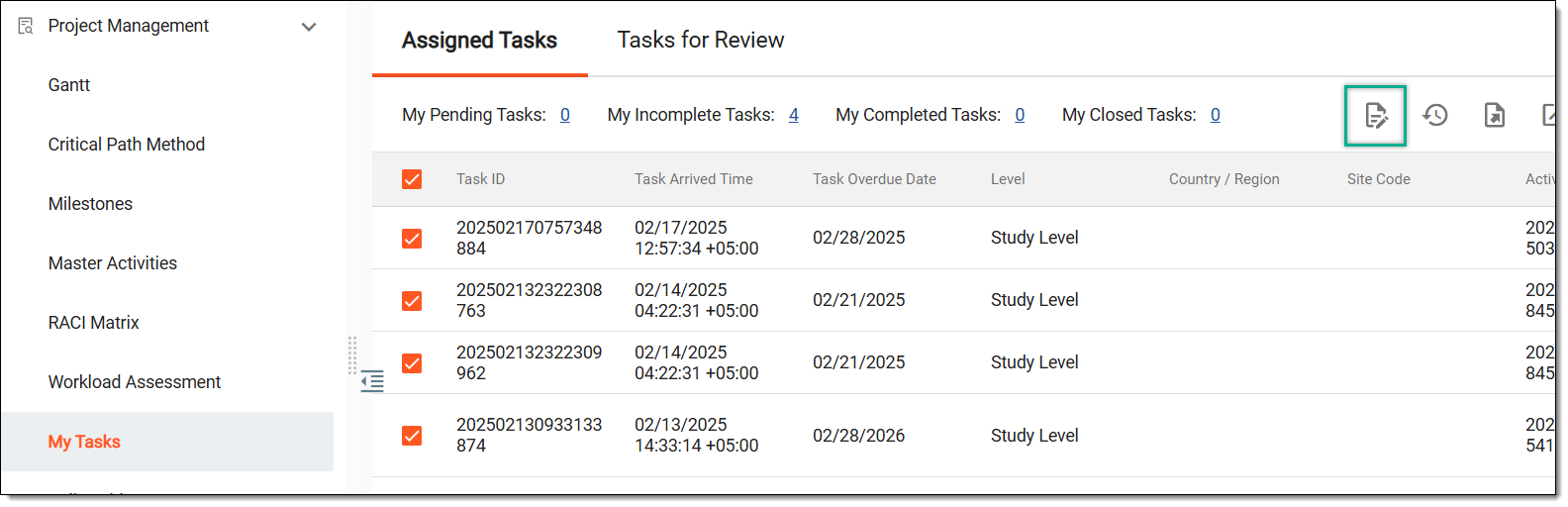 Figure 3. Accessing option to update task status
-
Scroll the table to the right, and update the task details in the fields that now become editable as explained in the following table.
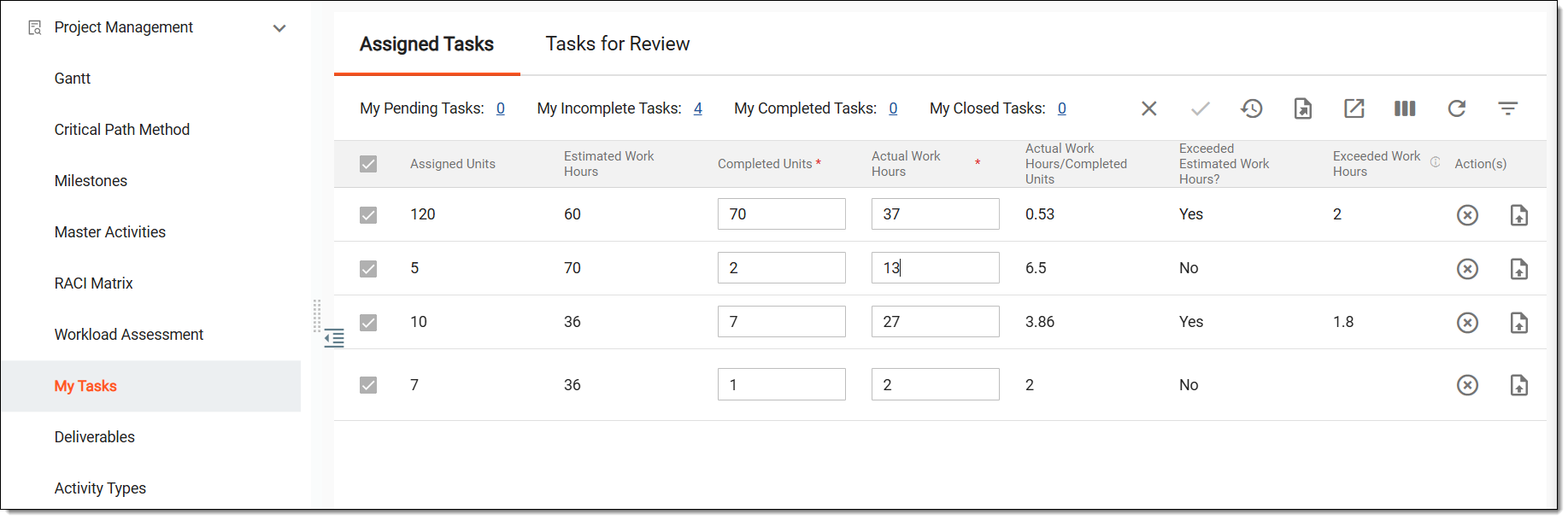 Figure 4. Updating task
Tip
In the following table, mandatory elements are marked with an asterisk (*).
Element
Details
Completed Units*
Enter the number of units completed for the task or activity. Each activity is divided into logical units, making it easier for you to track and manage their progress.
Actual Work Hours*
Enter the number of hours consumed in completing the defined units.
Save
Select
 from the workspace toolbar to save your changes.
Close
Select
 to quit the editing mode without saving your changes.
 -
Once saved, the system automatically calculates and updates specific fields explained as follows, offering insights into your progress and whether activities are being completed within the estimated time frame.
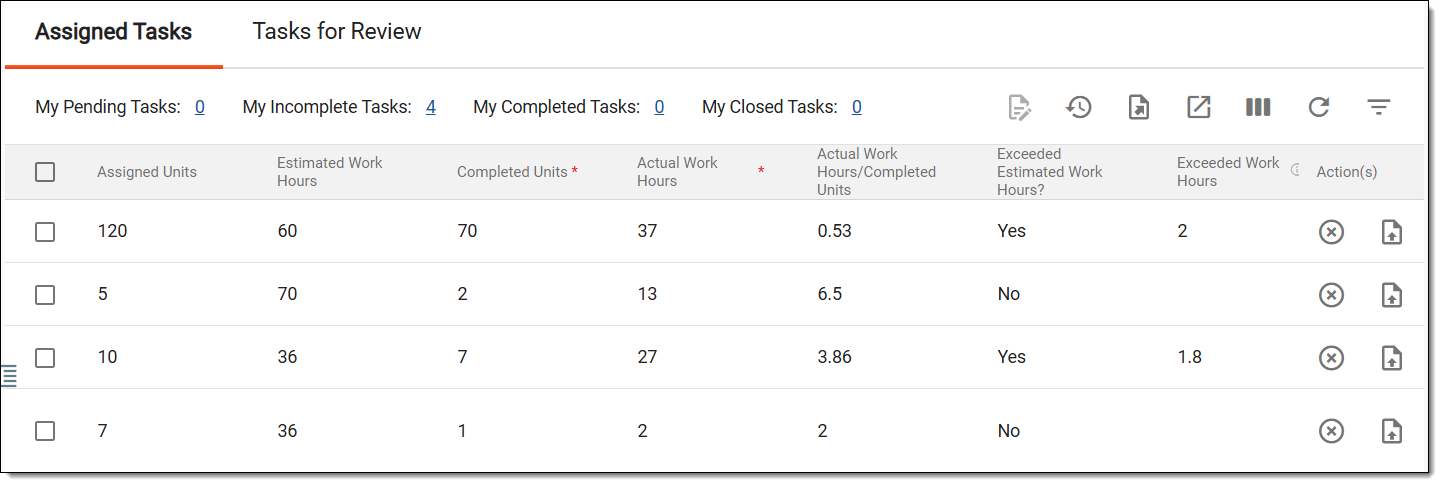 Figure 5. Viewing completed task insights
Element
Details
Actual Work Hours/Completed Units
Displays the average number of hours spent in completing a single unit.
Exceeded Estimated Work Hours?
Based on the Actual Work Hours/Completed Units field value, this field indicates whether the user has exceeded the estimated work hours dedicated for a unit.
Exceeded Work Hours
Displays the number of hours exceeded per unit.
Task Status
Indicates whether the task has been completed, that is all the specified units are finished.
Is Past Due
Indicates whether the task is past its due date.
Past Due Days
Displays the number of days the task is past the due date.
Once you have entered the required data and saved your changes, the status of your task is updated, providing accountable and other system users with visibility into your progress and completion status.
Uploading task deliverables ensures that all required documents, reports, or outputs related to a task are properly recorded and accessible. This feature helps responsible and accountable users submit and track deliverables, ensuring alignment with study requirements and deadlines. By maintaining a centralized repository for task-related files, teams can improve collaboration, streamline reviews, and maintain clear documentation for completed activities.
-
Access the study management page in one of the following ways:
-
In the CTMS application header, select the DASHBOARD tab and then select the study dashboard of your interest.
Figure 1. Accessing study management from dashboard
-
In the CTMS application header, select the STUDY MANAGEMENT tab. Then from the Study Data List table, select the study name of your interest.
Figure 2. Accessing study management from study data list
-
-
In the left pane, select Project Management > My Tasks.
-
On the page that opens, select one of the following tabs:
-
Assigned Tasks: lists the tasks for which you are responsible and expected to complete. Whereas, the accountable user can see the tasks they are accountable for and can update on behalf of the responsible user if needed.
-
Tasks for Review: lists the tasks where the user is accountable for reviewing the work.
-
-
Next to the required task, from the Action(s) column, select Upload Deliverables
 .
.Tip
Instantly locate the task by selecting the hyperlink next to the needed option—My Pending Tasks, My Incomplete Tasks, My Completed Tasks, and My Closed Tasks—to filter the table accordingly and then choose the required task.
Select
to collapse the filter panel and return to the unfiltered task list. -
In the Upload Deliverables panel that opens on the right, enter the details as explained in the following table.
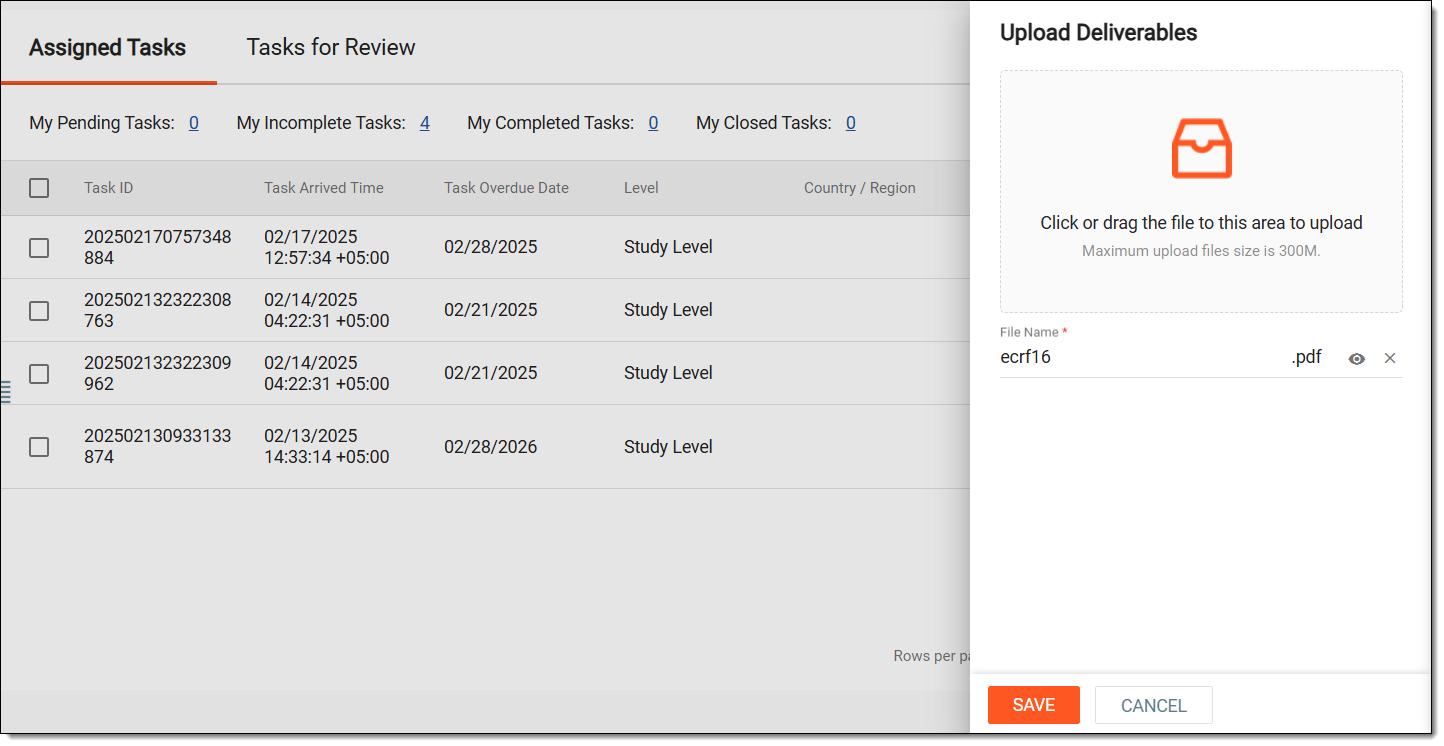 Figure 3. Uploading deliverable
Tip
In the following table, mandatory elements are marked with an asterisk (*).
Element
Details
Click or drag the file to this area to upload
Drag a file from your computer to this area or select this area and choose the document you want to upload from your computer.
File Name*
When a file is selected in the previous field, its name is automatically filled in this field. If necessary, you can edit the file name.
Preview
Select
 next to the file to instantly preview it in a new tab that opens in your browser.
Remove
Select
 to remove a file that you may have accidentally selected from your computer.
SAVE
Select
 to upload the document.
CANCEL
Select
 to dismiss the document upload process.
Once saved, the deliverable is uploaded and appears in the # Of Deliverables column. It can now be accessed by the accountable user or other system users to view and analyze.
Edit deliverable
Uploading task deliverables ensures that all required documents, reports, or outputs related to a task are properly recorded and accessible. This feature helps responsible and accountable users submit and track deliverables, ensuring alignment with study requirements and deadlines. If required, you can manage the uploaded deliverable by updating its name.
-
Access the study management page in one of the following ways:
-
In the CTMS application header, select the DASHBOARD tab and then select the study dashboard of your interest.
Figure 1. Accessing study management from dashboard
-
In the CTMS application header, select the STUDY MANAGEMENT tab. Then from the Study Data List table, select the study name of your interest.
Figure 2. Accessing study management from study data list
-
-
In the left pane, select Project Management > My Tasks.
-
On the page that opens, select one of the following tabs:
-
Assigned Tasks: lists the tasks for which you are responsible and expected to complete. Whereas, the accountable user can see the tasks they are accountable for and can update on behalf of the responsible user if needed.
-
Tasks for Review: lists the tasks where the user is accountable for reviewing the work.
-
-
Locate the required task, then scroll to the right, and in the # Of Deliverables column, select the hyperlink.
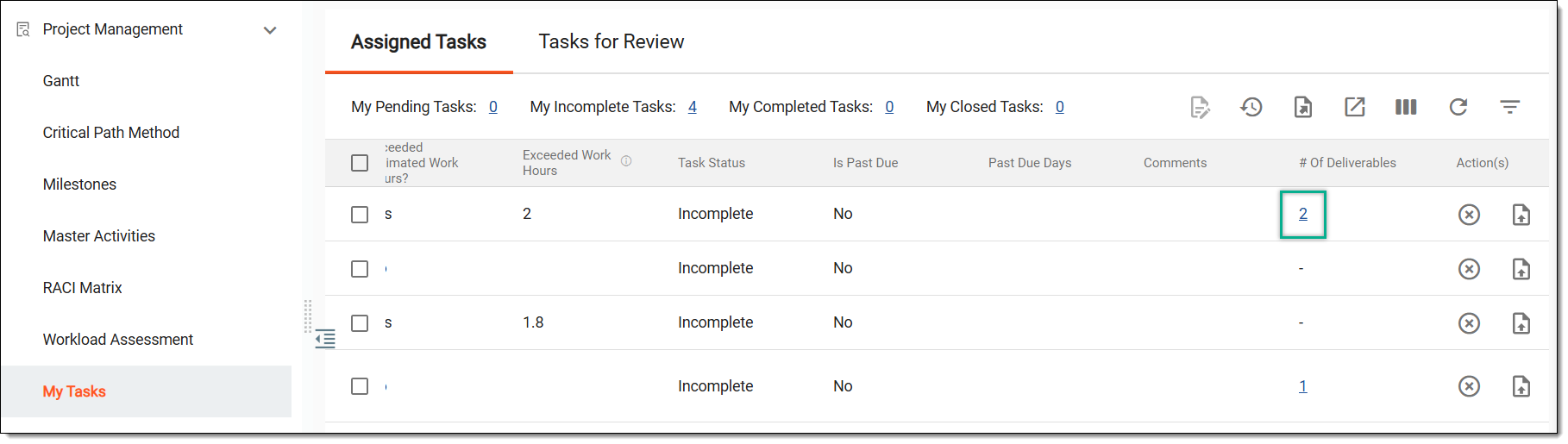 Figure 3. Accessing uploaded deliverables
Tip
Instantly locate the task by selecting the hyperlink next to the needed option—My Pending Tasks, My Incomplete Tasks, My Completed Tasks, and My Closed Tasks—to filter the table accordingly and then choose the required task.
Select
to collapse the filter panel and return to the unfiltered task list. -
In the Deliverables List dialog that opens, next to the required deliverable, from the Action(s) column, select Edit
 .
.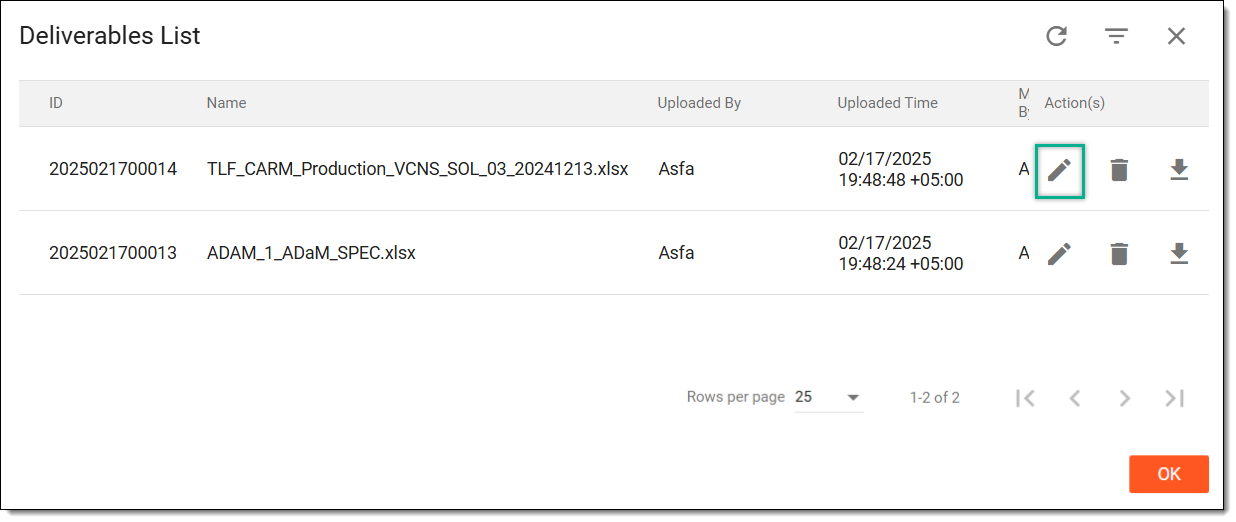 Figure 4. Selecting edit deliverable option
-
In the Name field that becomes editable, enter the desired name for the deliverable, and select Save
 .
.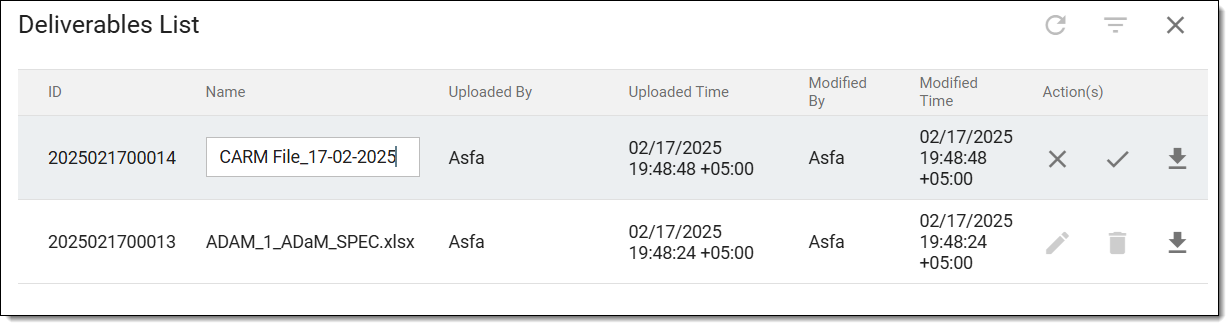 Figure 5. Editing deliverable
Tip
Select Close
to quit the editing mode.
Once saved, the deliverable name is updated.
Delete deliverable
Uploading task deliverables ensures that all required documents, reports, or outputs related to a task are properly recorded and accessible. This feature helps responsible and accountable users submit and track deliverables, ensuring alignment with study requirements and deadlines. If required, you can delete an uploaded deliverable if it was accidentally uploaded or is no longer relevant.
-
Access the study management page in one of the following ways:
-
In the CTMS application header, select the DASHBOARD tab and then select the study dashboard of your interest.
Figure 1. Accessing study management from dashboard
-
In the CTMS application header, select the STUDY MANAGEMENT tab. Then from the Study Data List table, select the study name of your interest.
Figure 2. Accessing study management from study data list
-
-
In the left pane, select Project Management > My Tasks.
-
On the page that opens, select one of the following tabs:
-
Assigned Tasks: lists the tasks for which you are responsible and expected to complete. Whereas, the accountable user can see the tasks they are accountable for and can update on behalf of the responsible user if needed.
-
Tasks for Review: lists the tasks where the user is accountable for reviewing the work.
-
-
Locate the required task, then scroll to the right, and in the # Of Deliverables column, select the hyperlink.
Figure 3. Accessing uploaded deliverables
Tip
Instantly locate the task by selecting the hyperlink next to the needed option—My Pending Tasks, My Incomplete Tasks, My Completed Tasks, and My Closed Tasks—to filter the table accordingly and then choose the required task.
Select
to collapse the filter panel and return to the unfiltered task list. -
In the Deliverables List dialog that opens, next to the required deliverable, from the Action(s) column, select Delete
 .
.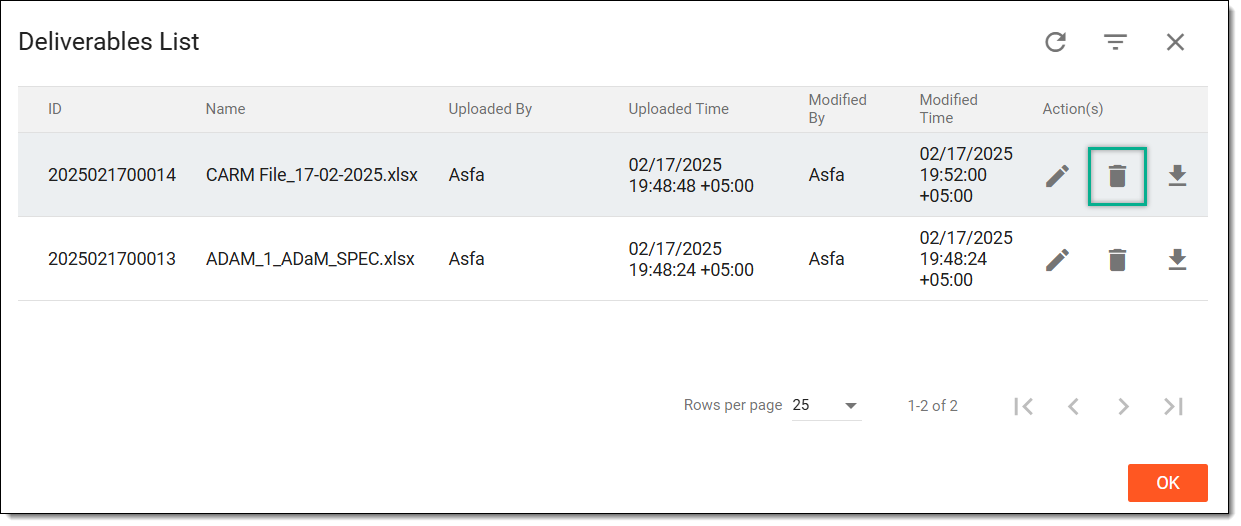 Figure 4. Selecting delete deliverable option
-
In the Reason dialog that opens, describe the reason for deleting the deliverable. Then, select SAVE.
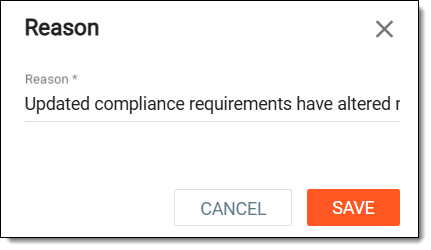 Figure 5. Entering reason to delete deliverable
Once saved, the deliverable is deleted from the task.
Download deliverable
Uploading task deliverables ensures that all required documents, reports, or outputs related to a task are properly recorded and accessible. This feature helps responsible and accountable users submit and track deliverables, ensuring alignment with study requirements and deadlines. If required, you can download an uploaded deliverable to your computer to use it offline.
-
Access the study management page in one of the following ways:
-
In the CTMS application header, select the DASHBOARD tab and then select the study dashboard of your interest.
Figure 1. Accessing study management from dashboard
-
In the CTMS application header, select the STUDY MANAGEMENT tab. Then from the Study Data List table, select the study name of your interest.
Figure 2. Accessing study management from study data list
-
-
In the left pane, select Project Management > My Tasks.
-
On the page that opens, select one of the following tabs:
-
Assigned Tasks: lists the tasks for which you are responsible and expected to complete. Whereas, the accountable user can see the tasks they are accountable for and can update on behalf of the responsible user if needed.
-
Tasks for Review: lists the tasks where the user is accountable for reviewing the work.
-
-
Locate the required task, then scroll to the right, and in the # Of Deliverables column, select the hyperlink.
Figure 3. Accessing uploaded deliverables
Tip
Instantly locate the task by selecting the hyperlink next to the needed option—My Pending Tasks, My Incomplete Tasks, My Completed Tasks, and My Closed Tasks—to filter the table accordingly and then choose the required task.
Select
to collapse the filter panel and return to the unfiltered task list. -
In the Deliverables List dialog that opens, next to the required deliverable, from the Action(s) column, select Download
 .
.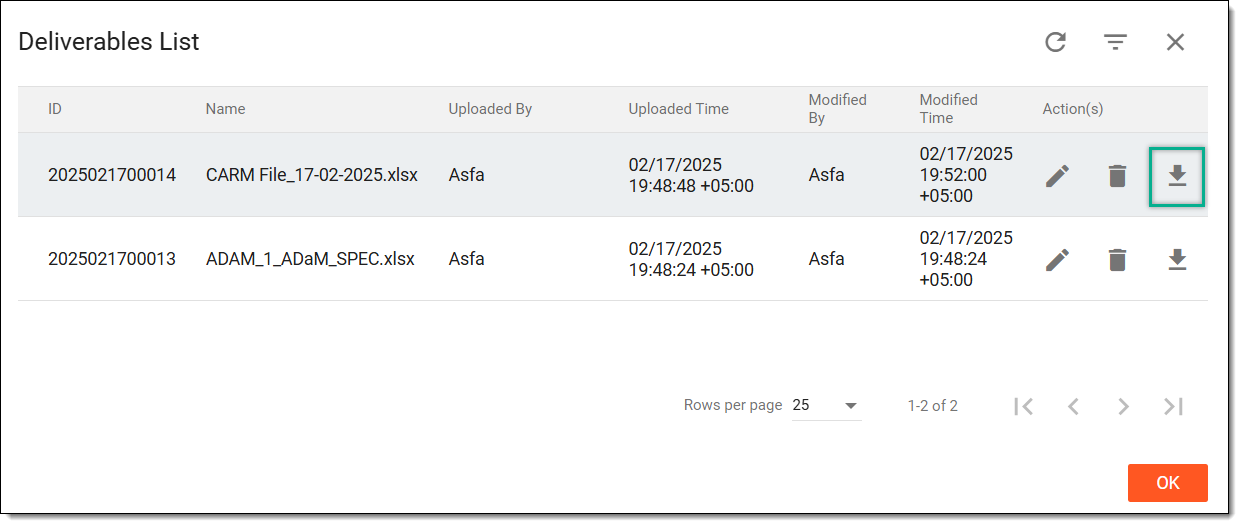 Figure 4. Selecting download deliverable option
Once selected, the deliverable is downloaded to your computer.
Closing a task marks its completion and confirms that all required work, deliverables, and reviews have been finalized. This process ensures that the task meets the necessary criteria before being officially marked as closed. Responsible users update task details, while accountable users verify the completion status. Closing tasks helps maintain an organized workflow, improves tracking of completed activities, and ensures accurate workload management.
-
Access the study management page in one of the following ways:
-
In the CTMS application header, select the DASHBOARD tab and then select the study dashboard of your interest.
Figure 1. Accessing study management from dashboard
-
In the CTMS application header, select the STUDY MANAGEMENT tab. Then from the Study Data List table, select the study name of your interest.
Figure 2. Accessing study management from study data list
-
-
In the left pane, select Project Management > My Tasks.
-
On the page that opens, select one of the following tabs:
-
Assigned Tasks: lists the tasks for which you are responsible and expected to complete. Whereas, the accountable user can see the tasks they are accountable for and can update on behalf of the responsible user if needed.
-
Tasks for Review: lists the tasks where the user is accountable for reviewing the work.
-
-
Locate the required task, and next to it, from the Action(s) column, select Close
 .
.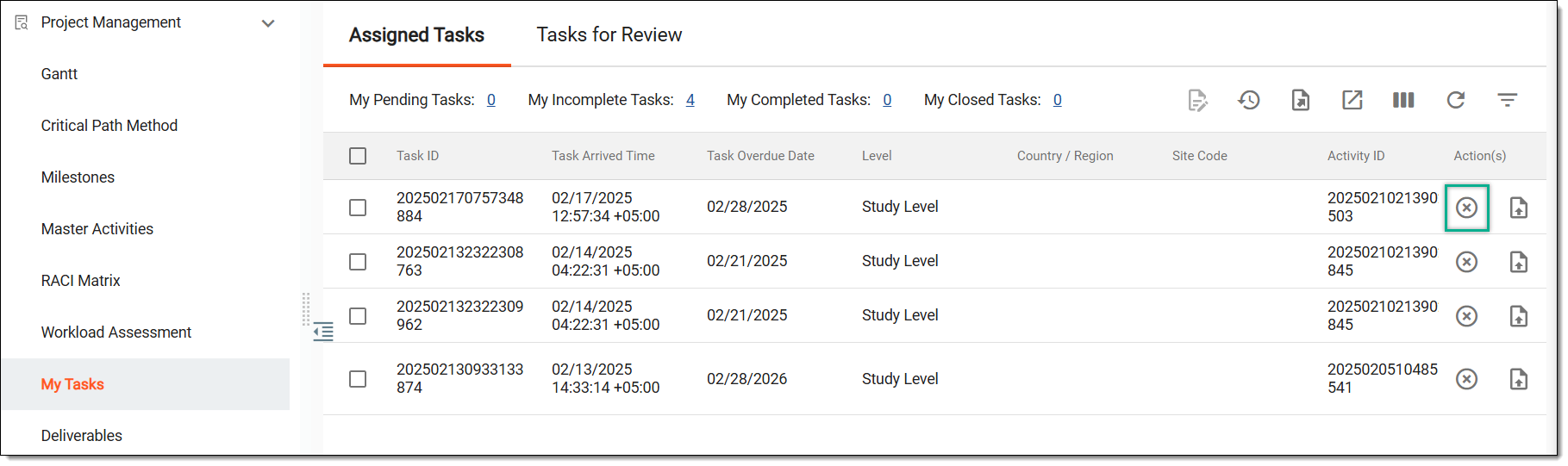 Figure 3. Selecting option to close task
Tip
Instantly locate the task by selecting the hyperlink next to the needed option—My Pending Tasks, My Incomplete Tasks, My Completed Tasks, and My Closed Tasks—to filter the table accordingly and then choose the required task.
Select
to collapse the filter panel and return to the unfiltered task list. -
In the confirmation dialog that appears, select CONFIRM to close the task.
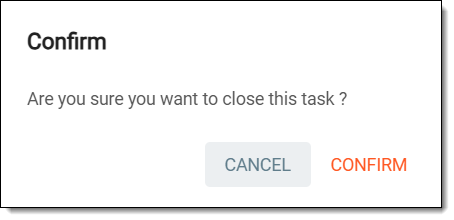 Figure 4. Closing task
Once confirmed, the task is closed. You can now only upload deliverables for the task.
Closing a task marks its completion and confirms that all required work, deliverables, and reviews have been finalized. This process ensures that the task meets the necessary criteria before being officially marked as closed. Responsible users update task details, while accountable users verify the completion status. Closing tasks helps maintain an organized workflow, improves tracking of completed activities, and ensures accurate workload management.
-
Access the study management page in one of the following ways:
-
In the CTMS application header, select the DASHBOARD tab and then select the study dashboard of your interest.
Figure 1. Accessing study management from dashboard
-
In the CTMS application header, select the STUDY MANAGEMENT tab. Then from the Study Data List table, select the study name of your interest.
Figure 2. Accessing study management from study data list
-
-
In the left pane, select Project Management > My Tasks.
-
On the page that opens, select one of the following tabs:
-
Assigned Tasks: lists the tasks for which you are responsible and expected to complete. Whereas, the accountable user can see the tasks they are accountable for and can update on behalf of the responsible user if needed.
-
Tasks for Review: lists the tasks where the user is accountable for reviewing the work.
-
-
From the workspace toolbar, select Operation History
 .
.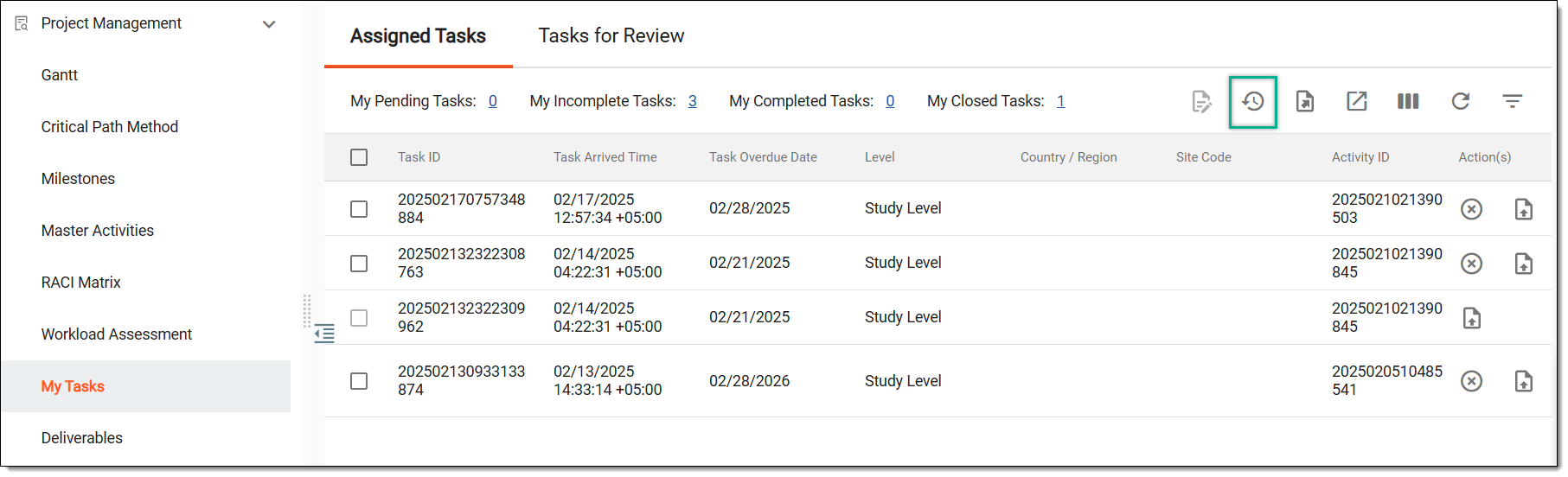 Figure 3. Accessing task operation history
-
In the Operation History dialog that opens, view the history of the actions performed on the tasks.
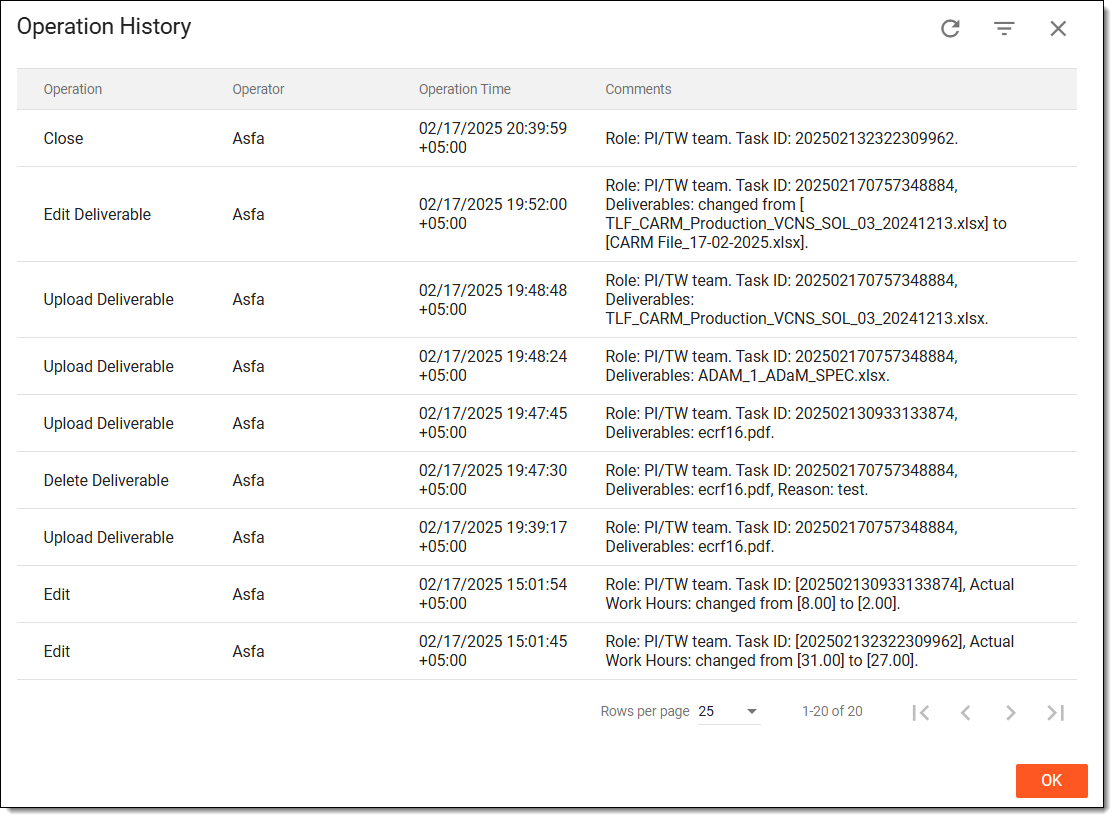 Figure 4. Viewing task operation history
Once viewed, select CLOSE to return to the tasks.
Exporting tasks provides a structured way to review, share, and analyze task-related data outside the system. This feature generates reports containing key details such as task status, assigned users, estimated work hours, and completion progress. Exported data helps maintain accurate records, supports decision-making, and improves workload planning for better task management and reporting.
-
Access the study management page in one of the following ways:
-
In the CTMS application header, select the DASHBOARD tab and then select the study dashboard of your interest.
Figure 1. Accessing study management from dashboard
-
In the CTMS application header, select the STUDY MANAGEMENT tab. Then from the Study Data List table, select the study name of your interest.
Figure 2. Accessing study management from study data list
-
-
In the left pane, select Project Management > My Tasks.
-
On the page that opens, select one of the following tabs:
-
Assigned Tasks: lists the tasks for which you are responsible and expected to complete. Whereas, the accountable user can see the tasks they are accountable for and can update on behalf of the responsible user if needed.
-
Tasks for Review: lists the tasks where the user is accountable for reviewing the work.
-
-
From the workspace toolbar, select Export
 .
.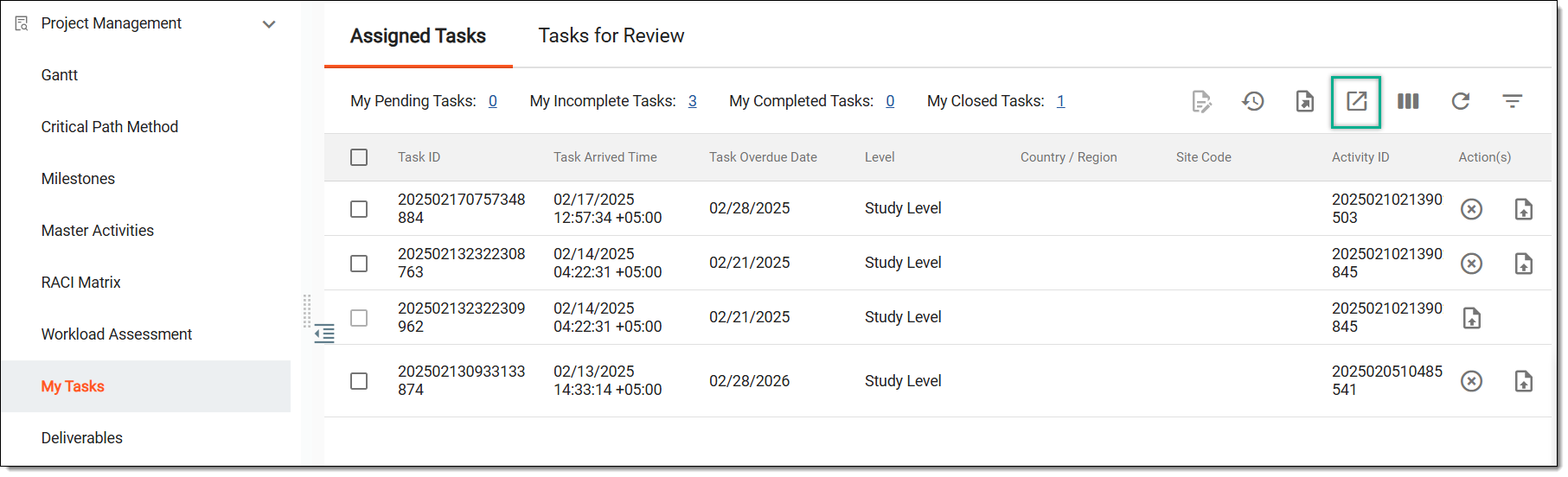 Figure 3. Accessing option to export tasks
-
The download widget appears showing the export progress. Select the widget to access exported files.
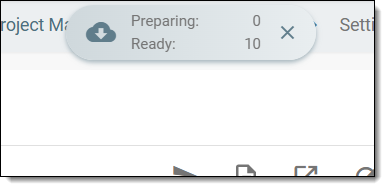 Figure 4. Download widget showing tasks being exported
-
In the My Downloads dialog that appears, in the Download is Ready tab, select
next to the required exported file.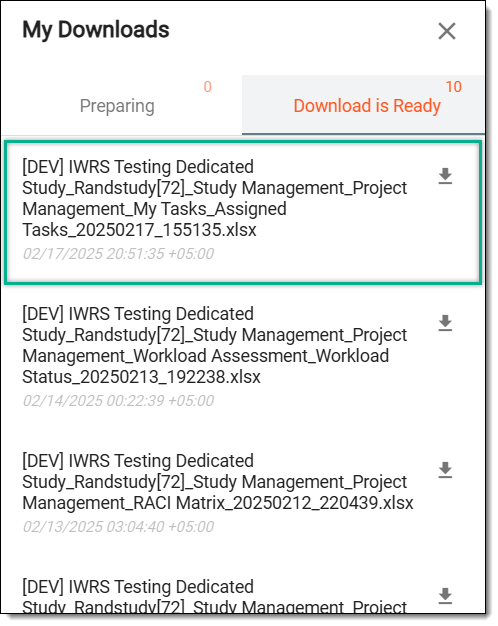 Figure 5. Downloading task details
Once selected, the task details are downloaded to your computer in XLSX format.