Workload assessment
The Workload Assignment feature is designed to facilitate the efficient distribution and tracking of activities within a study. By leveraging this functionality, you can track ongoing activities, define the workload associated with the activities, and ensure that study-related tasks are completed within expected timelines. The ability to assign estimated work hours helps in workload balancing, ensuring no site or region is overloaded.
For effective assignment management, the system provides two tabs: Workload Status and Workload Assignment. In Workload Assignment, the accountable user is responsible for assigning and managing workload, ensuring tasks are distributed according to the study structure. The accountable users also define key activity attributes such as units, estimated work hours, and other workload parameters, creating a structured approach to resource planning and workload estimation. Once assignments are made, the responsible user accesses the Workload Status tab to view their assigned activities and provide their own estimated hours required for task completion, offering a more detailed perspective on workload planning.
Afterward, in Workload Assignment, the accountable user can review and approve the hours estimated by the responsible user. If needed, they can collaborate offline to reach a consensus before entering the finalized hours into the system.
The following sections explain in detail the various functionalities available to manage task assignments.
The Workload Assessment feature consolidates previously defined activities and associated milestones with the activities (if any). This feature helps the accountable person for the activity to specify key details like units and estimated work hours, ensuring that the responsible user has a clear understanding of their tasks and the expected time required for each activity. This enhances workload forecasting, resource tracking, and equitable task distribution, ultimately supporting the timely completion of study activities.
-
Access the study management page in one of the following ways:
-
In the CTMS application header, select the DASHBOARD tab and then select the study dashboard of your interest.
 Figure 1. Accessing study management from dashboard
-
In the CTMS application header, select the STUDY MANAGEMENT tab. Then from the Study Data List table, select the study name of your interest.
 Figure 2. Accessing study management from study data list
-
-
In the left pane, select Project Management > Workload Assessment.
-
On the page that opens, select Workload Assignment, and from the table listing the activities, select the activities for which you want to specify the workload.
-
Then, from the workspace toolbar, select Edit
 > Assign
Task
> Assign
Task  .
.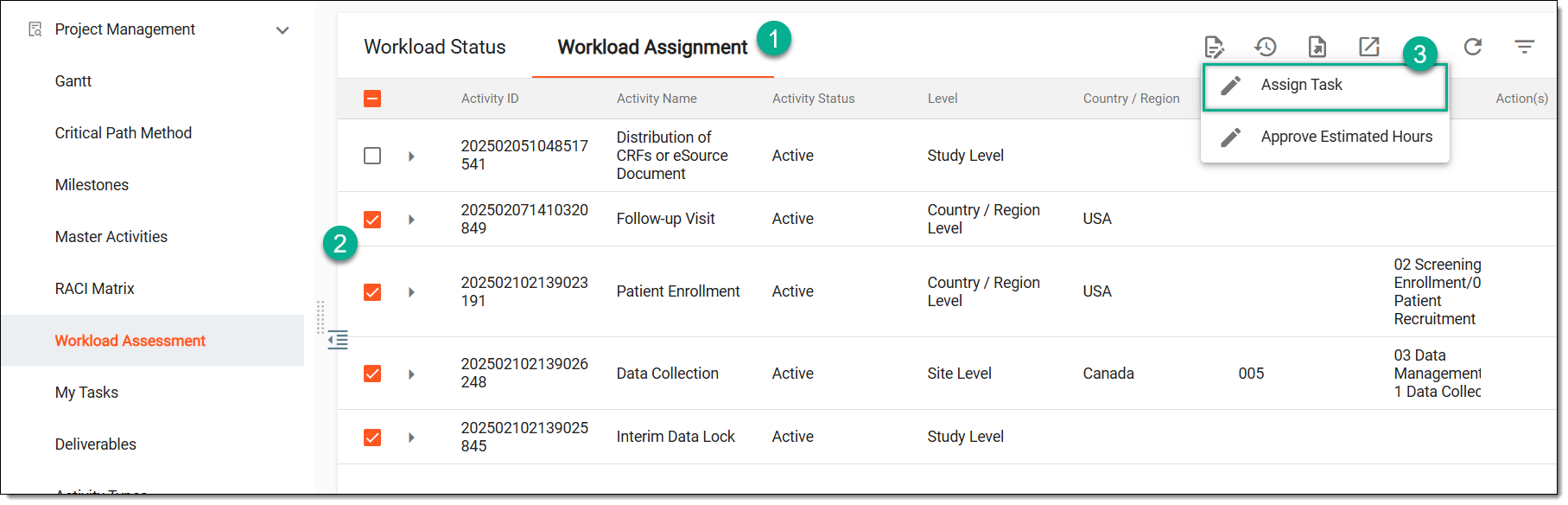 Figure 3. Accessing option to update workload
-
Scroll the table to the right, next to your name as the accountable person, the fields become editable. Describe the necessary workload attributes as explained in the following table.
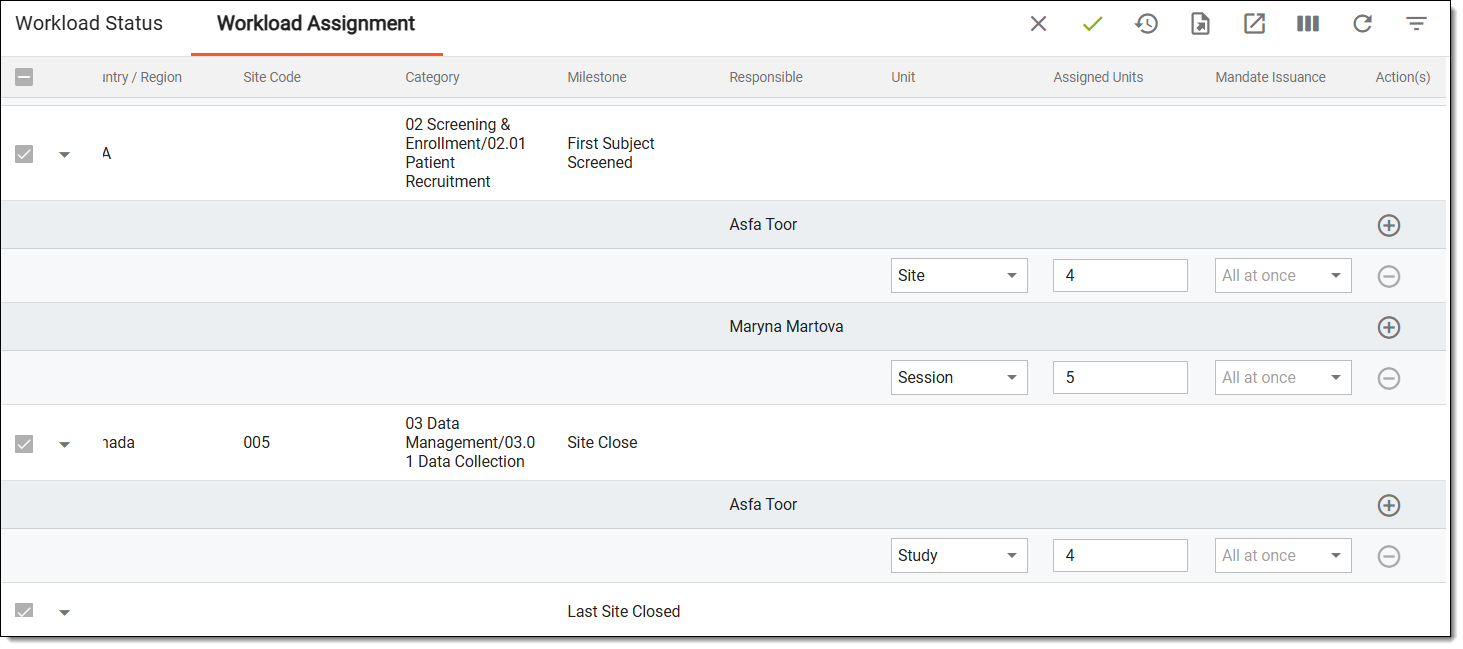 Figure 4. Defining workload attributes
Element
Details
Unit
Select the measurement unit for the activity, such as sites (if tracking work per site), subjects (if work is assigned per patient), and so on.
Assigned Unit
Enter the number of units assigned to the person responsible for executing the activity, such as "5" (if 5 sites are assigned), "100" (if 100 subjects are expected for screening), and so on.
Mandate Issuance
Select how the workload should be issued, such as all at once (if all tasks are assigned immediately), cyclical (like weekly, monthly, or per study phase), and others.
New
Select
 next to the fields to add a new set of editable fields in which you can define an additional workload associated with the activity.
For instance, if an activity needs to be performed at different levels, like sites, subjects, or visits, then multiple rows can be added to assign work based on each unit type, such as "Patient Screening" may require assignments at both the site level and the subject level.
Remove
Select
 to remove an unwanted additional workload row you may have added accidentally.
Save
Select
 from the workspace toolbar to save your changes.
If an activity has multiple responsible users, the accountable user must enter data for all of them simultaneously; otherwise, the Save button remains disabled. The values may vary for each responsible user, as different users may require different amounts of time to complete the activity.Close
Select
 to quit the editing mode without saving your changes.
 -
Now specify the estimated hours required to complete the defined workload by first selecting the needed activities from the table. From the workspace toolbar, select Edit
> Approve Estimated Hours .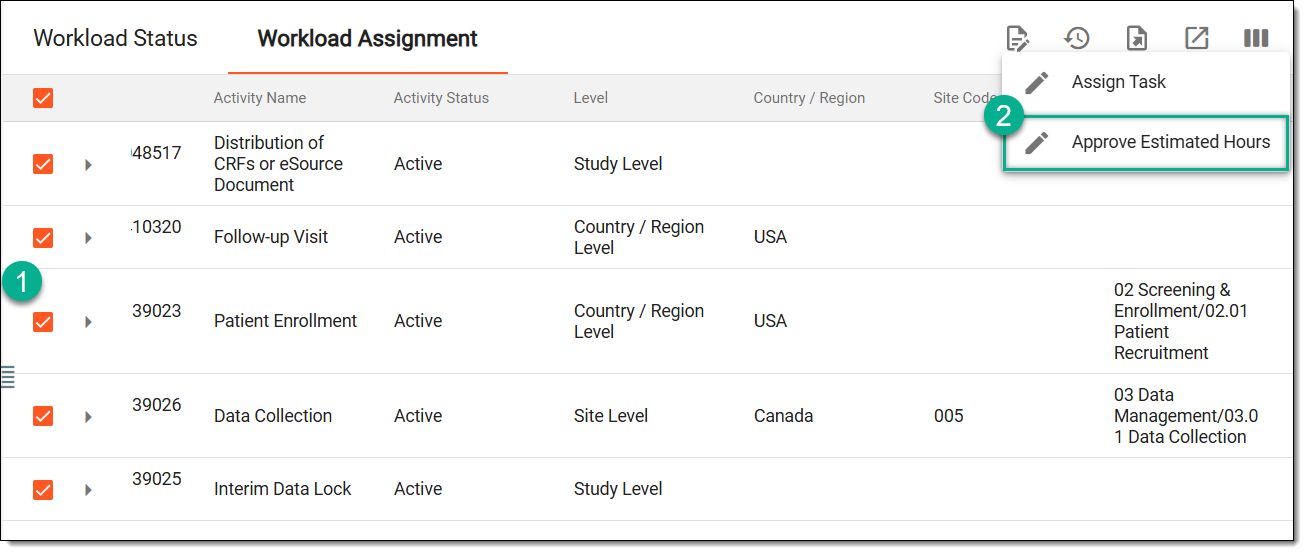 Figure 5. Accessing option to define estimated workload hours
-
Scroll to the right, and in the Estimated Work Hours(Current Cycle) column, enter the estimated hours for each activity, and then from the workspace toolbar, select Save
.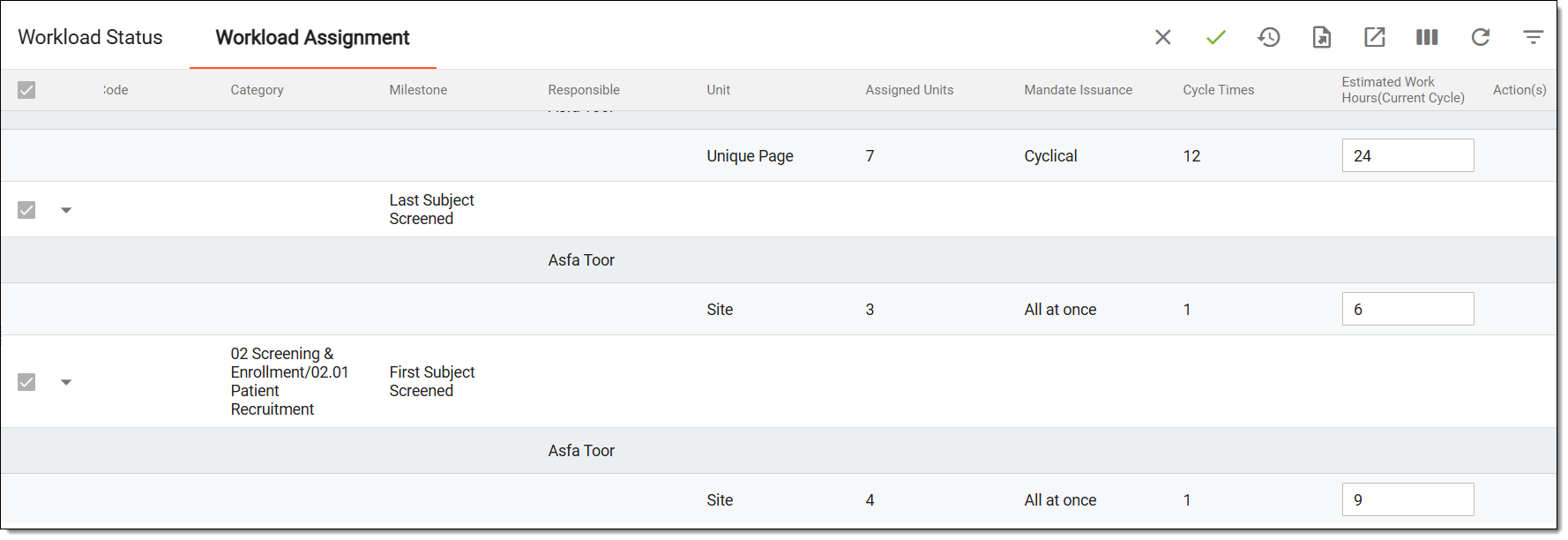 Figure 6. Entering estimated workload hours
Important
The fields may be prefilled with the time estimation provided by the responsible user for the activity. If the suggested values are accurate, you can simply save the changes to approve them. Otherwise, you can enter a different value and collaborate with the responsible user offline to reach a consensus before finalizing the update.
Once saved, the workload attributes and the estimated hours for each task or workload are defined. The responsible users can now proceed with executing the assignments and update the status of the assignments.
After the accountable person has defined the workload and its estimated time consumption (in hours), the person responsible to execute the defined activity can now view their assignments, and if needed, they can suggest their own estimated consumption of the hours required to complete the activity.
-
Access the study management page in one of the following ways:
-
In the CTMS application header, select the DASHBOARD tab and then select the study dashboard of your interest.
Figure 1. Accessing study management from dashboard
-
In the CTMS application header, select the STUDY MANAGEMENT tab. Then from the Study Data List table, select the study name of your interest.
Figure 2. Accessing study management from study data list
-
-
In the left pane, select Project Management > Workload Assessment.
-
On the page that opens, in the Workload Status tab, as a responsible user to execute the activity, you can view the details of the activity and its associated tasks or workload assigned to you by the accountable user.
Once an activity or a specific workload is completed, you can select the completed activity or activities from the table, and then from the workspace toolbar, select Edit
.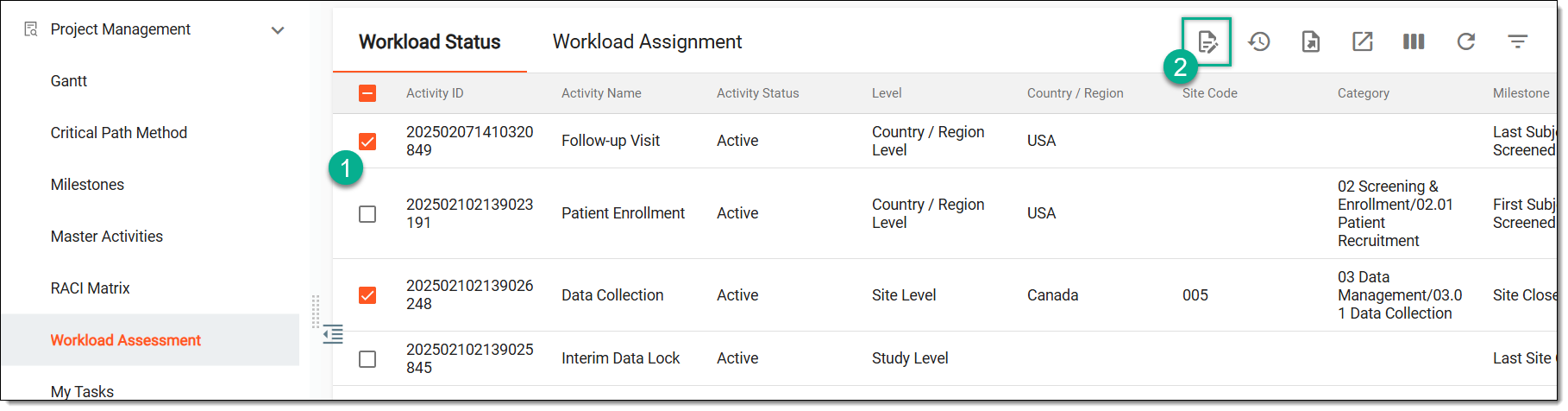 Figure 3. Selecting option to update workload status
-
Scroll to the right, and in the Estimated Work Hours column, next to the required activity, enter the hours you believe are required to complete the activity.
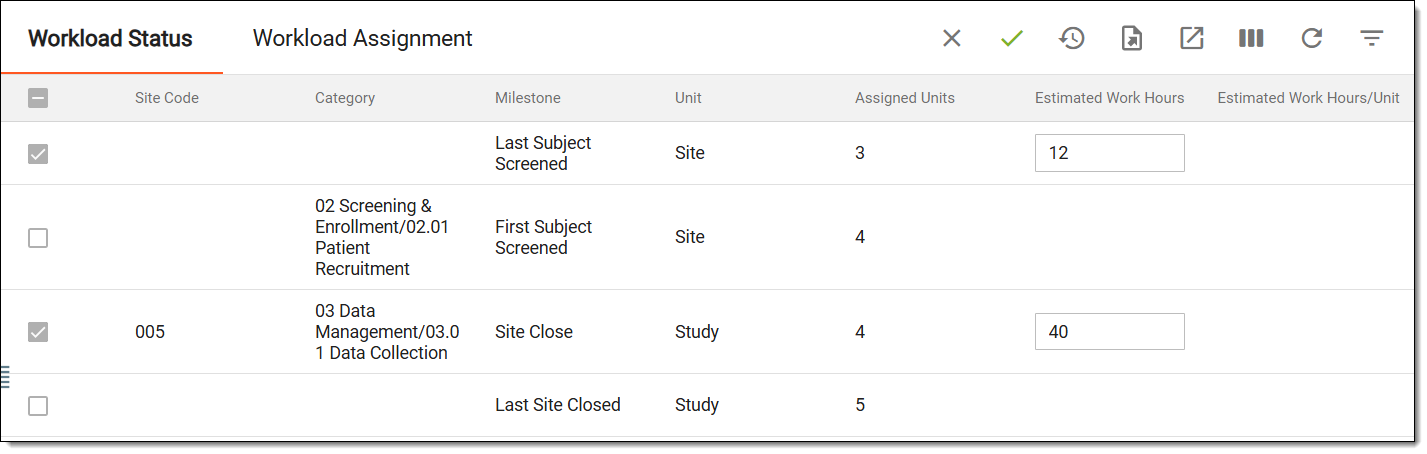 Figure 4. Entering actual hours spent by responsible user
Important
After this, the accountable person must approve the suggested hours to finalize the estimation for completing the activity.
-
Then, from the workspace toolbar, select Save
.Tip
You can select Close
to quit the editing mode if needed.
Once saved, the actual hours spent in completing the activity are saved. Also, based on the values specified, the system calculates and displays the average hours spent per unit (the measurement unit for the activity).
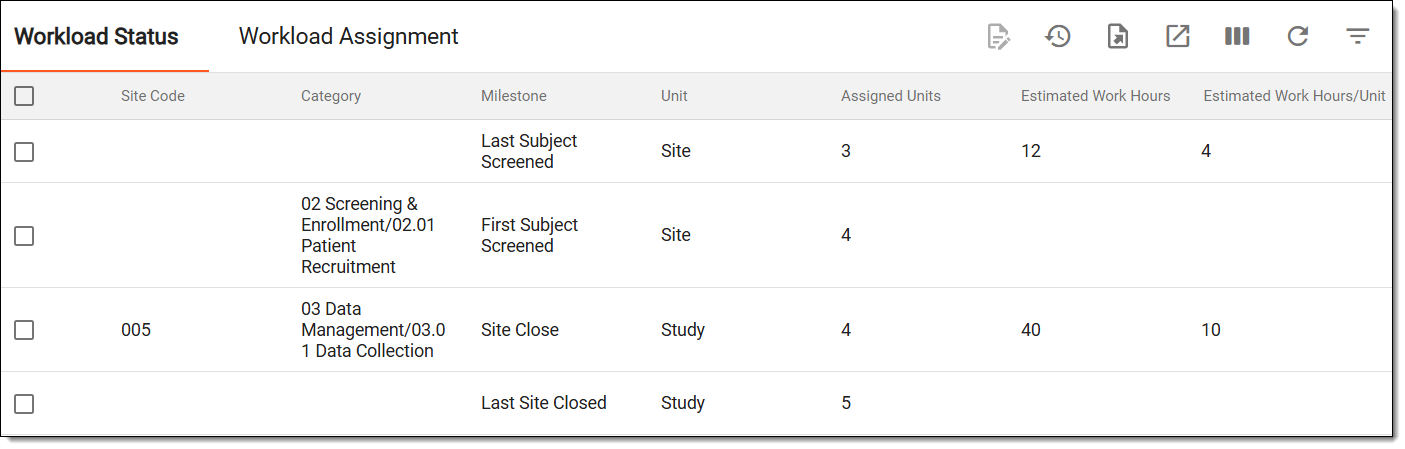
Tracking changes in workload assignments is essential for maintaining transparency and ensuring accountability. The Operation History feature provides a detailed record of modifications made to workload assignments by the accountable and responsible users, including updates to units, estimated and actual hours to complete the activity, and so on. This history helps users review past changes, identify trends, and ensure accurate workload distribution.
-
Access the study management page in one of the following ways:
-
In the CTMS application header, select the DASHBOARD tab and then select the study dashboard of your interest.
Figure 1. Accessing study management from dashboard
-
In the CTMS application header, select the STUDY MANAGEMENT tab. Then from the Study Data List table, select the study name of your interest.
Figure 2. Accessing study management from study data list
-
-
In the left pane, select Project Management > Workload Assessment.
-
On the page that opens, do one of the following:
-
Workload Status: as the responsible user, stay in this tab to view a detailed history of actions performed and track the actual hours spent on activities.
-
Workload Assignment: as the accountable user, select this tab to review the history of workload attributes defined for activities, including estimated work hours.
-
-
From the workspace toolbar, select Operation History
 .
.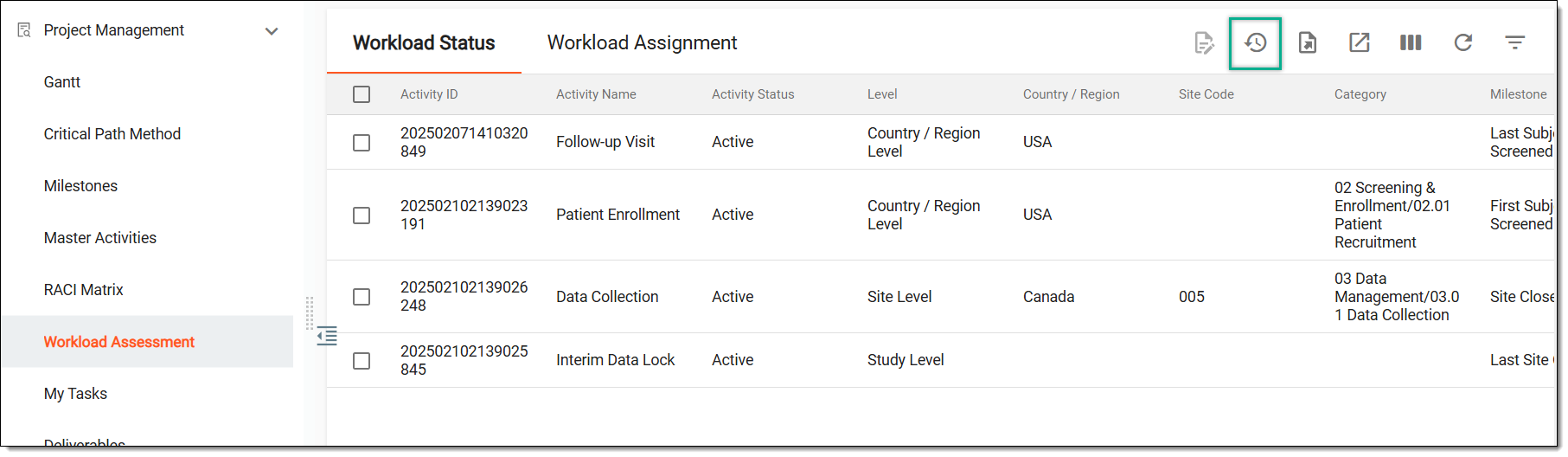 Figure 3. Accessing workload assessment operation history
-
In the Operation History dialog that opens, view the history of the actions performed to the workload assessment.
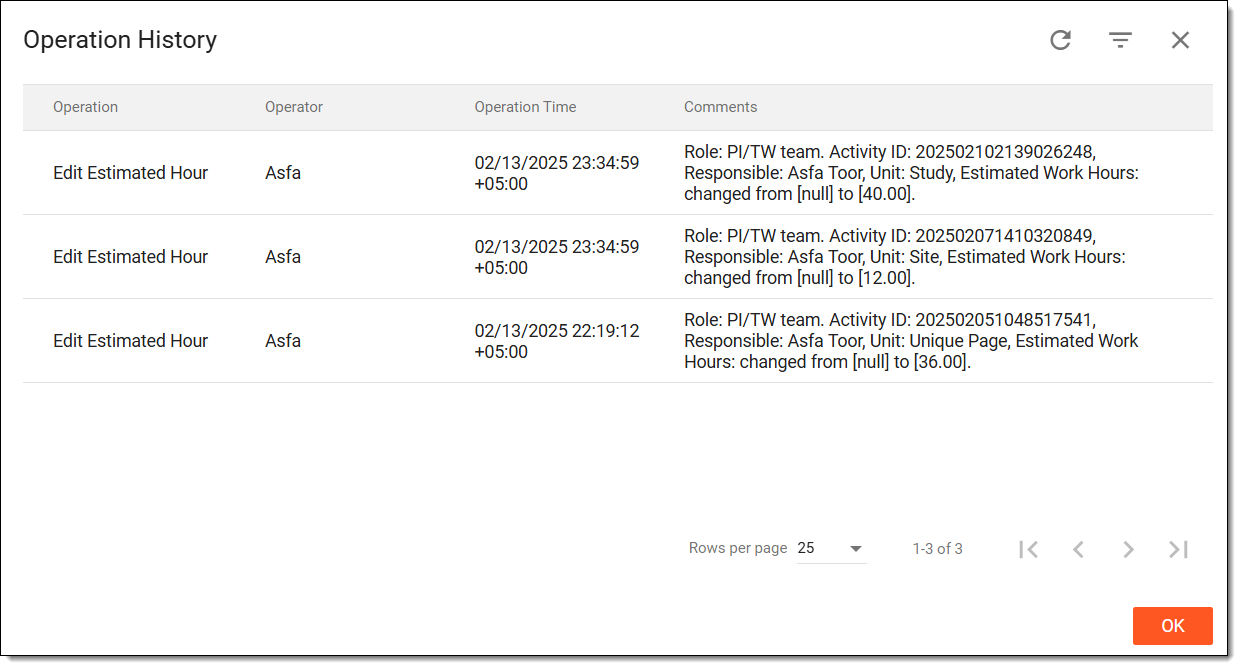 Figure 4. Viewing operation history of workload assessment
Once viewed, select CLOSE to return to the workload assessment.
Exporting workload assessment details provides a structured way to review and share workload data defined by the accountable and responsible users outside the system. You can generate reports containing key information such as assigned activities, estimated work hours, and workload distribution across different levels. By exporting these details, teams can analyze workload trends, ensure accurate reporting, and facilitate better decision-making for resource planning and study management.
-
Access the study management page in one of the following ways:
-
In the CTMS application header, select the DASHBOARD tab and then select the study dashboard of your interest.
Figure 1. Accessing study management from dashboard
-
In the CTMS application header, select the STUDY MANAGEMENT tab. Then from the Study Data List table, select the study name of your interest.
Figure 2. Accessing study management from study data list
-
-
In the left pane, select Project Management > Workload Assessment.
-
On the page that opens, do one of the following:
-
Workload Status: as the responsible user, stay in this tab to export a detailed history of actions performed and track the actual hours spent on activities.
-
Workload Assignment: as the accountable user, select this tab to export the details of workload attributes defined for activities, including estimated work hours.
-
-
From the workspace toolbar, select Export
 .
.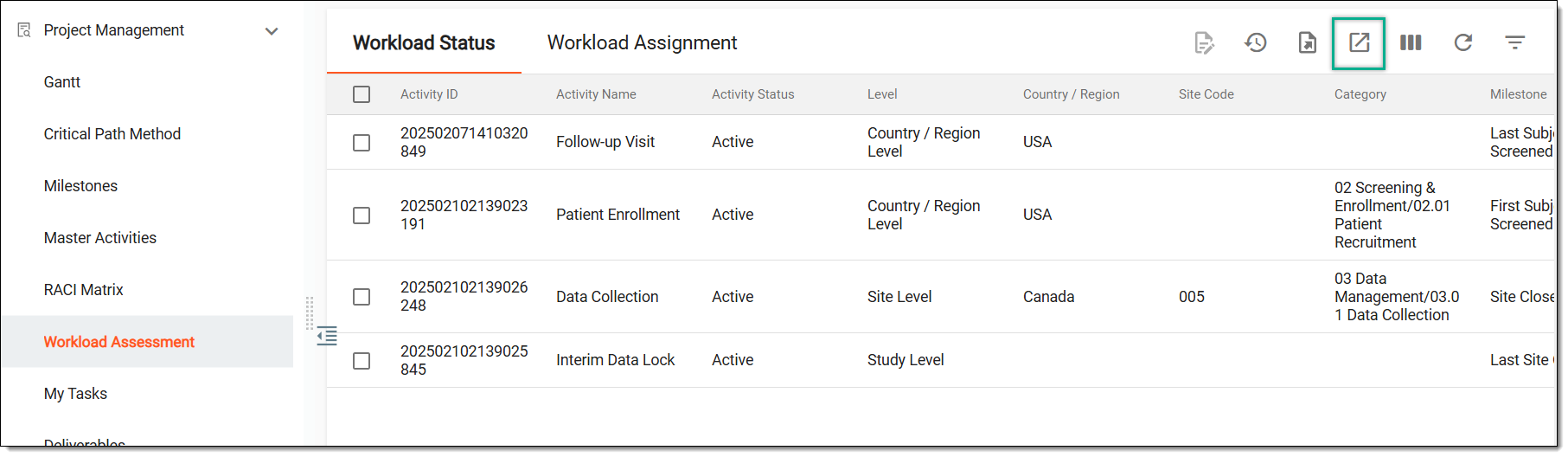 Figure 3. Exporting workload assessment details
-
The downloads widget appears showing the export progress. Select the widget to access exported files.
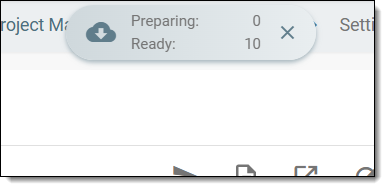 Figure 4. Downloads widget showing workload assessment being exported
-
In the My Downloads dialog that appears, in the Download is Ready tab, select
 next to the required exported file.
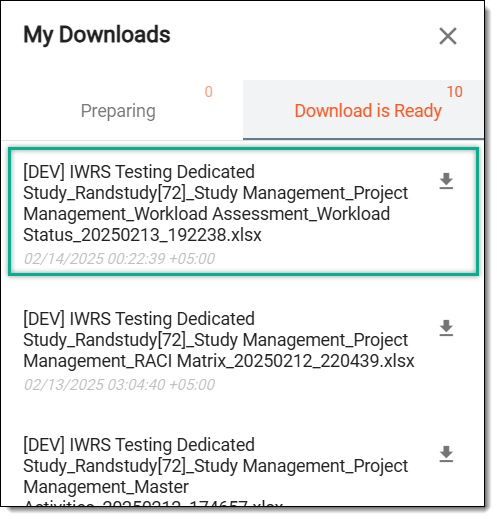 Figure 5. Downloading workload assessment details
Once selected, the workload assessment details are downloaded to your computer in XLSX format.