RACI matrix
A RACI Matrix is a responsibility assignment framework used in project management to define the roles and responsibilities of team members for each task or activity. The RACI matrix in the CTMS system consolidates both predefined activities and milestones, providing a structured approach to task responsibilities. This integration ensures that activities align with key study milestones, allowing for synchronized execution across critical study phases.
The acronym RACI stands for:
-
R – Responsible: the person who performs the activity.
-
A – Accountable: the person ultimately answerable for the activity completion.
-
C – Consulted: individuals who provide input or expertise to accomplish the task or activity.
-
I – Informed: individuals who need to be updated on progress but do not contribute directly.
In the following sections, you can learn about how to manage the RACI matrix and use it to ensure that each activity has clearly defined ownership, enabling smooth execution, better collaboration, and compliance with study protocols.
In CTMS, the RACI matrix provides an overview of activities across different levels—study, site, and country or region—along with the status and category of the activities and milestones associated with each activity. By integrating activities and milestones, this RACI matrix acts as a centralized responsibility tracker for the study. It ensures that each activity has clearly defined ownership, enabling smooth execution, better collaboration, and compliance with study protocols.
Important
Note that a RACI matrix cannot be created or added manually. It is automatically generated based on predefined activities and milestones. In the RACI Matrix feature, for each activity, you can assign the personnel responsible (R), accountable (A), can be consulted (C), and should be informed (I) about the progress of the activities.
-
Access the study management page in one of the following ways:
-
In the CTMS application header, select the DASHBOARD tab and then select the study dashboard of your interest.
 Figure 1. Accessing study management from dashboard
-
In the CTMS application header, select the STUDY MANAGEMENT tab. Then from the Study Data List table, select the study name of your interest.
 Figure 2. Accessing study management from study data list
-
-
In the left pane, select Project Management > RACI Matrix.
-
In the RACI Matrix table, select the activities for which you want to assign the RACI values, and then from the workspace toolbar, select Edit RACI Matrix
 .
.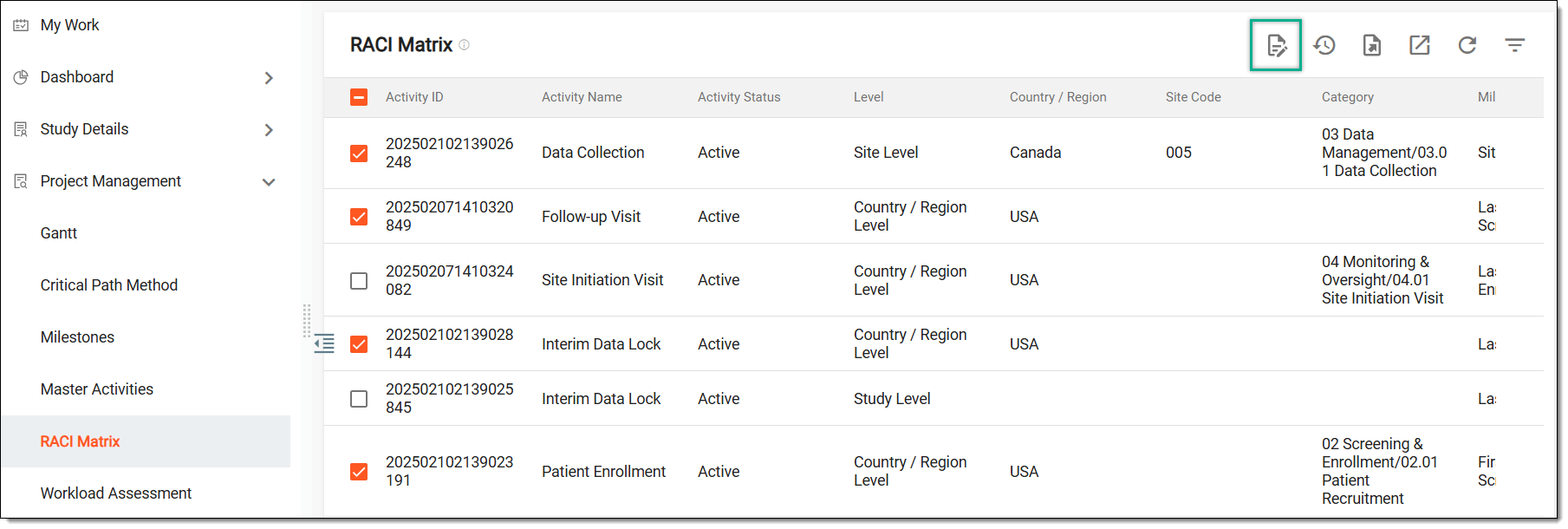 Figure 3. Editing RACI matrix
-
The following fields in the RACI Matrix table become editable for you to enter the details:
-
Responsible User: this is a mandatory field in which you have to select the user or users who are responsible for completing the activity.
-
Accountable User: this is a mandatory field in which you have to select the user who is accountable to ensure that the activity is completed.
-
Consulted Personnel: select the user or users who can be consulted in case there are any queries or concerns.
-
Informed Personnel: select the user or users who should be informed of the proceedings and overall progress of the activity.
-
-
Once done, from the workspace toolbar, select Save
 .
.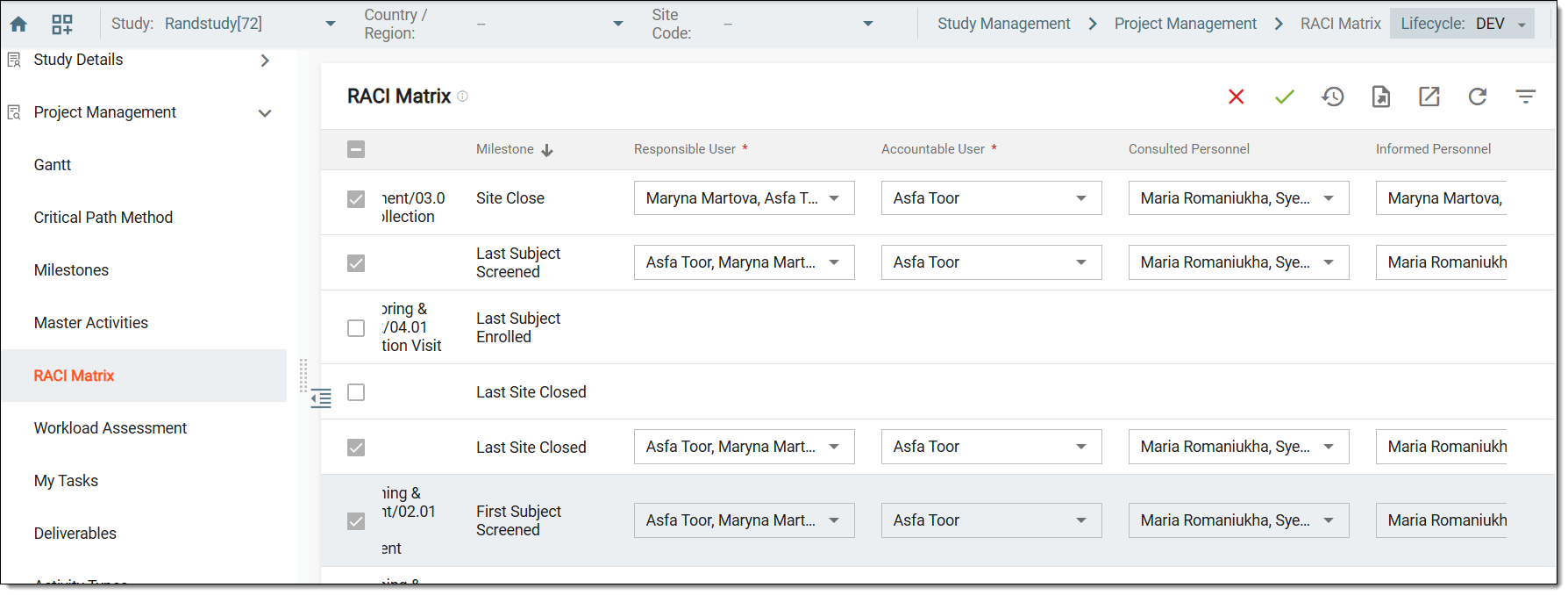 Figure 4. Filling RACI matrix
Important
Note that until you fill in the RACI matrix details for all the activities you have selected, the Save
option is not enabled.Also, you can select Close
 to quit the editing mode if
needed.
to quit the editing mode if
needed.
Once saved, the selected users are now responsible (R), accountable (A), can be consulted (C), and should be informed (I) about the progress of the activities.
Viewing the operation history of the RACI matrix provides a record of changes made to RACI role assignments—Responsible (R), Accountable (A), Consulted (C), and Informed (I). Tracking these changes ensures transparency, helps in auditing role updates, and maintains accountability within the study.
-
Access the study management page in one of the following ways:
-
In the CTMS application header, select the DASHBOARD tab and then select the study dashboard of your interest.
Figure 1. Accessing study management from dashboard
-
In the CTMS application header, select the STUDY MANAGEMENT tab. Then from the Study Data List table, select the study name of your interest.
Figure 2. Accessing study management from study data list
-
-
In the left pane, select Project Management > RACI Matrix.
-
In the RACI Matrix table, from the workspace toolbar, select Operation History
 .
.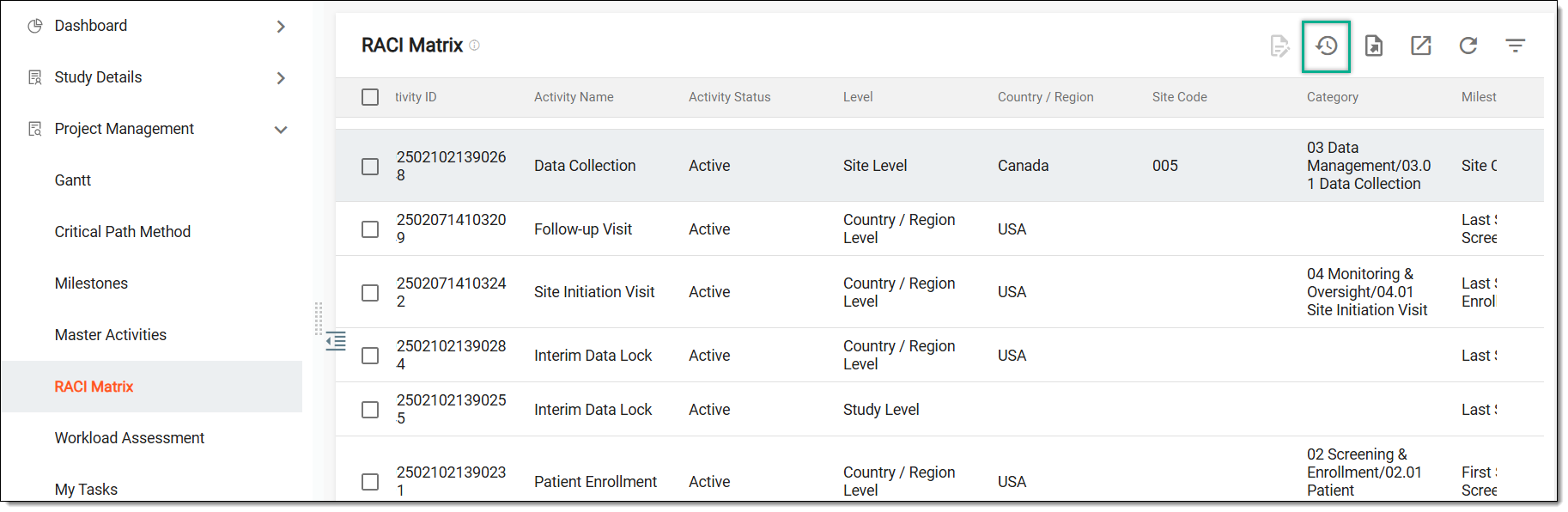 Figure 3. Accessing operation history of RACI matrix
-
In the Operation History dialog that opens, view the history of the users that have been assigned as responsible (R), accountable (A), can be consulted (C), and should be informed (I) about the progress of the activities.
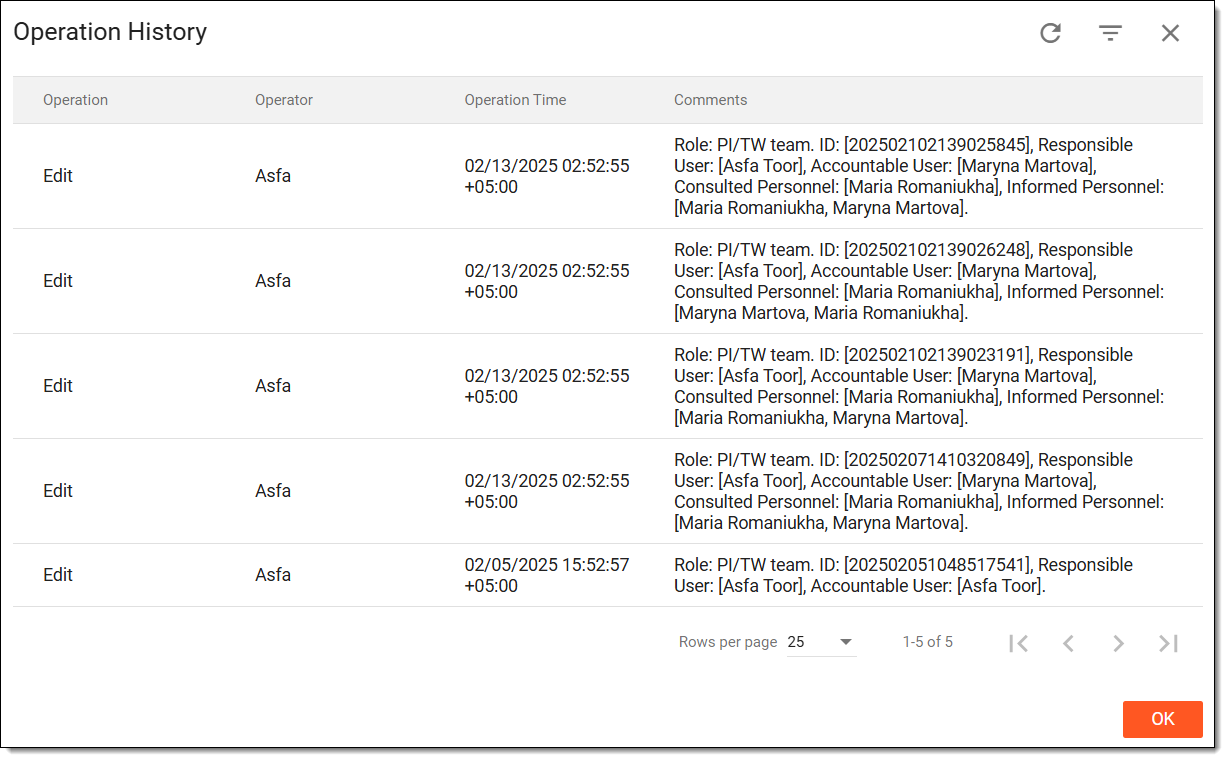 Figure 4. Viewing operation history of RACI matrix
Once viewed, select CLOSE to return to the RACI Matrix table.
Exporting the RACI matrix generates a structured report of role assignments for study activities and milestones. The export provides a detailed overview of Responsible (R), Accountable (A), Consulted (C), and Informed (I) roles, ensuring clear documentation for auditing, analysis, and external sharing.
-
Access the study management page in one of the following ways:
-
In the CTMS application header, select the DASHBOARD tab and then select the study dashboard of your interest.
Figure 1. Accessing study management from dashboard
-
In the CTMS application header, select the STUDY MANAGEMENT tab. Then from the Study Data List table, select the study name of your interest.
Figure 2. Accessing study management from study data list
-
-
In the left pane, select Project Management > RACI Matrix.
-
In the RACI Matrix table, from the workspace toolbar, select Export
 .Figure 3. Exporting RACI matrix
-
The downloads widget appears showing the export progress. Select the widget to access exported files.
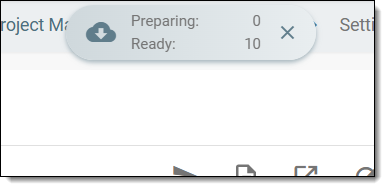 Figure 4. Downloads widget showing RACI matrix being exported
-
In the My Downloads dialog that appears, in the Download is Ready tab, select
 next to the required exported file.
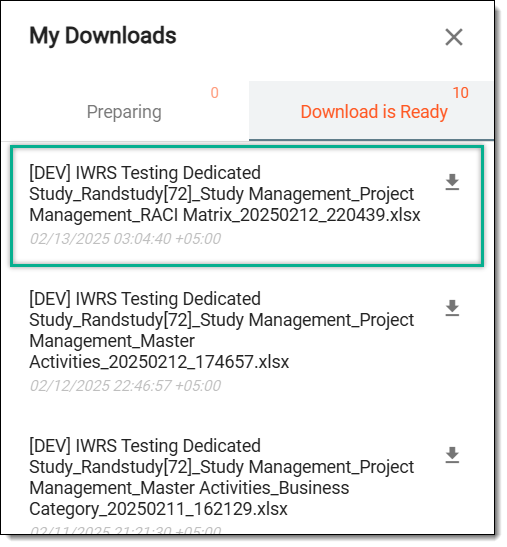 Figure 5. Downloading RACI matrix
Once selected, the RACI matrix is downloaded to your computer in XLSX format.