Set inventory check for visit
One of the dispensing visit configurations available in IWRS is setting the inventory checks to ensure that there are enough items in the site inventory to provide all the subjects at certain visits taking into account different patterns of subject randomization followed by the study.
The inventory check setting—as all the other dispensing visit configurations—is version-bound, meaning that once you implement a new setting, it is associated with the specific version and can be applied to the whole study or only certain sites or subjects. This helps maintain change history and satisfies international multisite studies, where different locations and subjects can follow their own dispensation settings.
-
In the IWRS application header, select the TREATMENT DESIGN tab.
-
From the left pane, select Visit Dispensing and Window.
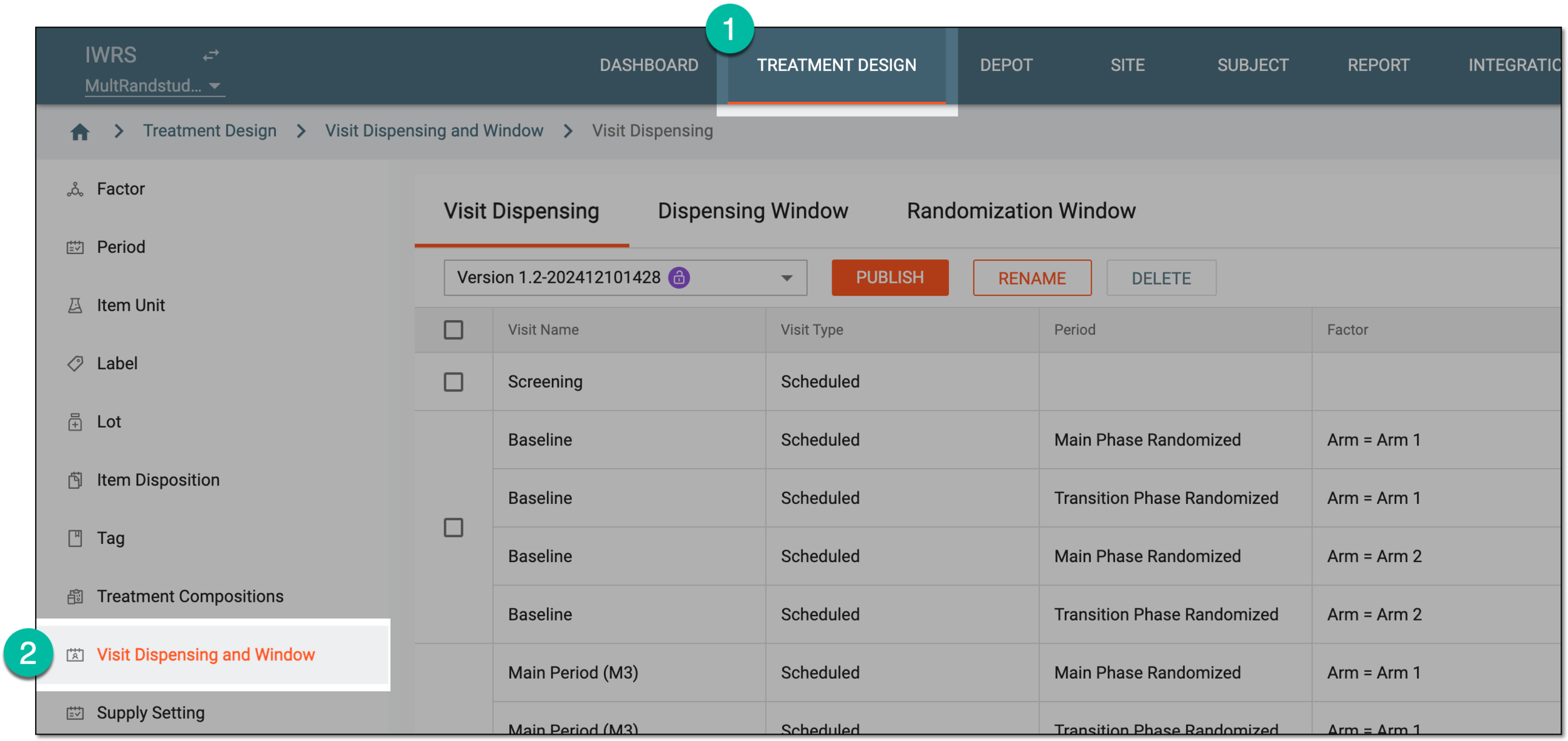 Figure 1. Accessing visit dispensing and window configuration
-
On the page that opens, from the version menu, ensure the unlocked version
 is selected, otherwise, you cannot amend any dispensing visit or window
configurations.
is selected, otherwise, you cannot amend any dispensing visit or window
configurations.If the current version is locked
 , consider adding a new dispensing visit setting version.
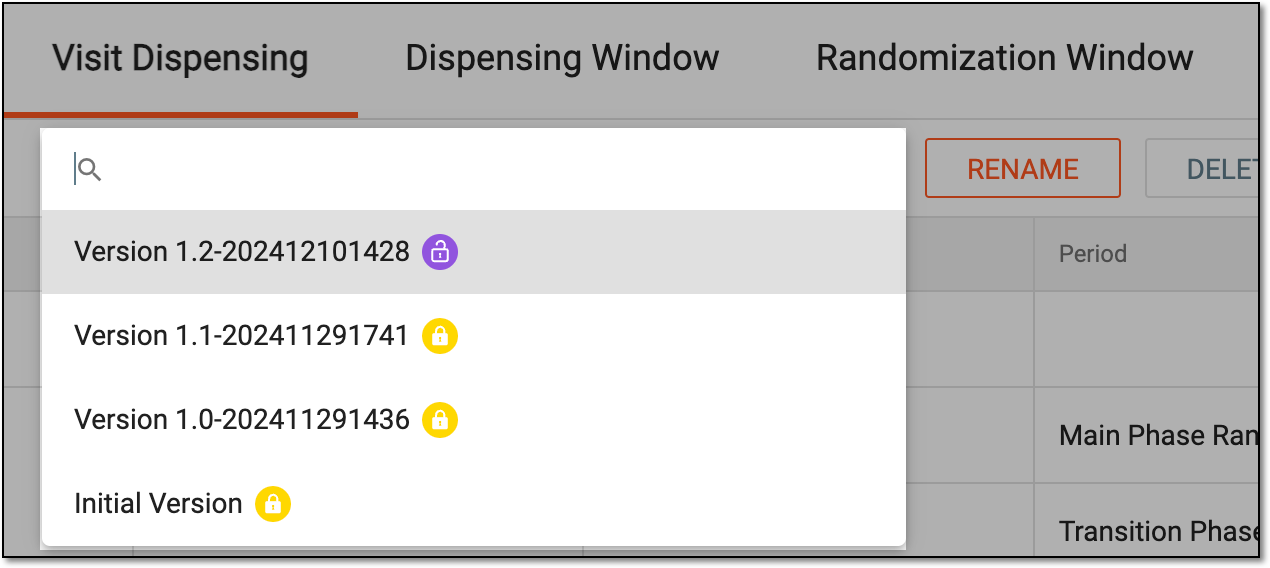 Figure 2. Selecting dispensing visit setting version
-
From the workspace toolbar, select Set Inventory Check
 .
.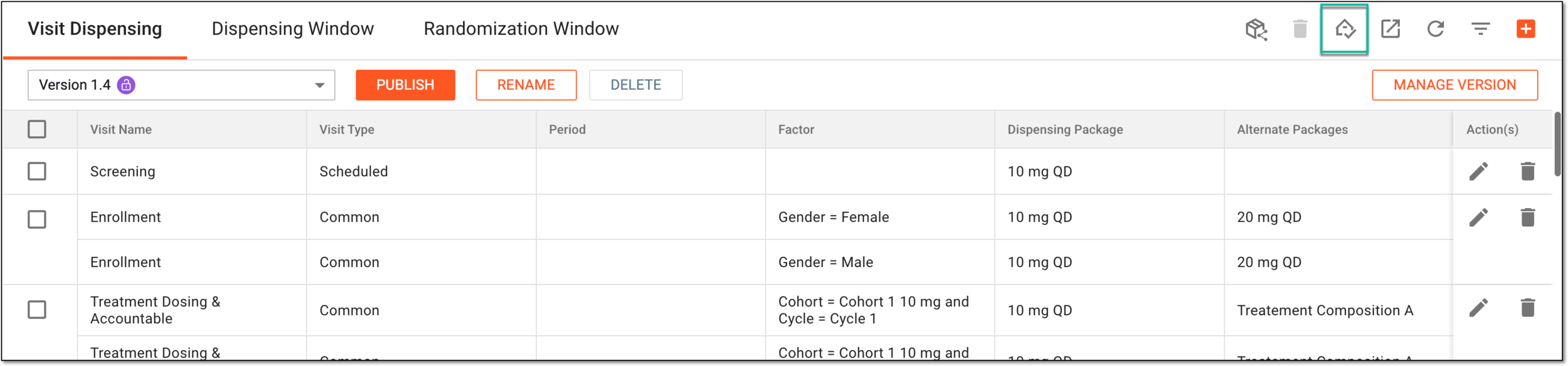 Figure 3. Accessing inventory check settings
-
In the Set Inventory Check dialog that opens, select the checkboxes next to the visits for which you want the system to perform the inventory check. Clear the checkboxes to remove the inventory check from the visits.
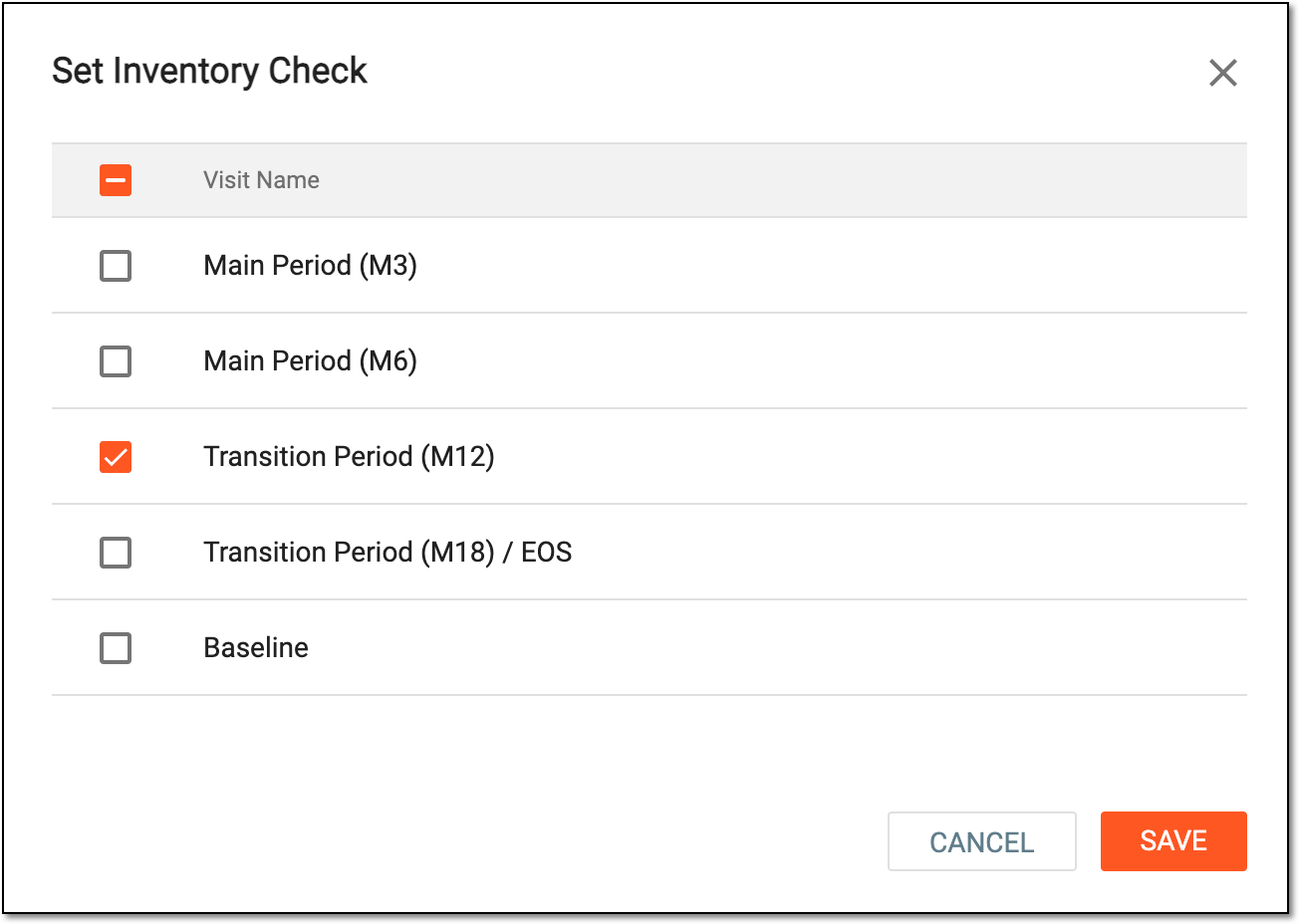 Figure 4. Setting inventory check for visit
Important
Only the visits with the arm selected as a factor are available for inventory check.
-
Select
 to apply the changes.
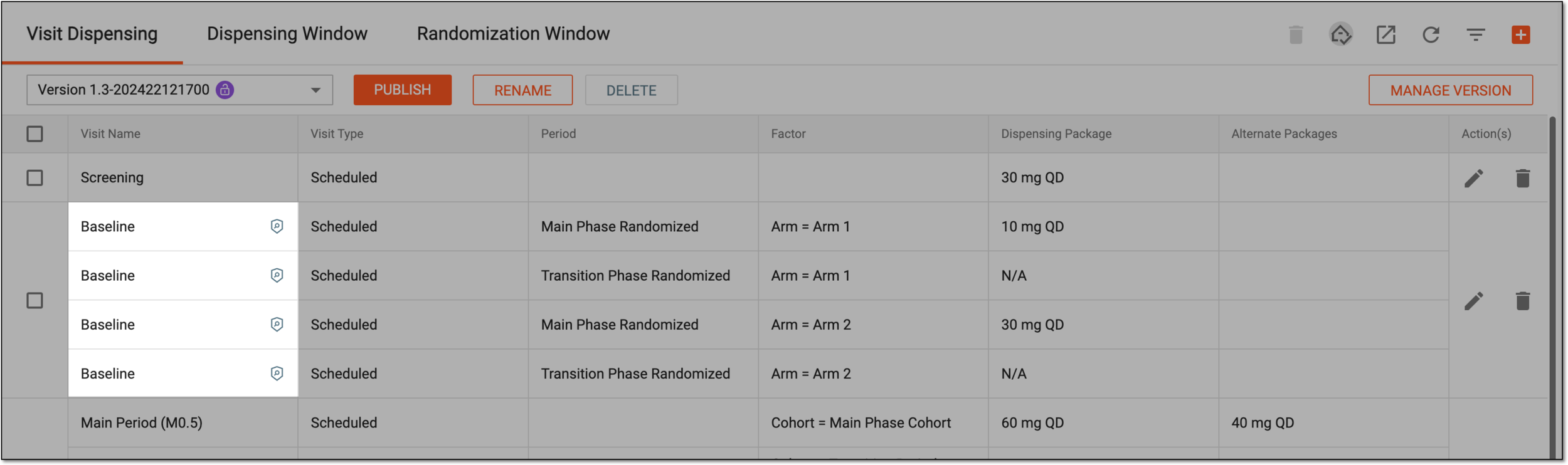
Upon saving, for the selected visits the system checks the inventory before performing randomization. In the Visit Dispensing table, the respective icon  is displayed next to the inventory check visits.