Export history for coding query reports
The Export History functionality provides a comprehensive record of previously exported coding query reports. This feature helps you track and review past exports, ensuring transparency and accountability in managing coding queries. By accessing the export history, you can easily identify who performed the export, when it was completed, and the specific details of the exported report.
This functionality is particularly useful for auditing purposes, collaboration, and maintaining an organized record of coding query management activities. It ensures that all exported reports are documented, facilitating better traceability and efficient follow-up actions.
-
In the Medical Coding application header, select the REPORTS tab.
 Figure 1. Accessing reporting functionality
-
On the page that opens, in the left pane, select Coding Query Report.
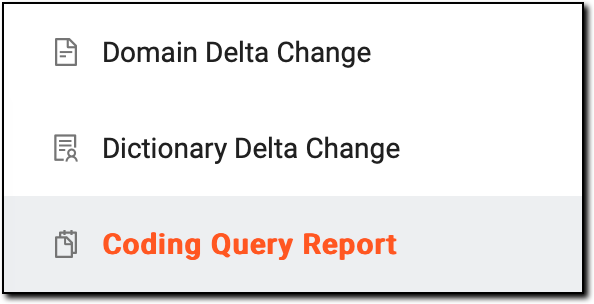 Figure 2. Accessing coding query reporting functionality
-
On the Coding Query Report page that appears, in the upper-right corner, select Export History
 .
.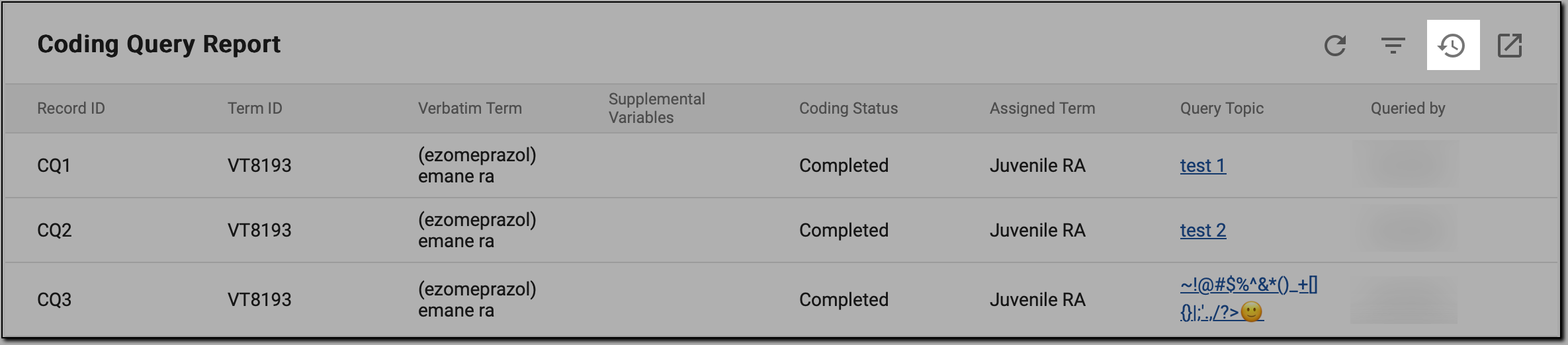 Figure 3. Initiating history exporting
-
In the Export History dialog that opens, view the history of exports as explained in the following table.
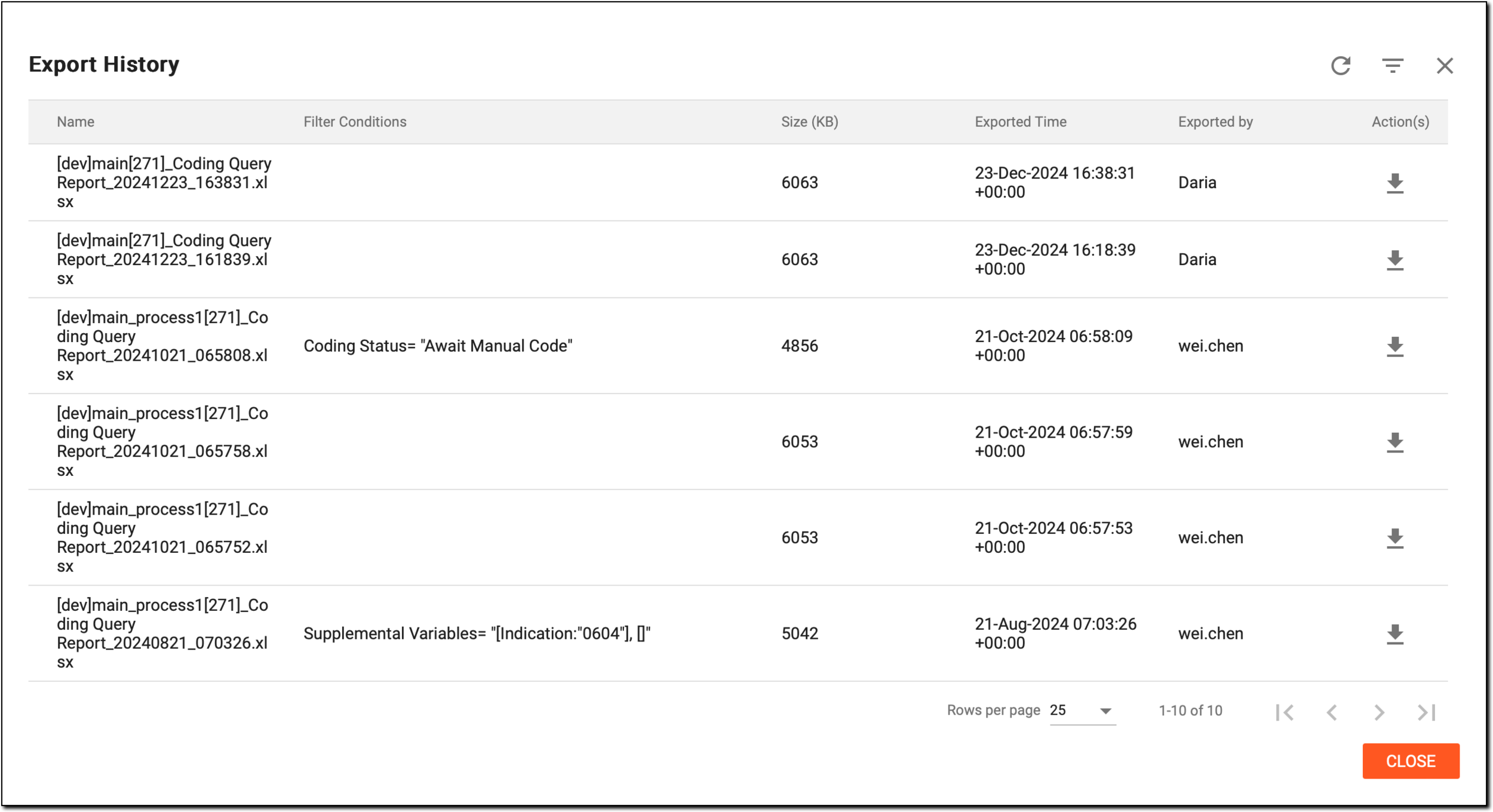 Figure 4. Viewing exporting history of coding query reports
Column
Details
Name
Displays the name of the exported report, typically indicating the type of report and relevant details to help identify its content.
Filter Conditions
Displays the name of the exported report, typically indicating the type of report and relevant details to help identify its content.
Size (KB)
Indicates the size of the exported report file in kilobytes, providing insight into the data volume included in the export.
Exported Time
Records the exact date and time when the report was exported, helping you track the timing of export activities.
Exported by
Identifies the user who performed the export, ensuring accountability and traceability for report generation.
-
If needed, next to the report of your interest, select Download
 to download the report in an XLSX format for offline review
and analysis. Then, follow the prompts of your computer to download and save the selected report.
to download the report in an XLSX format for offline review
and analysis. Then, follow the prompts of your computer to download and save the selected report.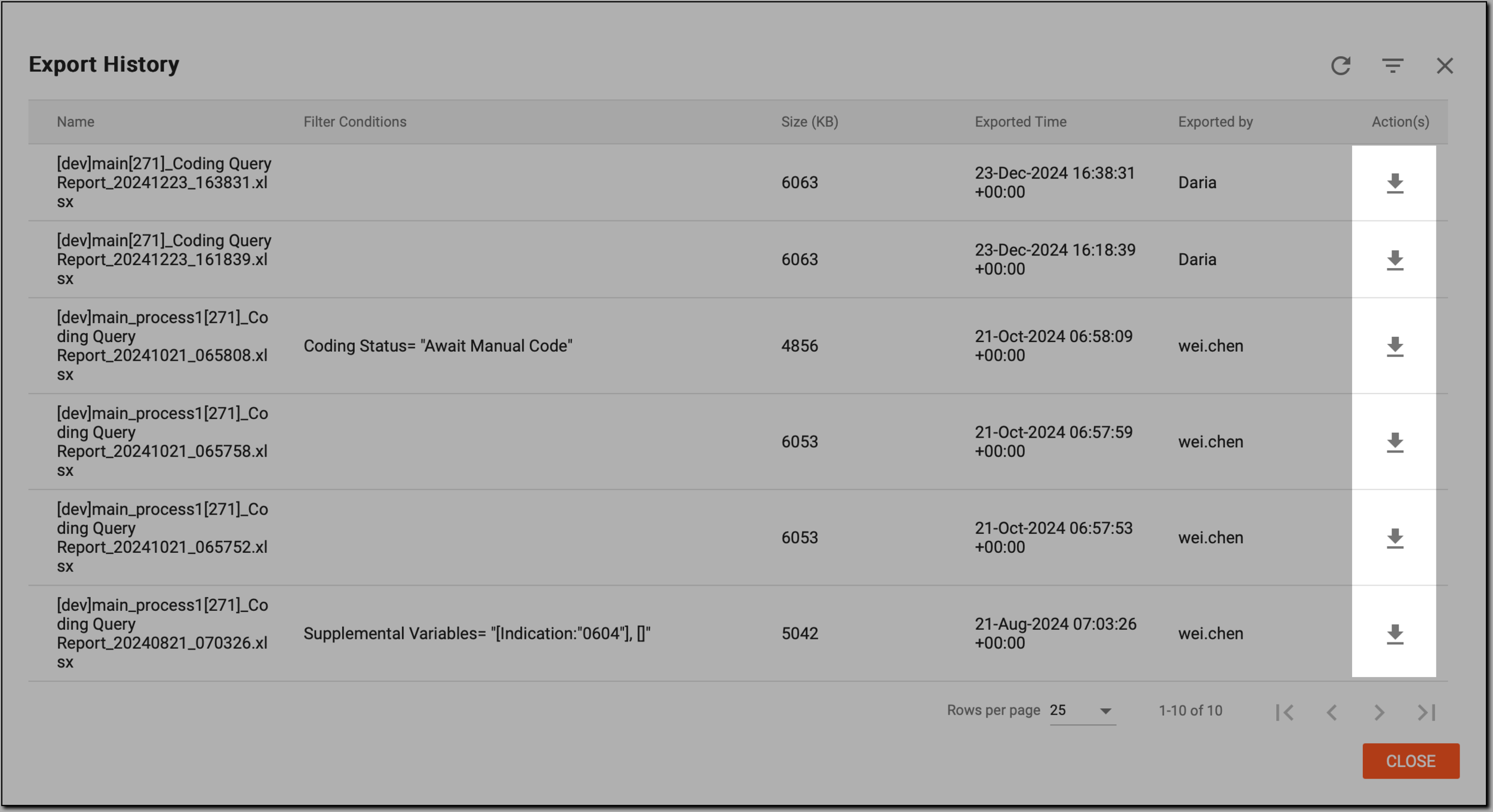 Figure 5. Downloading coding query report
-
Once done, in the Export History dialog, select
 to close the dialog.
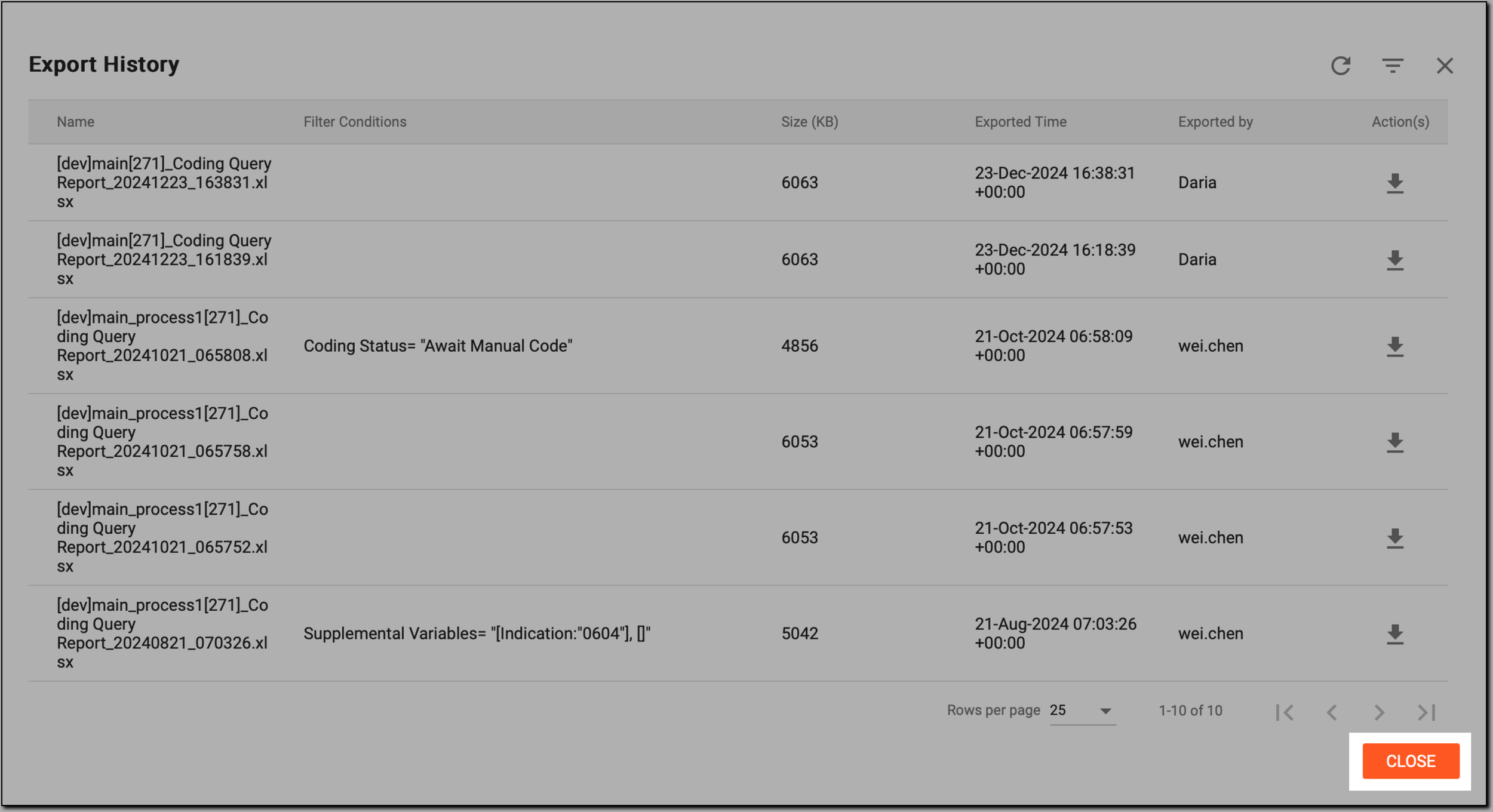 Figure 6. Closing export history
Now, with the details of coding query reports being reviewed, you can track and manage the coding query reports efficiently.