Restore deleted VTs
In the Medical Coding module, deleted verbatim terms (VTs) can be restored if they were removed by mistake or require further review before finalizing. The Restore feature helps you recover these terms, ensuring that essential data is not lost and that each term receives appropriate review and coding.
-
In the Medical Coding application header, select the CODING tab.
 Figure 1. Accessing coding functionality
-
On the VT List page that opens, in the workspace toolbar, select Delete VTs
 .
.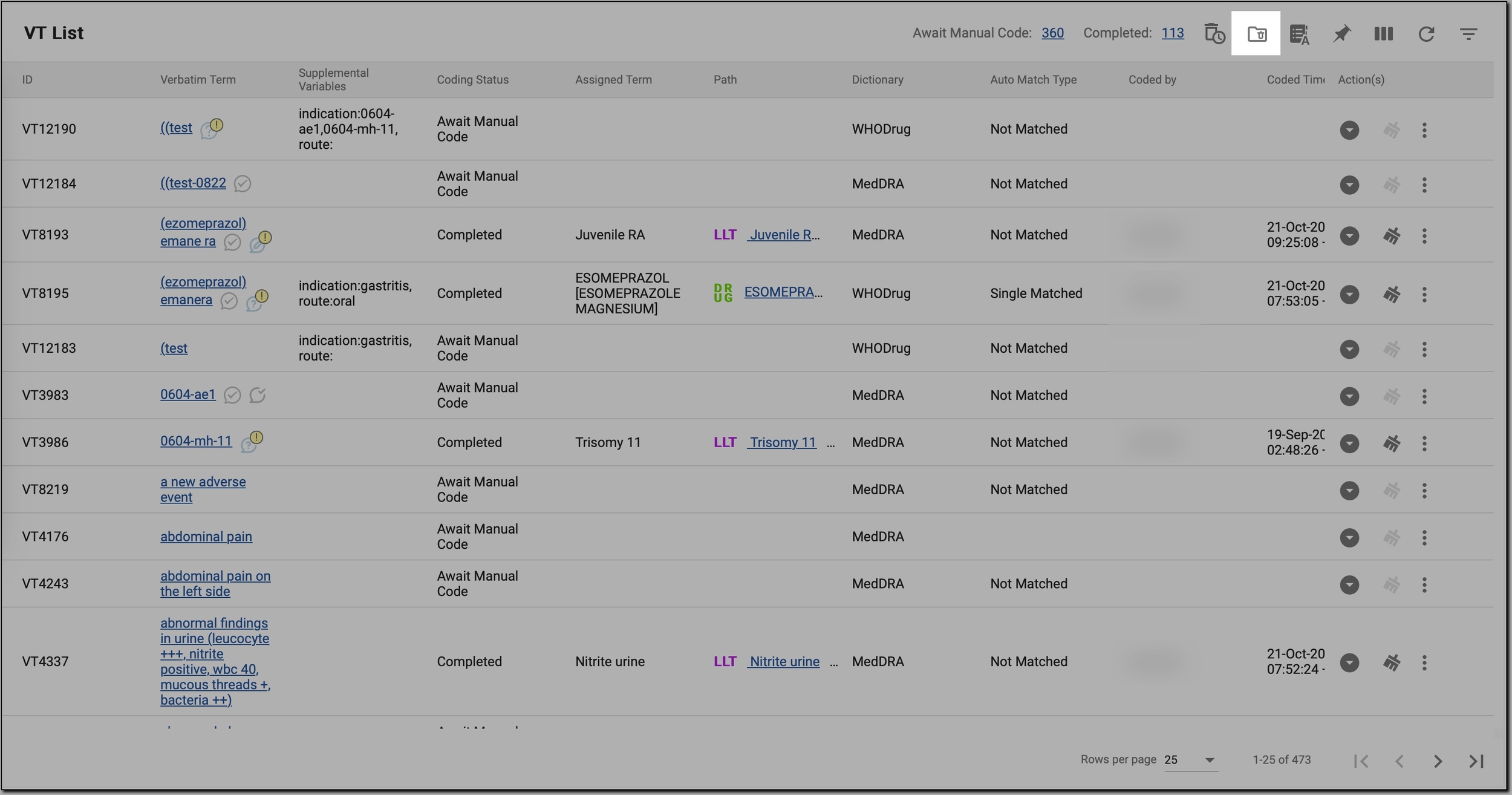 Figure 2. Accessing deleted VTs
-
On the VT List page that opens, in the table, select the checkboxes next to the VTs that you want to restore.
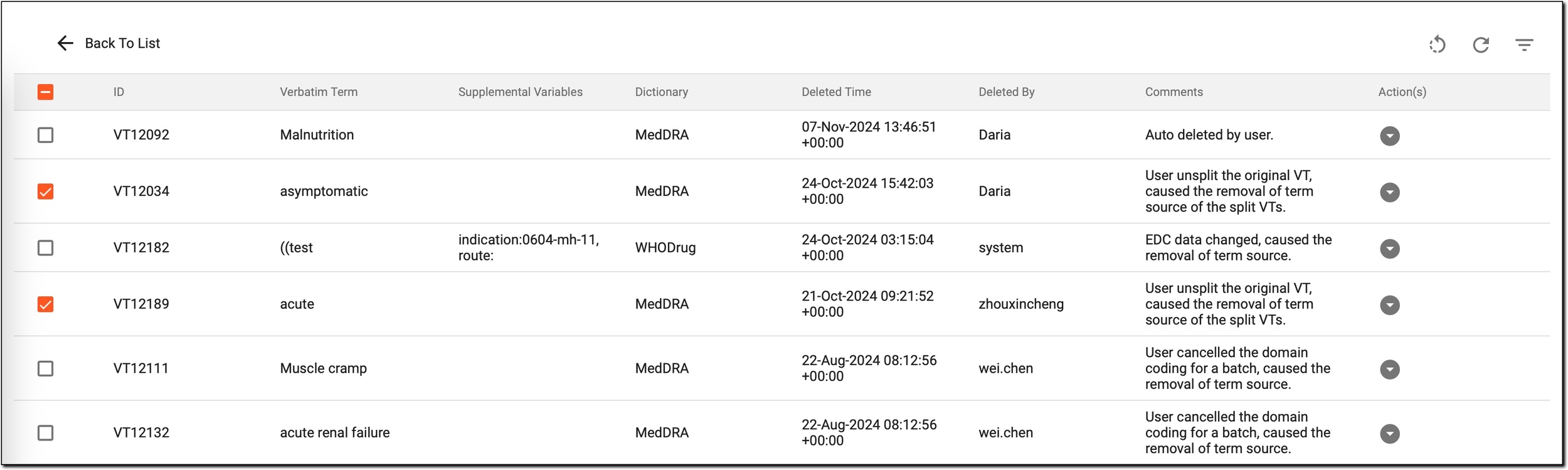 Figure 3. Selecting VTs to restore
-
If all VTs need to be selected for restoration, in the upper left corner, select the topmost checkbox. This automatically selects all entries, reducing the need for manual intrusion and saving time.
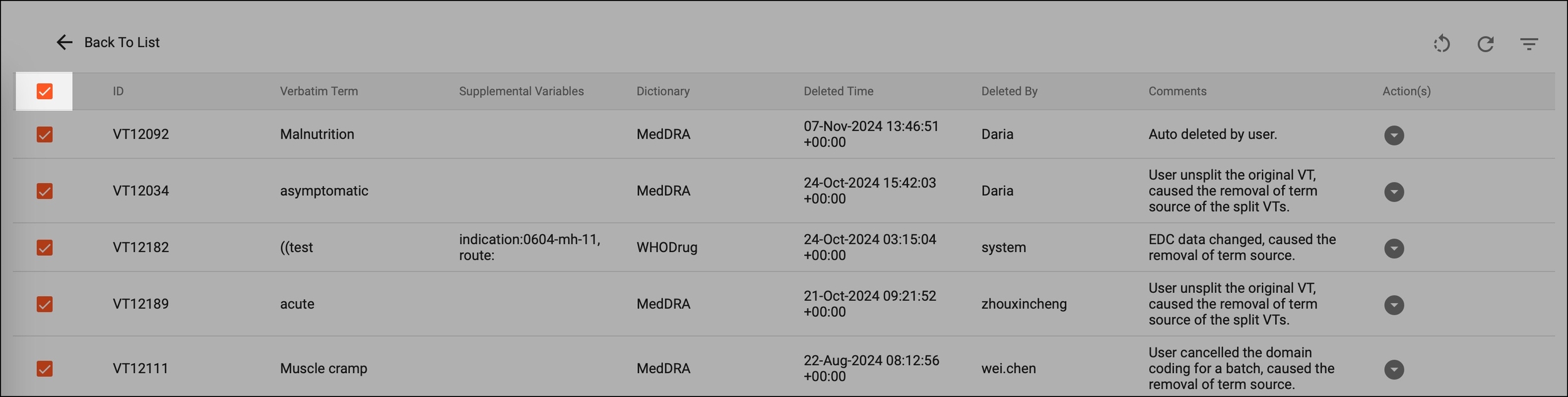 Figure 4. Selecting all VTs at once
-
In the upper-right corner, in the workspace toolbar, select Restore
 .
.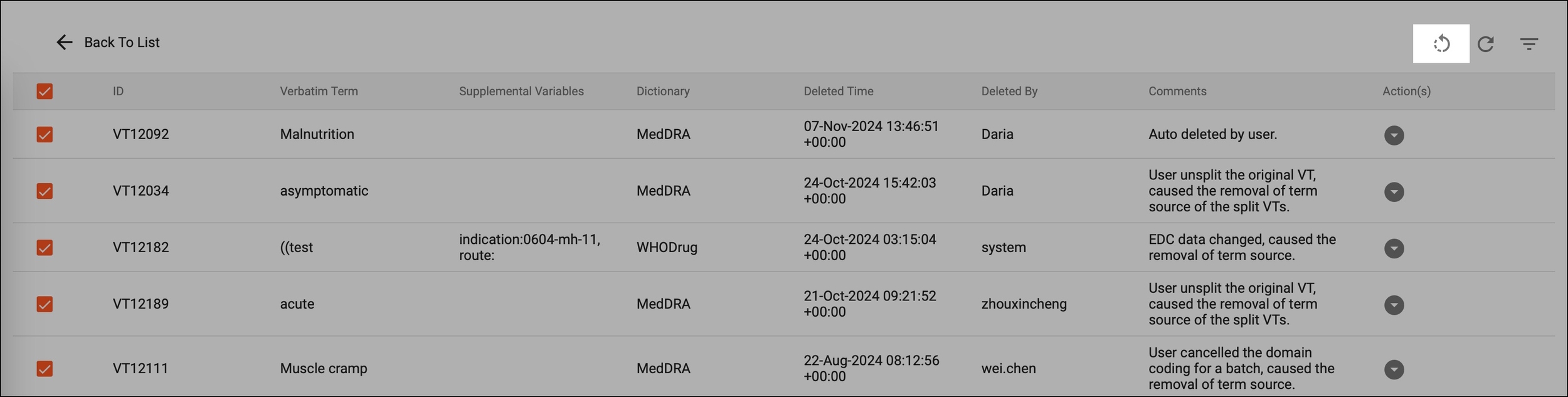 Figure 5. Restoring VTs
-
In the confirmation dialog that appears, select
 to confirm your decision.
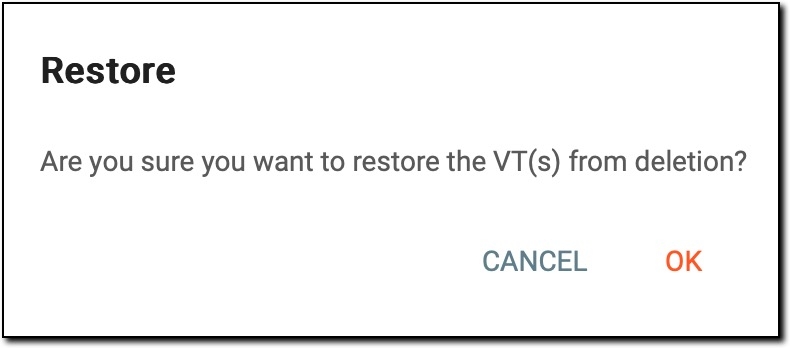 Figure 6. Confirming VTs restoration
Once completed, the VTs are restored to their previous state, making them available for further review, reassignment, or coding as needed. This ensures that all selected terms are reactivated in the coding process.