Update test case version number
In EDC, you can generate and run testing cases for your configured CRF versions in the test—UAT—lifecycle before pushing the newest version and initiating actual data entry in the production—PROD—lifecycle. This helps you review and verify if the CRF logic is working correctly to prepare the fault-free version and avoid situations of broken logic only outing when the actual data entry starts.
If needed, you can update the test case version number specified upon its generation. This might be helpful if you need to adjust the versioning to your changing study requirements.
-
In the EDC application header, select the STUDY INFO tab.
-
On the page that opens, in the left pane, select CRF Version > Edit Check Testing Case.
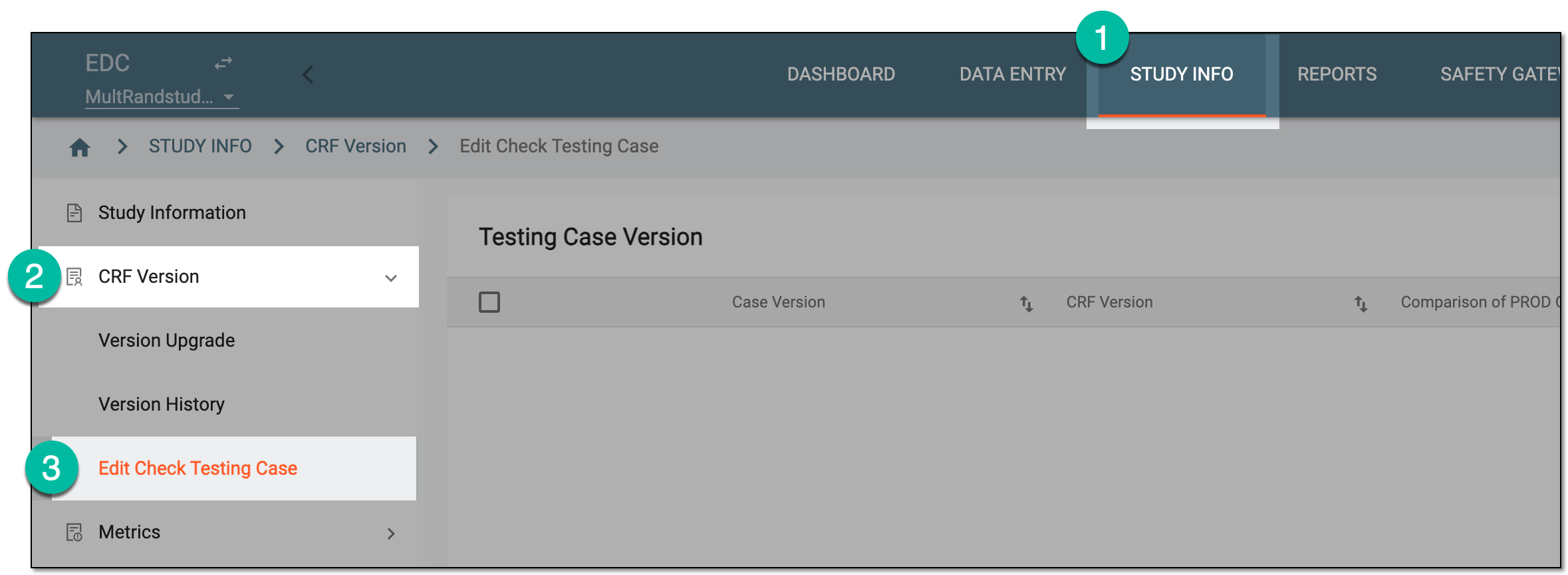 Figure 1. Accessing edit check testing
-
On the Testing Case Version page that opens, locate the test case version whose number you want to update. Then from the Action column, select Edit
 .
. Figure 2. Accessing test case version number edits
-
In the Edit Case Version dialog that appears, update the case version as explained in the following table.
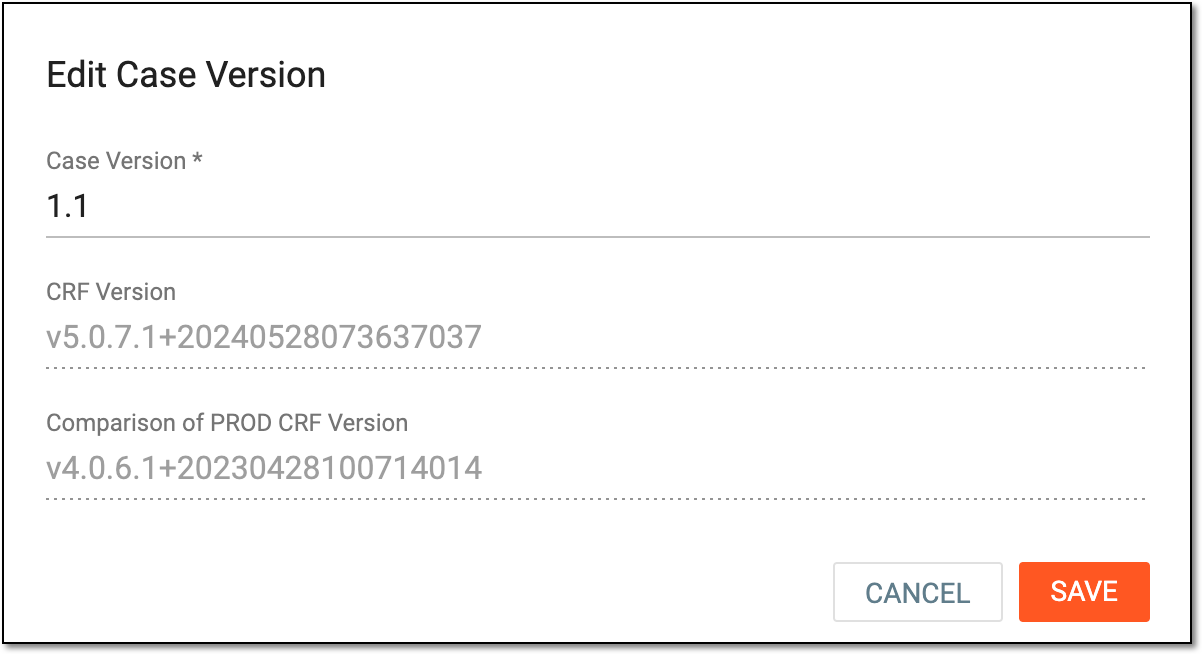 Figure 3. Updating testing case version
Tip
In the following table, mandatory elements are marked with an asterisk (*).
Element
Details
Case Version*
Update the testing case version number. Keeping track of versioning helps you differentiate between various test cases generated for the site and distinguish the ones that were more or less successful.
CRF Version
Represents the read-only unique identifier of the latest CRF version for which you generate the testing case to compare its efficiency to the currently effective CRF version in the production (PROD) environment.
Comparison of PROD CRF Version
Represents the read-only unique identifier of the currently effective CRF version in the production (PROD) environment to which the latest CRF version will be compared with this testing case.
SAVE
Select
 to implement the changes.
CANCEL
Select
 to discard the changes without saving, close the dialog, and return to the Testing Case
Version page.
to discard the changes without saving, close the dialog, and return to the Testing Case
Version page.
Once saved, the test case version number is updated.