View reference items for email template
Maintaining email templates facilitates user interaction with EDC for workflow setting, as instead of setting up the email configurations each time you create a workflow, you create versatile email templates for different scenarios. Then, when configuring various workflow stages, you can select one of the preconfigured templates.
Since one email template can be used in various workflows, it becomes handy to check the references for all use cases in one place.
For instance, before inactivating a template that you consider irrelevant, you can check whether it is used somewhere where it is still needed, thus, preventing you from amending or inactivating the template and interrupting the associated system processes.
-
In the EDC application header, select the STUDY INFO tab.
-
On the page that opens, from the left pane, select Workflow > Email Template.
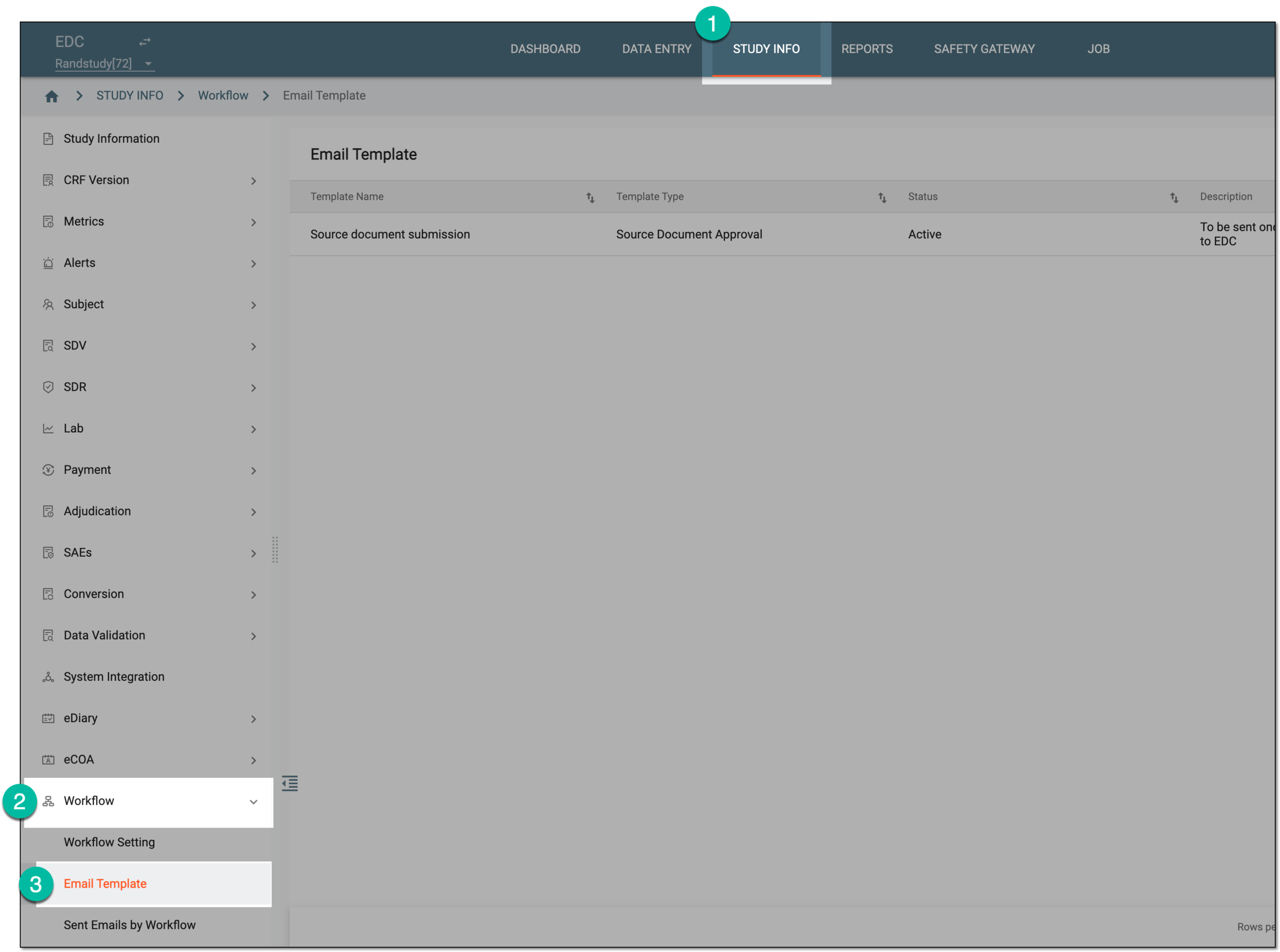 Figure 1. Accessing email template list
-
In the Email Template list that appears, locate the template for which you want to view the list of references. Then in the Actions column, select Reference Item (s)
 .
. Figure 2. Accessing email template reference items
-
In the Reference Item (s) dialog that opens, review the path to the modules and the items (workflows) where the email template is used.
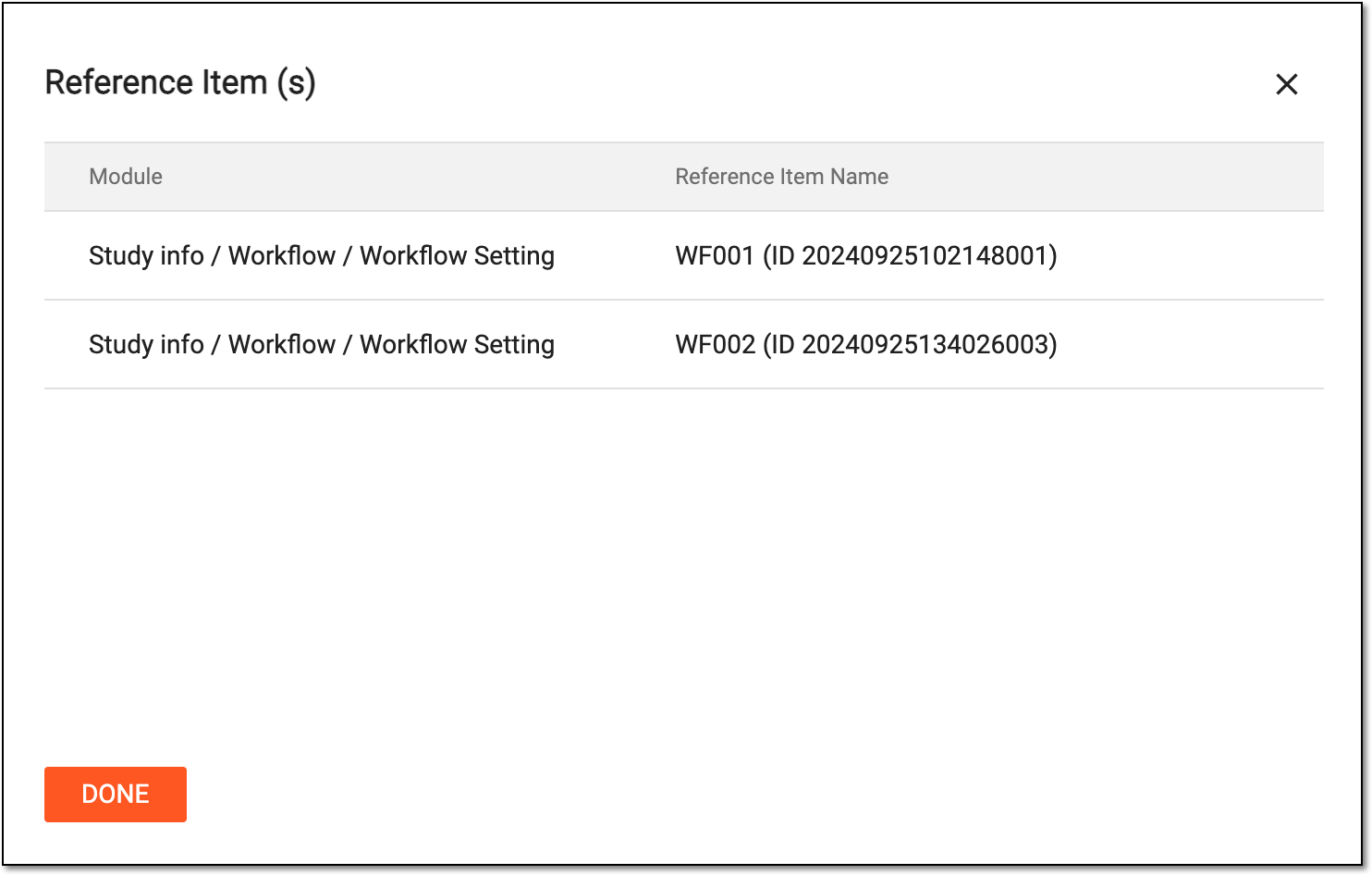 Figure 3. Viewing reference item list
-
Select
 to close the dialog.
You have reviewed the complete list of references for the email template. Once the dialog closes, you return to the email template list.