Activate/Inactivate email template
Maintaining email templates facilitates user interaction with EDC for workflow setting, as instead of setting up the email configurations each time you create a workflow, you configure versatile email templates for different scenarios. Then, when configuring various workflow stages, you can select one of the preconfigured templates.
However, during your clinical trial, some of the previously added email templates can become irrelevant to your changing business needs. In such a scenario, you can inactivate the template that is no longer needed and make it unavailable for selection upon workflow creation.
Inactive templates can be activated again if they become relevant again, or you can permanently delete the inactive template from the system.
-
In the EDC application header, select the STUDY INFO tab.
-
On the page that opens, from the left pane, select Workflow > Email Template.
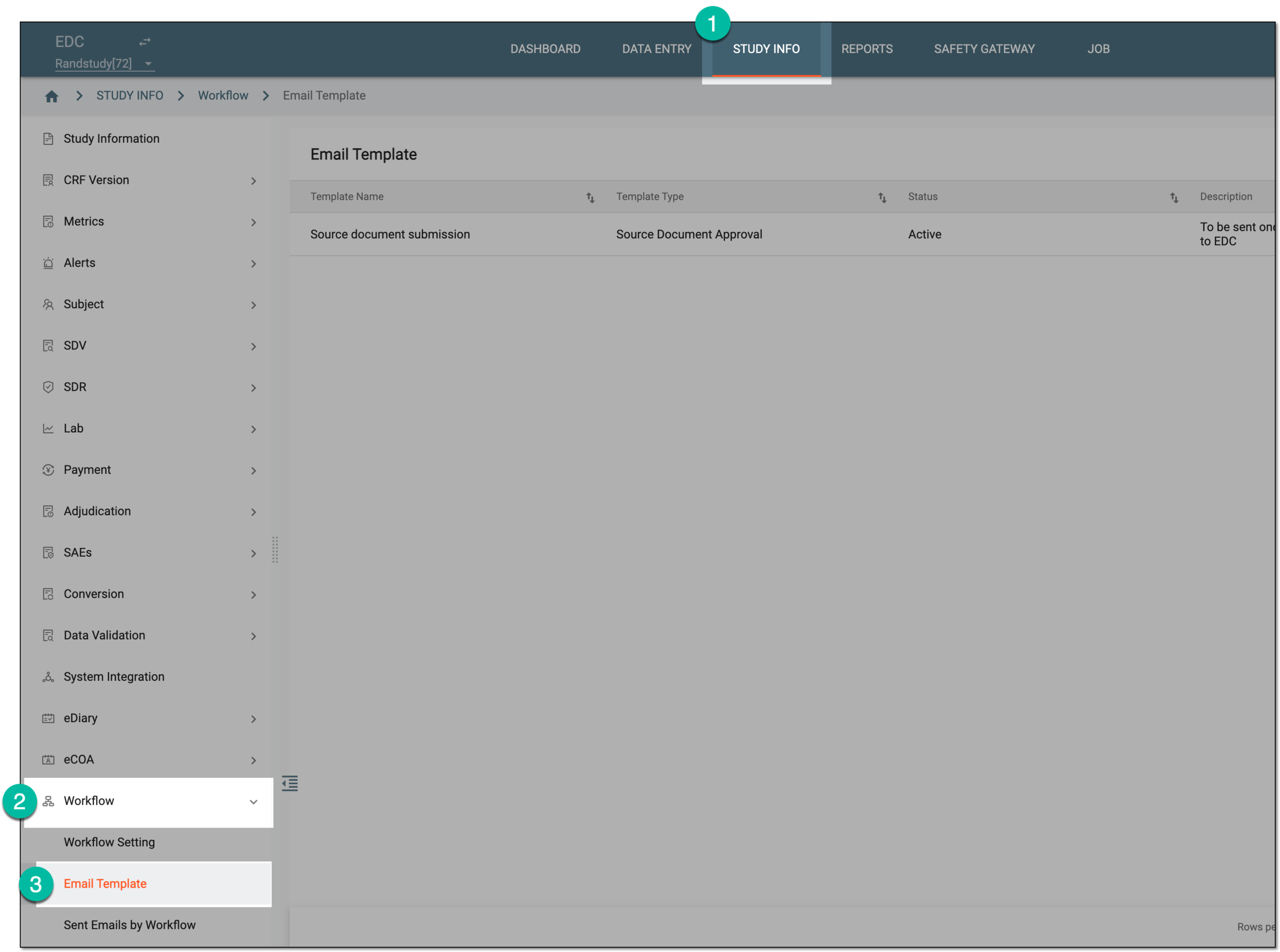 Figure 1. Accessing email template list
-
In the Email Template list that appears, locate the template that you want to activate or inactivate. Then from the Actions column, select Activate
 or Inactivate
  respectively.
 Figure 2. Activating or inactivating email template
-
In the Reason dialog that appears, provide the reason for template activation or inactivation and select
 .
.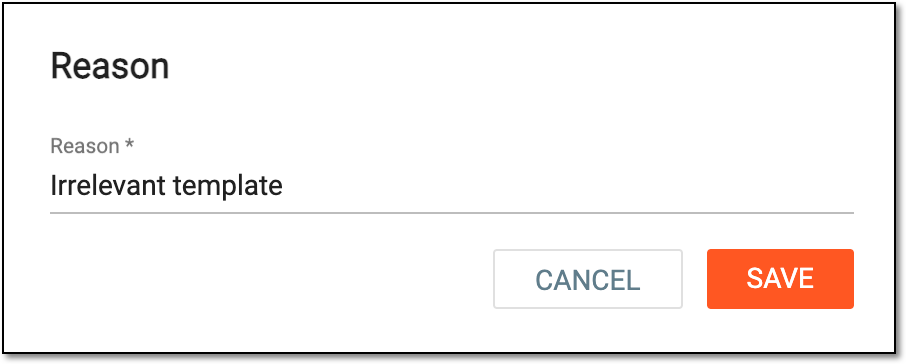 Figure 3. Providing template inactivation reason
Once saved, the email template is activated or inactivated based on your performed action. The active template can be used when creating workflows in EDC. Inactive templates can only be accessed from the Email Template list and cannot be used in workflows.